
Excel’s COS function returns the cosine of an angle in radians.
In a right triangle, cosine is the adjacent side divided by the hypotenuse. You can use that relationship to calculate a horizontal length or a component of force.
Convert angles measured in degrees with RADIANS before passing them to COS.
In this article, I’ll show you how to calculate distances and force components, work with angles in degrees, and estimate real power from power factor.
COS Function Syntax in Excel
The COS function takes an angle in radians and returns its cosine.
=COS(number)
- number (required) is the angle in radians for which you want the cosine.
When to Use COS Function
- Calculate the cosine of one angle or a range of angles.
- Find the adjacent side when you know an angle and the hypotenuse.
- Project a force onto the direction in which it does useful work.
- Calculate power factor and real power from a phase angle.
- Create comparison-safe cosine values by rounding tiny floating-point residues.
Example 1: Calculate Cosine for Angles in Degrees
Let’s start with a simple angle table.
Below is the dataset. Column A lists eight angles measured in degrees.
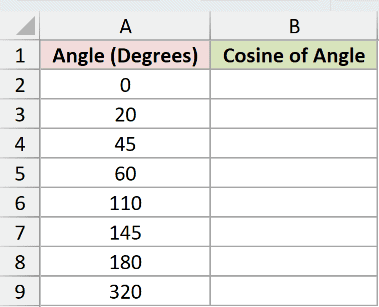
We want one formula to calculate the cosine for every angle.
Here is the formula:
=COS(RADIANS(A2:A9))
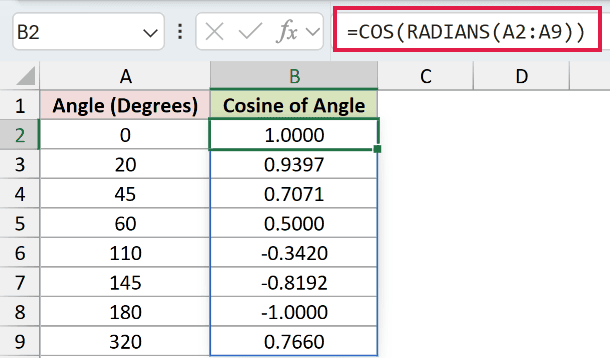
RADIANS converts each degree value before COS evaluates it. The single formula in B2 spills through B9.
The 0 degree row returns 1.0000, 45 degrees returns 0.7071, and 180 degrees returns exactly -1.0000.
Results become negative for the 110, 145, and 180 degree rows, then turn positive again at 320 degrees.
Pro Tip: =COS(30) treats 30 as radians, not degrees. In inherited workbooks, you may also see the longer conversion =COS(A2:A9*PI()/180).
Example 2: Find Ladder Base Distance With COS
Here’s a practical projection using ladder measurements.
Below is the dataset. Column A identifies each setup, column B lists ladder length, and column C contains the angle to the ground.
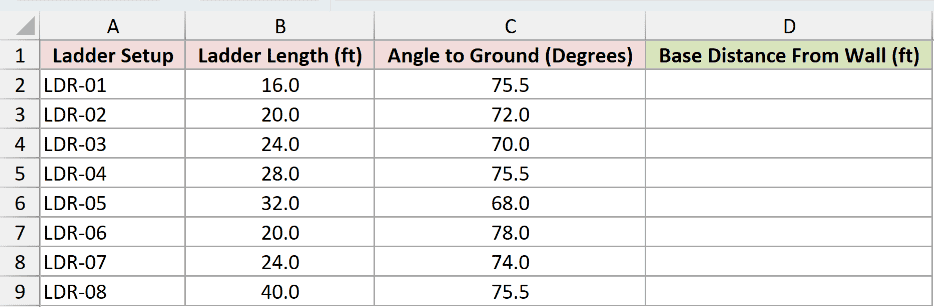
We want to calculate how far each ladder’s base sits from the wall.
Here is the formula:
=B2:B9*COS(RADIANS(C2:C9))
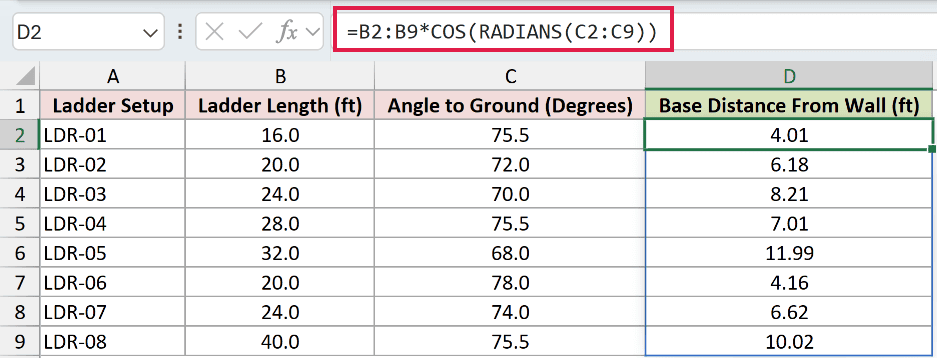
The ladder length is the hypotenuse. Multiplying it by the cosine of the ground angle returns the adjacent side, which is the base distance.
LDR-01 uses a 16.0-foot ladder at 75.5 degrees and returns 4.01 feet. LDR-08 uses 40.0 feet at the same angle and returns 10.02 feet.
Example 3: Project Pulling Force With COS
Now let’s apply the same projection to a pulling force.
Below is the dataset. Column A identifies each pull, column B lists rope force, and column C gives the rope angle above the floor.
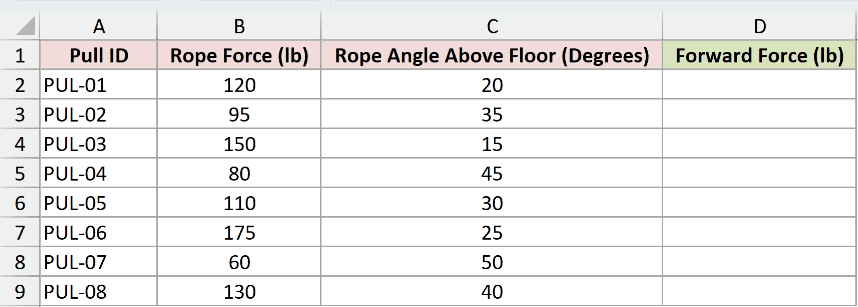
We want the part of each rope force that moves the load forward.
Here is the formula:
=B2:B9*COS(RADIANS(C2:C9))
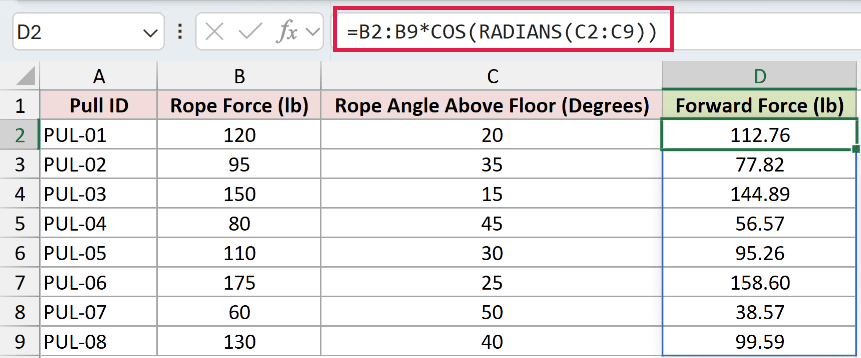
COS turns the rope angle into a projection factor. Multiplying that factor by the total pull returns the forward force.
PUL-06 applies 175 pounds at 25 degrees and produces 158.60 pounds forward. PUL-07 applies 60 pounds at 50 degrees and produces 38.57 pounds.
Each pull keeps a fraction of its own rope force equal to the cosine of its angle. The steeper angle keeps the smaller fraction.
Example 4: Compare Rounded COS Results to Zero
Here’s why a cosine that should be zero may fail an equality test.
Below is the dataset. Column A contains the five quarter-turn angles from 0 through 360 degrees.
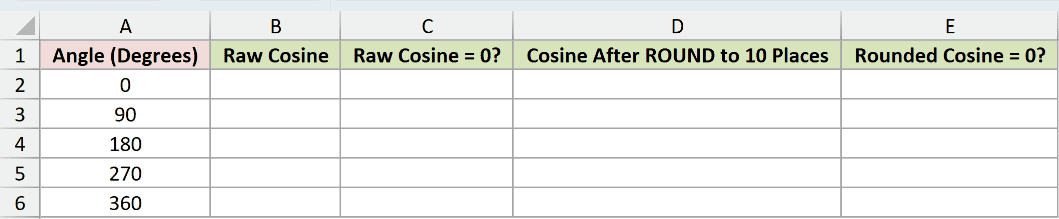
We first want to calculate the raw cosine values.
Here is the formula:
=COS(RADIANS(A2:A6))
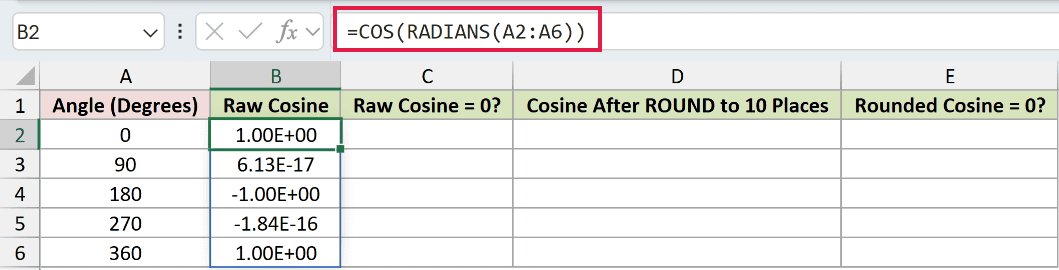
At 90 degrees, Excel displays 6.13E-17. At 270 degrees, it displays -1.84E-16. These tiny values are close to zero, but not equal to zero.
The 180 degree row displays -1.00E+00, which is exactly -1.
Next, we want to see what a direct comparison with zero returns.
Here is the raw equality test:
=B2:B6=0
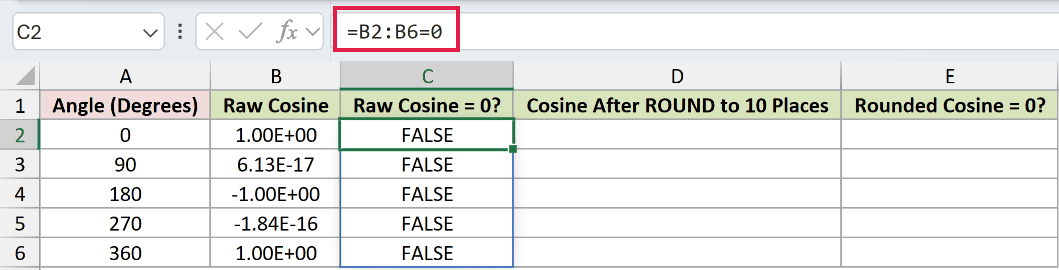
The test returns FALSE for all five rows. At 90 and 270 degrees, the tiny stored residues cause the unexpected FALSE results.
To make the intended precision explicit, we can round the raw values to 10 decimal places.
Here is the rounding formula:
=ROUND(B2:B6,10)
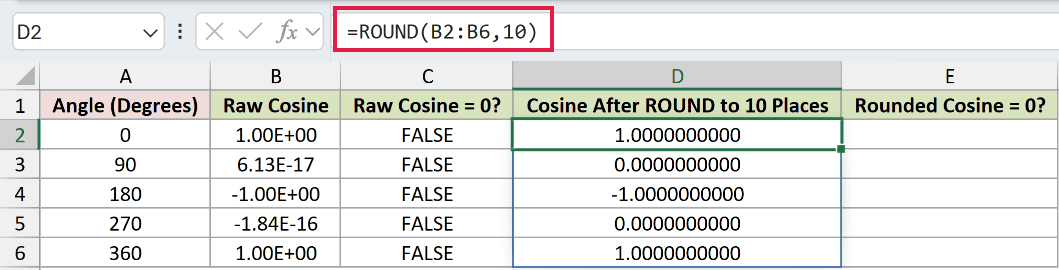
The rounded 90 and 270 degree values both display 0.0000000000. The values at 0, 180, and 360 degrees remain 1.0000000000, -1.0000000000, and 1.0000000000.
Now we can compare those rounded results with zero.
Here is the rounded equality test:
=D2:D6=0
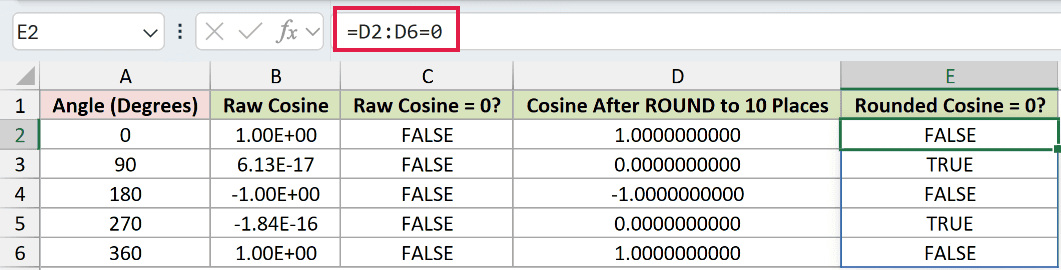
The rounded test returns TRUE at 90 and 270 degrees. It returns FALSE for the other three angles.
This is a normal consequence of binary floating-point calculations, not an Excel bug. RADIANS cannot store the mathematical value of pi with infinite precision.
Pro Tip: For a tolerance-based cleanup, use =IF(ABS(B2)<1E-10,0,B2). Avoid Set precision as displayed because that workbook option permanently changes stored values.
Example 5: Calculate Power Factor and Real Power
Finally, let’s use COS with electrical phase angles.
Below is the dataset. Column A identifies each feeder, column B lists apparent power, and column C contains the phase angle.
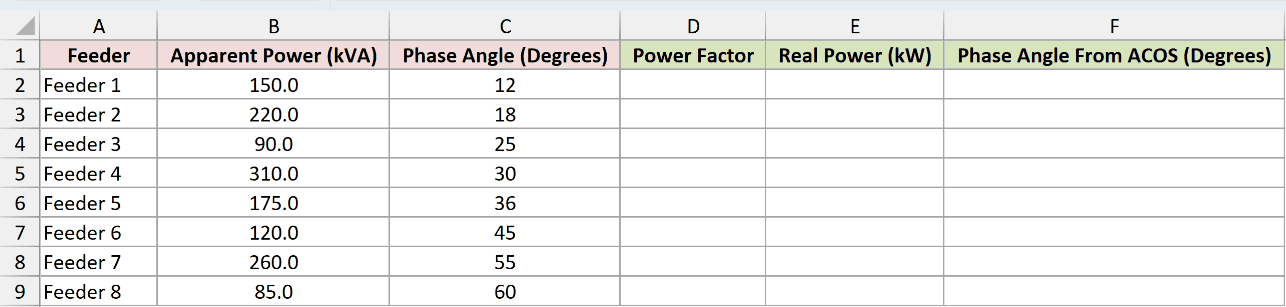
We first want to calculate the power factor for every feeder.
Here is the formula:
=COS(RADIANS(C2:C9))
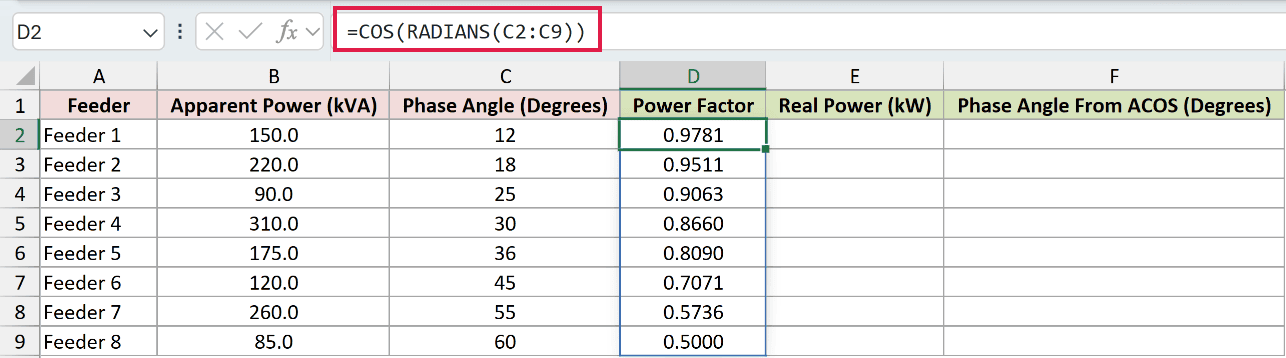
The phase angle becomes a projection factor between -1 and 1. Feeder 1 returns 0.9781, while Feeder 8 returns 0.5000.
Next, we want to apply each power factor to the apparent power.
Here is the real-power formula:
=B2:B9*COS(RADIANS(C2:C9))
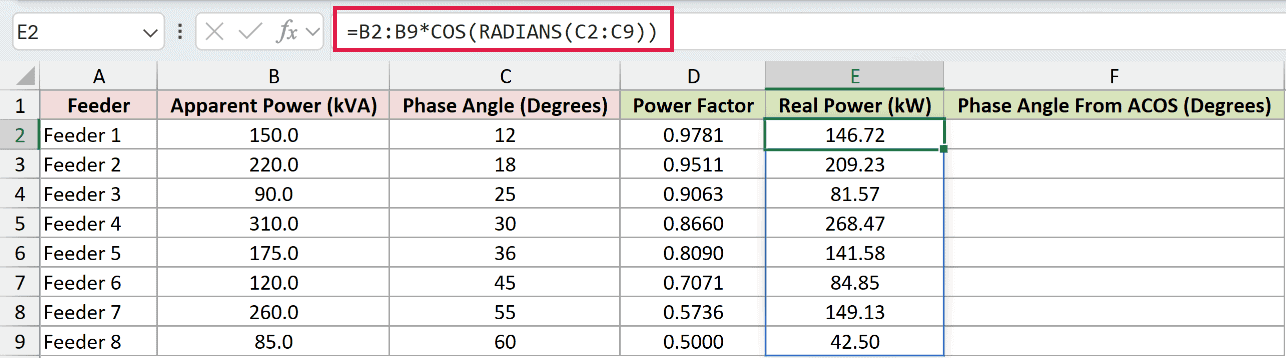
Feeder 1 turns 150.0 kVA into 146.72 kW. Feeder 8 turns 85.0 kVA into 42.50 kW.
Column D shows the cosine-based factor, while column E applies that same factor to apparent power.
We can also use ACOS to recover the angle from each power factor.
Here is the inverse formula:
=DEGREES(ACOS(D2:D9))
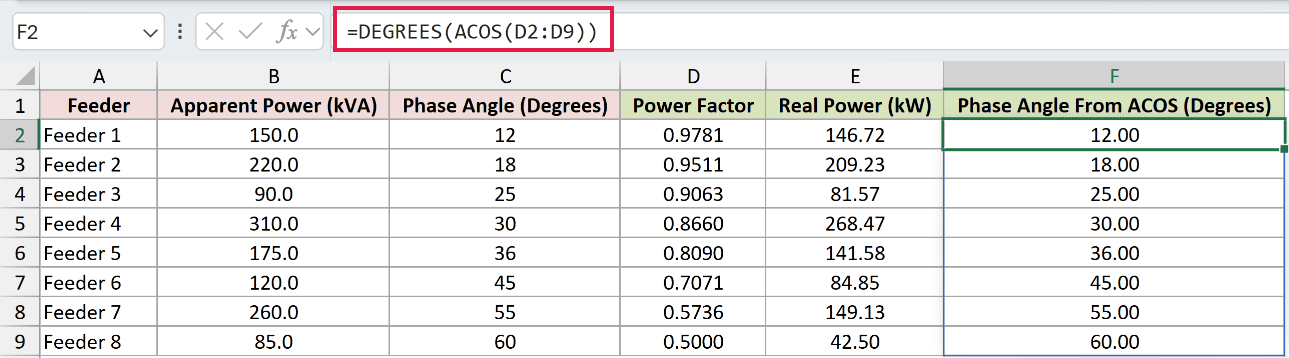
ACOS returns radians, so DEGREES converts them back. The results display 12.00 degrees for Feeder 1 and 60.00 degrees for Feeder 8.
ACOS returns angles from 0 to 180 degrees. This round trip matches because every original phase angle is below 90 degrees.
Pro Tip: A power factor alone cannot tell you whether a load is leading or lagging. ACOS also returns #NUM! when its input falls outside -1 to 1.
Tips & Common Mistakes
- COS expects radians. Wrap degree values in RADIANS, or convert them with
degrees*PI()/180. - Leave the spill range empty. An occupied cell blocks the output and causes a #SPILL! error.
- An implicit-intersection formula such as
=@COS(RADIANS(A2:A9))returns one result instead of the full spilled column. - Excel 2019 and earlier cannot use these dynamic spills. Enter the corresponding single-row formula and fill it down instead.
- COS has no newer replacement. The function works in Excel 2016, Excel 2019, Excel 2021, Excel 2024, and Microsoft 365.
- Tiny residues near zero are normal in trigonometric calculations. Round to the precision your comparison needs.
We used COS to calculate angle values and apply cosine projections in practical worksheets.
Keep degree inputs inside RADIANS, and round tiny residues before testing them against zero.
Related Excel Functions / Articles:
Other Excel articles you may also like:
