
The TAN function in Excel returns the tangent of an angle expressed in radians.
For a right triangle, tangent is the opposite side divided by the adjacent side. That ratio can help calculate a slope, height, or horizontal distance.
Convert degree measurements to radians before using them in TAN.
In this article, I’ll show you how to calculate percent grade, estimate height from an angle, and work out camera coverage.
TAN Function Syntax in Excel
The TAN function takes an angle in radians and returns its tangent as a plain ratio.
=TAN(number)
- number (required) is the angle in radians whose tangent you want to calculate.
When to Use TAN Function
- Convert a surveyed angle into a rise-over-run ratio or percent grade.
- Find a structure’s height from its distance and angle of elevation.
- Calculate the horizontal run needed for a known rise and design angle.
- Estimate camera coverage from mounting height, tilt, and lens angles.
- Build a guard for angles where the mathematical tangent is undefined.
Example 1: Calculate Slope and Percent Grade
Let’s start with the calculation behind a road’s percent grade.
Below is the dataset. Column A lists eight road sections, and column B contains each surveyed angle in degrees.
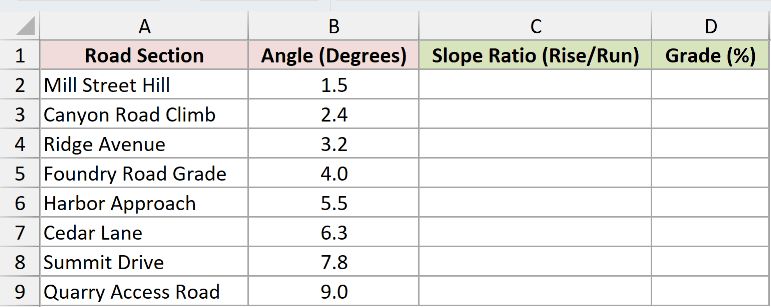
We want to convert every angle into a rise-over-run slope ratio.
Here is the formula:
=TAN(RADIANS(B2:B9))
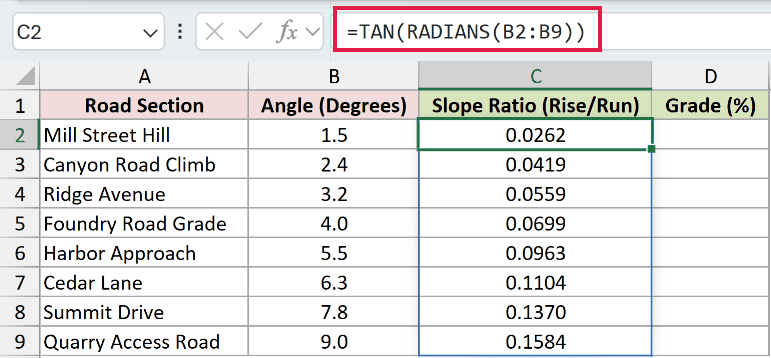
RADIANS converts the degree values before TAN uses them. The one formula in C2 spills through C9.
Mill Street Hill returns 0.0262, meaning the road rises about 0.0262 feet for every horizontal foot.
Road signs usually express this ratio as a percent grade.
Here is the formula:
=TAN(RADIANS(B2:B9))*100
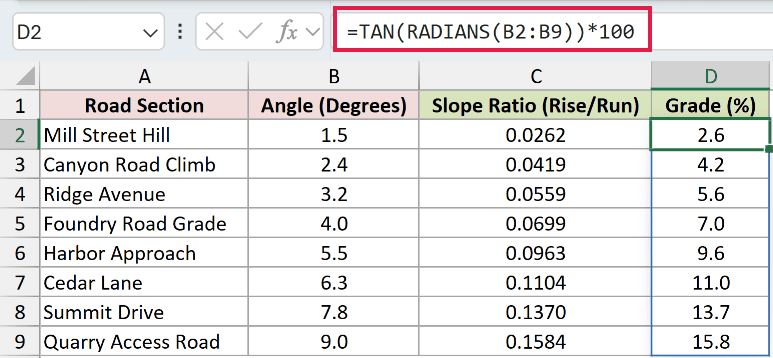
The second formula multiplies each ratio by 100 to express the same slope as a percent grade.
Mill Street Hill becomes 2.6, while Quarry Access Road becomes 15.8 in the Grade (%) column.
Pro Tip: TAN expects radians. You can also convert 45 degrees inside the formula with =TAN(45*PI()/180), but RADIANS is easier to read.
Example 2: Find Height From Angle and Distance
Here’s a common field-measurement problem.
Below is the dataset. It lists eight structures, their measured distances, angles to the top, and instrument heights.
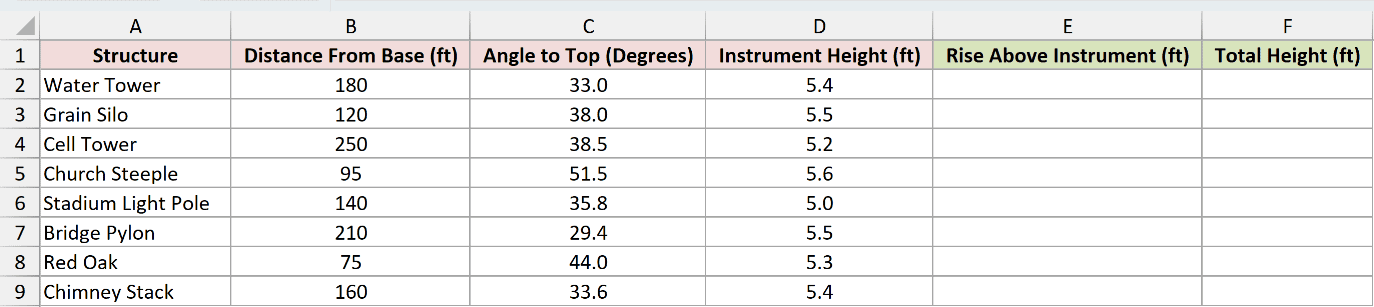
We first want the vertical rise from the instrument to the top of each structure.
Here is the formula:
=B2:B9*TAN(RADIANS(C2:C9))
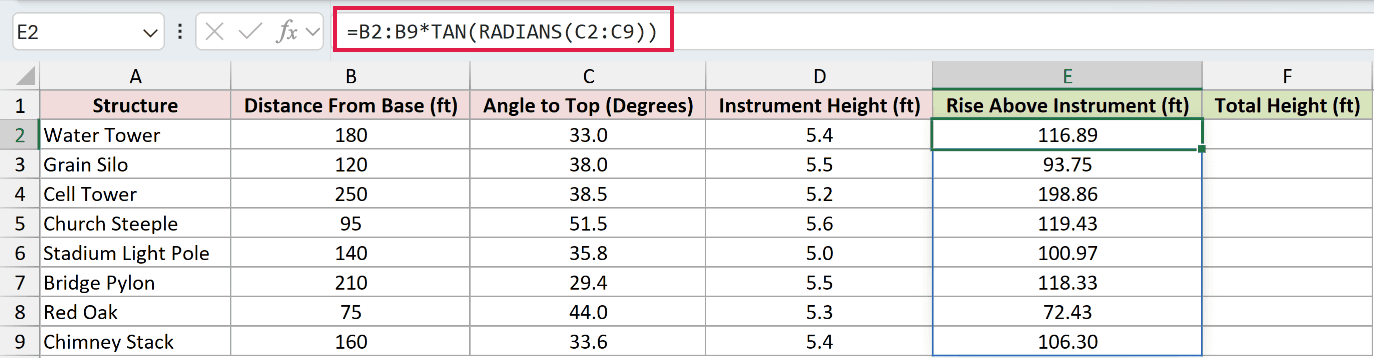
The measured distance is the adjacent side. Multiplying it by the tangent gives the opposite side, which is the rise above the instrument.
The Water Tower’s calculated rise is 116.89 feet. The Cell Tower’s rise is 198.86 feet.
Those figures start at the instrument, not the ground, so we need to add each instrument height.
Here is the formula:
=E2:E9+D2:D9
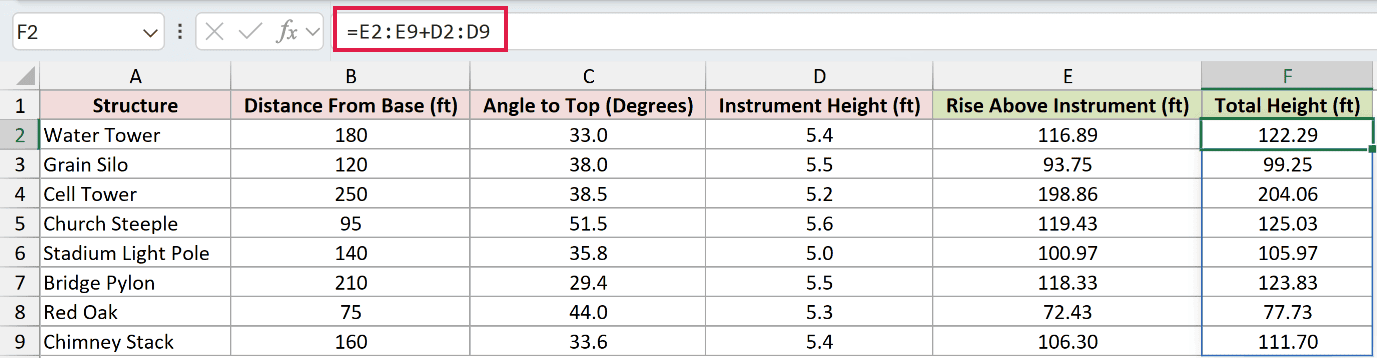
The second spilling formula adds the two columns row by row.
It gives total heights of 122.29 feet for the Water Tower and 204.06 feet for the Cell Tower.
Pro Tip: Do not forget the instrument height. The angle starts at the instrument, so the first formula measures only the height above that point.
Example 3: Calculate Stair Run With TAN
Now let’s rearrange the same triangle relationship.
Below is the dataset. Column A names eight staircases, column B contains each total rise, and column C contains the design angle.
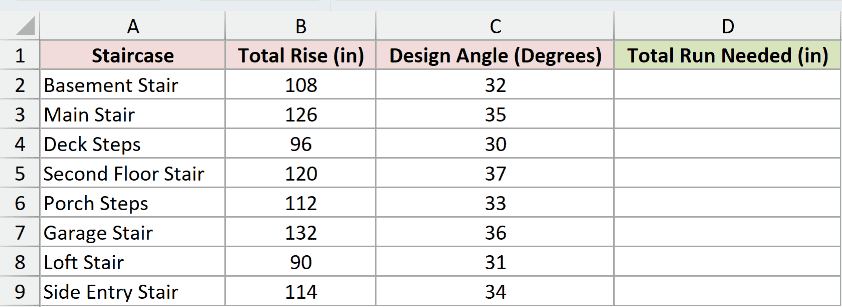
We want to find how much horizontal floor space each staircase needs.
Here is the formula:
=B2:B9/TAN(RADIANS(C2:C9))
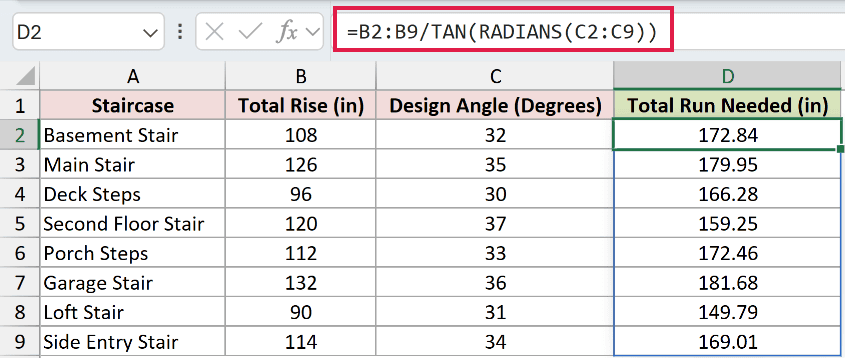
Here, the known rise is the opposite side. Dividing it by TAN returns the adjacent side, which is the required horizontal run.
The Basement Stair needs 172.84 inches of run. The Loft Stair needs 149.79 inches.
Pro Tip: Dividing by TAN at zero degrees causes #DIV/0! because the tangent is zero. Validate the design angle before using it as a divisor.
Example 4: Handle TAN Near 90 Degrees
The numbers change sharply as the angle approaches 90 degrees.
Below is the dataset. Column A contains eight angles from 0 through 180 degrees, including values close to 90 degrees.
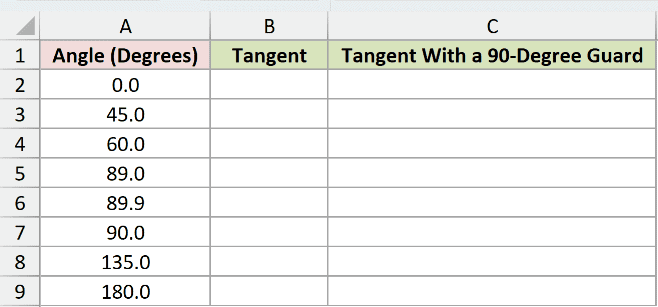
We want to see what Excel actually returns for each angle.
Here is the formula:
=TAN(RADIANS(A2:A9))
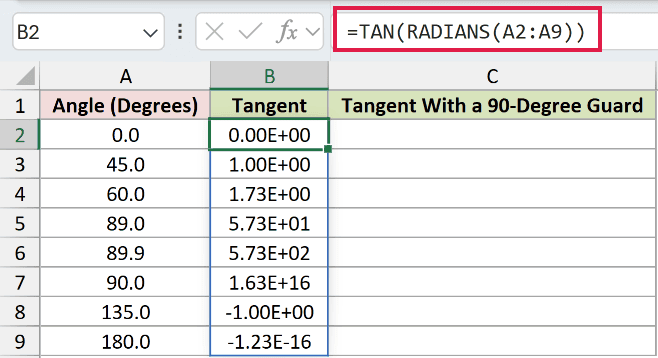
At 45 degrees, the sheet displays 1.00E+00. At 89 degrees it displays 5.73E+01, then 5.73E+02 at 89.9 degrees.
Excel’s 15-significant-digit comparison also treats the 45-degree tangent as equal to 1, even though the stored binary value is fractionally lower.
At 90 degrees, Excel returns the finite value 1.63E+16. It does not return #DIV/0!, infinity, or an undefined-value error.
Mathematically, tangent is undefined at exactly 90 degrees. Excel evaluates the nearest binary floating-point representation of the angle, producing a very large finite number.
At 180 degrees, the displayed result is -1.23E-16 rather than zero. That tiny residue also comes from floating-point precision.
For working files, we can replace odd multiples of 90 degrees with a clear text label.
Here is the guarded formula:
=IF(MOD(A2:A9,180)=90,"Undefined",TAN(RADIANS(A2:A9)))
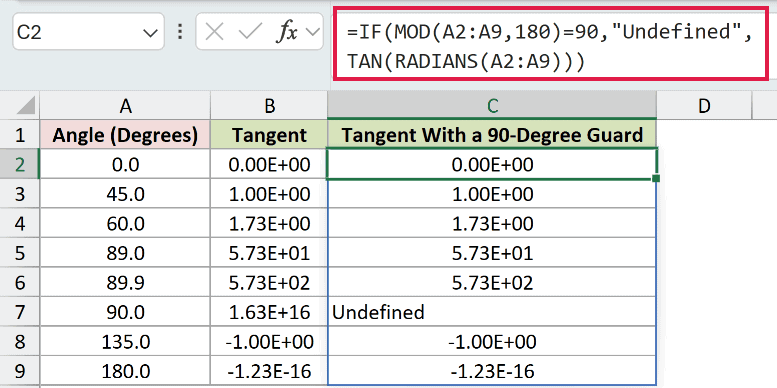
MOD identifies angles whose remainder is 90 after division by 180. IF returns Undefined for the 90-degree row and calculates TAN for the others.
Pro Tip: Use ROUND when tiny residues should display as zero. Do not round the input angle before checking whether it is an odd multiple of 90 degrees.
Example 5: Calculate Security Camera Coverage
Finally, let’s use TAN several ways in one mounting calculation.
Below is the parameter card. It contains the mount height, downward tilt, vertical half-angle, and horizontal half-angle for a security camera.

We first want the ground distance from the wall to the center of the camera’s view.
Here is the formula:
=B1/TAN(RADIANS(B2))
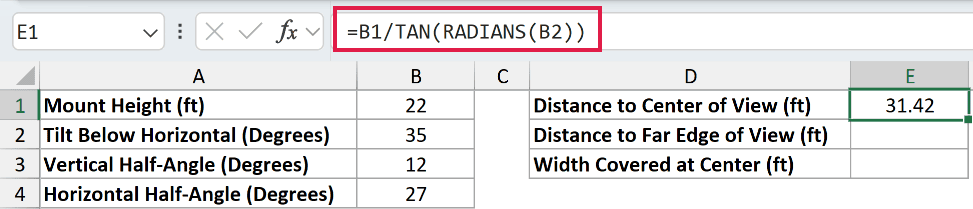
The 22-foot mount height is the opposite side. Dividing it by the tangent of the 35-degree tilt returns a center distance of 31.42 feet.
Next, we want the distance to the far edge of the vertical view.
Here is the formula:
=B1/TAN(RADIANS(B2-B3))
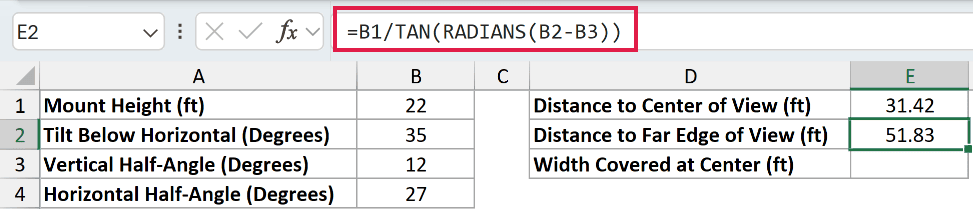
Subtracting the 12-degree vertical half-angle from the tilt gives the shallower far-edge angle. The calculated distance is 51.83 feet.
Finally, we want the horizontal width covered at the center distance.
Here is the formula:
=2*(B1/TAN(RADIANS(B2)))*TAN(RADIANS(B4))
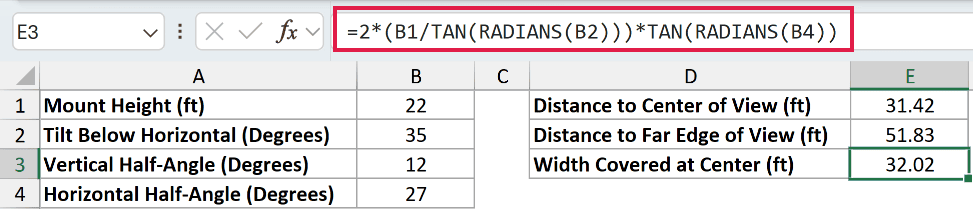
The formula calculates one half of the width from the center distance and horizontal half-angle, then doubles it. The camera covers 32.02 feet.
Tips & Common Mistakes
- TAN always expects radians.
=TAN(45)returns 1.6197751905438615, while=TAN(RADIANS(45))displays 1. For degree inputs, use RADIANS or multiply by PI()/180. - TAN returns a ratio, not an angle or percentage. Multiply by TAN to find the opposite side, and divide by TAN to find the adjacent side.
- Excel 2021, Excel 2024, and Microsoft 365 spill range-based TAN formulas automatically. Excel 2019 and earlier need a per-row formula filled down.
- A blocked output range causes #SPILL!. Clear the cells where the results need to appear. The implicit-intersection operator also reduces a range formula to one result.
- Numeric text can be coerced, but non-numeric text returns #VALUE!. A referenced blank is treated as zero, which can make missing data look like a flat angle.
- The SLOPE function fits a line through paired data. TAN instead converts one angle into a rise-over-run ratio.
- When you know an object’s height and the sun’s elevation, divide the height by TAN of the angle to estimate its shadow length.
- ATAN works in the opposite direction. It converts a known ratio back into an angle.
TAN handled percent grades, structure heights, stair runs, and security camera coverage by turning degree inputs into rise-over-run ratios.
Near 90 and 180 degrees, Excel’s floating-point results show why angle guards and careful rounding matter.
Related Excel Functions / Articles:
- COS Function in Excel
- SIN Function in Excel
- How to Convert Radians to Degrees in Excel (Easy Formula)
Other Excel articles you may also like:
