
Excel’s QUOTIENT function returns the integer portion of a division, discarding the fractional part.
It can count complete groups or packages when a remainder should not form another whole unit. With negative results, it truncates toward zero.
Plain division retains the decimal result. The guide to dividing in Excel covers that operator and other division methods.
QUOTIENT Function Syntax in Excel
The QUOTIENT function divides one number by another and returns only the integer portion of the result.
=QUOTIENT(numerator, denominator)
- numerator (required) is the number you want to divide.
- denominator (required) is the number you want to divide by.
When to Use QUOTIENT Function
- Count how many complete groups, packs, teams, or batches can be made from a total.
- Use one fixed group size across several rows of data.
- Separate a total into whole units and a remainder when paired with MOD.
- Truncate division results toward zero, including results from negative numbers.
- Break a duration into separate hours, minutes, and seconds.
Example 1: Count Full Teams From Each Roster
Let’s start with a simple grouping example.
Below is the dataset. Columns A to C list each league, its registered players, and the required players per team.
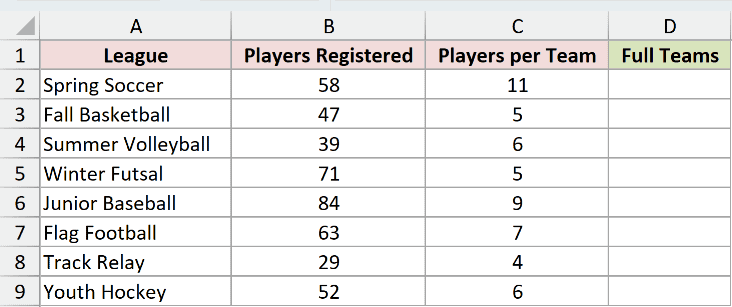
We want to find how many complete teams each league can form.
Here is the formula entered in D2:
=QUOTIENT(B2,C2)
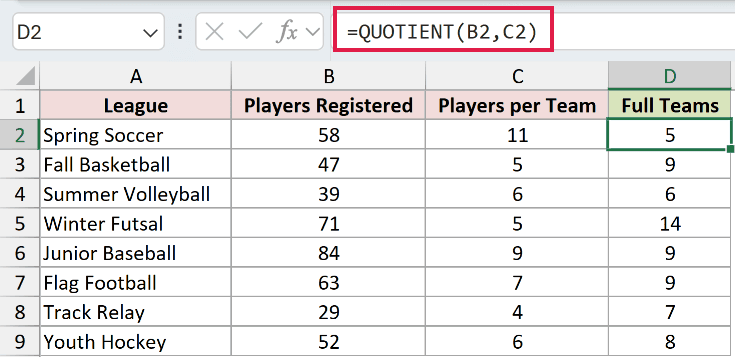
The formula divides registered players by players per team, then discards any remainder. Copy it down through D9.
The filled-down results are 5, 9, 6, 14, 9, 9, 7, and 8 full teams.
For example, 58 players divided into teams of 11 produces 5 complete teams. The three remaining players are not included in the result.
Example 2: Use One Divisor for Every Row
Here’s a common setup where every row uses the same divisor.
Below is the dataset. Columns A and B show members and points earned. Empty column C awaits Rewards Earned, while the E2 card holds the fixed cost of 250 points.
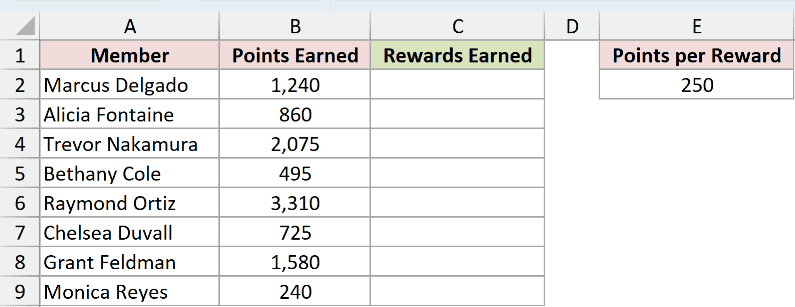
We want to calculate the number of complete rewards each member has earned.
Here is the formula entered in C2:
=QUOTIENT(B2,$E$2)
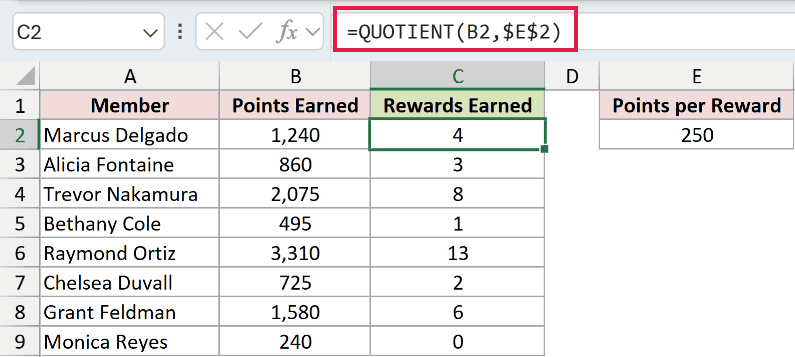
The absolute reference $E$2 keeps the 250-point divisor fixed when the formula is copied down through C9.
The results are 4, 3, 8, 1, 13, 2, 6, and 0 rewards.
Monica has 240 points, so her result is 0. She has not yet reached the 250 points needed for one complete reward.
Pro Tip: Lock a shared divisor with an absolute reference such as $E$2. Otherwise, that reference moves to E3, E4, and later rows when you copy the formula down.
Example 3: Get Full Pallets and Loose Pavers
Now let’s keep both parts of the division.
Below is the dataset. Columns A to C contain each order ID, the pavers ordered, and the number of pavers per pallet.
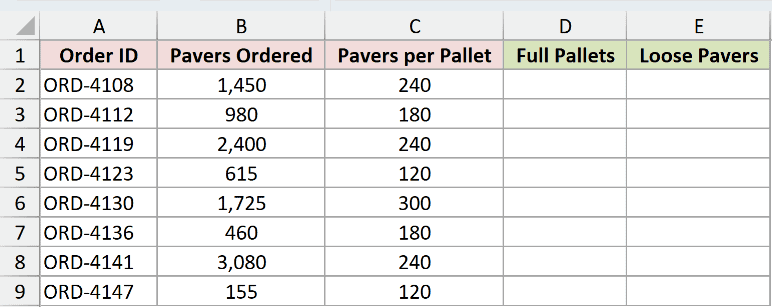
We want to calculate the complete pallets needed for each order.
Here is the QUOTIENT formula entered in D2:
=QUOTIENT(B2,C2)
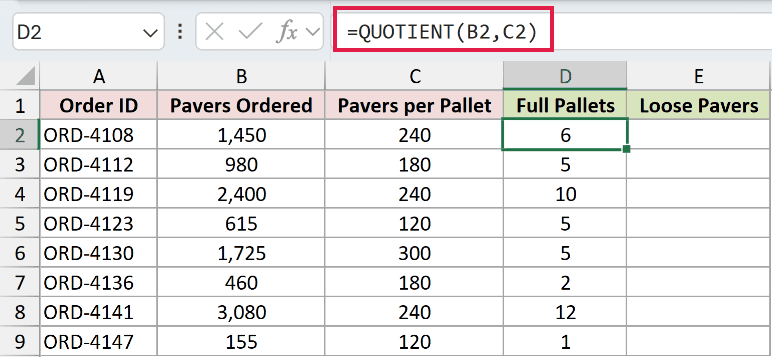
With the formula filled through D9, the full-pallet counts are 6, 5, 10, 5, 5, 2, 12, and 1.
QUOTIENT deliberately leaves out the loose pavers. To show what was discarded, use MOD in the comparison column.
Here is the MOD formula entered in E2:
=MOD(B2,C2)
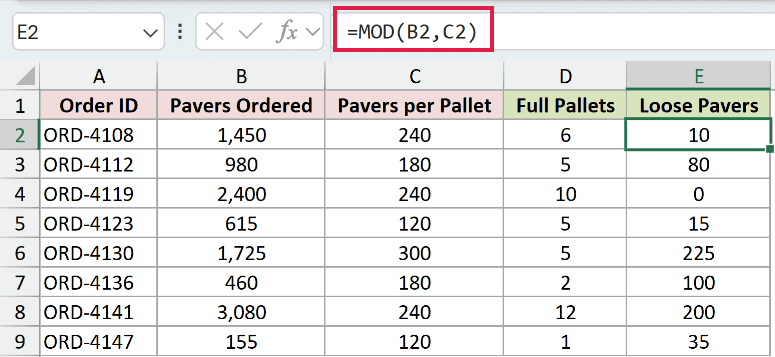
After copying it through E9, MOD returns 10, 80, 0, 15, 225, 100, 200, and 35 loose pavers.
The two functions answer different parts of the same question. QUOTIENT returns complete pallets, while MOD returns the pavers left after filling them.
Example 4: QUOTIENT vs INT With Negative Numbers
Negative values reveal an important difference between QUOTIENT and INT.
Below is the dataset. Columns A and B list each register and its cash variance.
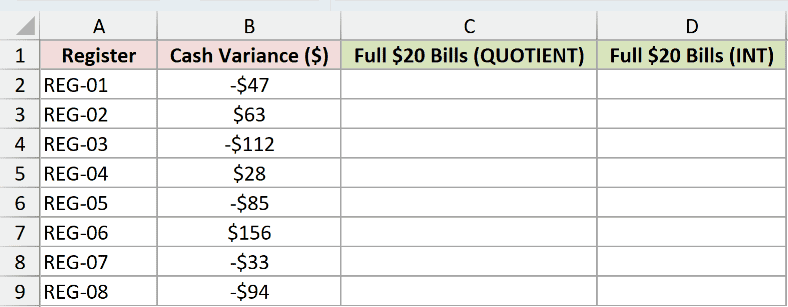
We want to express each variance as a count of complete $20 bills, truncating toward zero.
Here is the QUOTIENT formula entered in C2:
=QUOTIENT(B2,20)
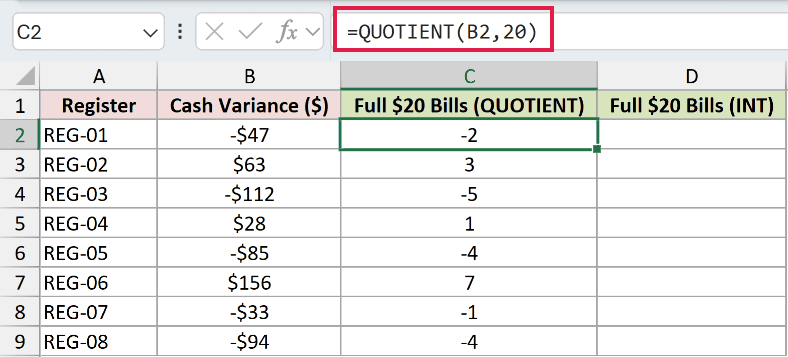
Filling the formula through C9 gives QUOTIENT results of -2, 3, -5, 1, -4, 7, -1, and -4.
INT rounds negative division results down, so it produces a different count for each negative variance.
Here is the INT formula entered in D2:
=INT(B2/20)
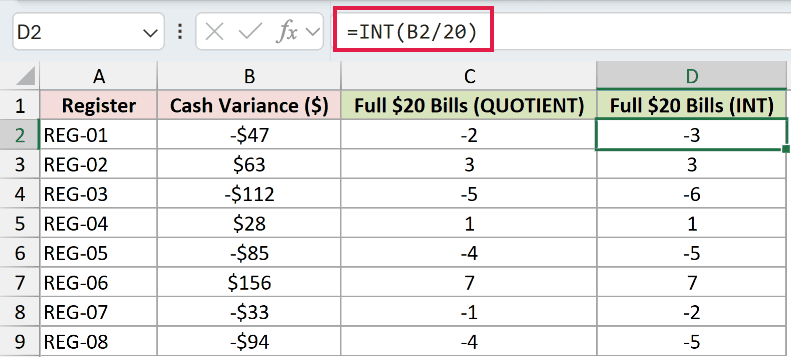
Copied through D9, INT returns -3, 3, -6, 1, -5, 7, -2, and -5.
QUOTIENT truncates toward zero, while INT rounds down. That is why a -$47 variance produces -2 with QUOTIENT but -3 with INT.
The formulas agree on all three positive values and disagree on all five negative values. TRUNC matches QUOTIENT’s toward-zero behavior for both signs.
Example 5: Handle Decimals, Zeros, and Text
Real worksheets often contain incomplete or messy divisors.
Below is the dataset. Columns A to C contain each roll ID, its fabric length, and its panel length, including zero, text, and blank inputs.
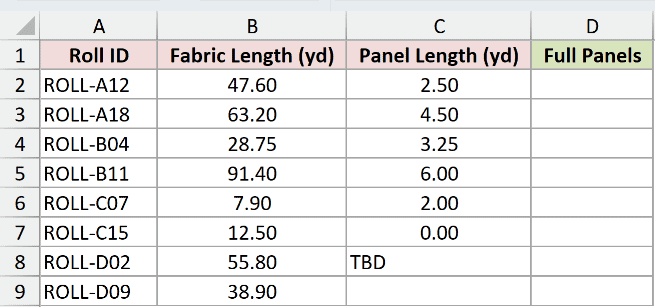
We want to calculate how many complete panels can be cut from each roll.
Here is the formula entered in D2:
=QUOTIENT(B2,C2)
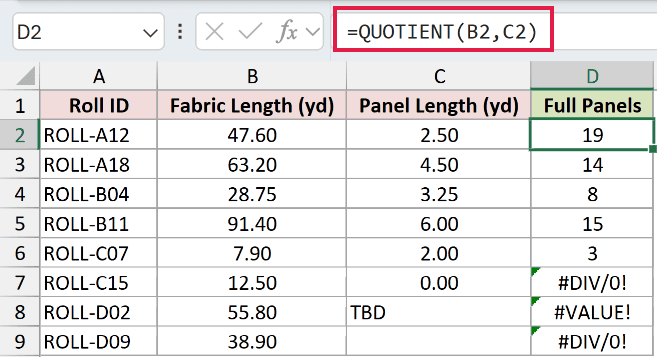
Copied through D9, the results are 19, 14, 8, 15, 3, #DIV/0!, #VALUE!, and #DIV/0!.
Decimal inputs are valid. Excel divides 47.60 by 2.50, then truncates the result to 19 complete panels.
A zero panel length in C7 produces #DIV/0!. The text TBD in C8 produces #VALUE! because it is not numeric.
The blank denominator in C9 is treated like zero, so D9 also returns #DIV/0!. These errors point to inputs that need correction.
Example 6: Split Seconds Into Hours, Minutes, and Seconds
Finally, let’s split one total into three usable parts.
Below is the dataset. Columns A and B list each support call and its duration in seconds.
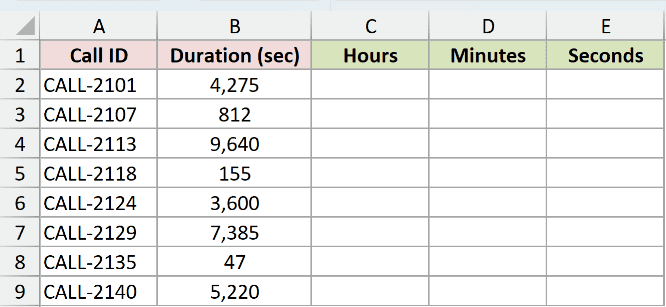
We want to separate each duration into whole hours, remaining minutes, and remaining seconds.
Here is the hours formula entered in C2:
=QUOTIENT(B2,3600)
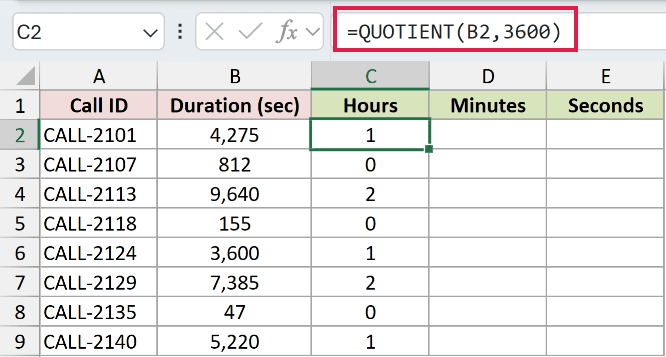
There are 3,600 seconds in an hour. Filled through C9, the formula gives 1, 0, 2, 0, 1, 2, 0, and 1 hours.
For minutes, MOD first removes every complete hour. QUOTIENT then counts complete 60-second minutes from what remains.
Here is the minutes formula entered in D2:
=QUOTIENT(MOD(B2,3600),60)
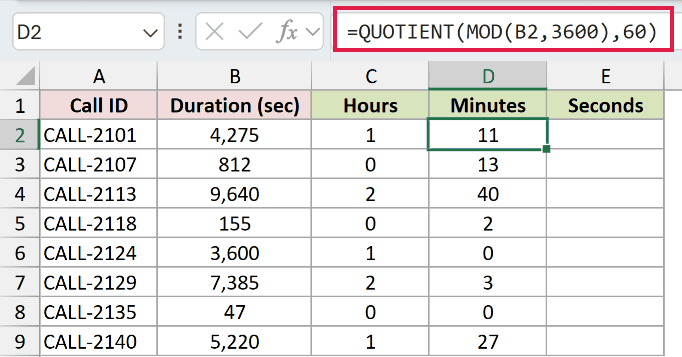
Copying the formula through D9 returns 11, 13, 40, 2, 0, 3, 0, and 27 minutes.
The final MOD formula returns the seconds left after complete minutes are removed.
Here is the seconds formula entered in E2:
=MOD(B2,60)
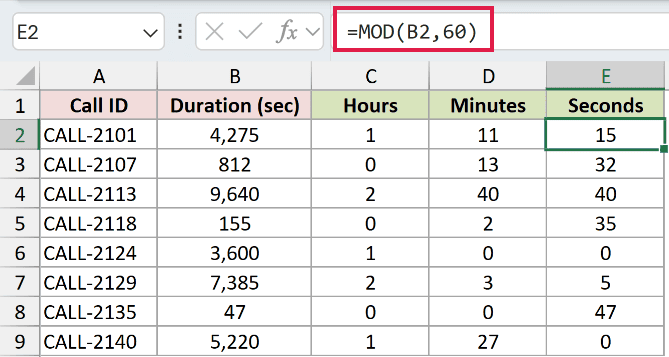
Copying the formula through E9 returns 15, 32, 40, 35, 0, 5, 47, and 0 seconds.
For example, 4,275 seconds becomes 1 hour, 11 minutes, and 15 seconds. Each part remains numeric for later calculations.
Tips & Common Mistakes
- Both arguments are required. A zero or blank denominator returns
#DIV/0!, while a nonnumeric argument returns#VALUE!. - QUOTIENT truncates only the division result. Decimal numerators and denominators are valid.
- Negative results move toward zero. INT rounds negative values down, so it can return a different integer.
- QUOTIENT returns the whole part of a division. Use MOD when you also need the remainder.
- For an illustrative spilled column in Microsoft 365 or Excel 2024, use
=MAP(D2:D9,LAMBDA(x,QUOTIENT(x,7))). Replace the sample range and divisor with your inputs.
QUOTIENT is clearest when you need complete units from division and want the remainder discarded. Pair it with MOD when leftover amounts matter.
Related Excel Functions / Articles:
