
Excel’s DCOUNT function counts numeric entries in a database field for records that match a worksheet criteria range.
The criteria sit in cells beneath matching field headings. You can combine conditions on one row or use separate criteria rows for alternatives.
Omitting the field argument changes the count: DCOUNT then counts matching records, rather than numeric entries in a specified field.
In this article, I’ll show you how to count records using AND or OR criteria, compare DCOUNT with DCOUNTA, and use dynamic criteria.
DCOUNT Function Syntax in Excel
The DCOUNT function uses a database, an optional field, and a separate criteria range.
=DCOUNT(database,[field],criteria)
databaseis the required range containing the records, including the header row.fieldis the column whose numeric cells you want to count. Use its quoted header name, its 1-based position, or omit it to count matching records.criteriais the required range containing at least one database header and a condition below it.
When to Use DCOUNT Function
- Count numeric values in records that meet one or more conditions.
- Keep criteria visible in worksheet cells so someone can change them without editing the formula.
- Apply AND or OR logic through the layout of a criteria range.
- Count every matching record by leaving the field argument blank.
- Feed a spilled criteria range into a database calculation.
Example 1: DCOUNT With One Criterion
Let’s begin with one text condition.
Below is the work-order database, a criteria range for Repair, and an empty result cell for the numeric labor-hour count.
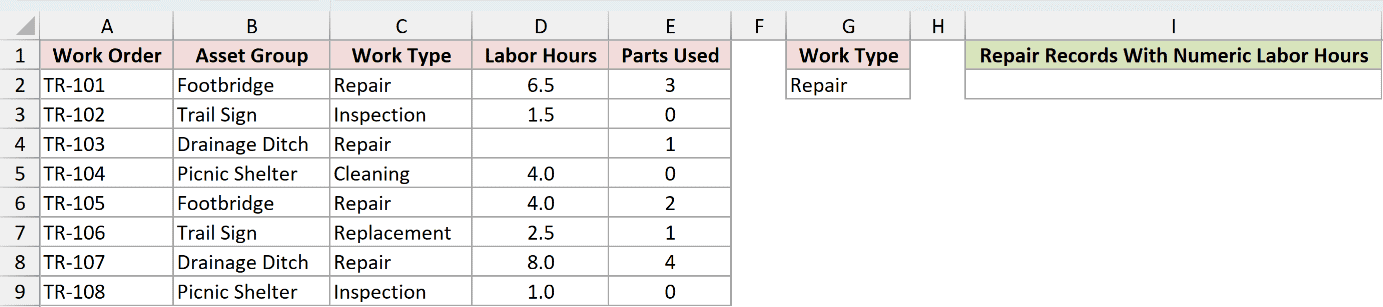
I want to count Repair records that contain a numeric value in Labor Hours.
Here is the formula:
=DCOUNT(A1:E9,"Labor Hours",G1:G2)
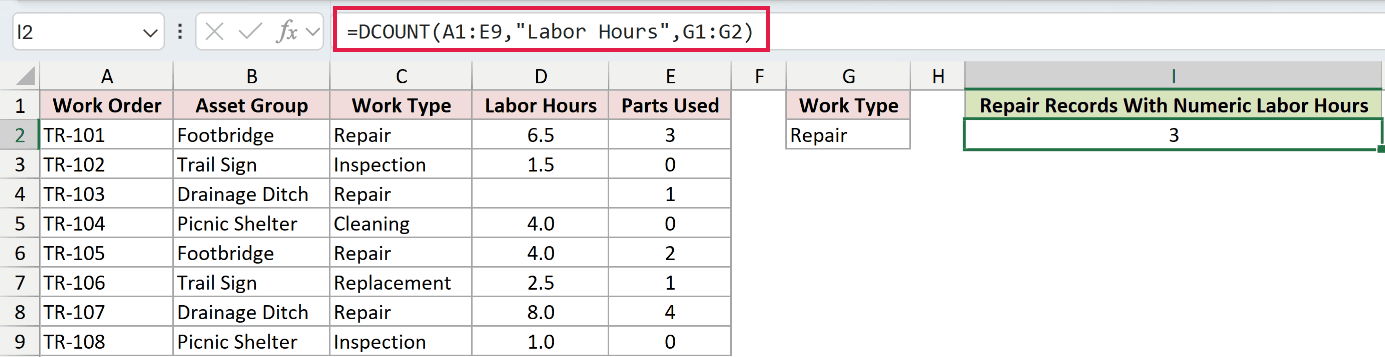
The formula returns 3. Four rows match Repair, but one of those rows has a blank Labor Hours cell and is not counted.
The header in G1 matches the Work Type header in the database. The value in G2 supplies the Repair condition.
Pro Tip: The criteria header must match a database header. A spelling difference can stop the condition from working as expected.
Example 2: Omit the DCOUNT Field
This example shows what changes when you leave the field argument blank.
Below is the inspection database, an Open criterion, and two empty cells for the numeric-field and matching-record counts.

I want to compare numeric moisture readings with the total number of Open records.
First, here is the formula with the Moisture Reading field:
=DCOUNT(A1:E9,"Moisture Reading",G1:G2)

The result is 2. Five inspections are Open, but only IN-401 and IN-406 have numeric moisture readings.
Now leave the field argument blank:
=DCOUNT(A1:E9,,G1:G2)

This formula returns 5 because DCOUNT counts every record that matches Open when no field is supplied.
Use the first formula when the numeric status of a particular field matters. Use the omitted-field form when you only need the number of matching records.
Example 3: DCOUNT With AND Criteria
Here’s how to require two conditions at once.
Below is the maintenance database, Building and Condition criteria on the same row, and an empty result cell.

I want to count numeric Downtime Hours for closed records in the North Annex.
Here is the formula:
=DCOUNT(A1:E9,4,G1:H2)
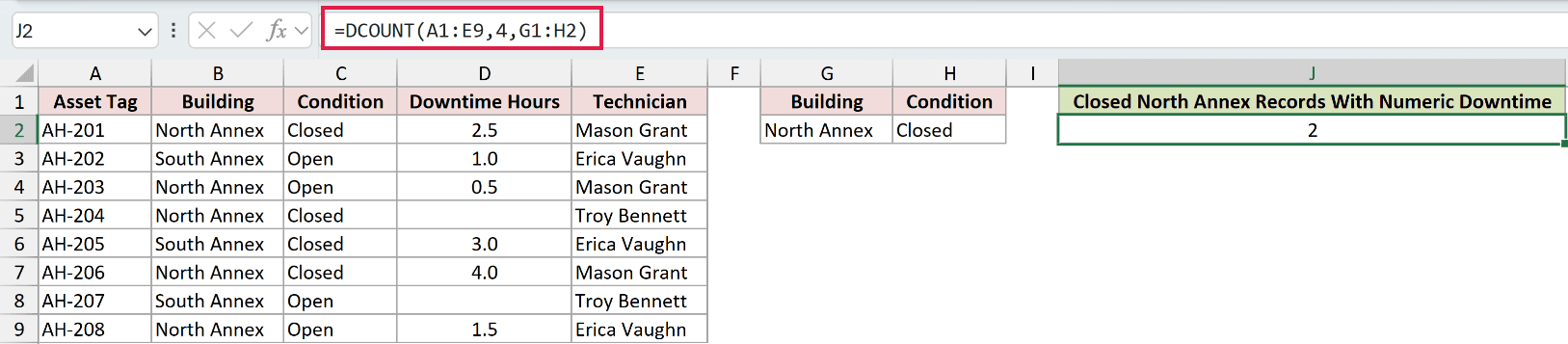
The formula returns 2. Three records meet both criteria, but one has a blank Downtime Hours cell.
The field argument is 4, which points to the fourth database column. Conditions placed across the same criteria row use AND logic.
Pro Tip: A quoted header name is usually easier to read than a field number. A field number can change meaning if you rearrange the database columns.
Example 4: DCOUNT With OR Criteria
Now let’s count records from either of two sites.
Below is the water-sample database, two site criteria on separate rows, and an empty result cell.
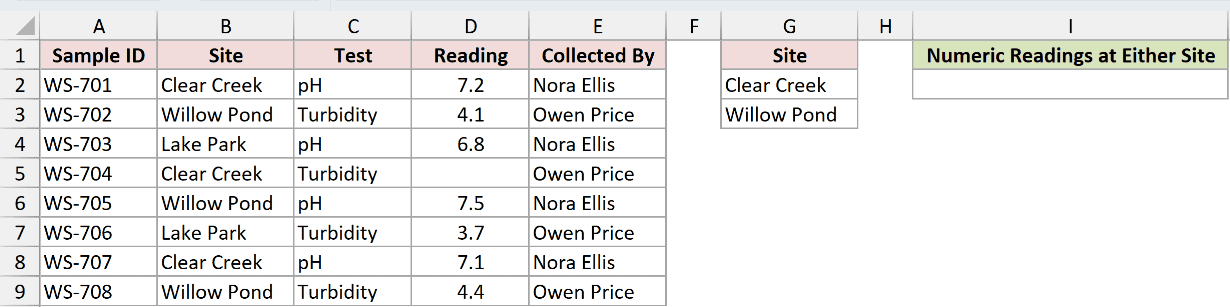
I want to count numeric readings from Clear Creek or Willow Pond.
Here is the formula:
=DCOUNT(A1:E9,"Reading",G1:G3)
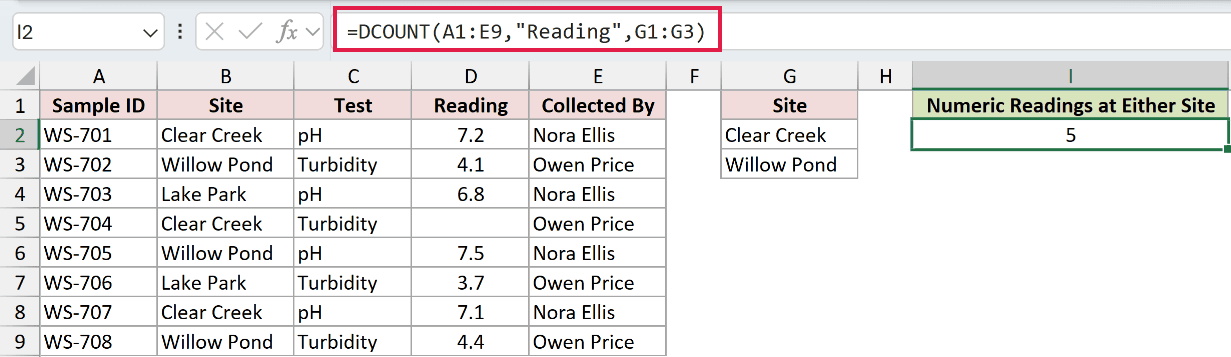
The formula returns 5. Clear Creek contributes two numeric readings, and Willow Pond contributes three.
The two site names sit on separate criteria rows. DCOUNT treats separate rows as alternatives, so either site can qualify.
Example 5: DCOUNT Versus DCOUNTA
This comparison makes the numeric-only rule clear.
Below is the training-session database, a Safety criterion, and empty result cells for DCOUNT and DCOUNTA.

I want to compare numeric completion values with all nonblank completion values for Safety sessions.
First, here is the DCOUNT formula:
=DCOUNT(A1:E9,"Completion %",G1:G2)
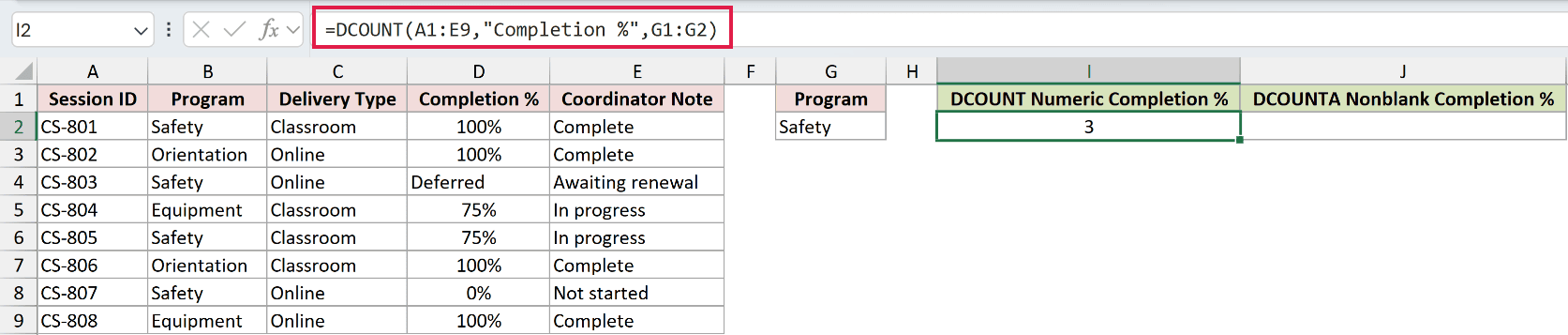
DCOUNT returns 3. It counts 100%, 75%, and 0%, while skipping the text value Deferred.
Now use DCOUNTA on the same field and criteria:
=DCOUNTA(A1:E9,"Completion %",G1:G2)
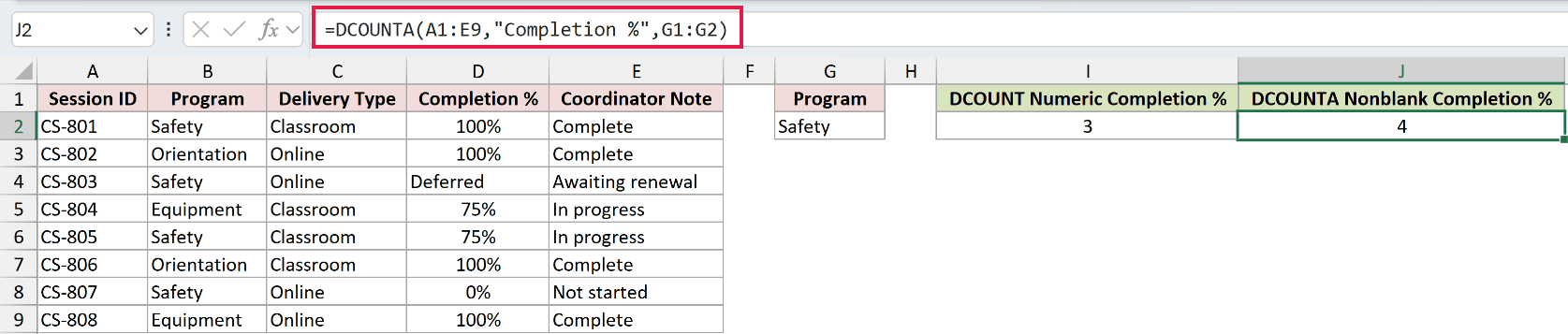
DCOUNTA returns 4 because it counts every nonblank Completion % cell in the matching Safety records, including Deferred.
Use DCOUNT for numbers only. Use DCOUNTA when text and other nonblank values should count too.
Pro Tip: A zero is a numeric value, so DCOUNT includes it. Do not treat zero as if it were blank.
Example 6: DCOUNT With Dynamic Criteria
Let’s finish with a criteria range built by a dynamic array formula.
Below is the work-order database with spaces reserved for a spilled Work Type list and the final numeric-hours count.
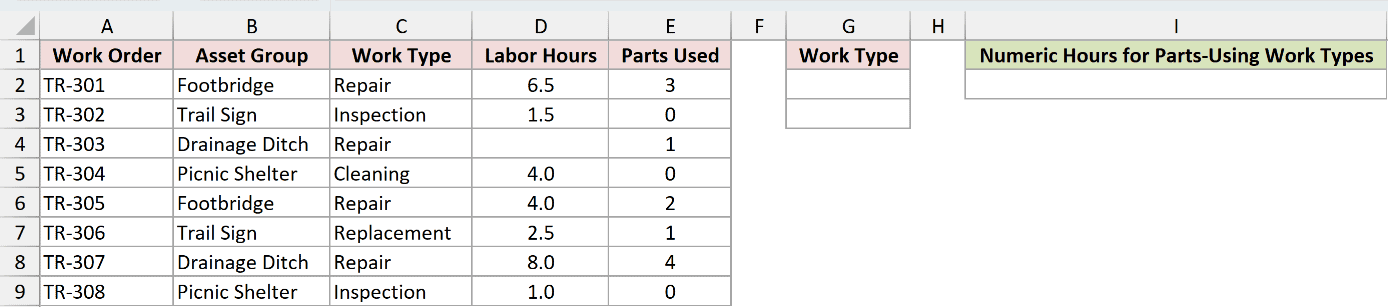
I want to count numeric labor hours for work types that appear on records where parts were used.
First, build the criteria range in cell G1:
=VSTACK("Work Type",UNIQUE(FILTER(C2:C9,E2:E9>0)))
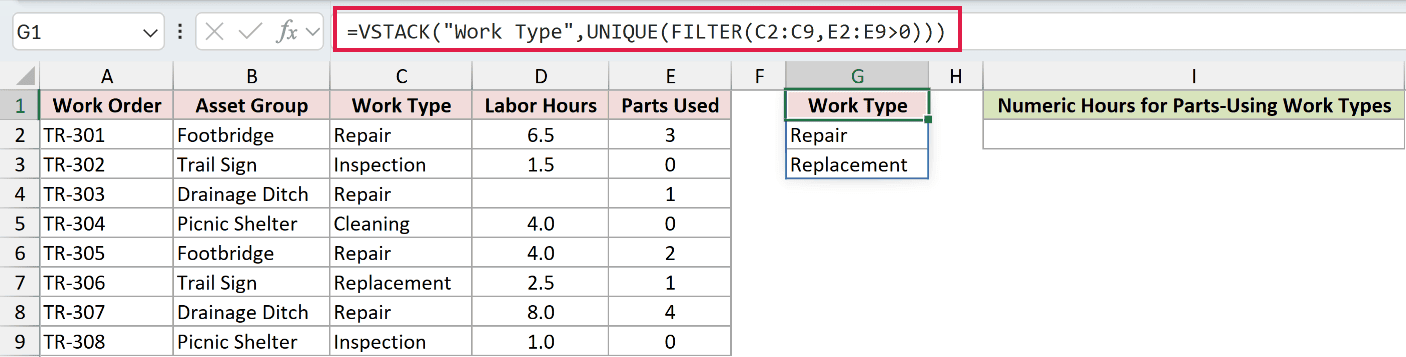
FILTER keeps work types from rows where Parts Used is greater than zero. UNIQUE removes repeats. VSTACK adds the required Work Type header.
The formula spills Work Type, Repair, and Replacement into G1:G3.
Now pass that spilled criteria range to DCOUNT:
=DCOUNT(A1:E9,"Labor Hours",G1#)
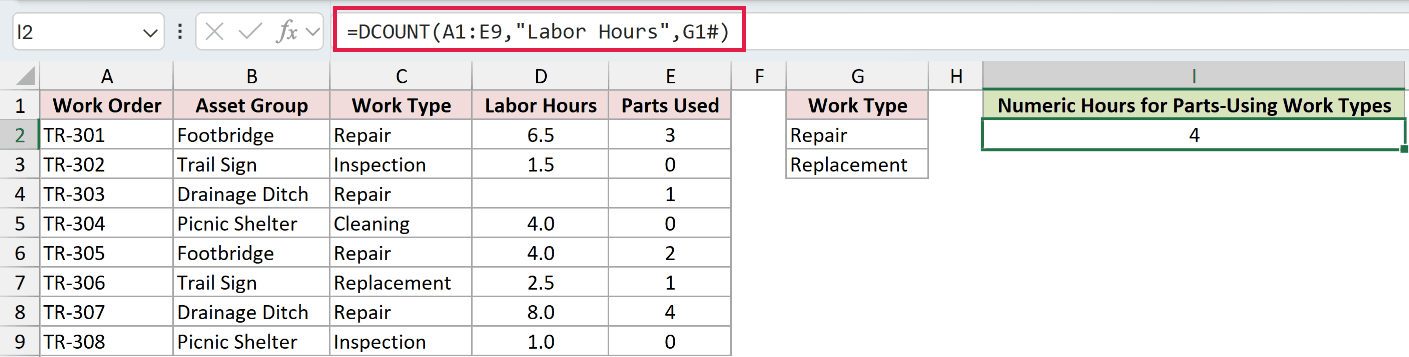
The result is 4. DCOUNT finds three Repair records and one Replacement record with numeric Labor Hours values.
The # operator makes G1# refer to the whole spilled criteria range. If its list grows or shrinks, DCOUNT follows it automatically.
VSTACK is available in Microsoft 365 and Excel 2024. If you use Excel 2021 or earlier, type the criteria header and values into a regular range.
Pro Tip: Keep the criteria range away from the database. It must not overlap the records, and placing it below a growing database can block new rows.
Tips & Common Mistakes
- Include the database headers in the
databaserange. DCOUNT uses those labels to identify fields and match criteria. - Keep the criteria headers identical to the database headers.
- Put AND conditions across one criteria row and OR alternatives on separate rows.
- Use COUNTIFS for a normal flat table when you do not need DCOUNT’s separate, header-based criteria layout.
- Remember that DCOUNT counts numeric field values. DCOUNTA counts nonblank field values.
I covered single, AND, and OR criteria, the optional field argument, DCOUNTA, and a spilled criteria range.
I hope you found this article helpful.
Other Excel articles you may also like:
