
If you want to turn a sine value back into its angle, the ASIN function gives you the inverse sine in radians.
In this article, I’ll show you how to return angles in radians and degrees, then use ASIN for incline and elevation calculations.
In Excel 2021 and later, you can also feed ASIN a range, and the results will spill into the cells below.
ASIN Function Syntax in Excel
The ASIN function returns the inverse sine of a number as an angle in radians.
=ASIN(number)
- number (required): The sine value for the angle you want. It must be between -1 and 1.
ASIN returns an angle from –PI/2 through PI/2 radians. Wrap ASIN inside DEGREES when you need an answer from -90 through 90 degrees.
When to Use ASIN Function
- Convert a known sine value into an angle.
- Return an angle in radians for a trigonometric calculation.
- Calculate an incline angle from its vertical rise and sloped length.
- Show positive climb angles and negative descent angles from signed altitude changes.
Example 1: Convert Sines to Radians
ASIN returns radians by default, so that is where we’ll begin.
Below is the dataset. Column A contains seven sine values from -1 through 1, and column B is reserved for their angles in radians.
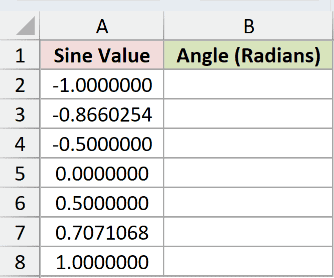
We want to calculate the inverse sine of every value in column A with one formula.
Here is the formula to enter in B2:
=ASIN(A2:A8)
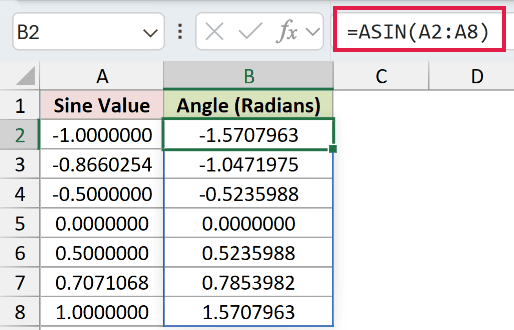
The formula spills through B8. A sine of -1 returns -1.5707963 radians, 0 returns 0.0000000, and 1 returns 1.5707963.
Negative sine values produce negative angles in ASIN’s result range. Positive values produce positive angles, while zero returns zero.
Pro Tip: ASIN returns only angles from -PI/2 through PI/2. Different angles can share the same sine, so ASIN gives the principal angle in that range.
Example 2: Convert ASIN to Degrees
Degrees make the returned angles easier to read in many practical worksheets.
Below is the dataset. Column A contains eight sine values, and column B will show the corresponding angles in degrees.
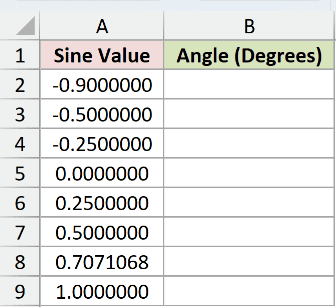
We want to convert each ASIN result from radians to degrees as part of the same spilling formula.
Here is the formula to enter in B2:
=DEGREES(ASIN(A2:A9))
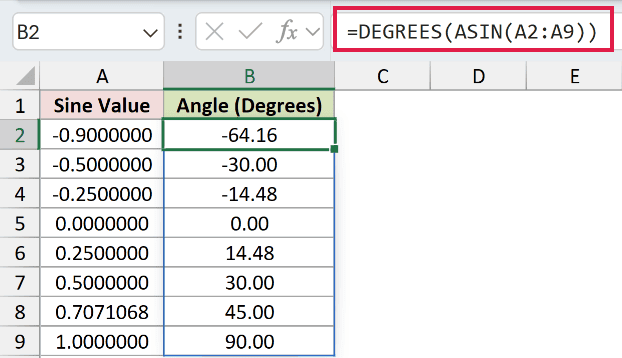
ASIN first returns each angle in radians. DEGREES converts those results before they spill into B2:B9.
For example, -0.9 returns -64.16 degrees, -0.5 returns -30.00 degrees, and 0.7071068 displays as 45.00 degrees.
Pro Tip: Keep DEGREES outside ASIN. The input to ASIN is a sine value, while DEGREES converts the angle that ASIN returns.
Example 3: Calculate Stair Incline Angles
The next example uses measurements instead of prepared sine values.
Below is the dataset. Each row identifies a stair run, its vertical rise, its stringer length, and an empty column for the incline angle.
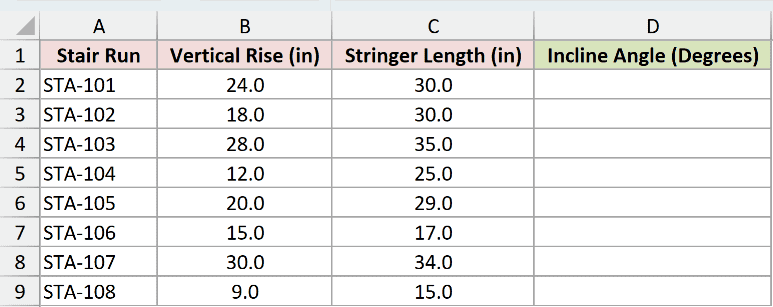
We want to calculate the incline angle for each stair run.
Here is the formula to enter in D2:
=DEGREES(ASIN(B2:B9/C2:C9))
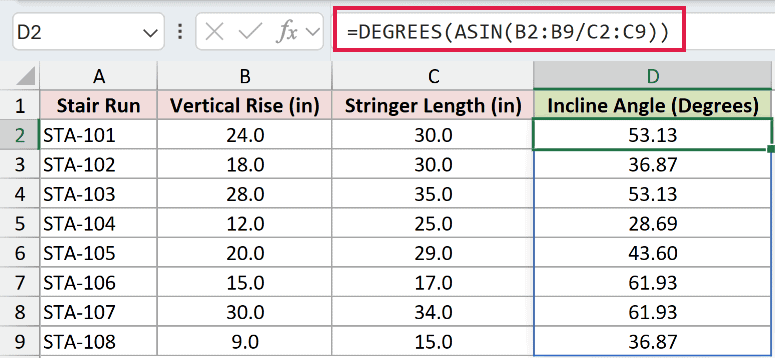
For a right triangle, vertical rise divided by stringer length gives the sine of the incline angle. ASIN converts that ratio back into an angle.
DEGREES makes the spilled results easier to interpret. STA-101 has a 24-inch rise and a 30-inch stringer, so its incline displays as 53.13 degrees.
STA-104 has a smaller rise relative to its stringer length. Its 12-inch rise and 25-inch stringer produce an angle of 28.69 degrees.
Pro Tip: The vertical rise cannot exceed the stringer length in this setup. If the ratio is above 1, ASIN returns #NUM!.
Example 4: Show Climb and Descent Angles
This final example keeps the sign of an altitude change in the returned angle.
Below is the dataset. Each row lists a drone leg, its signed altitude change, its flight distance, and an empty column for the elevation angle.
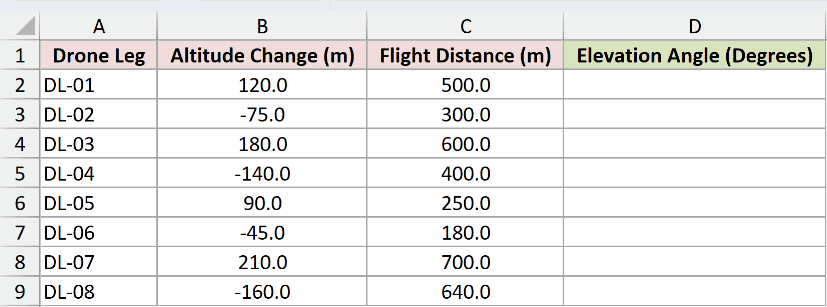
We want positive angles for climbs and negative angles for descents.
Here is the formula to enter in D2:
=DEGREES(ASIN(B2:B9/C2:C9))
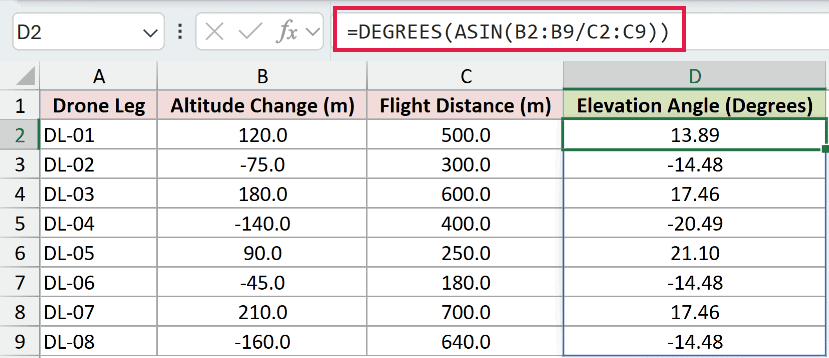
The altitude change is the opposite side, and the flight distance is the hypotenuse. Their ratio gives the signed sine value for each leg.
DL-01 climbs 120 meters over 500 meters and returns 13.89 degrees. DL-02 descends 75 meters over 300 meters and returns -14.48 degrees.
The negative sign comes from the altitude change in column B. ASIN preserves that sign when it returns the angle.
Pro Tip: Use the straight-line flight distance here, not the horizontal ground distance. If you have horizontal and vertical components instead, ATAN2 can preserve the quadrant.
Tips & Common Mistakes
- Keep inputs within the valid range. ASIN accepts values from -1 through 1. A value outside that range returns #NUM!.
- Remember the default unit. ASIN returns radians. Use DEGREES around the ASIN result when you want an angle from -90 through 90 degrees.
- Leave the spill area empty. In Excel 2021 and later, a range-based ASIN formula spills automatically. Occupied output cells cause #SPILL!.
- Check for implicit intersection. An
@added before ASIN can reduce a range calculation to one result instead of a spilled list. - Use a legacy fallback when needed. Excel 2019 and earlier do not support this spill behavior. Enter a single-row formula and copy it down instead.
- Match the ratio to the geometry. ASIN uses opposite side divided by hypotenuse. Dividing by the adjacent side describes a tangent and needs a different inverse function.
- Keep the sign when direction matters. Negative inputs return negative principal angles, which makes ASIN useful for signed climbs and descents within its result range.
I covered how ASIN returns radians, converts results to degrees, and handles incline, climb, and descent angles with spilling formulas.
I hope you found this article helpful.
Other Excel articles you may also like:
