
Excel’s WEBSERVICE function returns the response from an HTTP or HTTPS web service as text in a cell.
It suits small public GET requests. The result is a raw response, so XML or JSON still needs interpretation rather than becoming a ready-to-use table.
For a structured, refreshable data connection, Power Query is usually more suitable.
In this article, I’ll show you how to retrieve XML, extract values from the response, and build an encoded query URL.
WEBSERVICE Function Syntax in Excel
WEBSERVICE takes the URL of the web service you want Excel to call.
=WEBSERVICE(url)
urlis the required URL of the web service to call.
When to Use WEBSERVICE Function
- Retrieve a public HTTP or HTTPS response as text.
- Pass XML returned by a web service to FILTERXML.
- Build a GET request from worksheet text after encoding it.
- Show a clear message when a URL uses an unsupported protocol.
Example 1: Retrieve a Raw XML Response
Let’s start by bringing a public XML document into a cell.
Below is the endpoint URL and the cell that will hold its raw response.
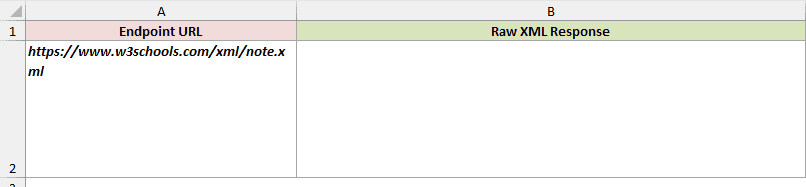
We want to retrieve the XML returned by the URL in A2.
Here is the formula:
=WEBSERVICE(A2)
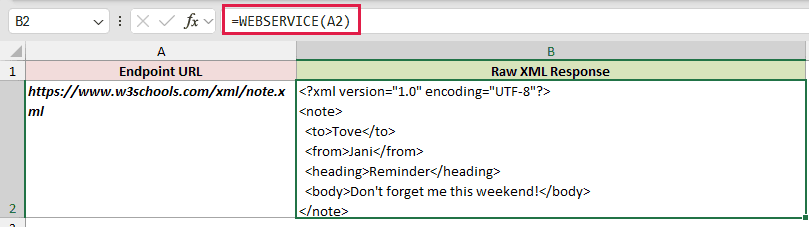
The result in B2 is the full XML response. It includes the <note> element and its child values, so it is useful as input for a later XML formula.
This public endpoint was verified when the workbook was prepared. A web service can change its content or stop responding later.
Example 2: Extract Values from a WEBSERVICE XML Response
Now use the same XML response to pull out the values you actually need.
Below is the endpoint, its raw XML response, and columns for the recipient and note body.

We want to fetch the XML into B2 before extracting fields from it.
Here is the formula:
=WEBSERVICE(A2)
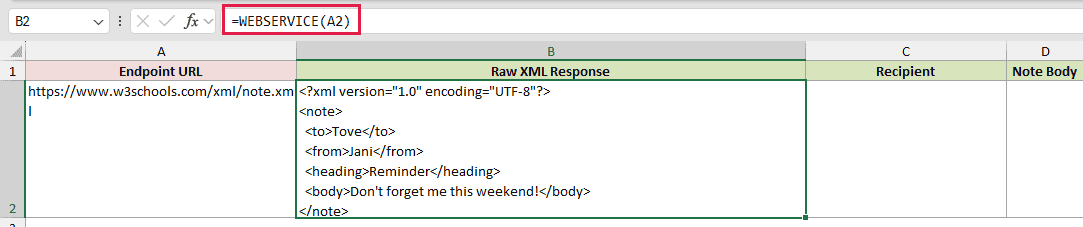
The result is raw XML. FILTERXML can use that text because it is valid XML.
To return the value inside the to element, use this formula:
=FILTERXML(B2,"/note/to")
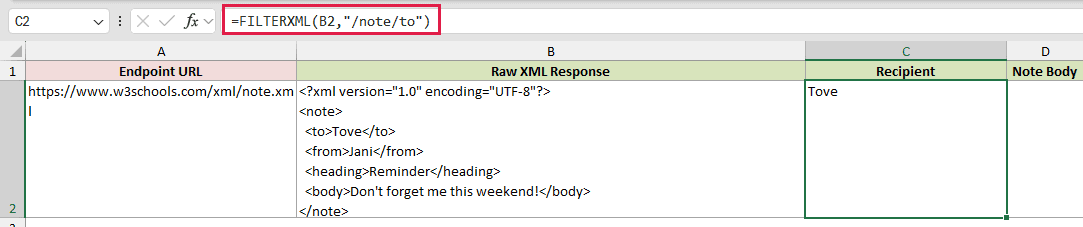
/note/to is an XPath expression that points to the to element inside the note root. The result is Tove.
To return the note body, use this formula:
=FILTERXML(B2,"/note/body")

This time the XPath points to the body element, so the result is Don't forget me this weekend!.
FILTERXML works with valid XML and XPath. It does not parse JSON responses.
Example 3: Build an Encoded WEBSERVICE Query URL
Here is a practical way to build a request when the query text contains spaces and an ampersand.
Below is a small parameter card with a topic, an encoded endpoint, and the raw JSON response.

We want to encode the topic in B1 before appending it to the endpoint URL.
Here is the formula:
="https://httpbin.org/response-headers?topic="&ENCODEURL(B1)

ENCODEURL changes quality check & audit to quality%20check%20%26%20audit. That keeps the spaces and ampersand from changing the query’s meaning.
Now retrieve the response from the completed URL.
=WEBSERVICE(B2)
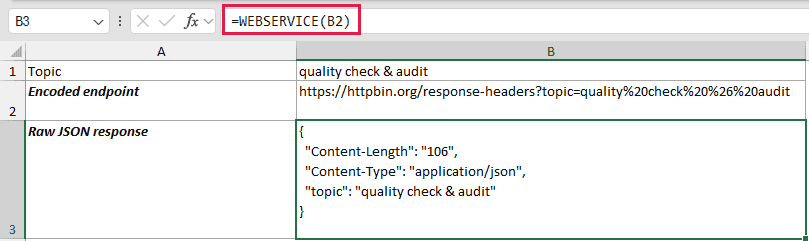
The endpoint returns JSON that includes the decoded topic. WEBSERVICE returns that JSON as plain text, so use Power Query when you need to turn JSON into a refreshable table.
Pro Tip: ENCODEURL, WEBSERVICE, and FILTERXML are Windows desktop Excel features. They are not suitable for Excel for the web or Excel for Mac.
Example 4: Handle an Unsupported WEBSERVICE URL
It helps to make a URL problem understandable to someone using the worksheet.
Below is an ftp:// endpoint and a column for a reader-facing message.

We want to replace WEBSERVICE’s documented error for an unsupported protocol with a useful instruction.
Here is the formula:
=IFERROR(WEBSERVICE(A2),"Use an HTTP or HTTPS endpoint")

WEBSERVICE returns #VALUE! for unsupported protocols such as ftp:// and file://. IFERROR changes that result to Use an HTTP or HTTPS endpoint.
Tips & Common Mistakes
- Use a public HTTP or HTTPS GET endpoint for this type of worksheet. WEBSERVICE cannot safely hold API keys or other credentials in its URL.
- A bad URL, a response above 32,767 characters, or a GET URL above 2,048 characters returns
#VALUE!. - Encode query text before adding it to a URL. Otherwise spaces and characters such as
&can change the request. - WEBSERVICE retrieves text. Use FILTERXML only for valid XML. Use Power Query for structured JSON imports, authentication, or more dependable refresh workflows.
WEBSERVICE is useful for a small public request that you can inspect in one cell. Keep the endpoint simple, encode query text, and handle the limits where they matter.
