
Excel’s FILTERXML function returns specific data from valid XML text by evaluating an XPath expression.
XPath tells Excel which element, attribute, or group of matching nodes to return. This makes FILTERXML handy when structured XML is already stored in a worksheet cell.
In this article, I’ll show you how to extract XML elements and attributes, return multiple matches, and filter results with practical FILTERXML examples.
FILTERXML Function Syntax in Excel
The FILTERXML function has two required arguments:
=FILTERXML(xml, xpath)
xmlis a text string containing valid XML.xpathis a text string containing a valid standard XPath expression that identifies the data you want.
When to Use FILTERXML Function
- Extract one value from XML stored in a cell.
- Return all elements that match an XPath.
- Read values stored in XML attributes.
- Filter XML nodes with a worksheet-driven XPath predicate.
- Split delimited text in Windows versions that do not have TEXTSPLIT.
Example 1: Extract an XML Element
This first formula uses a simple element path.
Below is the dataset with a short XML string in column A and a Location result column.

I want to return the workshop location from the XML in cell A2.
Here is the formula:
=FILTERXML(A2,"//workshop/location")

The XPath //workshop/location selects the location element inside workshop. The formula returns Room 4B in cell B2.
For a large XML file or a repeatable import, Power Query is usually easier to maintain.
FILTERXML works well for a small string already sitting in a cell.
Example 2: Return Multiple XML Matches
The next formula returns every matching element at once.
Below is the dataset with three task elements inside the XML and a Release task result column.

I want to list all three release tasks from the XML in cell A2.
Here is the formula:
=FILTERXML(A2,"//task")
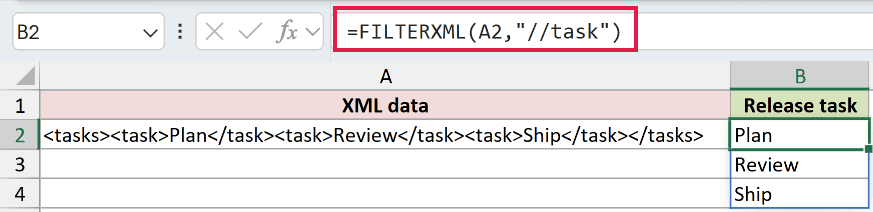
The XPath //task matches every task element. The formula returns Plan, Review, and Ship in cells B2:B4.
In Excel 2021, Excel 2024, and Microsoft 365 on Windows, you enter the formula in B2 and the results spill into the cells below.
Pro Tip: Keep cells below B2 empty so results can spill. In Excel 2019 and 2016, select the output range first, then confirm with Ctrl + Shift + Enter.
Example 3: Extract XML Attribute Values
XML often stores useful details as attributes rather than element text.
Below is the dataset with three check elements whose audit IDs are stored in id attributes.

I want to return each audit ID from the XML in cell A2.
Here is the formula:
=FILTERXML(A2,"//check/@id")
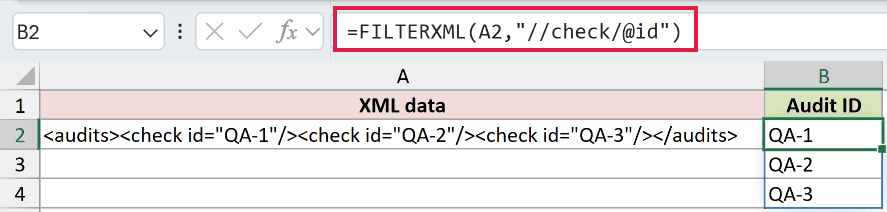
The XPath //check/@id finds every check element, then selects its id attribute. The formula spills QA-1, QA-2, and QA-3 into B2:B4.
The @ here is part of the XPath text. It selects an XML attribute and is unrelated to Excel’s implicit intersection operator.
Example 4: Filter XML With a Predicate
You can also build an XPath condition from a worksheet value.
Below is the dataset with request subjects in the XML, a selected team in column B, and matching subjects in column C.

I want to return the subjects assigned to the team selected in cell B2.
Here is the formula:
=FILTERXML(A2,"//q[@team='"&B2&"']")
![=FILTERXML(A2,"//q[@team='"&B2&"']") in C2](https://spreadsheetplanet.com/wp-content/uploads/2026/09/filterxml-example-4-team-matches.png)
The formula joins the value in B2 into the XPath. With A selected, Excel evaluates the condition as //q[@team='A'].
That predicate keeps q elements whose team attribute equals A. The formula returns Reset and Login in cells C2:C3.
Change B2 to B, and the same formula returns Quote.
Example 5: Split Text With FILTERXML
The last example uses an older workaround for splitting delimited text.
Below is the dataset with a comma-separated workflow list in column A and a Split item result column.
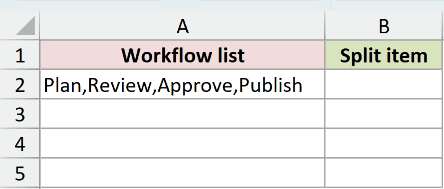
I want to split the workflow in cell A2 into one item per row.
Here is the formula:
=FILTERXML("<items><item>"&SUBSTITUTE(A2,",","</item><item>")&"</item></items>","//item")
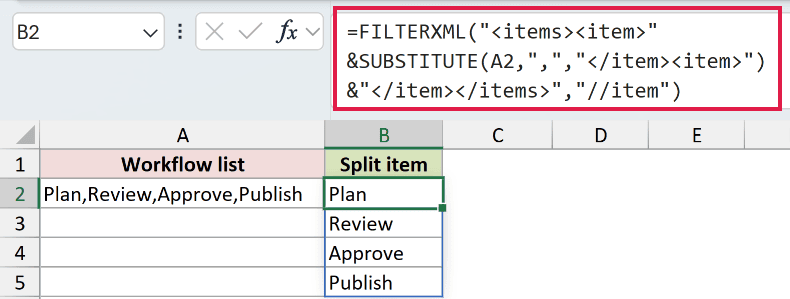
The SUBSTITUTE function replaces each comma with closing and opening item tags.
The text added around it creates one valid XML document with an items root element.
FILTERXML then returns every item element. The results are Plan, Review, Approve, and Publish in cells B2:B5.
In Microsoft 365 or Excel 2024, TEXTSPLIT is more direct: =TEXTSPLIT(A2,,","). The FILTERXML approach remains useful in older Windows versions where TEXTSPLIT is unavailable.
Tips & Common Mistakes
- FILTERXML works in desktop Excel for Windows. It is unavailable in Excel for the web and does not return results in Excel for Mac.
- Both arguments are required, and the XPath must use standard syntax. Invalid XML or XML with an invalid prefixed namespace returns
#VALUE!. - Leave enough empty cells for multiple matches to spill. A blocked result range produces a
#SPILL!error in dynamic-array Excel. - An
@inside the XPath string selects an attribute. An@placed before FILTERXML in the Excel formula requests implicit intersection and can reduce an array result. - FILTERXML parses XML text but does not fetch a URL. WEBSERVICE can retrieve XML separately, and ENCODEURL can encode text used in a request URL.
- FILTERXML does not parse JSON. Power Query is a better fit when the source is JSON or when you need a maintained import workflow.
I covered element paths, spilled matches, XML attributes, cell-driven predicates, and a text-splitting workaround with FILTERXML.
I hope you found this article helpful.
Related Excel Functions / Articles:
