
The SHEET function in Excel returns the sheet number of a reference or, with no argument, the sheet containing the formula.
The number reflects the sheet’s position in the workbook, including hidden sheets. Moving or inserting tabs can change it.
That makes SHEET useful for checking workbook structure or identifying which sheet a reference points to. SHEETS counts sheets instead.
In this article, I’ll show you how to find the positions of current and hidden sheets, reference another sheet, and handle a missing sheet name.
SHEET Function Syntax in Excel
SHEET returns the number of a specified sheet or reference.
=SHEET([value])
valueis optional. Use a sheet name or reference to return that sheet’s number.- When you omit
value, SHEET returns the number of the sheet containing the formula.
When to Use SHEET Function
- Check a worksheet’s left-to-right tab position.
- Find the position of a named worksheet.
- Include hidden worksheets in a workbook audit.
- Return a clearer message when a requested sheet does not exist.
Example 1: Find the Current Sheet Position
Start with the simplest use of SHEET.
Below is a card that names the active worksheet and shows its expected position.
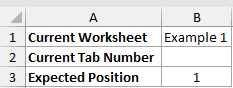
We want to return the tab number of the sheet that contains the formula.
Here is the formula:
=SHEET()
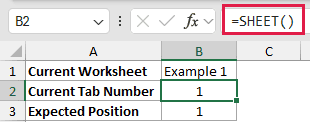
The formula is on Example 1, which is the first tab in this workbook. It returns 1.
Example 2: Find Another Sheet’s Position
This example shows four ways a sheet name or reference can affect SHEET.
Below is a card that stores Example 4 as text and compares several references.
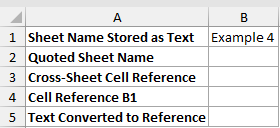
We want to return the position of the worksheet named Example 4.
Here is the formula:
=SHEET("Example 4")
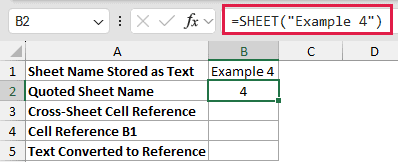
Excel finds the worksheet named Example 4 and returns 4.
You can also pass a direct reference from that worksheet.
=SHEET('Example 4'!A1)
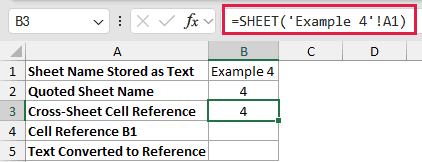
The reference belongs to Example 4, so this formula also returns 4.
Now look at a reference to B1 on the current sheet.
=SHEET(B1)
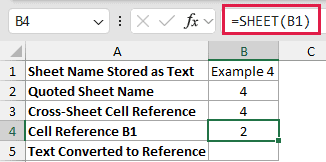
B1 displays the text Example 4, but B1 itself is on Example 2. That is why this formula returns 2.
To use the text in B1 as a sheet reference, convert it with INDIRECT.
=SHEET(INDIRECT("'"&B1&"'!A1"))
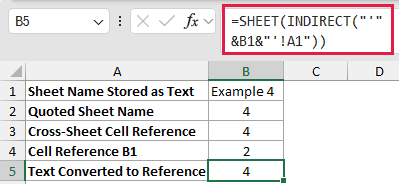
INDIRECT turns the text into a reference to A1 on Example 4, so SHEET returns 4.
Example 3: Get a Hidden Sheet’s Position
Hiding a worksheet does not remove it from the tab sequence.
Below is the card on Example 3. This sheet is hidden when the workbook opens.
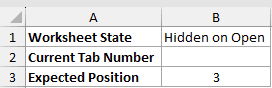
We want to return this hidden sheet’s own position after displaying it.
Here is the formula:
=SHEET()
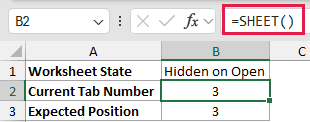
Example 3 is the third worksheet, so the formula returns 3 even though the tab is hidden on open. You can unhide a tab to inspect it, then hide it again before continuing.
Example 4: Check a Hidden Sheet from a Visible Tab
You can also reference a cell on another sheet without displaying that worksheet.
Below is a visible audit card that points to the hidden Example 3 sheet.
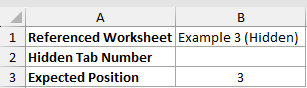
We want to return the position of the hidden worksheet from this visible sheet.
Here is the formula:
=SHEET('Example 3'!A1)
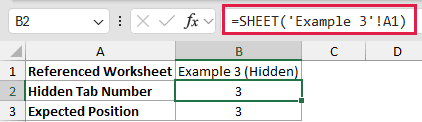
The reference belongs to Example 3, so the result is 3. Its hidden state does not change the position.
Example 5: Handle a Missing Sheet Name
The final example shows the difference between Excel’s raw error and a message for the person using the workbook.
Below is a requested sheet name that does not exist, plus a raw result and a reader-facing check.
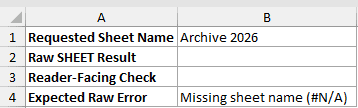
We want to show what SHEET returns for the missing sheet name Archive 2026.
Here is the formula:
=SHEET("Archive 2026")
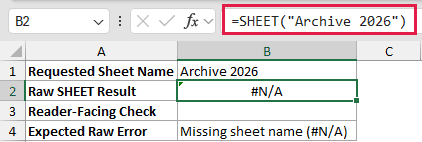
Because the name is not a valid worksheet name in this workbook, SHEET returns #N/A.
To display a useful message instead, use this formula:
=IFNA(SHEET("Archive 2026"),"Target sheet not found")
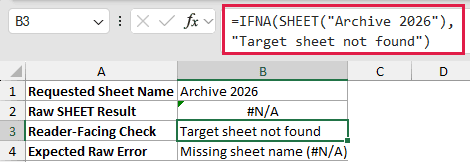
IFNA preserves valid SHEET results and replaces this missing-name error with Target sheet not found.
Tips & Common Mistakes
- SHEET returns a position. SHEETS returns a count.
- A tab’s number can change when someone moves a tab or inserts another sheet before it.
- Hidden and very hidden worksheets still take part in the tab numbering.
- A broken reference returns
#REF!. A name that is not a valid worksheet returns#N/A. - Use INDIRECT only when text must become a reference. It is volatile, so a direct reference is simpler when you know the target sheet.
SHEET is a compact way to inspect workbook order. Use a direct sheet reference when possible, and add error handling if another person will choose the sheet name.
Other Excel articles you may also like:
