
If you have opened a workbook and noticed a sheet tab is missing, someone has probably hidden it rather than deleted it. Hidden tabs are still fully there with all their data, they just don’t show along the bottom.
Getting them back is quick once you know where to look. In this tutorial I’ll show you how to unhide one tab, unhide several at once, and unhide every sheet in the workbook with a bit of VBA.
Method #1: Using the Right-Click Unhide Command
This is the fastest way to bring back a single hidden tab, and it’s the one I reach for most of the time.
I have a workbook of used-car listings, with a separate tab for each model year. The 2021 tab has been hidden, so only 2022 and 2023 show at the bottom.

Here are the steps to unhide the tab:
- Right-click any visible sheet tab at the bottom of the workbook.
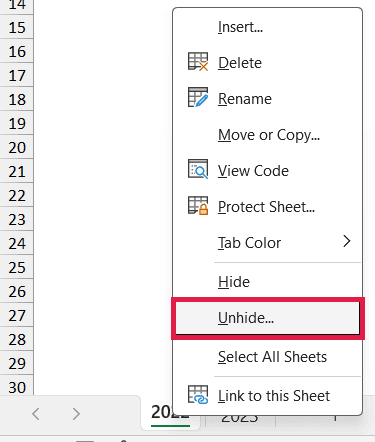
- Click Unhide in the menu that appears.
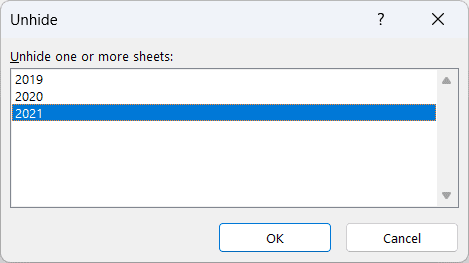
- In the Unhide dialog box, select the sheet you want to bring back (2021).
- Click OK.

The 2021 tab reappears in its original spot, and its data is untouched.
You can also open the same dialog from the ribbon by going to Home > Format > Hide & Unhide > Unhide Sheet.
Note: If your Unhide dialog only lets you select one sheet, repeat these steps for each tab or use Method #3. Multi-select is available to Microsoft 365 subscribers.
Method #2: Using Multi-Select in Microsoft 365
If you’re using Microsoft 365, you can select several hidden sheets in the Unhide dialog and bring them all back in one go.
In this workbook I’ve hidden three yearly tabs (2019, 2020, and 2021), so only 2022 and 2023 are visible.

Here are the steps to unhide them together:
- Right-click any visible sheet tab and click Unhide.
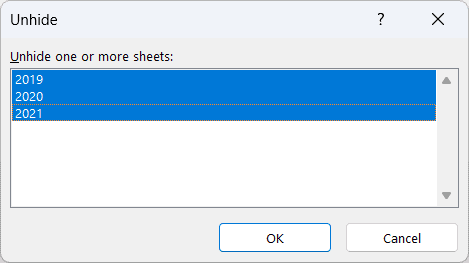
- In the Unhide dialog box, hold Ctrl on Windows or Command on Mac and click each sheet you want back (2019, 2020, 2021). For adjacent items, select the first, then hold Shift and use the arrow keys to extend the selection.
- Click OK.

All three tabs come back at once, which saves a lot of clicking when a workbook has a stack of hidden sheets.
Note: If you can only select one sheet at a time, your Excel build does not include the multi-select option. Use Method #1 repeatedly or the VBA approach below.
Method #3: Using VBA
When a workbook has a lot of hidden tabs, or a few “very hidden” ones that don’t even show up in the Unhide dialog, a short macro is the cleanest fix. It loops through every sheet and makes each one visible in a single run.
Here’s the used-car workbook again, this time with several yearly tabs hidden and one set to very hidden so it can’t be reached from the right-click menu.

Here is the VBA code:
Sub UnhideAllTabs()
    Dim ws As Worksheet
    For Each ws In ThisWorkbook.Worksheets
        ws.Visible = xlSheetVisible
    Next ws
End SubThisWorkbook means the workbook that contains the macro code. Insert the module and store this macro in the workbook whose tabs you want to unhide.
Here are the steps to run it:
- On the Developer tab, click Visual Basic to open the Visual Basic Editor. On Windows, you can also press Alt + F11. On Mac, Microsoft documents Fn + Alt + F11.
- Click Insert, then Module, to add a new module.
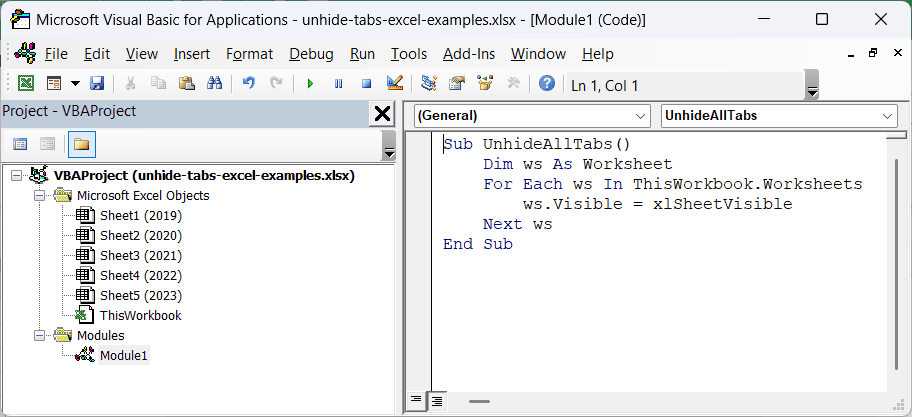
- Paste the code into the module window.
- Press F5 to run it (Fn + F5 on some Mac keyboards), then switch back to Excel.

Every sheet in the workbook is now visible. The macro changes both xlSheetHidden and xlSheetVeryHidden sheets to xlSheetVisible. A sheet set to xlSheetVeryHidden does not appear in the Unhide dialog, so the macro can restore tabs the menu cannot.
Note: Workbook structure protection prevents the macro from changing sheet visibility, so unprotect the structure first. To keep the macro, save the file as a macro-enabled workbook (.xlsm). Saving it as a normal .xlsx removes the code.
Additional Notes About Unhiding Tabs in Excel
- If the entire tab bar is missing (not just one tab), the sheets are not necessarily hidden. On Windows, go to File > Options > Advanced, then select “Show sheet tabs” under “Display options for this workbook.” On Mac, go to Excel > Preferences > View and turn on “Sheet tabs” under “Show in Workbook.”
- A sheet set to
xlSheetVeryHiddennever appears in the right-click Unhide list. You can restore it with VBA or by changing its Visible property in the Visual Basic Editor, so an empty Unhide dialog does not always mean there are no hidden sheets. - Every workbook needs at least one visible sheet. Excel won’t let you hide the last one, which is why the option greys out on a single-sheet file.
- Hiding and unhiding never changes the data on a sheet. Formulas that reference a hidden tab keep calculating normally while the tab is out of sight.
Frequently Asked Questions
Why is the Unhide option greyed out in Excel?
Usually because there are no hidden sheets to show, or the workbook structure is protected. Check Review > Protect Workbook. If “Protect Workbook Structure” is on, turn it off (you may need the password) and the Unhide command becomes available again.
Can someone hide a sheet so it doesn’t show up in the Unhide list?
Yes. A sheet set to “very hidden” stays out of the right-click Unhide dialog entirely. It’s a light way to keep a sheet out of casual view, though anyone who knows about VBA can still reveal it.
Can I unhide a very hidden sheet without writing a macro?
You can, using the VB Editor. In Windows, press Alt + F11, select the sheet in the Project pane, press F4 for the Properties window, and change Visible to -1 (xlSheetVisible).
On Mac, open Developer > Visual Basic, select the sheet, then choose View > Properties Window and change Visible to -1 (xlSheetVisible). The tab reappears immediately.
Conclusion
This article covered how to restore one tab, select several tabs in Microsoft 365, and reveal every hidden or very hidden sheet with VBA. I hope you found this article helpful!
Other Excel articles you may also like:
