
Excel’s SHEETS function returns the number of sheets in a reference or, with no argument, in the workbook containing the formula.
Hidden sheets still count, so the result can exceed the number of visible tabs. A normal cell range covers one sheet; a 3-D reference can span several.
Use it for workbook audits or checks across period tabs. SHEET answers a different question by returning a sheet’s position.
In this article, I’ll show you how to count workbook sheets, count sheets in a three-dimensional reference, and understand how hidden sheets affect the result.
SHEETS Function Syntax in Excel
SHEETS counts the sheets in a reference.
=SHEETS([reference])
referenceis optional. Use it to count the sheets included in a reference.- When you omit
reference, SHEETS returns the number of sheets in the workbook containing the formula.
When to Use SHEETS Function
- Count all sheets in the current workbook.
- Check whether a reference stays on one worksheet.
- Count the sheets inside a consecutive 3-D reference.
- Include hidden sheets in a workbook structure check.
Example 1: Count All Sheets in a Workbook
Start with the whole-workbook count.
Below is a card that shows the expected number of sheets in this workbook.
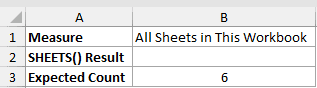
We want to count every sheet in the workbook that contains the formula.
Here is the formula:
=SHEETS()
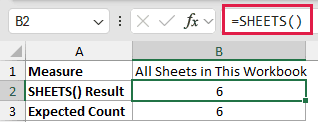
This workbook has six sheets, so the result is 6. The count includes the hidden Example 5 sheet. You can unhide a tab to inspect it.
Example 2: Count a One-Sheet Reference
A cell reference does not count cells or the entire workbook.
Below is a card that passes A1 from Example 2 to SHEETS.
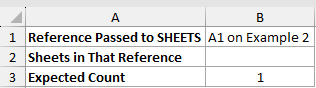
We want to count the sheets represented by the A1 reference.
Here is the formula:
=SHEETS(A1)
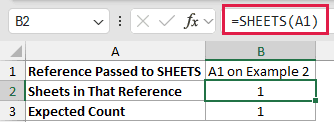
A1 belongs to one worksheet, so SHEETS returns 1.
Example 3: Count a 3-D Sheet Reference
Use a 3-D reference when you need to count a consecutive run of worksheet tabs. A normal cross-sheet reference is useful when you only need one target sheet.
Below is a card that identifies Example 3 through Example 4 as the reference span.
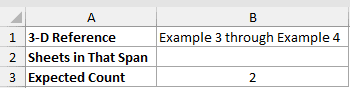
We want to count the sheets from Example 3 through Example 4, inclusive.
Here is the formula:
=SHEETS('Example 3:Example 4'!A1)
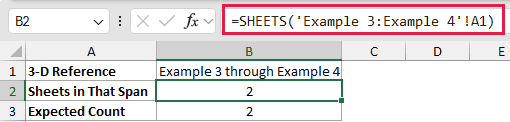
The reference starts at Example 3 and ends at Example 4. Those two boundary sheets are included, so the result is 2.
Example 4: Include Hidden Sheets in the Count
Visible tabs are not always the full workbook structure.
Below is a card with five visible sheets, one hidden sheet, and the workbook total.
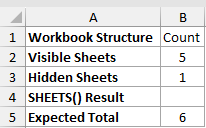
We want to count every sheet, including the hidden tab.
Here is the formula:
=SHEETS()
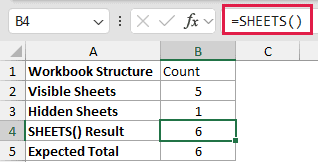
SHEETS returns 6, not 5, because hidden sheets are included in the workbook count.
Example 5: Compare SHEET and SHEETS
SHEET and SHEETS sound similar, but they answer different questions.
Below is the hidden Example 5 sheet, which compares a target sheet’s position with the total workbook count.
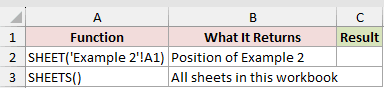
We want to return the position of Example 2.
Here is the formula:
=SHEET('Example 2'!A1)
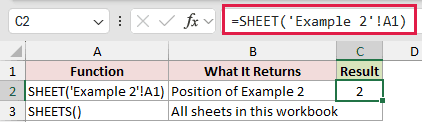
SHEET returns 2 because Example 2 is the second tab.
Now count every sheet in this workbook.
=SHEETS()

SHEETS returns 6 because it counts all sheets. Use SHEET for a position and SHEETS for a count.
Example 6: Handle a Broken SHEETS Reference
The last example keeps Excel’s raw error visible before adding a reader-facing message.
Below is an intentional broken reference, its raw result, and a check for the person using the workbook.

We want to show what SHEETS returns when its reference is broken.
Here is the formula:
=SHEETS(#REF!)

An invalid reference returns #REF!.
To show an instruction instead, use this formula:
=IFERROR(SHEETS(#REF!),"Repair the reference")

IFERROR changes the error to Repair the reference. It does not make the reference valid.
Tips & Common Mistakes
- SHEETS counts hidden and very hidden worksheets as well as visible ones.
- A 3-D reference includes both boundary sheets and each sheet between them.
- Reordering sheets or inserting a sheet inside a 3-D span can change its count.
- SHEETS counts. SHEET returns the number of one sheet or reference.
- A broken reference returns
#REF!, so fix the referenced sheet or range before relying on the count.
SHEETS gives you a quick workbook-structure check without VBA. Use it for a total, a one-sheet reference, or a consecutive tab range.
