
The VALUETOTEXT function in Excel returns a value as text, using either concise or strict formatting.
Concise output resembles General formatting. Strict output also reveals the value type by placing double quotes around text while leaving numbers and logical values unquoted.
In this article, I’ll show you how strict output reveals a value’s type, why dates become serial numbers, and how error codes can remain inside labels.
VALUETOTEXT Function Syntax in Excel
The VALUETOTEXT function uses the following syntax:
=VALUETOTEXT(value, [format])
- value (required) is the value you want Excel to return as text.
- format (optional) controls the output style. Use 0 for concise formatting or 1 for strict formatting. If omitted, Excel uses concise formatting.
When to Use VALUETOTEXT Function
- Convert mixed values into text without changing the source cells.
- Distinguish text from numbers and logical values with strict formatting.
- Keep an error code readable inside a longer label instead of letting the error spread.
- Create delimited export lines where strict formatting quotes every text field, protecting fields that contain commas.
- Match numeric lookup values with keys stored as text.
Example 1: Compare Concise and Strict Formats
Let’s start with a product record containing several value types.
Below is the dataset. Column A names each attribute, column B holds its source value, and the empty columns C and D will hold the text outputs.
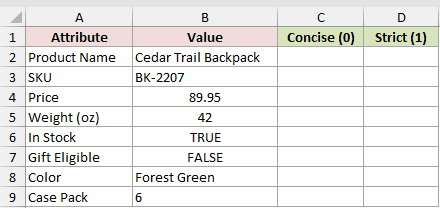
We want to convert the mixed values to text and compare both formats.
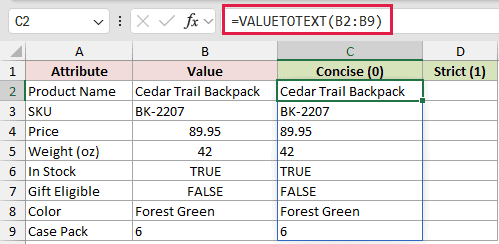
Here is the concise formula:
=VALUETOTEXT(B2:B9)
And here is the strict formula:
=VALUETOTEXT(B2:B9,1)
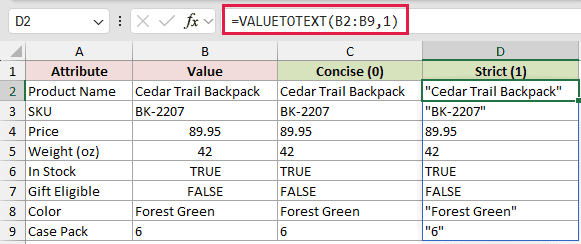
Both formulas spill down their columns in Excel 2021 and later or Microsoft 365.
Concise output returns Cedar Trail Backpack, while strict output returns "Cedar Trail Backpack". The number 89.95 and logical value TRUE stay unquoted in both columns.
The Case Pack value looks like a plain 6 in the source and concise columns, while strict mode wraps it in quotes as "6".
Those quotes prove the source cell contains text, not a number.
Pro Tip: VALUETOTEXT ignores number formats. A displayed $49 becomes 49, 15% becomes 0.15, and 5:42 AM becomes 0.2375.
Example 2: Keep Error Codes in Log Entries
Error readings need a different treatment when they become part of a label.
Below is the dataset. Package IDs and scale readings are in columns A and B. Column C will hold log entries, while column D will hold the broken comparison.
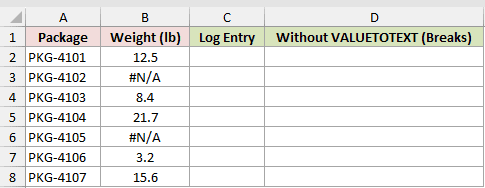
We want each log entry to keep the package ID and show any scale error as readable text.
Here is the VALUETOTEXT formula:
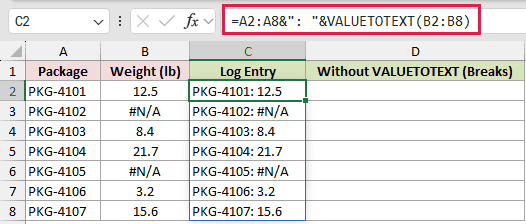
=A2:A8&": "&VALUETOTEXT(B2:B8)
For comparison, here is the wrong formula used in column D:
=A2:A8&": "&B2:B8
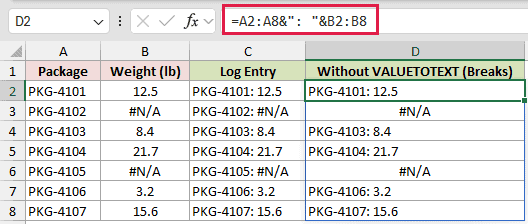
The source readings in B3 and B6 are #N/A placeholders, meaning those scale readings have not arrived.
VALUETOTEXT converts them into readable text. Column C returns PKG-4102: #N/A and PKG-4105: #N/A without breaking the surrounding labels.
Column D, labeled Without VALUETOTEXT (Breaks), is the mistake. Its matching cells return the real #N/A error because joining text directly to an error makes that error spread.
Example 3: Understand Date Serial Numbers
Dates expose an important limit of this function.
Below is the dataset. Member names and renewal dates are in columns A and B. Columns C and D will compare VALUETOTEXT output with formatted TEXT output.
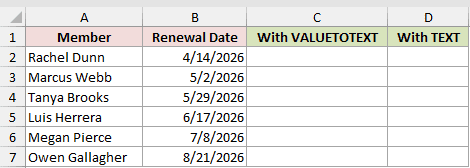
We want to decide which function is appropriate when the displayed date matters.
Here is the VALUETOTEXT formula:
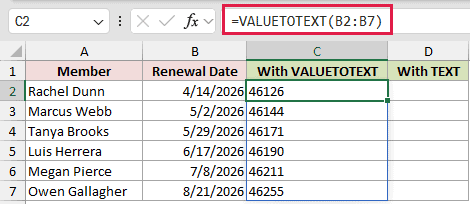
=VALUETOTEXT(B2:B7)
And here is the TEXT formula:
=TEXT(B2:B7,"mmm d, yyyy")
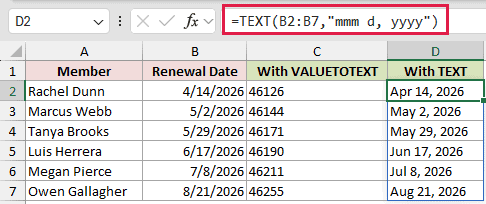
VALUETOTEXT ignores the date format and returns the underlying serials. Rachel Dunn’s date becomes 46126, while the TEXT formula returns Apr 14, 2026.
VALUETOTEXT returns the stored serial as text, while TEXT returns the date in the requested display format.
Example 4: Create CSV Lines With Strict Format
Strict formatting becomes especially useful in delimited exports.
Below is the dataset. Order details fill columns A through D, and the empty CSV Line column will hold the combined export text.
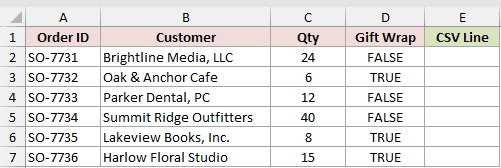
We want to create a comma-separated line while protecting customer names that already contain commas.
Here is the formula entered in the first result row and copied down:
=TEXTJOIN(",",FALSE,VALUETOTEXT(A2:D2,1))
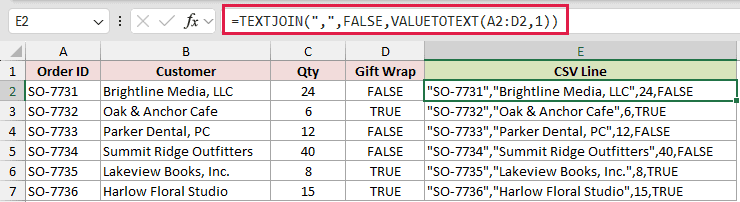
The first line returns "SO-7731","Brightline Media, LLC",24,FALSE. Strict formatting quotes the text fields while leaving the quantity and logical value bare.
Those quotes keep the comma inside Brightline Media, LLC from looking like another field separator.
Pro Tip: In Microsoft 365 and Excel 2024, BYROW can create every CSV line with one spilling formula. The filled-down version keeps orders separate because TEXTJOIN combines everything it receives into one string.
Example 5: Fix Number and Text Lookups
A type mismatch can also break an otherwise correct lookup.
Below is the dataset. Column A holds text part numbers, B lists the part names, and C gives bin locations. Numeric picked parts appear in E, with their bins going in F.
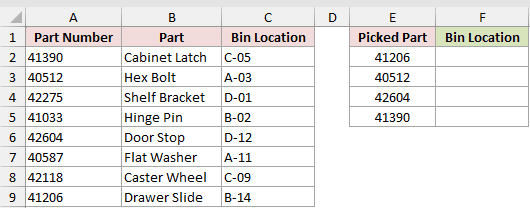
We want XLOOKUP to match the numeric picked parts against part numbers stored as text.
Here is the formula:
=XLOOKUP(VALUETOTEXT(E2:E5),A2:A9,C2:C9)
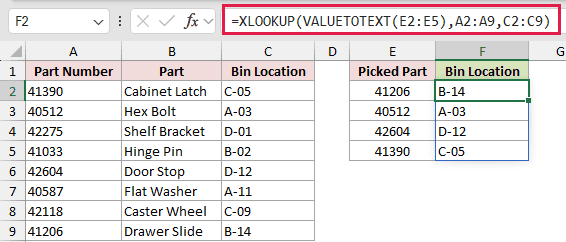
A plain XLOOKUP comparing the numeric values directly with the text keys returns #N/A in testing. VALUETOTEXT converts each picked part into a matching text key.
Another fix is to convert the stored IDs with the VALUE function, but VALUETOTEXT leaves the source table unchanged.
The formula returns B-14, A-03, D-12, and C-05 for the picked parts.
Tips & Common Mistakes
- VALUETOTEXT accepts only format 0 or 1. Format 2 returns
#VALUE!. - A blank source cell returns an empty string in both concise and strict formats.
- Strict formatting doubles embedded quotation marks:
He said "hi"becomes"He said ""hi""". - Range formulas spill in Excel 2021 and later or Microsoft 365. If cells block the output area, Excel returns
#SPILL!. - VALUETOTEXT returns one text result per value. ARRAYTOTEXT is the related function for converting an entire array into one text value.
- The returned values are text, even when they look like numbers. Check the data type before using them in arithmetic or exact-match lookups.
Cell formatting can hide a value’s underlying type.
Check the returned text, not just the source cell’s appearance, before using that value downstream.
Related Excel Functions / Articles:
