
The TEXT function in Excel converts a number into text using a format code you specify.
It is useful for including formatted dates, amounts, or leading zeros in a sentence. The result is text, so keep the original numeric value for further calculations.
In this article, I’ll show you how to format dates and currency within text, add leading zeros, and combine labels with formatted values.
TEXT Function Syntax in Excel
Here is the syntax of the TEXT function:
=TEXT(value,format_text)
- value: The number or date you want to format.
- format_text: A format code in double quotes that says how to display the value, like “$#,##0.00” or “mm/dd/yyyy”.
When to Use TEXT Function
- When you want to show a number as currency, a percentage, or with a thousands separator inside a formula.
- When you need to display a date as text, like a day name or a long written-out format.
- When you want to add leading zeros to IDs or codes.
- When you’re joining a number or date into a sentence and need it to keep its formatting.
Example 1: Format a Number as Currency
Let’s start with one of the most common needs, turning plain numbers into currency.
Below is the dataset. Column A holds a list of daily sales figures as plain numbers.
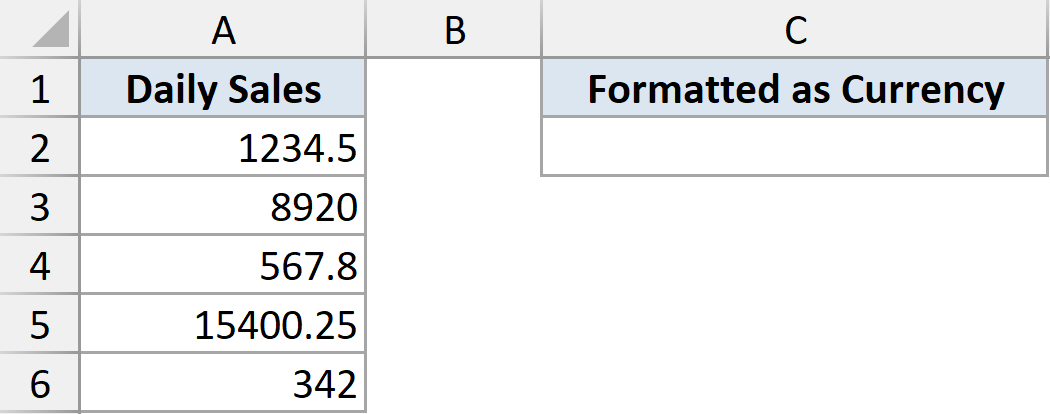
I want to show each figure with a dollar sign, a thousands separator, and two decimal places.
Here is the formula:
=TEXT(A2:A6,"$#,##0.00")
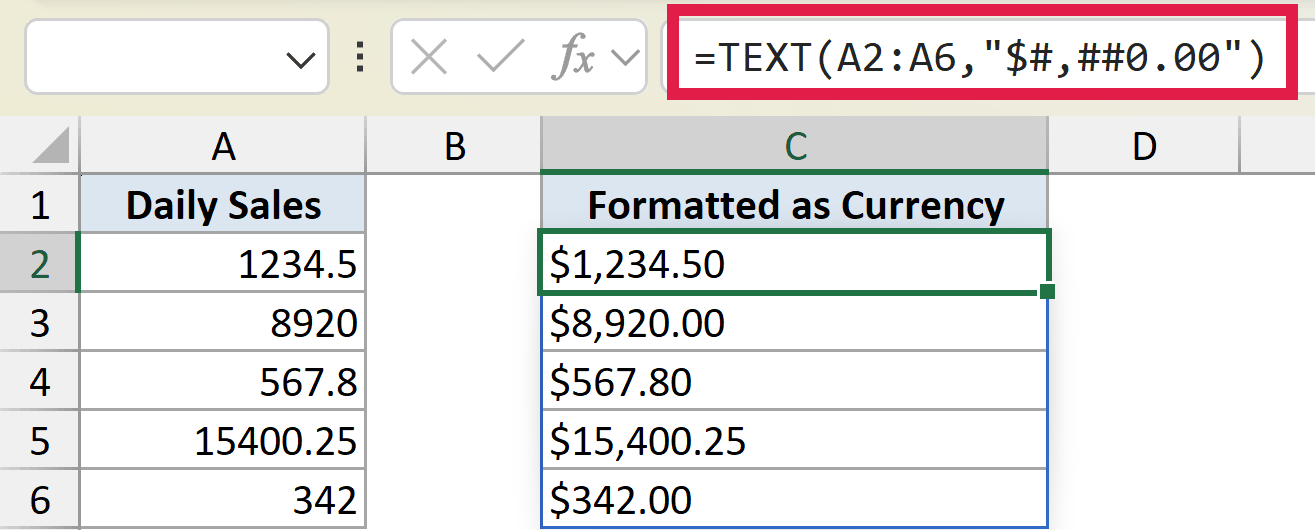
The format code does three things at once. The dollar sign adds the currency symbol, the comma adds a thousands separator, and the .00 forces two decimal places. So 1234.5 becomes $1,234.50.
Because this is Excel 365, one formula in C2 handles the whole column. The results spill down automatically.
Example 2: Format a Date as Readable Text
TEXT is the go-to way to pull a readable date or day name out of a date.
Below is the dataset. Column A holds a list of event dates.
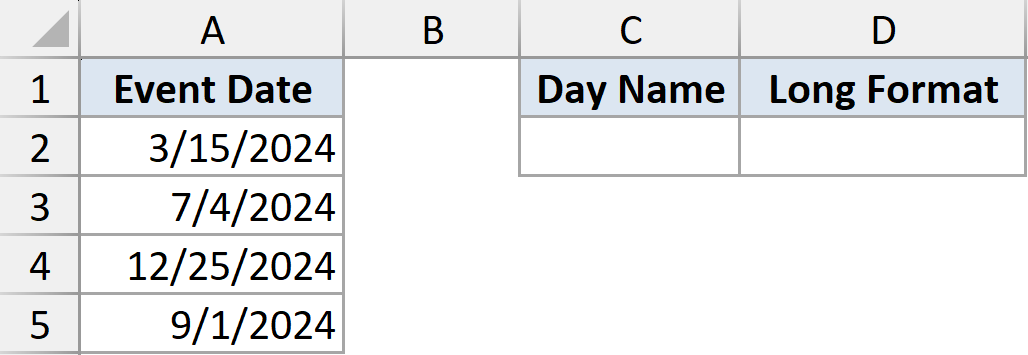
I want two things: the day of the week for each date, and a longer written-out version of the date.
Here is the formula for the day name:
=TEXT(A2:A5,"dddd")
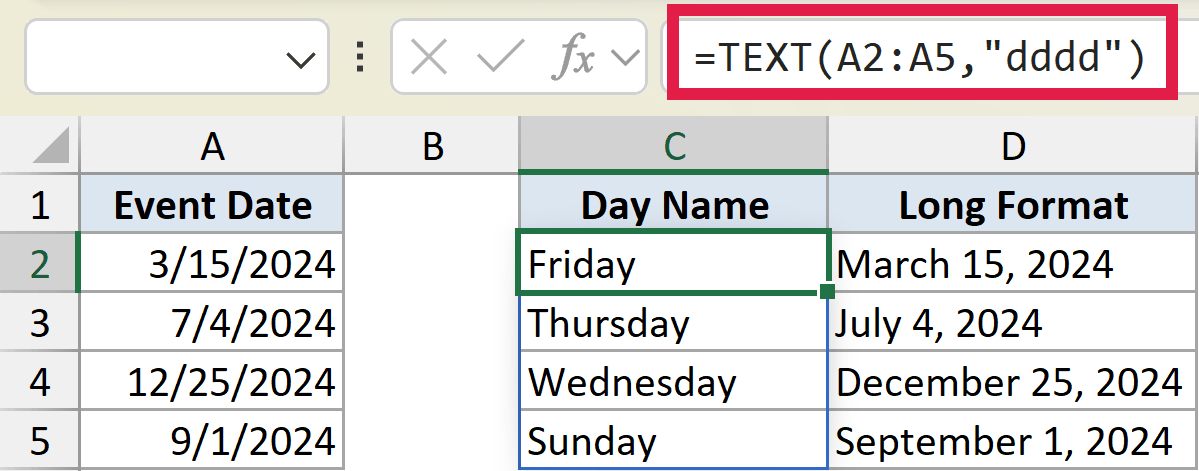
And here is the formula for the long date:
=TEXT(A2:A5,"mmmm d, yyyy")
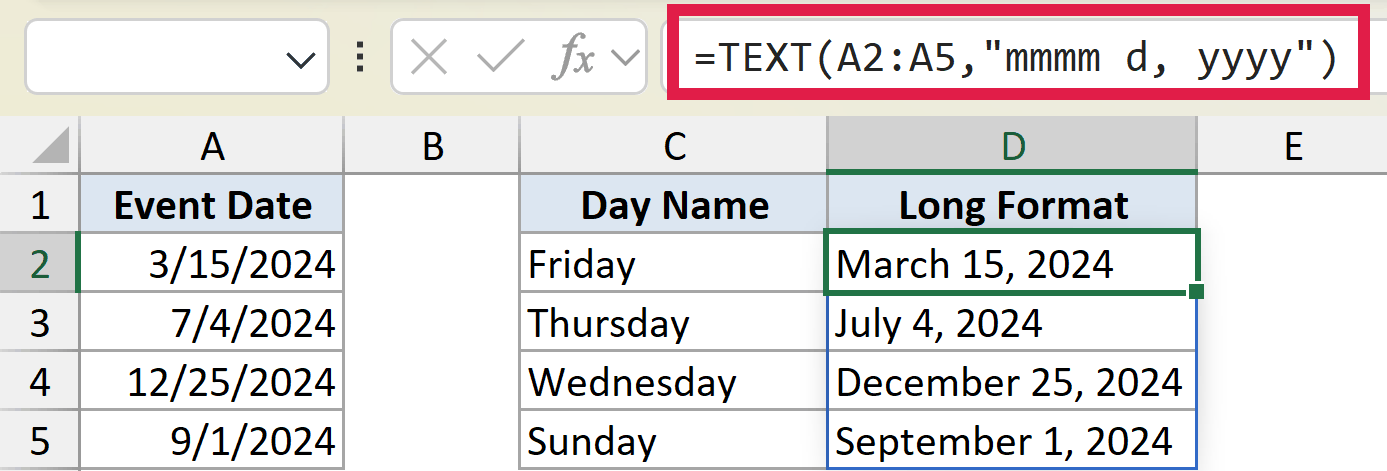
The “dddd” code spells out the full day name, so March 15 returns “Friday”. The “mmmm d, yyyy” code gives a long date format with the full month name, day, and year, like “March 15, 2024”.
You can mix and match these date codes to build almost any date format you need.
Example 3: Add Leading Zeros to IDs
Numbers normally drop their leading zeros. TEXT lets you pad them back to a fixed width.
Below is the dataset. Column A holds member IDs of different lengths.
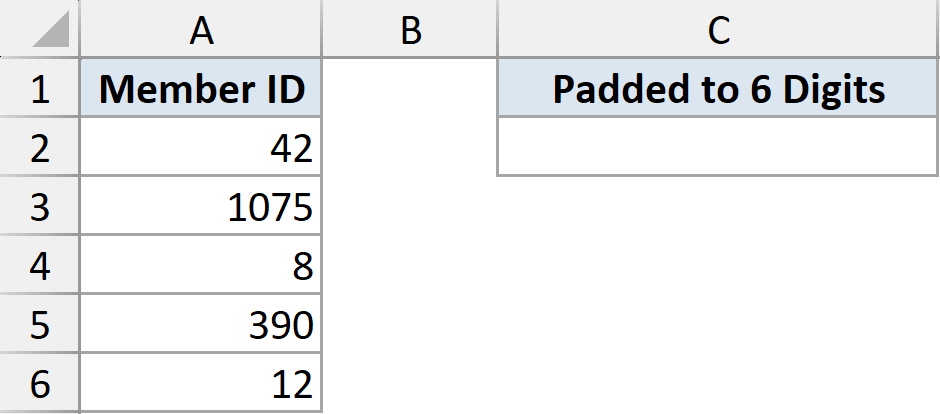
I want every ID padded out to six digits, with zeros filling the gap.
Here is the formula:
=TEXT(A2:A6,"000000")
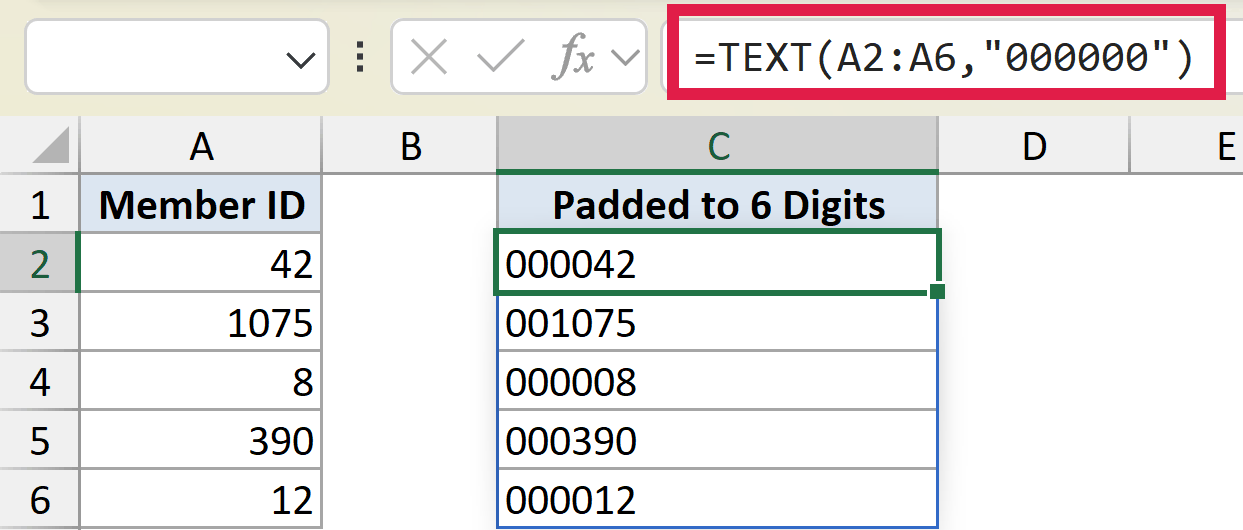
Each 0 in the format code forces a digit to appear. With six of them, the number 42 becomes “000042” and 1075 becomes “001075”.
This is handy for IDs, invoice numbers, and codes that need a consistent length.
Example 4: Show a Number as a Percentage
TEXT can turn a decimal into a percentage string for you.
Below is the dataset. Column A holds completion rates stored as decimals.
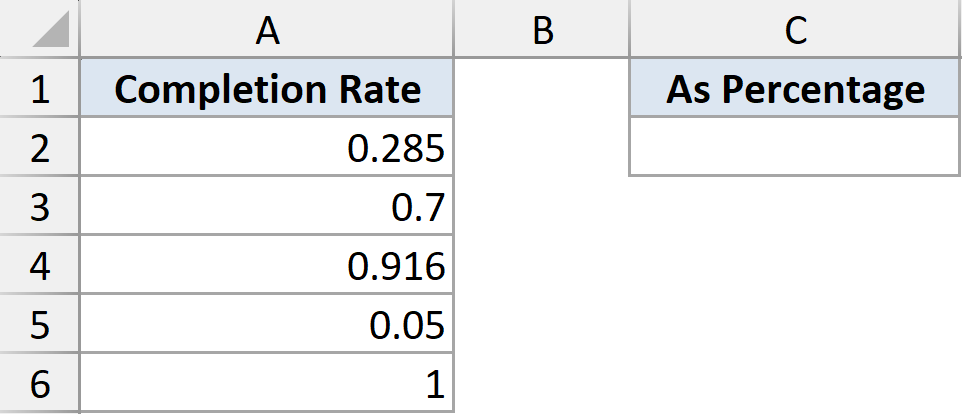
I want each rate shown as a percentage with one decimal place.
Here is the formula:
=TEXT(A2:A6,"0.0%")
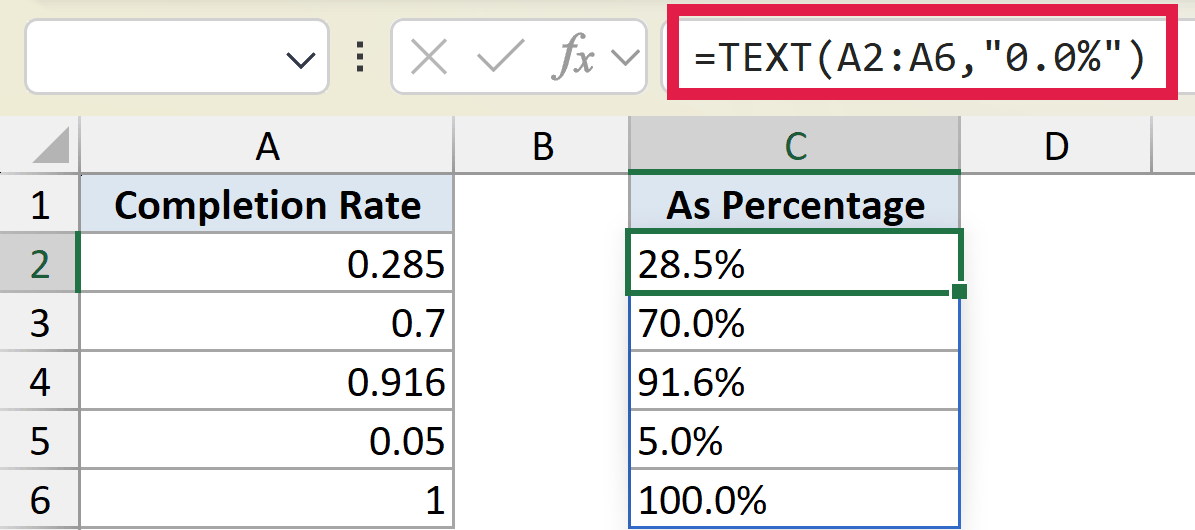
The % in the format code multiplies the value by 100 and adds the percent sign. The 0.0 sets one decimal place. So 0.285 becomes “28.5%”.
It’s the same effect as percentage cell formatting, but here the result is real text you can drop into a sentence.
Example 5: Combine Text with a Formatted Value
This is where TEXT really shines, joining a formatted number or date into a sentence.
Below is the dataset. Columns A, B, and C hold an order ID, a ship date, and an amount.
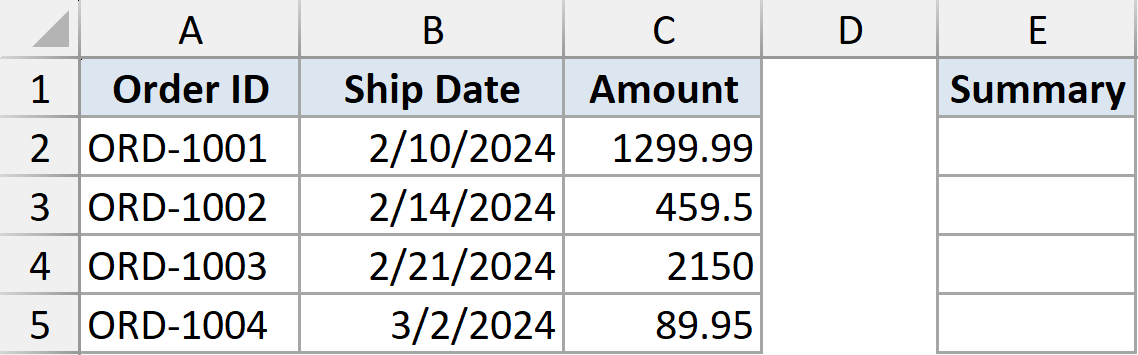
I want a readable sentence for each order that keeps the date and the dollar amount formatted properly.
Here is the formula:
="Order "&A2&" ships on "&TEXT(B2,"mmm d")&" for "&TEXT(C2,"$#,##0.00")

Each piece is joined with the ampersand. The ship date runs through TEXT to show “Feb 10”, and the amount runs through TEXT to show “$1,299.99”.
Without TEXT, the date would show up as a serial number like 45332, and the amount would lose its dollar sign and decimals. This is the single most useful thing TEXT does.
Pro Tip: The result of TEXT is text, not a number, so you can’t add it up or do math on it. Keep the original value in its own cell if you still need to calculate with it.
Example 6: Format Phone Numbers
TEXT can lay out a string of digits into a proper phone format.
Below is the dataset. Column A holds phone numbers as plain ten-digit numbers.
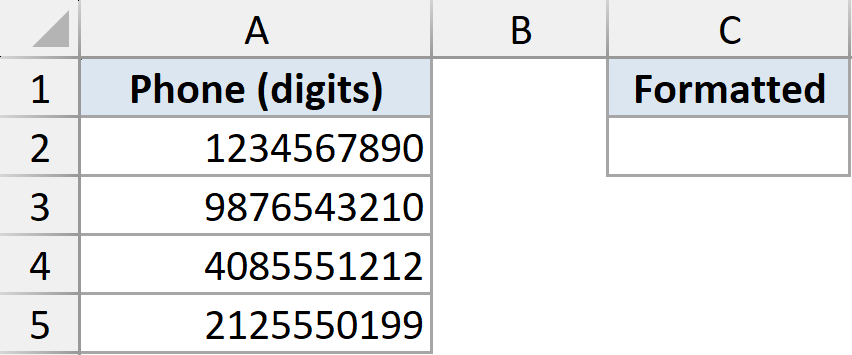
I want each one shown in the familiar (area) prefix-line format.
Here is the formula:
=TEXT(A2:A5,"(###) ###-####")
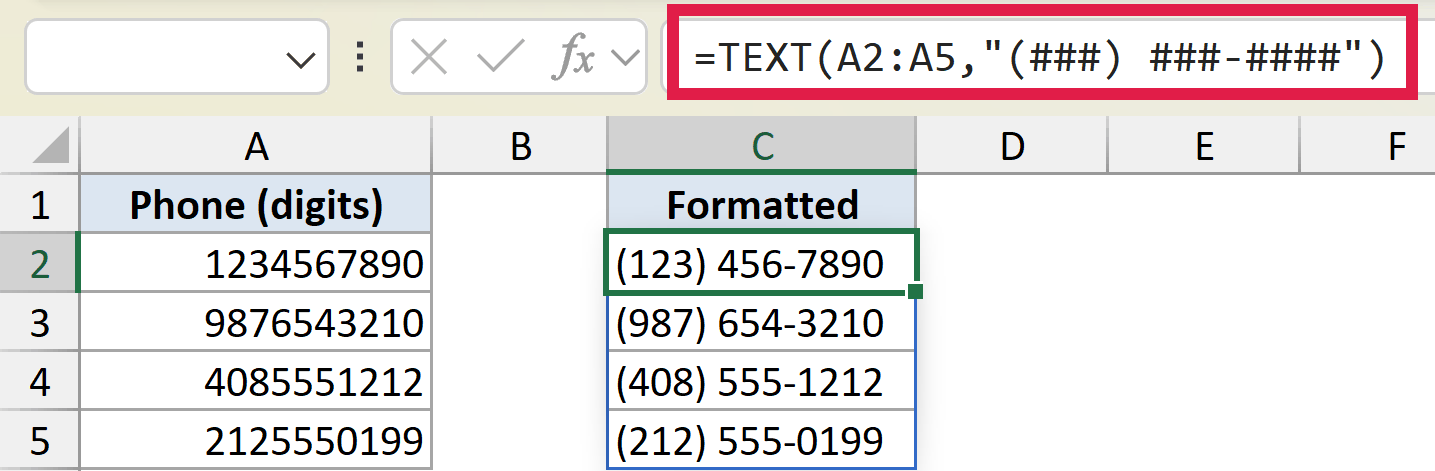
Each # is a placeholder for a digit. The brackets, space, and dash in the format code stay exactly where you put them, so 1234567890 becomes “(123) 456-7890”.
This is a quick way to tidy up numbers that were imported or typed without any formatting.
Tips & Common Mistakes
- The format code must be wrapped in double quotes. Leave them off and you’ll get a #NAME? error.
- Format codes are not case sensitive, so “MM/DD/YYYY” and “mm/dd/yyyy” do the same thing.
- If you only need a value to look formatted on screen and still want to do math with it, use cell number formatting instead. That keeps the value as a real number.
- Some format codes depend on your regional settings, so a file’s date or separator codes can behave differently on another computer.
TEXT gives you full control over how numbers and dates appear, which is exactly what you want when you’re building reports, labels, and sentences from your data.
Run through the examples above and you’ll have a format code ready for just about any situation.
Related Excel Functions / Articles:
- CONCATENATE Function in Excel
- ISTEXT Function in Excel
- How to Add Zero In Front of Number in Excel?
- Format Numbers to Show in Millions in Excel
- Excel Dates Not Formatting – How to Fix?
- How to Apply Short Date Format in Excel?
- How to Convert Text to Date in Excel?
- Data Types in Excel
- How to Convert Numbers to Words in Excel
