
The RADIANS function in Excel converts degree measurements into radians, the angle unit expected by SIN, COS, TAN, and many geometry formulas.
SIN, COS, and TAN read a degree value as radians. Skipping RADIANS gives you a wrong result without an error.
In this article, I’ll show you how spilled RADIANS formulas work, why compass headings need careful component formulas, and how to avoid silent conversion mistakes.
RADIANS Function Syntax in Excel
The RADIANS function takes a degree angle and returns its equivalent in radians.
=RADIANS(angle)
- angle (required) is the angle in degrees that you want to convert to radians.
When to Use RADIANS Function
- Convert degree measurements before using Excel’s trigonometric functions.
- Turn a column of degree angles into radians with a spilling formula.
- Calculate arc lengths and sector areas from angles stored in degrees.
- Prepare latitude and longitude values for coordinate calculations.
- Combine degrees, minutes, and seconds before converting a survey angle.
Example 1: Convert Degrees to Radians
Let’s start with a column of part rotations measured in degrees.
Below is the dataset. Each cut part has a degree rotation. The empty columns are ready for the RADIANS result and the PI()/180 comparison.
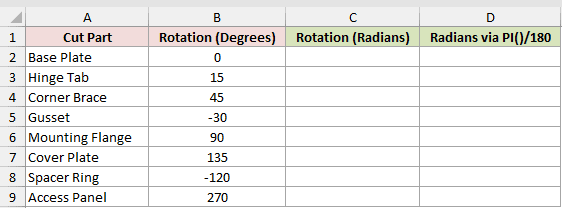
We want to convert every rotation in column B and place the results in column C.
Here is the RADIANS formula:
=RADIANS(B2:B9)
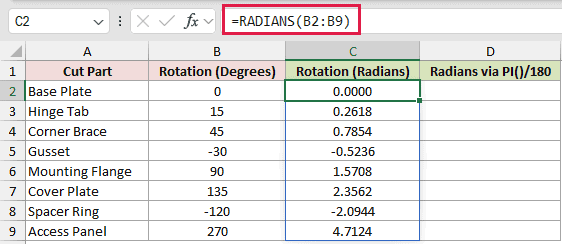
The formula converts the range and spills the results down column C.
The Gusset’s -30 degree rotation returns -0.5236. The Access Panel’s 270 degree rotation returns 4.7124.
Here is the PI()/180 calculation for comparison:
=B2:B9*PI()/180
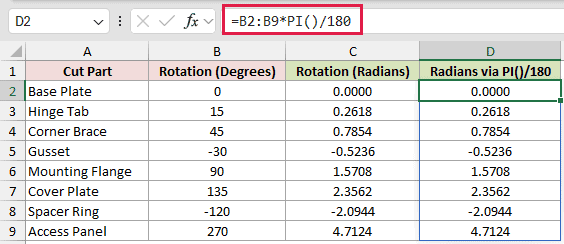
The comparison produces the same displayed values in column D, including -2.0944 for the Spacer Ring.
These range formulas spill in Excel 2021, Excel 2024, and Microsoft 365.
Pro Tip: If another value blocks the output range, Excel returns #SPILL!. Clear the occupied cells so the formula has room to place every result.
Example 2: Compass Headings With RADIANS, SIN, and COS
Here’s a practical way to use RADIANS inside trigonometric formulas.
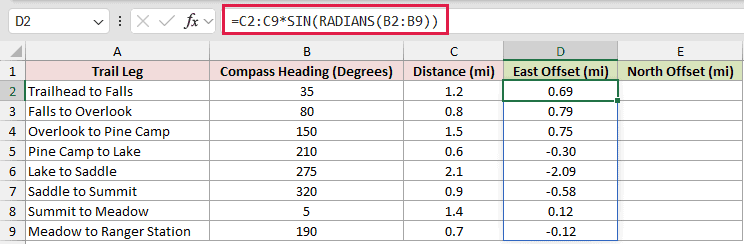
Below is the dataset. Each trail leg has a compass heading and distance. The two empty columns will show its east and north offsets.
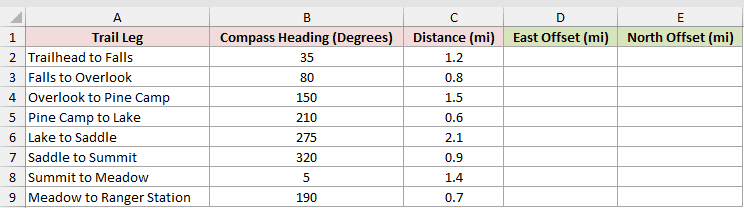
We want to split each trail distance into east and north components.
Here is the formula for the east offset:
=C2:C9*SIN(RADIANS(B2:B9))
And here is the formula for the north offset:
=C2:C9*COS(RADIANS(B2:B9))
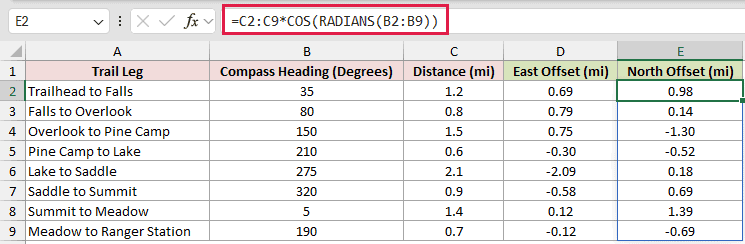
Compass headings run clockwise from north. SIN gives the eastward ratio, which the formula multiplies by the distance to calculate the east offset.
COS gives the northward ratio, and the second formula applies the same multiplication.
Trailhead to Falls returns 0.69 miles east and 0.98 miles north.
For Overlook to Pine Camp, the -1.30-mile north component points south. Lake to Saddle has a -2.09-mile east component, so it points west.
Example 3: Calculate Arc Length and Area
RADIANS also fits geometry calculations that use an angle directly.
Below is the dataset. It lists garden beds, radii, and degree angles, with empty columns for edging length and bed area.
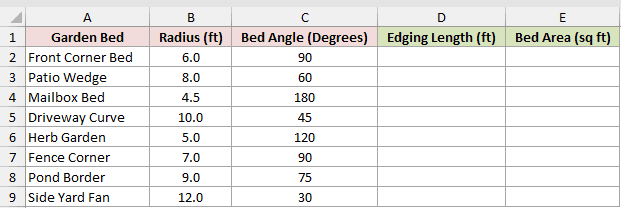
We want to calculate the curved edging required for each bed.
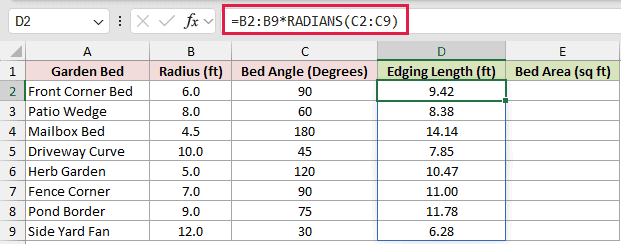
Here is the edging-length formula:
=B2:B9*RADIANS(C2:C9)
We also want the area inside each wedge-shaped bed.
Here is the bed-area formula:
=B2:B9^2*RADIANS(C2:C9)/2
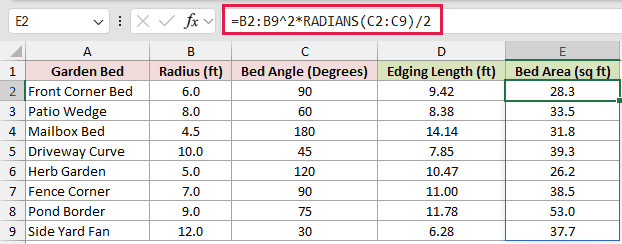
The first formula multiplies each radius by its angle in radians. The second uses the squared radius and half of that angle.
The Front Corner Bed needs 9.42 feet of edging and covers 28.3 square feet.
For the Mailbox Bed, the formulas calculate 14.14 feet of edging and 31.8 square feet of area.
Example 4: Convert Survey Angles to Radians
Survey angles are often split into degrees, minutes, and seconds.
Below is the dataset. Columns B through D hold those angle parts, while the empty result column will hold the complete angle in radians.
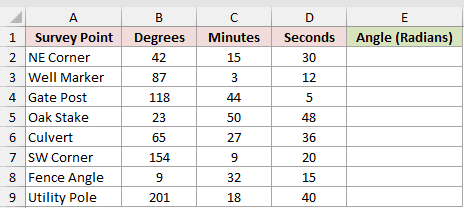
We want to combine every angle’s parts before converting the total to radians.
Here is the formula:
=RADIANS(B2:B9+C2:C9/60+D2:D9/3600)
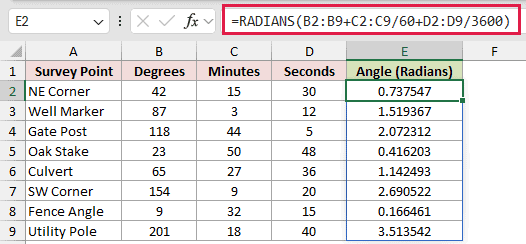
The formula turns minutes and seconds into portions of a degree, adds them to column B, and then applies RADIANS.
The NE Corner returns 0.737547 radians. The Fence Angle returns 0.166461 radians.
Pro Tip: The silent mistake is running RADIANS on the Fence Angle’s 9-degree value alone. Excel returns no error, so 0.157080 looks plausible instead of the correct 0.166461 that includes the minutes and seconds.
Example 5: Find Straight-Line Distance
Let’s finish with a coordinate calculation that needs several degree conversions.
Below is the dataset. Each route includes starting and ending coordinates. The empty final column will hold the straight-line distance in miles.
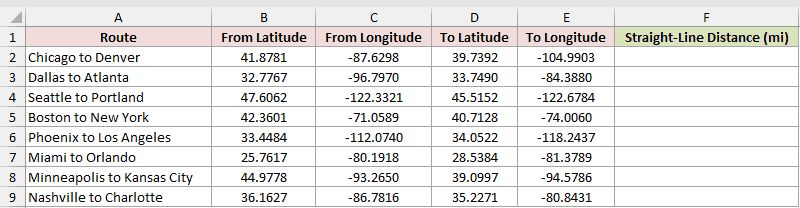
We want to estimate the straight-line distance between each pair of coordinates.
Here is the formula:
=3959*ACOS(SIN(RADIANS(B2:B9))*SIN(RADIANS(D2:D9))+COS(RADIANS(B2:B9))*COS(RADIANS(D2:D9))*COS(RADIANS(E2:E9-C2:C9)))
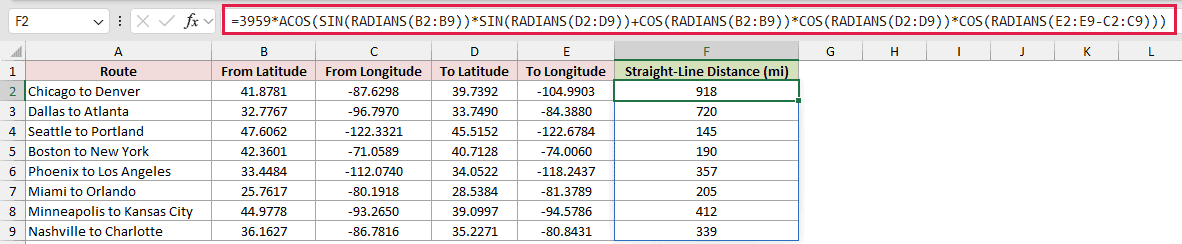
RADIANS converts both latitude columns and the longitude difference before the ACOS calculation. The value 3959 is Earth’s radius in miles.
The calculated distance from Chicago to Denver is 918 miles.
Seattle and Portland are 145 miles apart by this method. Boston to New York comes to 190 miles.
These are straight-line distances over Earth’s surface, as the crow flies, not driving distances along roads.
Tips & Common Mistakes
- RADIANS keeps the sign of an angle. A negative degree value returns a negative radian value.
- Numeric text is converted. In testing, the number 90 stored as text returned 1.570796, while nonnumeric text returned #VALUE! and a blank cell returned 0.
- RADIANS and multiplication by PI()/180 are equivalent. RADIANS is usually clearer because its purpose is visible in the formula.
- In Excel 2019 and earlier, enter
=RADIANS(B2)in C2 and fill it down through C9. - If Excel inserts implicit intersection with @, the formula returns a single row’s value instead of spilling the full range.
- Use DEGREES for the reverse conversion. If your values already use radians, this radians-to-degrees conversion takes them back to degrees.
- RADIANS should prepare degree values before SIN or COS. Use the same conversion before TAN.
Use RADIANS at the point where a calculation expects radians.
Keep the original degree values visible beside the results so you can check each conversion.
Related Excel Functions / Articles:
