
The SEC function in Excel returns the secant of an angle supplied in radians. For an acute angle in a right triangle, that’s the hypotenuse divided by the adjacent side.
You can use that ratio to turn a horizontal measurement into a sloped length. The angle determines how much longer the inclined surface is than its horizontal projection.
I’ll show you how to calculate inclined lengths, turn roof pitch into surface area, and handle the huge numbers SEC returns at certain angles.
SEC Function Syntax in Excel
SEC takes an angle as its required argument:
=SEC(number)
- number (required): The angle in radians, entered as a number, cell reference, or calculation. A degree measurement needs conversion before SEC reads it.
When to Use SEC Function
- Calculate a conveyor’s inclined length from its horizontal distance and incline angle.
- Find the length of fencing that follows a hillside.
- Convert a roof’s horizontal footprint into sloped surface area using its pitch.
- Check secant values near angles where the mathematical result is undefined.
Example 1: Calculate Inclined Conveyor Lengths
Let’s start with a conveyor whose horizontal reach is shorter than its inclined length.
Below is the dataset. Column A names each conveyor, B holds horizontal distances in feet, C holds incline angles in degrees, and D will hold conveyor lengths.
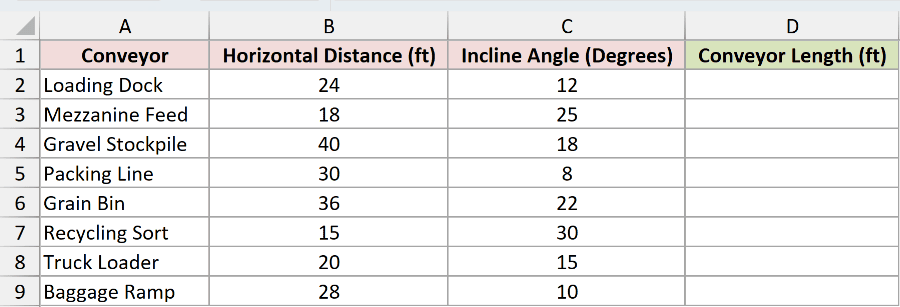
We want to calculate the inclined length of each conveyor from its floor distance and angle.
RADIANS converts degrees into the radians SEC needs. Enter this formula in D2:
=B2:B9*SEC(RADIANS(C2:C9))
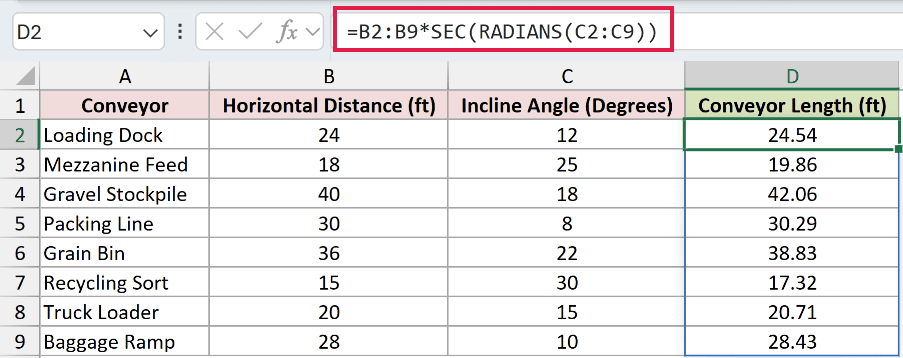
The horizontal distance is the adjacent side of the triangle. Multiplying it by SEC of the incline angle returns the hypotenuse, which is the conveyor length.
For Loading Dock, a horizontal distance of 24 feet at 12 degrees produces 24.54 feet in D2.
Recycling Sort covers 15 feet horizontally at 30 degrees. Its inclined length displays as 17.32 feet in D7.
The formula spills into D2:D9 in Excel 2021, Excel 2024, and Microsoft 365. You enter it once, and Excel places the remaining results below it.
In Excel 2019 and earlier, use individual row references and copy down. SEC itself is available in Excel 2013 and later.
The same geometry works for a rafter when you know its horizontal run and pitch angle.
Pro Tip: Use the horizontal distance as the input, not a measurement already taken along the incline. Otherwise, you’re applying the slope adjustment to a length that already includes it.
Example 2: Avoid the Degrees-versus-Radians Mistake
A wrong angle unit can produce a result that looks reasonable, so it’s easy to miss.
Below is the dataset. Columns A:C list fence sections, horizontal distances, and slopes in degrees. Column D will demonstrate the mistake; E will hold corrected lengths.

We want correct hillside fence lengths and a comparison showing what happens when degree inputs go straight into SEC.
RADIANS converts the slope measurements to radians before SEC calculates the length multiplier. Enter the correct formula in E2:
=B2:B7*SEC(RADIANS(C2:C7))
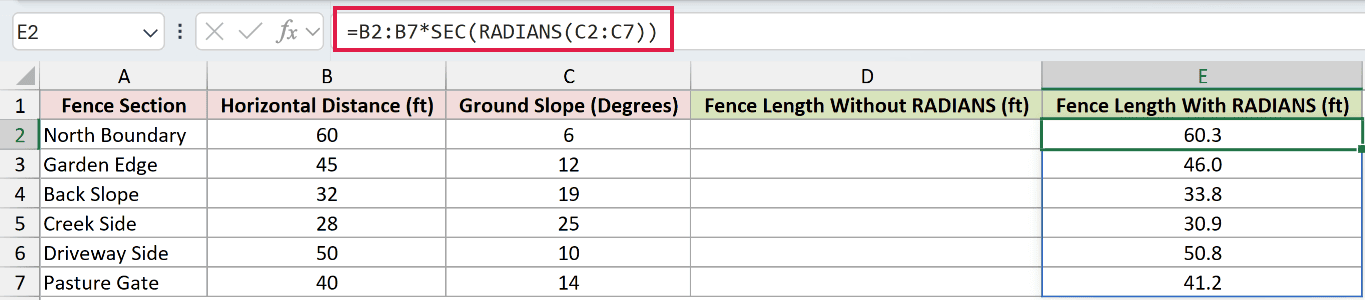
The results spill through E7. North Boundary displays 60.3 feet, while Back Slope displays 33.8 feet.
Now enter this deliberately incorrect formula in D2 to demonstrate the missing conversion:
=B2:B7*SEC(C2:C7)
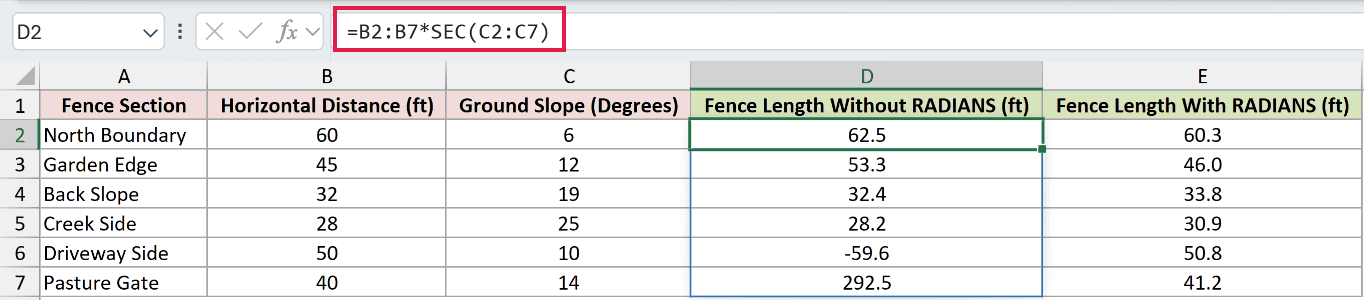
SEC reads column C as radians here, even though those measurements are degrees. The incorrect results spill through D7 without an error message.
North Boundary’s wrong result is 62.5 feet instead of 60.3. Back Slope’s wrong result is 32.4 feet instead of 33.8.
Other mistakes are easier to spot. Driveway Side’s incorrect result is -59.6 feet, and Pasture Gate’s is 292.5 feet. Their corrected lengths are 50.8 and 41.2 feet.
For these acute slopes, the fence length should be at least its horizontal distance. That check helps, but the plausible mistakes show why you must verify the units too.
Example 3: Calculate Roof Area From Pitch
Roof pitch often arrives as a rise-to-run ratio rather than an angle.
Below is the dataset. Column A lists buildings, B holds horizontal roof footprints in square feet, C holds rise per 12 inches, and D will show sloped areas.
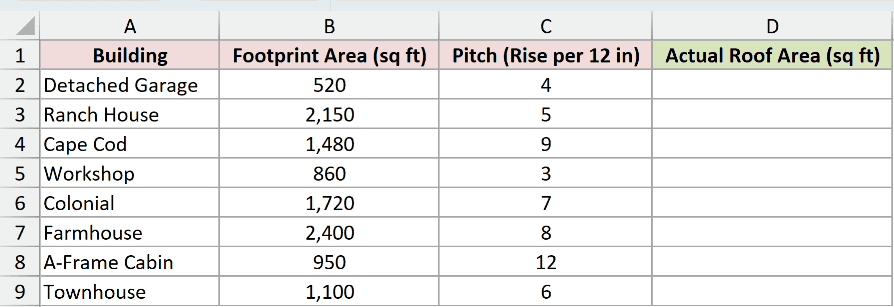
We want to convert each horizontal roof footprint into actual surface area using its pitch.
ATAN turns a rise-to-run ratio into an angle in radians, which SEC can use directly. Enter this formula in D2:
=B2:B9*SEC(ATAN(C2:C9/12))
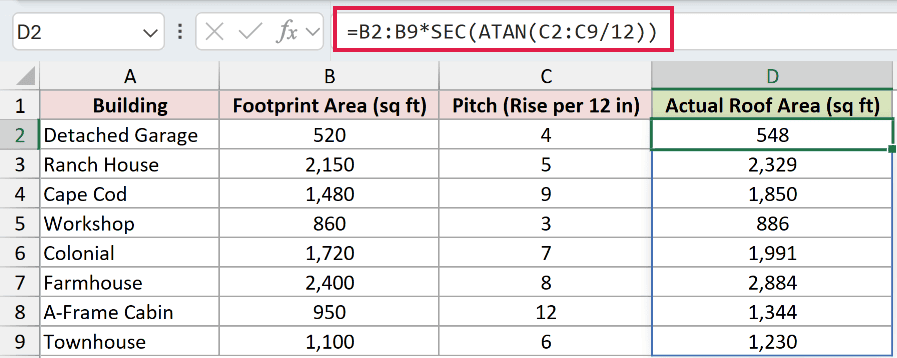
How this formula works:
C2:C9/12divides each rise by the run to create its slope ratio.- ATAN converts those ratios into angles in radians.
- SEC turns each angle into a sloped-area multiplier.
- Multiplying by
B2:B9returns the roof areas, spilling intoD2:D9.
Cape Cod’s pitch is 9 inches of rise per 12 inches of run. Its horizontal footprint of 1,480 square feet becomes 1,850 square feet in D4.
The A-Frame Cabin has a 950-square-foot footprint and a rise of 12 inches per 12 inches of run. Its roof area displays as 1,344 square feet.
Treat the footprint as the horizontal roof area, including overhangs, with the listed pitch applying across that area.
Pro Tip: Don’t wrap ATAN’s output in RADIANS here. ATAN already returns radians, so another conversion would change the angle before SEC uses it.
Example 4: Handle SEC at Undefined Angles
At certain angles, Excel returns a huge number where the mathematical secant is undefined.
Below is the dataset. Column A contains angles in degrees. Columns B:D will show the cosine, raw secant, and a secant calculation with an input check.
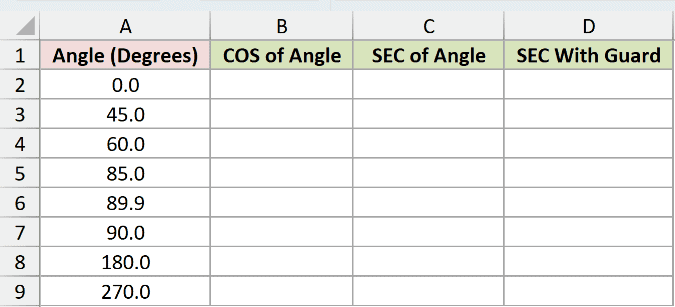
We want to see why SEC returns huge values at 90 and 270 degrees, then label those inputs as undefined.
COS returns an angle’s cosine. SEC is its reciprocal, meaning one divided by that cosine, so this supporting column explains SEC’s result.
RADIANS converts column A’s degree inputs. Enter the cosine calculation in B2:
=COS(RADIANS(A2:A9))
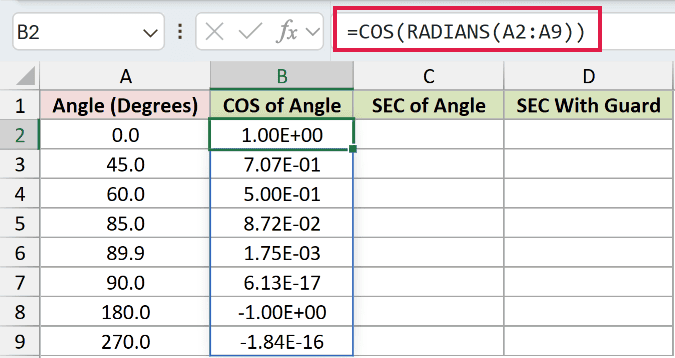
At 90 degrees, B7 displays 6.13E-17. At 270 degrees, B9 displays -1.84E-16. These are tiny nonzero values caused by floating-point approximation.
Now calculate SEC for the same angles in C2:
=SEC(RADIANS(A2:A9))
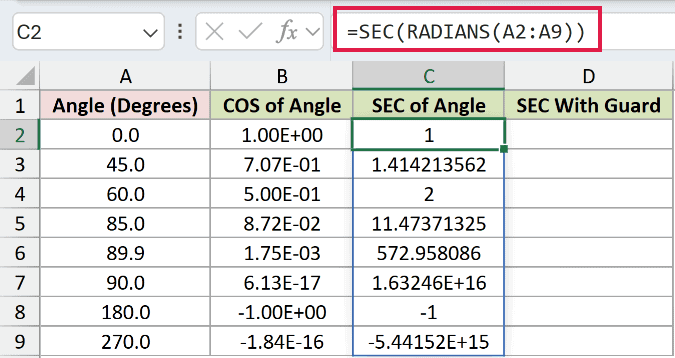
Because the cosine is tiny rather than exactly zero, its reciprocal is huge. C7 displays 1.63246E+16, and C9 displays -5.44152E+15.
Excel stores these results as finite numbers even though the mathematical secant is undefined at those exact angles.
To label these inputs, IF chooses between a text label and the SEC calculation. MOD returns the remainder after dividing each degree angle by 180.
Enter the guarded formula in D2:
=IF(MOD(A2:A9,180)=90,"Undefined",SEC(RADIANS(A2:A9)))
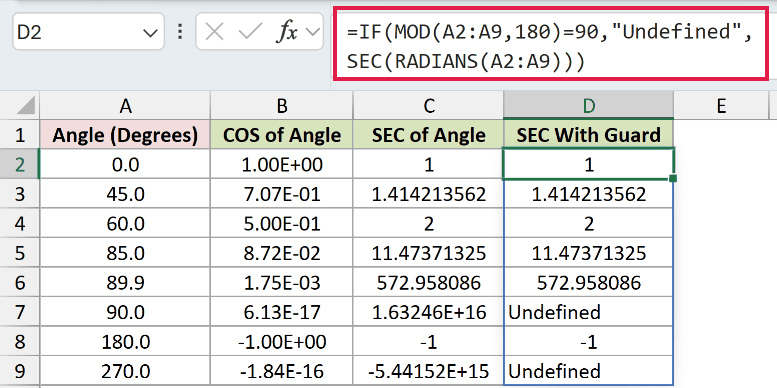
A remainder of 90 identifies the undefined angles. Cells D7 and D9 display Undefined, while the other rows retain their SEC results.
At 89.9 degrees, D6 still displays 572.958086. That large value is valid, which is why the guard checks the input angle rather than rejecting large results.
The guard matches exact degree inputs. It doesn’t classify nearby angles as undefined.
Tips & Common Mistakes
- Check blank inputs. In testing, SEC treated a blank cell as zero and returned 1. An empty angle cell can therefore look like a valid flat-angle result.
- Zero isn’t an error. The zero-degree row in Example 4 returns 1. The 180-degree row returns -1.
- Check nonnumeric text. SEC returned
#VALUE!for the textabcin testing. Check the source angle when you encounter this error. - Very large radian inputs can fail. An input of
2^27returned#NUM!in testing. Verify the angle and its units before using such a large input. - An error handler won’t identify undefined angles here. IFERROR substitutes another value only when a formula returns an error. SEC’s huge finite numbers pass through, so use Example 4’s input check.
I used SEC to calculate conveyor lengths, correct fence calculations with the wrong angle units, and turn roof pitch into surface area.
I also showed why undefined angles produce huge values in Excel and how to check those inputs.
Related Excel Functions / Articles:
