
The WORKDAY.INTL function in Excel returns a date before or after a starting date while letting you define which weekdays count as weekends.
Unlike WORKDAY, it can handle schedules that include Saturdays, skip Mondays, or follow a custom pattern. You can also exclude holidays and other dated closures.
In this article, I’ll show you how to build custom weekend patterns, schedule backward around holidays, and catch weekend-entry mistakes.
WORKDAY.INTL Function Syntax in Excel
The function needs a starting date and workday offset, with optional settings for weekends and holidays.
=WORKDAY.INTL(start_date,days,[weekend],[holidays])
- start_date (required) is the date from which Excel begins counting. The starting date itself is not counted.
- days (required) is the number of workdays to move. Positive values move forward, while negative values move backward.
- weekend (optional) is a numeric code or a seven-character text string that identifies nonworking weekdays. If omitted, Excel treats Saturday and Sunday as weekends.
- holidays (optional) is a cell range or an array constant containing date serial values that Excel should also exclude.
The valid weekend codes are:
1or omitted: Saturday and Sunday2: Sunday and Monday3: Monday and Tuesday4: Tuesday and Wednesday5: Wednesday and Thursday6: Thursday and Friday7: Friday and Saturday11: Sunday only12: Monday only13: Tuesday only14: Wednesday only15: Thursday only16: Friday only17: Saturday only
For a weekend string, the characters run from Monday through Sunday. Use 1 for a nonworking day and 0 for a working day.
When to Use WORKDAY.INTL Function
- Calculate delivery, repair, or production dates for teams with nonstandard weekends.
- Schedule recurring sessions for people who work on different weekday patterns.
- Work backward from a deadline while excluding closures and holidays.
- Find the first or last working date of a month for a custom schedule.
- Return a particular weekday occurrence, such as a board’s second Tuesday meeting.
Example 1: Calculate Dates With Sunday Off
Let’s start with an auto repair shop that works from Monday through Saturday.
Below is the dataset. It contains each vehicle, drop-off date, repair-day estimate, and an empty Ready By column for the calculated dates.
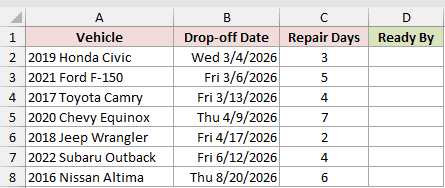
We want to calculate each ready date while treating only Sunday as the weekend.
Here is the formula:
=WORKDAY.INTL(B2,C2,11)
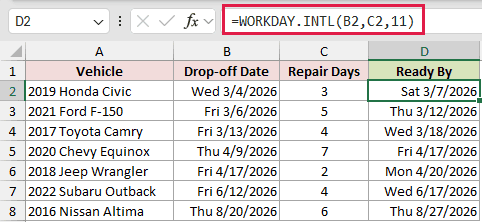
The weekend argument uses code 11, so Saturday remains available as a workday. The first vehicle is ready on Sat 3/7/2026.
The formula is entered in D2 and copied down. A bare range returns one #VALUE! instead of calculating multiple dates.
Example 2: Compare Different Weekend Codes
One assigned date can land differently across teams with different days off.
Below is the dataset. It lists each team, its days off, and its weekend code. The assigned date and workday count are in the block to the right.
Due Date is blank and ready for the results.
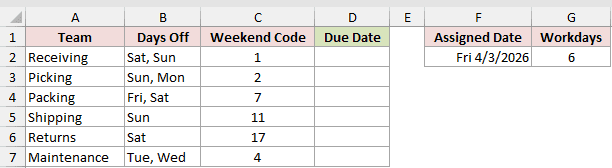
We want each team’s weekend code to control its due date.
Here is the formula:
=WORKDAY.INTL($F$2,$G$2,C2)
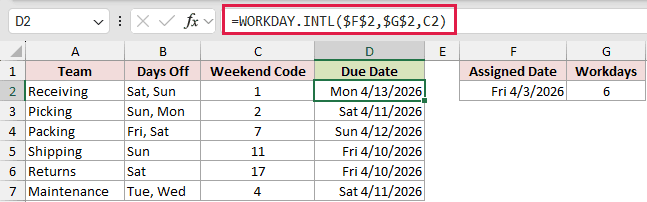
The absolute references keep the shared assigned date and workday count fixed. The relative C2 reference changes as the formula is copied down.
Receiving returns Mon 4/13/2026, while Packing returns Sun 4/12/2026. Their days off fall in different places, so the same task ends on different dates.
Example 3: Use Custom Weekend Strings
Now let’s handle personal-training schedules that use nonconsecutive weekdays.
Below is the dataset. Each row has a client, training days, weekend string, first session, and session count. Last Session is the empty result column.
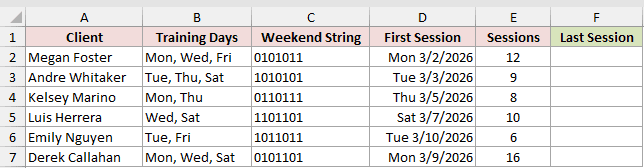
We want to return each client’s last session while counting the first session as part of the schedule.
Here is the formula:
=WORKDAY.INTL(D2-1,E2,C2)
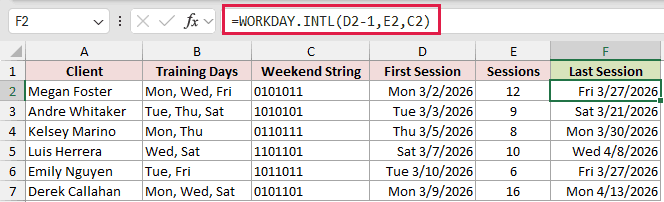
The start date is not counted. Subtracting 1 from D2 moves the counting point back, so the first scheduled session becomes session one.
Megan Foster’s last session is Fri 3/27/2026.
The formula is copied down because WORKDAY.INTL does not spill from bare ranges.
Pro Tip: Store a weekend string such as 0000011 as text. A General cell drops the leading zeros, leaving 11, which Excel reads as the Sunday-only code.
Example 4: Count Backward Around Holidays
Next, we’ll find bakery order deadlines by counting backward from pickup dates.
Below is the dataset. It contains orders, pickup dates, baking days, and a holiday-closure panel. Order By is the empty result column.
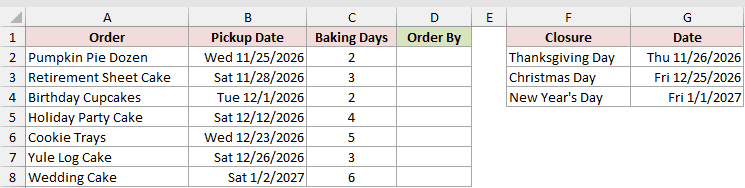
We want each order deadline to skip Mondays and any closure that falls on a working day.
Here is the formula:
=WORKDAY.INTL(B2,-C2,12,$G$2:$G$4)
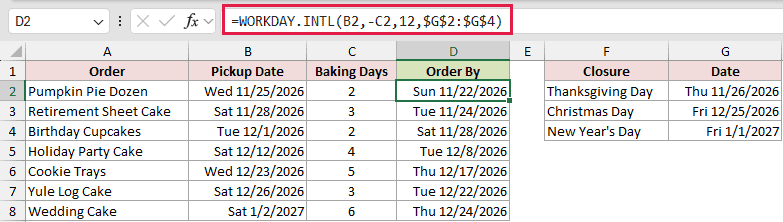
The negative days argument makes Excel work backward. Code 12 treats Monday as the only weekend day.
The absolute holiday range stays fixed while the pickup date and baking-day value change by row.
Both listed Friday closures inside the Wedding Cake window fall on working days, moving the deadline to Thu 12/24/2026.
Example 5: Find First and Last Monthly Workdays
A custom office calendar also changes where each month starts and ends.
Below is the dataset. The Month column runs beside blank First Workday and Last Workday columns, with the holiday list to the right.
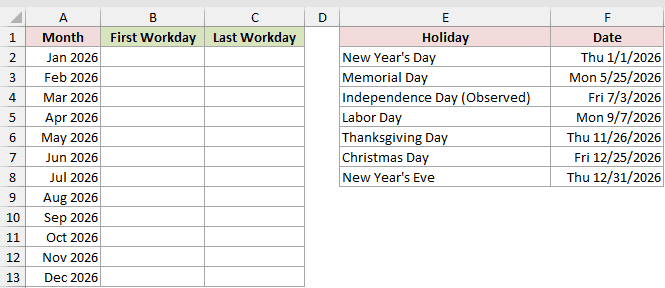
We want to calculate both workday boundaries for every month.
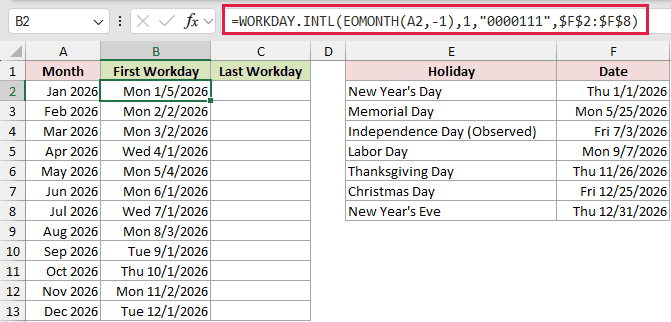
Here is the formula for the first workday:
=WORKDAY.INTL(EOMONTH(A2,-1),1,"0000111",$F$2:$F$8)
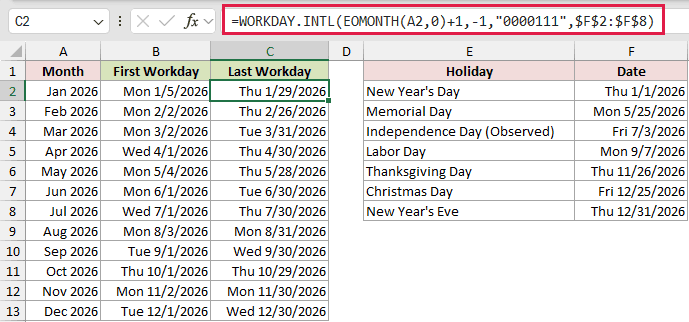
And here is the formula for the last workday:
=WORKDAY.INTL(EOMONTH(A2,0)+1,-1,"0000111",$F$2:$F$8)
The first formula uses EOMONTH to return the prior month-end, then moves forward.
The second uses EOMONTH again to start after the current month-end and move backward.
January’s first workday is Mon 1/5/2026. Thu 1/1/2026 is a listed holiday, and Friday through Sunday are days off.
December’s last workday is Wed 12/30/2026 after the same holiday list and weekly schedule are applied.
Pro Tip: A holiday does not change the result when it falls on an existing day off. The Friday holidays in this sheet cost this Monday-through-Thursday office nothing.
Example 6: Return the Second Tuesday
Let’s use a one-workday pattern to schedule recurring board meetings.
Below is the dataset. Each month has a blank Board Meeting cell for its second-Tuesday date.
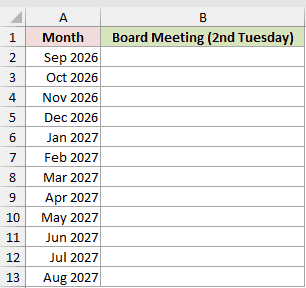
We want to return the second Tuesday in every listed month.
Here is the formula:
=WORKDAY.INTL(EOMONTH(A2,-1),2,"1011111")
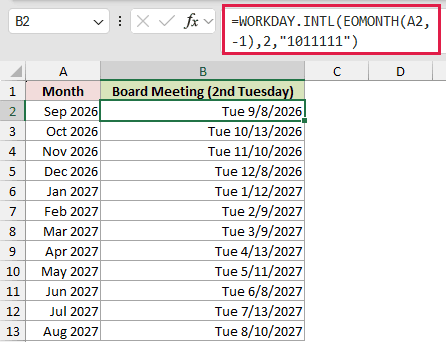
The weekend string marks Tuesday as the only working weekday. Moving forward by two workdays therefore lands on the month’s second Tuesday.
September returns Tue 9/8/2026, and October returns Tue 10/13/2026. The formula is copied down for the remaining months.
Example 7: Diagnose Weekend Argument Mistakes
Weekend inputs can fail quietly or return errors.
Below is the dataset. Each scenario has a start date, days value, and weekend entry. The empty Result column will show either a date or an error.
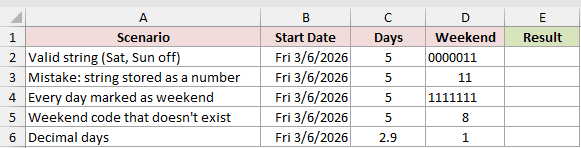
We want one copied formula to expose silent input changes and invalid weekend settings.
Here is the formula:
=WORKDAY.INTL(B2,C2,D2)
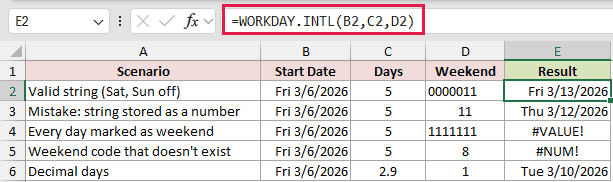
The valid text string returns Fri 3/13/2026. The second scenario shows the mistake.
The string 0000011 lost its leading zeros in a General cell, leaving 11 as a number.
Excel reads 11 as the Sunday-only code and returns Thu 3/12/2026 instead of the valid string’s date.
The all-weekend string returns #VALUE!, while code 8 returns #NUM!. Excel truncates 2.9 days to 2, producing Tue 3/10/2026.
Tips & Common Mistakes
- WORKDAY.INTL excludes the starting date. Subtract 1 when that date should count as the first scheduled workday, as shown in Example 3.
- Negative days move backward. Decimal days are truncated, so 2.9 is treated as 2 rather than rounded.
- In Excel 2021, Excel 2024, and Microsoft 365,
=WORKDAY.INTL(C1,SEQUENCE(3),1)spills a run of dates. - The string
1111111returns #VALUE!, while weekend codes 8 and 0 return #NUM!. - Omitting the weekend argument uses Saturday and Sunday. Use WORKDAY when that fixed weekend is all you need.
- Holiday entries affect the result only when they fall on a scheduled working day.
- Format the result cell as a date. WORKDAY.INTL returns a date serial number, so a General cell may display a plain number.
- NETWORKDAYS.INTL counts workdays between dates. WORKDAY.INTL moves by a workday count and returns a date.
Keep the weekend rule visible beside the formula so anyone reviewing the sheet can understand the schedule.
Store seven-character weekend strings as text. That small step prevents leading zeros from changing the calendar.
Related Excel Functions / Articles:
