
The EOMONTH function in Excel returns the last day of the month a specified number of months before or after a start date.
You can use it for reporting cutoffs, month-end deadlines, or payment schedules. A zero-month offset returns the end of the start date’s month.
In this article, I’ll show you how to find month-end and quarter-end dates, calculate the first day of next month, and compare EOMONTH with EDATE.
EOMONTH Function Syntax
Here is the syntax of the EOMONTH function:
=EOMONTH(start_date, months)
- start_date – The reference date. This can be a date, a cell reference, or a date produced by another formula like TODAY().
- months – The number of months to shift before or after the start date. Use a positive number to move forward, a negative number to move back, or 0 to stay in the start date’s month.
The result is a serial number, so format the cell as a date or you will see something like 45657 instead of an actual date.
When to Use EOMONTH
Use this function when you need to:
- Find the last day of the current, next, or previous month.
- Calculate publishing or contract end dates that fall at month-end.
- Get the first day of the next month using a small EOMONTH trick.
- Build a quarter-end or year-end date from any reference date.
- Build a rolling list of month-end dates for a planner or report.
Let me show you a few practical examples.
Example 1: End of the Current Month
Let’s start with the most common one. You have a list of podcast episode draft-ready dates, and you want the last day of each draft’s month, which is the team’s “must publish by” deadline.
Below is the dataset with episode draft dates in column A.
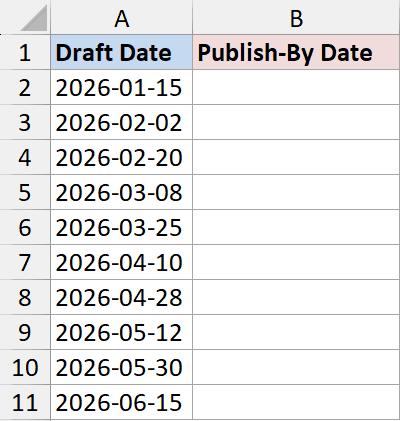
I want the last day of each draft’s month, in column B.
Here is the formula:
=EOMONTH(A2, 0)
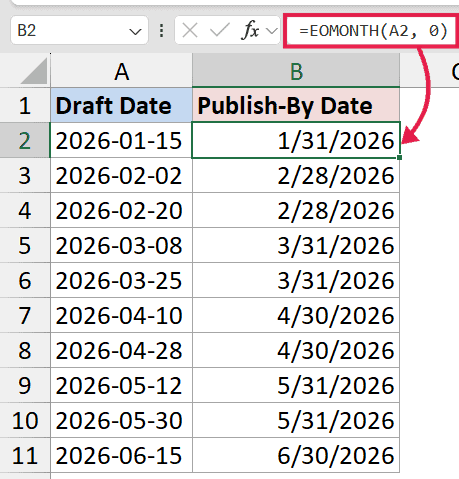
Enter this in B2 and copy it down.
Format the cell and apply the date formatting if you see a number instead of a date.
The months argument is 0, which tells EOMONTH to stay in the same month as the start date and return its last day.
So a draft date of 15-Mar-2026 returns 31-Mar-2026, and 02-Feb-2026 returns 28-Feb-2026
Note: EOMONTH can also handle leap years correctly.
If you want the last day of today’s month, you can skip the cell reference and use:
=EOMONTH(TODAY(), 0)
Example 2: End of the Next Month
Here is another common scenario.
Each podcast episode goes through editing the month after it is drafted, and the editor’s deadline is the end of that next month.
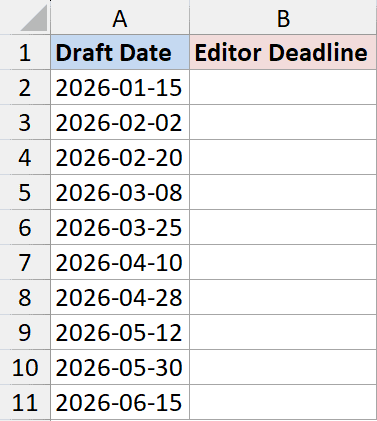
I want a column of editor deadlines, one per episode.
Here is the formula:
=EOMONTH(A2, 1)
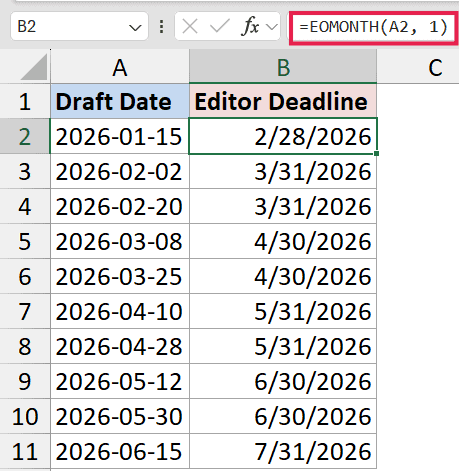
Copy this down the column. A months value of 1 shifts each date forward by one month and then returns the last day of that month.
So a draft date of 15-Mar-2026 becomes an editing deadline of 30-Apr-2026. Notice that EOMONTH does not care that April only has 30 days. It just returns the correct end of April.
You can use any positive number here. EOMONTH(A2, 3) gives you the end of the month three months out, which is handy for quarterly review dates.
Example 3: End of the Previous Month
Now let’s go the other way.
Say you are running a monthly listener report and you need the last day of the prior month for each episode (the cutoff for that episode’s first-month download numbers).
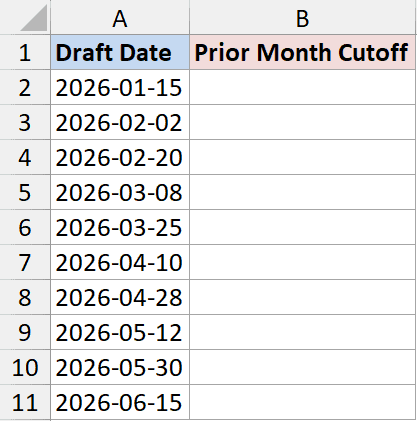
I want the last day of the prior month for each episode.
Here is the formula:
=EOMONTH(A2, -1)
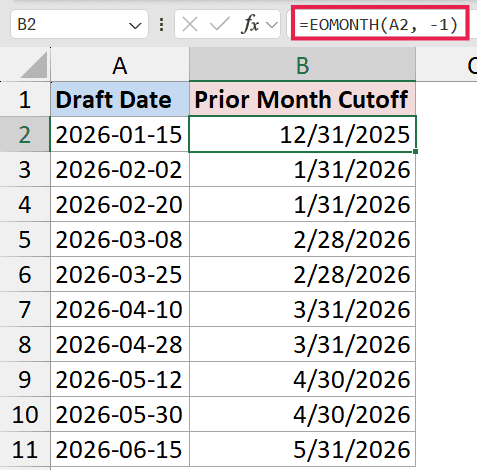
A negative months value shifts backwards. So 15-Mar-2026 returns 28-Feb-2026, the last day of February. Copy this down the column for every row.
For a dashboard cell that always shows the last day of the previous month based on today, use:
=EOMONTH(TODAY(), -1)
I keep this in templates so the cutoff date updates on its own each month.
Example 4: First Day of the Next Month
EOMONTH only returns end-of-month dates, so to get the first day of the next month, you take the end of the current month and add 1.

I want the first day of the month following each draft date.
Here is the formula:
=EOMONTH(A2, 0) + 1
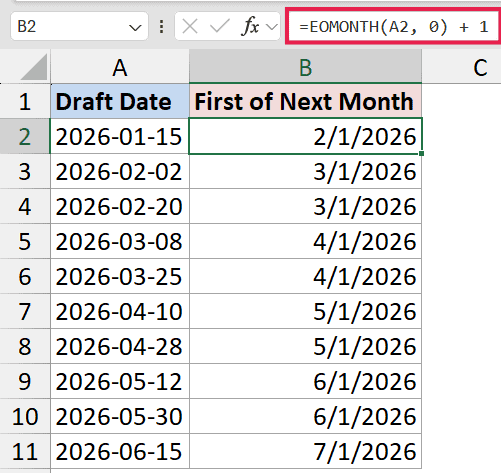
EOMONTH returns the last day of the start date’s month, and adding 1 nudges it into the first day of the next month. So 15-Mar-2026 becomes 01-Apr-2026. Copy this down the column.
The same trick works for the previous month. To get the first day of the current month from any date in that month: =EOMONTH(A2, -1) + 1.
If you want a deeper walkthrough with a few alternate methods, I have a separate piece on how to get the first day of the month in Excel.
Example 5: Quarter-End From Any Date
This one looks fancier than it is. The end of a quarter is always at the end of March, June, September, or December, so we can land on it by shifting forward by the right number of months and then taking EOMONTH.
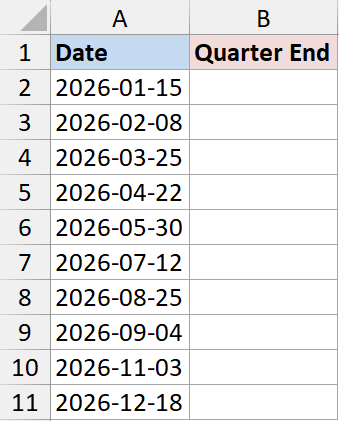
I want the quarter-end date for each entry in column A.
Here is the formula:
=EOMONTH(A2, MOD(-MONTH(A2), 3))
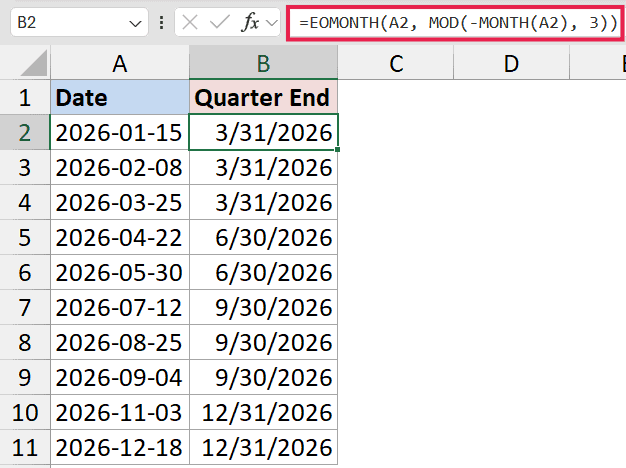
How this formula works:
MONTH(A2)returns the month number of the start date (1 to 12).-MONTH(A2)flips the sign, andMOD(-MONTH(A2), 3)gives you 0, 1, or 2 depending on how far the month is into its quarter.- For January it returns
2(so we shift to March), for February it returns1, for March it returns0. - EOMONTH then returns the last day of the target month, which is the quarter-end for that row.
Copy this down the column. If you want the quarter-end of the current quarter from today, replace A2 with TODAY(): =EOMONTH(TODAY(), MOD(-MONTH(TODAY()), 3)).
If you also need to label dates by quarter rather than just get the quarter-end date, take a look at the convert date to quarter write-up.
Example 6: EOMONTH vs EDATE
People mix these two up all the time, so it is worth pinning down. Both functions take (start_date, months), but they return different things.
EDATE returns the same day-number, just shifted by the given number of months. EOMONTH returns the last day of the shifted month.
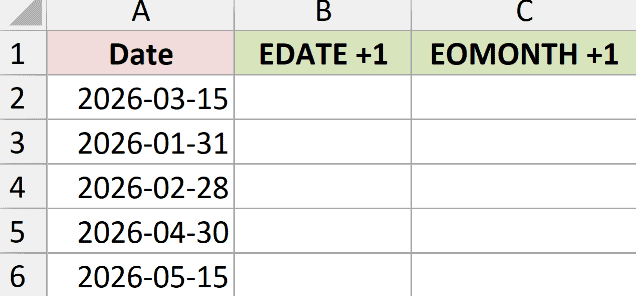
For a start date of 15-Mar-2026 and months of 1:
=EDATE("15-Mar-2026", 1)
This will return 15-Apr-2026.
=EOMONTH("15-Mar-2026", 1)
This will return 30-Apr-2026.
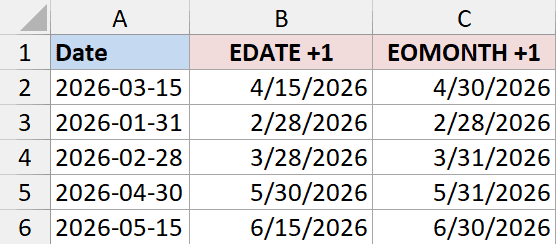
Use EDATE when you want to keep the same day of the month (anniversary dates, subscription renewals on the same day). Use EOMONTH when you want the last day of a month, regardless of the start date’s day-number.
If the start date is the 31st and the target month has fewer days, EDATE clamps to the last day of that month. EOMONTH does not have this issue because it always returns the last day anyway.
Both functions are legacy Analysis ToolPak functions, so neither natively spills. The next example shows the workaround.
Example 7: Spill EOMONTH Across a Range (the + Trick)
If you’re on Excel 365 and you’d rather write one formula than copy EOMONTH down a column, there’s a workaround.
EOMONTH doesn’t natively spill the way modern functions do.
Let’s say I have a data set as shown below and I want to use one single formula to get the result for all the cells in column A.
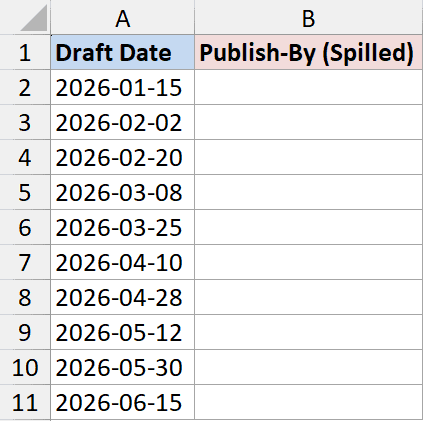
If you write =EOMONTH(A2:A11, 0), you’ll get just one result, not an array. The fix is to add + at the beginning of the range to coerce the range into an array first.
=EOMONTH(+A2:A11, 0)
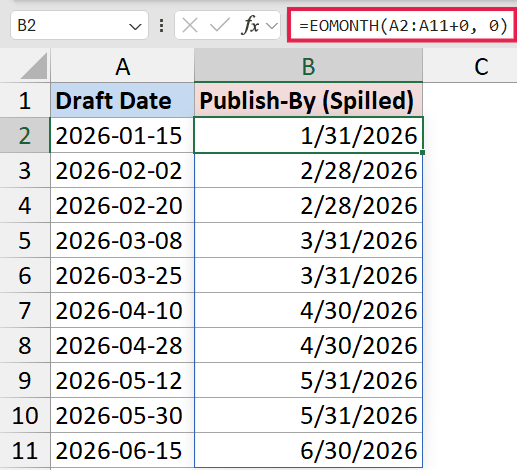
The + forces Excel to evaluate A2:A11 in an array context.
Once it’s an array, EOMONTH happily processes one date at a time and spills the results down the column.
The same + trick works for other legacy date functions: EDATE, WEEKNUM, WORKDAY, NETWORKDAYS.
Tips & Common Mistakes
- EOMONTH does not spill on its own. Write
=EOMONTH(A2, 0)and copy down, or use the+trick from Example 7 (=EOMONTH(+A2:A11, 0)) if you want a single spilling formula. - Format the result cell as a date. If you see numbers like
45657, the cell is formatted as General or Number. Change it to a Short Date or any date format. #NUM!error. This usually means the start date is invalid (a non-date value or a number out of range). Double-check the cell EOMONTH is pointing at.#VALUE!error. You passed text that Excel cannot parse as a date. Wrap literal dates inDATE(year, month, day)or quotes that Excel recognizes ("15-Mar-2026").monthsmust be an integer. If you pass a decimal like1.5, Excel truncates it to1. There is no half-month behavior.- EOMONTH respects leap years. February EOMONTH returns
29in leap years and28otherwise, so you do not have to handle that yourself. - Combine with TODAY() for live dashboards.
EOMONTH(TODAY(), 0),EOMONTH(TODAY(), -1), andEOMONTH(TODAY(), -1) + 1give you end-of-this-month, end-of-last-month, and first-of-this-month, respectively, and all three update automatically.
That covers the patterns I use EOMONTH for in real workbooks. Once the syntax clicks, the function is mostly about knowing which months value to pass. The per-cell pattern works reliably, and the + trick gets you a single spilling formula in 365 if you want one. The EOMONTH plus 1 trick for first-of-next-month is the one I would commit to memory first.
Related Excel Functions / Articles:
- How to Add Months to a Date in Excel
- Get End of Year Date in Excel (Formula)
- How to Get Total Days in Month in Excel?
- Find Last Monday of the Month Date in Excel (Formula)
- How to Calculate the Number of Months Between Two Dates in Excel?
- How to Add Years to a Date in Excel
- How to Add Days to a Date in Excel
- Calculate Days Left in the Year (Formula)
- Convert Date to Fiscal Year
- How to Calculate Employee Retirement Dates in Excel
