
Excel’s BIN2HEX function returns a hexadecimal text value from a binary number.
It works well for binary bytes and compact hexadecimal codes. The optional places argument adds leading zeros when you need a fixed width.
In this article, I’ll show you how to convert binary registers, build hex color codes, handle signed values, and work around the 10-character limit.
BIN2HEX Function Syntax in Excel
The BIN2HEX function accepts a binary number and an optional output width.
=BIN2HEX(number, [places])
- number (required) is the binary value you want to convert. It can contain up to 10 characters. The sign bit is the 10th bit, so only a 10-character input starting with 1 is read as negative. Shorter inputs are always positive.
- places (optional) sets the number of characters to use for a positive result. Excel pads with leading zeros and returns
#NUM!if places is too small for the result. It truncates a non-integer value. When places is omitted, BIN2HEX uses the minimum number of characters needed. Excel ignores places for negative inputs.
When to Use BIN2HEX Function
- Convert binary bytes from devices, controllers, or data packets into hexadecimal.
- Keep hexadecimal bytes at a fixed width by adding leading zeros.
- Join binary red, green, and blue channels into a web color code.
- Read signed 10-bit binary values written in two’s complement form.
- Convert longer binary strings by processing smaller sections separately.
Example 1: Convert Binary Register Values to Hex
Let’s start with a smart thermostat’s configuration registers.
Below is the dataset. Columns A and B contain register names and 8-bit binary values. The green Hex Value header and empty cells show where results will appear.
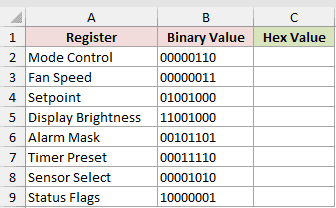
Column C should return the hexadecimal value for each register.
Here is the formula entered in C2 and copied down:
=BIN2HEX(B2)
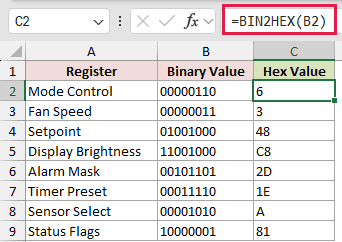
BIN2HEX returns the shortest hexadecimal text needed. Mode Control returns 6, Fan Speed returns 3, and Sensor Select returns A.
Setpoint, Display Brightness, and Timer Preset need two hexadecimal characters, returning 48, C8, and 1E.
The binary values are stored as text, so their leading zeros remain visible. Those zeros don’t change the converted value.
Pro Tip: In Excel 2021, Excel 2024, and Microsoft 365, =BIN2HEX(B2:B9&"") spills all eight results. A plain =BIN2HEX(B2:B9) returns one #VALUE!.
Example 2: Create Fixed-Width Hexadecimal Bytes
Now let’s format every byte in a serial packet consistently.
Below is the dataset. It lists each packet field and its binary byte. The green Hex Byte header and empty cells mark the fixed-width results.
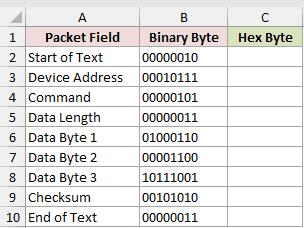
Column C should return every hexadecimal byte with two characters.
Here is the formula entered in C2 and copied down:
=BIN2HEX(B2,2)
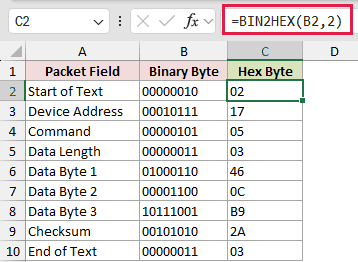
The places argument sets the width to two characters. Every 8-bit byte fits that width. Excel pads short results, so 2 becomes 02, 5 becomes 05, and C becomes 0C.
Read from top to bottom, the result column forms the hex dump 02 17 05 03 46 0C B9 2A 03.
The padding matters here because each row represents one byte. Without it, several entries would appear one character wide and make the packet harder to scan.
Example 3: Build Hex Color Codes From Binary
Here’s a practical way to convert smart-bulb lighting scenes.
Below is the dataset. Column A lists lighting scene names, while columns B through D hold 8-bit red, green, and blue values.
The green Hex Color header and empty cells reserve the finished codes.
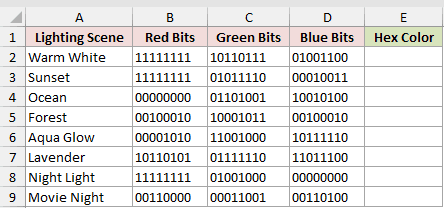
Column E should combine the three converted channels into one web color code.
Here is the formula entered in E2 and copied down:
="#"&BIN2HEX(B2,2)&BIN2HEX(C2,2)&BIN2HEX(D2,2)
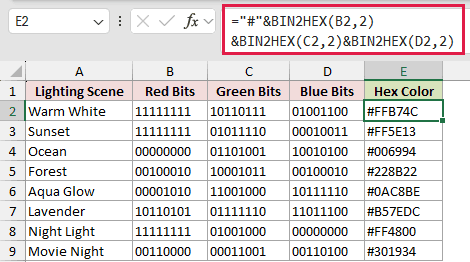
Each BIN2HEX call converts one color channel and pads it to two characters. The ampersands join those results after the # prefix.
Warm White returns #FFB74C, Ocean returns #006994, and Night Light returns #FF4800.
A channel from 0 to 15 converts to one character unless you set places to 2. The code must keep six hexadecimal characters after the #.
Aqua Glow’s red value becomes 0A.
If your color channels are decimal values, DEC2HEX can convert them directly without the binary step.
Example 4: Convert Signed 10-Bit Binary Values
Next, we’ll convert readings from a joystick’s signed X-axis register.
Below is the dataset. It pairs each stick position with its decimal meaning and 10-bit register value. The green Hex Value header and empty cells await the conversions.
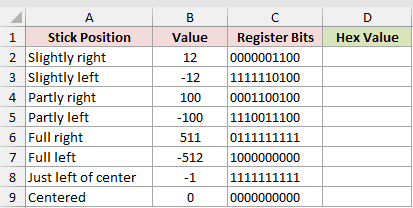
Column D should return the hexadecimal form of each signed register value.
Here is the formula entered in D2 and copied down:
=BIN2HEX(C2)
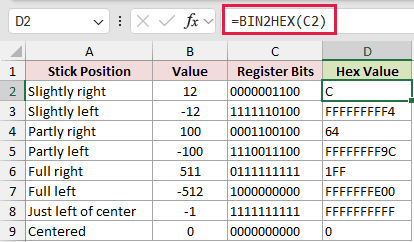
BIN2HEX treats a 10-bit input beginning with 1 as negative. Those inputs use two’s complement and return 10-character hexadecimal results.
For example, slightly left returns FFFFFFFFF4, full left returns FFFFFFFE00, and just left of center returns FFFFFFFFFF.
Positive inputs stay compact. Slightly right returns C, full right returns 1FF, and centered returns 0.
The input 0111111111 represents 511, the largest positive value BIN2HEX accepts. The next 10-bit pattern begins the negative half of the range.
Example 5: Convert 16-Bit Binary Values
BIN2HEX needs a different approach when a register exceeds 10 characters.
Below is the dataset. Column A lists register names such as Tank Level and Motor Speed. Column B contains the 16-bit PLC register values.
The green result headers, Hex Value and BASE + DECIMAL, appear above empty result cells.
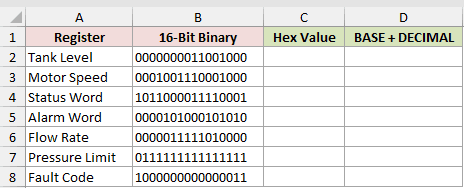
Column C should split each register into two bytes, convert them separately, and join the results.
Here is the formula entered in C2 and copied down:
=BIN2HEX(LEFT(B2,8),2)&BIN2HEX(RIGHT(B2,8),2)
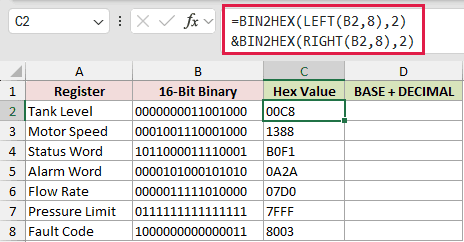
LEFT and RIGHT extract the two 8-bit bytes. Each BIN2HEX call produces two characters, and the ampersand joins them into one 4-character result.
Each half contains only eight bits, so Excel doesn’t interpret either half as a negative 10-bit number.
Column D will check the result with BASE and DECIMAL, which handle the full binary string in one calculation.
Here is the comparison formula entered in D2 and copied down:
=BASE(DECIMAL(B2,2),16,4)
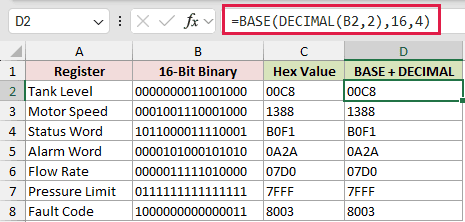
Both methods return 00C8 for Tank Level, 1388 for Motor Speed, and 8003 for Fault Code. Every row matches across the two result columns.
The BASE and DECIMAL method is shorter and works in Excel 2013 and later. The split method remains useful when you need to process byte-sized sections separately.
Example 6: Troubleshoot BIN2HEX Errors and Places
The last example puts the main places rules and error causes in one table.
Below is the dataset. It lists a scenario, binary input, and places value. The green BIN2HEX Result header and empty cells reserve the outcomes.
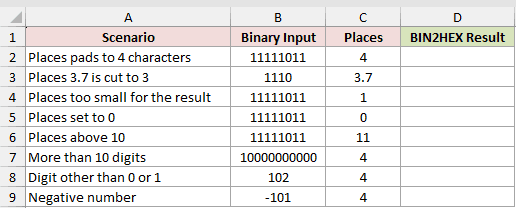
Column D should show which combinations return text and which return an error.
Here is the formula entered in D2 and copied down:
=BIN2HEX(B2,C2)
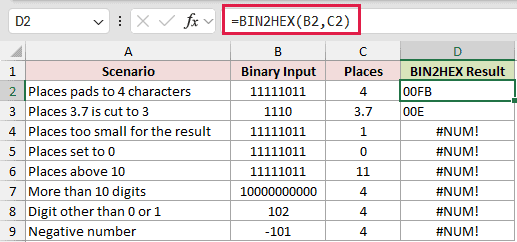
The first row returns 00FB because places pads the result to four characters. The next row returns 00E because Excel truncates 3.7 to 3.
Rows 4 through 6 return #NUM! for three different places problems.
- Row 4 uses places smaller than the result’s length.
- Row 5 uses places of 0.
- Row 6 uses places above 10.
Excel also returns #NUM! when the binary input exceeds 10 digits, contains a digit other than 0 or 1, or is entered as a negative number.
Tips & Common Mistakes
- Store binary values as text when leading zeros matter. Leading zeros count toward the 10-character limit, even though they don’t change the converted value.
- Remove embedded spaces before converting.
=BIN2HEX(SUBSTITUTE("1101 0110"," ",""))returns D6, while the uncleaned value returns#NUM!. - Remember that BIN2HEX returns text. Use HEX2DEC, DECIMAL, or another conversion function before doing arithmetic with the result.
- If C2 is empty,
=BIN2HEX(1010,C2)returns0A. With places omitted,=BIN2HEX(1010)returnsA. - BIN2HEX returns
#VALUE!when its number argument refers to a cell holding TRUE. - For negative 10-bit binary values, Excel ignores places and always returns a 10-character hexadecimal result.
BIN2HEX is a good fit for binary values up to 10 characters, especially when you need readable bytes or fixed-width codes.
For longer binary strings, split the input into smaller sections or use BASE with DECIMAL.
Related Excel Functions / Articles:
