
Excel’s BASE function converts a nonnegative decimal integer into text written in another number base.
It supports bases 2 through 36 and can pad results with leading zeros. Because the result is text, it works well for codes and identifiers.
In this article, I’ll show you how to convert numbers to different bases, create padded binary codes and dispatch IDs, and verify a hexadecimal conversion.
BASE Function Syntax in Excel
BASE has two required arguments and one optional argument.
=BASE(number, radix, [min_length])
numberis the nonnegative decimal integer you want to convert. It must be less than 2^53.radixis the target base. It must be an integer from 2 through 36.min_lengthis the optional minimum number of characters in the result. It can be from 0 through 255.
When to Use BASE Function
- Convert decimal values to binary, octal, hexadecimal, or base-36 text.
- Encode different rows with different target bases.
- Add leading zeros to fixed-width binary codes.
- Build decimal text identifiers with a standard width.
- Check a conversion by decoding the result with DECIMAL.
Example 1: Convert Decimal Values to Binary
Let’s start with a fixed binary conversion.
Below is the dataset with access points in column A and decimal values in column B.
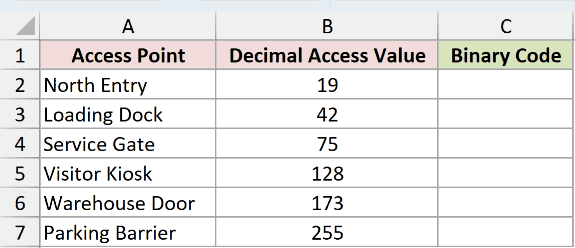
We want one formula in C2 to convert all six values into binary text.
Here is the formula:
=BASE(B2:B7,2)
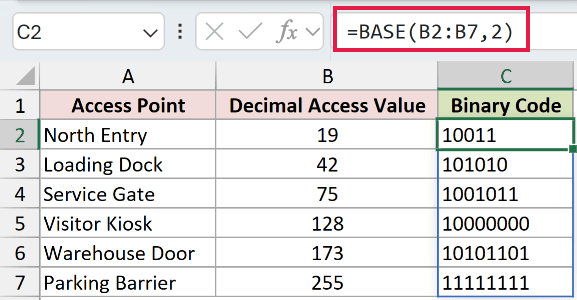
The radix is 2, so BASE handles the decimal-to-binary conversion for each value in B2:B7.
The results are 10011, 101010, 1001011, 10000000, 10101101, and 11111111.
In Excel 2021, Excel 2024, Microsoft 365, and Excel for the web, the formula spills from C2 through C7.
In Excel 2019 and earlier, enter a single-row formula and fill it down.
Example 2: Convert Values to Different Bases
The target base can change from one row to the next.
Below is the dataset with decimal values in column B and target bases in column C.
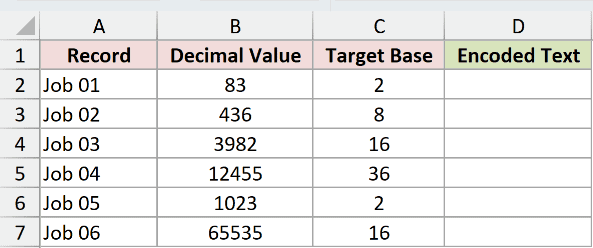
We want the encoded text for every record to spill into D2:D7.
Here is the formula:
=BASE(B2:B7,C2:C7)
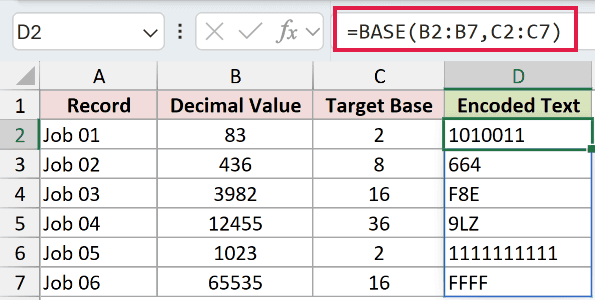
BASE pairs each decimal value with the radix on the same row.
The formula returns 1010011 in base 2, 664 in base 8, F8E in base 16, and 9LZ in base 36.
It also returns 1111111111 for the second binary record and FFFF for the second hexadecimal record.
Pro Tip: Bases above 10 use letters after 9. Hexadecimal uses A through F, while base 36 can use every letter through Z.
Example 3: Create Fixed-Width Binary Codes
The optional minimum length keeps every code the same width.
Below is the dataset with sensor channels in column A and decimal readings in column B.
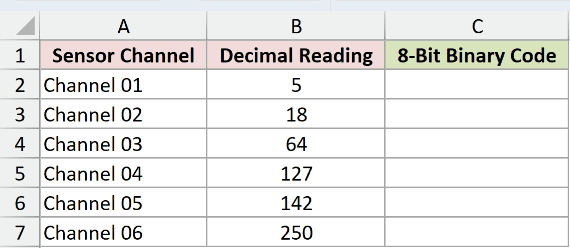
We want an eight-character binary code for each reading in C2:C7.
Here is the formula:
=BASE(B2:B7,2,8)
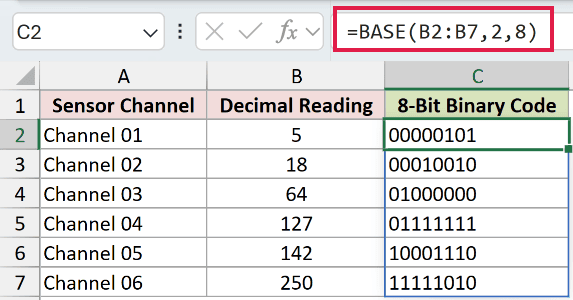
The radix is 2, and min_length is 8. BASE adds zeros on the left whenever the binary result is shorter than eight characters.
The codes are 00000101, 00010010, 01000000, 01111111, 10001110, and 11111010.
BASE does not cut a result that already exceeds the minimum length. The argument sets a floor, not a fixed maximum.
Example 4: Build Six-Character Dispatch IDs
BASE can also pad ordinary decimal text when the radix is 10.
Below is the dataset with shipment names in column A and sequence numbers in column B.
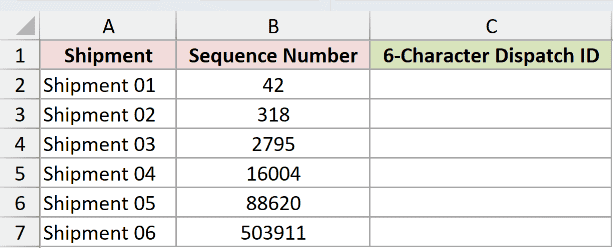
We want each sequence number to become a six-character dispatch ID in C2:C7.
Here is the formula:
=BASE(B2:B7,10,6)
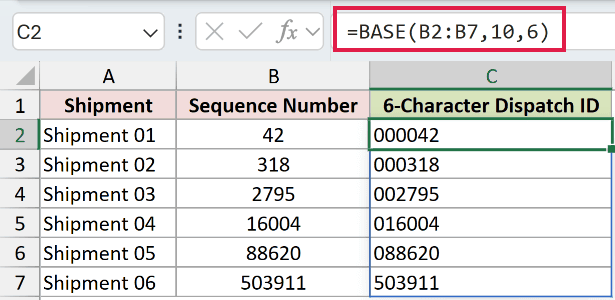
Using radix 10 keeps the familiar decimal digits. The third argument pads shorter results to six characters.
The IDs are 000042, 000318, 002795, 016004, 088620, and 503911.
Pro Tip: For decimal-only padding, TEXT with =TEXT(B2:B7,"000000") is often clearer. A custom number format can display leading zeros while keeping the underlying values numeric.
Example 5: Verify a Hexadecimal Round Trip
DECIMAL can decode the text returned by BASE.
Below is the dataset with decimal values in column B, hexadecimal text in column C, and a round-trip check in column D.
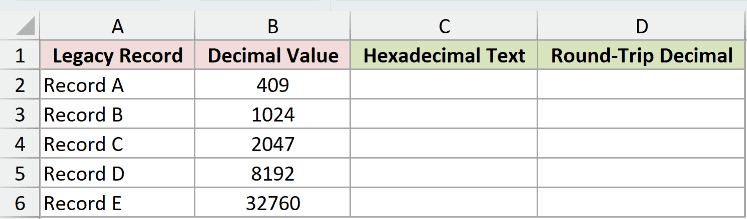
We first want to encode each value as hexadecimal text in C2:C6.
Here is the BASE formula:
=BASE(B2:B6,16)
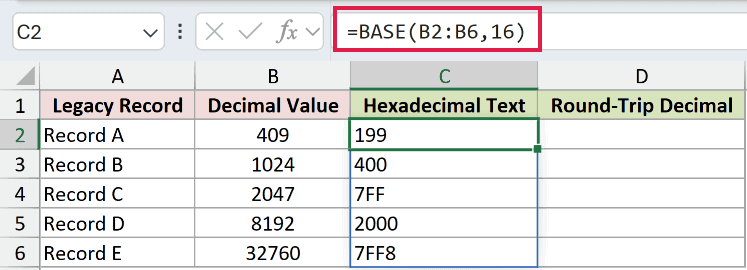
BASE returns 199, 400, 7FF, 2000, and 7FF8.
We then want to decode those strings and confirm the original decimal values.
Here is the DECIMAL formula:
=DECIMAL(C2:C6,16)
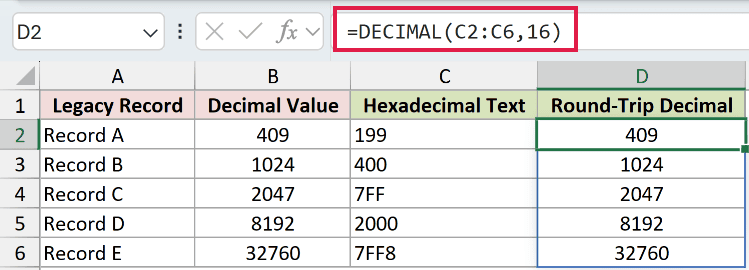
DECIMAL returns 409, 1,024, 2,047, 8,192, and 32,760. Every value matches column B.
The round trip also shows the different return types. BASE produces text, while DECIMAL produces numbers.
Tips & Common Mistakes
- Use a nonnegative number below 2^53. BASE returns
#NUM!when the number is outside that range. - Use an integer radix from 2 through 36. A radix outside that range returns
#NUM!. - Remember that BASE returns text, even when the result contains only digits.
- Treat
min_lengthas a minimum. It adds leading zeros but never shortens a longer result. - Excel truncates non-integer arguments. Check imported numbers and radices before converting them.
- Keep the spill range blank in dynamic-array Excel. A blocked output cell causes a
#SPILL!error.
I covered fixed and variable radices, leading-zero padding, decimal identifiers, and a hexadecimal round trip.
I also explained when TEXT or number formatting may fit decimal-only padding better. I hope you found this article helpful.
Related Excel Functions / Articles:
Other Excel articles you may also like:
