
Excel’s ARABIC function converts Roman numeral text to an Arabic number. For example, it returns 12 from XII.
The result is numeric, so you can sort it, add it, or use it inside another calculation. The function is unrelated to Arabic-language text or numeral glyphs.
In this article, I’ll show you how to convert a list, sort Roman-numbered sections, handle inconsistent text, and total signed adjustments.
ARABIC Function Syntax in Excel
The ARABIC function uses this syntax:
=ARABIC(text)
textis required. It can be quoted Roman numeral text, an empty string, or a reference to a cell containing text.
When to Use ARABIC Function
- Convert Roman-numbered editions, chapters, or sections to ordinary numbers.
- Create a numeric sort order for labels stored as Roman numerals.
- Clean imported Roman numeral text with inconsistent letter case or surrounding spaces.
- Use converted Roman values in totals and other calculations.
Example 1: Convert Roman Edition Labels
Let’s begin with a list of archive volumes.
Below is the dataset with each volume name, its Roman edition label, and an empty column for the numeric edition.
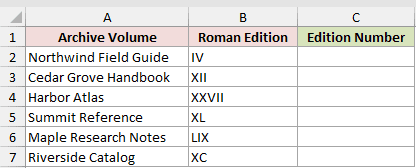
I want to convert all six Roman labels with one formula in cell C2.
Here is the formula:
=ARABIC(B2:B7)
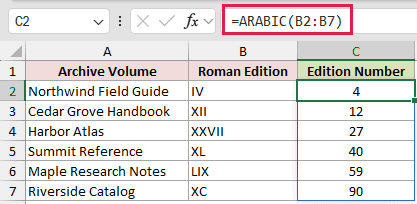
ARABIC reads the text in B2:B7 and returns 4, 12, 27, 40, 59, and 90 in C2:C7.
In Excel 2021, Excel 2024, and Microsoft 365, the results spill from C2.
In Excel 2013 through 2019, use =ARABIC(B2) and fill down. Excel 2010 and earlier do not include ARABIC.
Example 2: Sort Roman-Numbered Sections
Roman numerals stored as text do not provide a reliable numeric sort order by themselves.
Below is an unsorted report list, with a separate output block waiting for the correctly ordered sections.
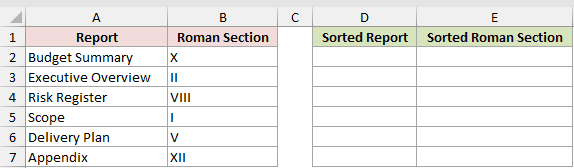
I want to sort the two source columns by the numeric meaning of each Roman section label.
Here is the formula:
=SORTBY(A2:B7,ARABIC(B2:B7),1)
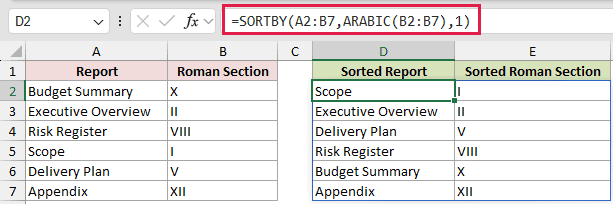
ARABIC converts the Roman labels to numbers inside SORTBY. The final 1 tells SORTBY to arrange those numbers in ascending order.
The output begins with Scope in section I and ends with Appendix in section XII. The original labels stay visible in the returned table.
Pro Tip: This example needs a version of Excel that supports SORTBY and dynamic arrays. In Excel 2013 through 2019, use a helper ARABIC column and sort by its numeric results.
Example 3: Parse Inconsistent Roman Text
ARABIC can handle common inconsistencies in imported Roman numeral text.
Below are lowercase and uppercase labels with different amounts of leading or trailing space.
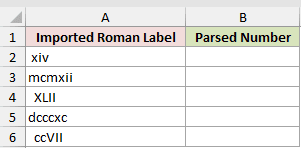
I want to convert the imported labels without adding separate cleanup formulas.
Here is the formula:
=ARABIC(A2:A6)
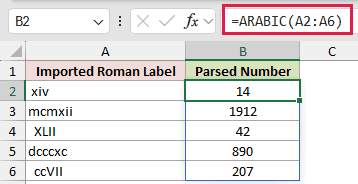
The function ignores letter case and surrounding spaces. It returns 14, 1912, 42, 890, and 207 from the five imported labels.
This tolerance applies only to valid Roman numeral text. Other text, numbers, and dates can still return #VALUE!.
Example 4: Total Signed Roman Adjustments
ARABIC also supports a minus sign placed before Roman numeral text, even though negative Roman numerals are nonstandard.
Below is a short list of positive and negative adjustment codes, plus a result cell for the net adjustment.
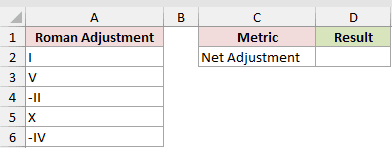
I want to convert the complete list inside SUM and return one net value.
Here is the formula:
=SUM(ARABIC(A2:A6))
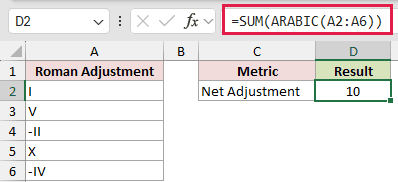
ARABIC converts I, V, -II, X, and -IV to 1, 5, -2, 10, and -4. SUM then returns 10.
The minus sign must appear before the Roman text, as shown in -II and -IV.
Tips & Common Mistakes
- ARABIC accepts Roman numeral text, not an ordinary number or date. Invalid input returns
#VALUE!. - An empty string returns 0.
- Letter case and leading or trailing spaces do not affect the result.
- The text argument can contain up to 255 characters, and Microsoft documents 255,000 as the largest possible return value.
- Negative Roman numerals are nonstandard, but Excel accepts them when the minus sign comes first.
- ROMAN performs the reverse conversion when you need Roman numeral text from a number.
I covered direct conversions, numeric sorting, tolerant text parsing, and arithmetic with positive and negative Roman numeral text.
I hope you found this article helpful.
Other Excel articles you may also like:
