
The DECIMAL function in Excel converts a number written in another base into an ordinary base-10 number.
It handles bases 2 through 36, including binary, octal, hexadecimal, and base 36. It does not round decimal places or change number formatting.
In this article, I’ll show you how to use DECIMAL to convert binary and hexadecimal values, work with different bases, and check conversions with practical examples.
DECIMAL Function Syntax in Excel
The DECIMAL function takes two required arguments.
=DECIMAL(text, radix)
textis the number you want to convert. It can use digits and letters valid for the selected base, is not case-sensitive, and can contain up to 255 characters.radixis the base of the supplied number. It must be an integer from 2 through 36.
When to Use DECIMAL Function
- Convert binary, octal, hexadecimal, or base-36 codes into base-10 numbers.
- Normalize imports that store numbers in several bases.
- Decode compact alphanumeric IDs before using them in calculations.
- Combine DECIMAL with BASE to convert between two non-decimal bases.
- Flag source codes that contain invalid digits or an incorrect radix.
Example 1: Convert Binary Codes to Decimal
Let’s start with binary codes from an access-control system.
Below is the dataset with controller names in column A and binary codes in column B.
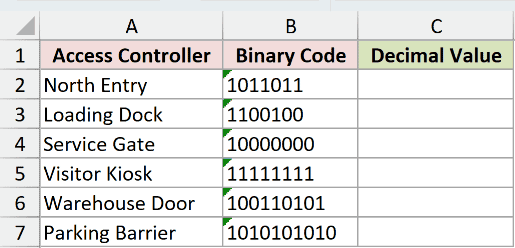
We want one formula in C2 to convert all six binary codes into decimal values.
Here is the formula:
=DECIMAL(B2:B7,2)
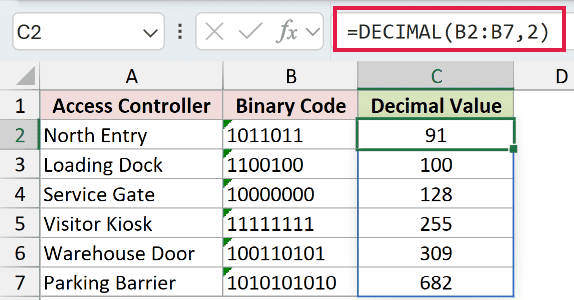
The second argument is 2, so DECIMAL reads every value in B2:B7 as binary.
The formula returns 91, 100, 128, 255, 309, and 682 in C2:C7.
In Excel 2021, Excel 2024, Microsoft 365, and Excel for the web, the six results spill from C2 through C7.
In Excel 2019 and earlier, enter the formula for one row and fill it down.
Pro Tip: BIN2DEC also handles binary-only data. DECIMAL is more flexible when the radix can change between rows.
Example 2: Convert Mixed-Base Values
This example brings several number systems into one list.
Below is the dataset with the encoded value in column B and its radix in column C.
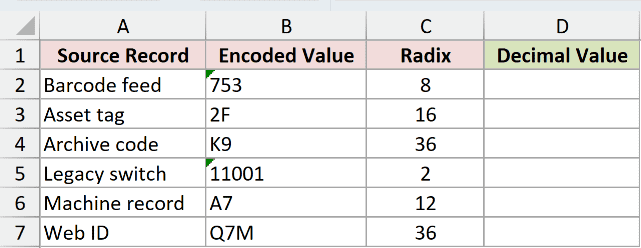
We want the decimal value for each record to spill into D2:D7.
Here is the formula:
=DECIMAL(B2:B7,C2:C7)
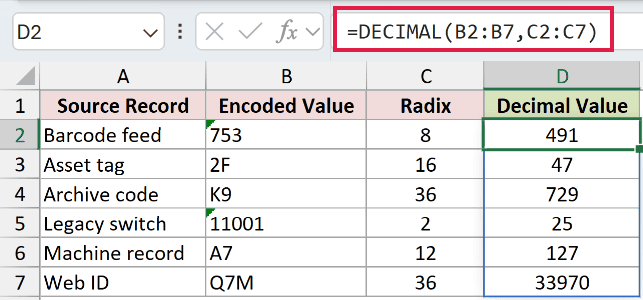
DECIMAL pairs each encoded value with the radix on the same row. That makes one formula work across binary, octal, hexadecimal, base 12, and base 36.
The returned values are 491, 47, 729, 25, 127, and 33,970.
Fixed-base functions such as OCT2DEC and HEX2DEC work when every source follows one base. DECIMAL fits mixed imports because its radix can vary by row.
Example 3: Decode Base-36 Account IDs
Base 36 can store larger values in short alphanumeric codes.
Below is the dataset with account groups in column A and their base-36 IDs in column B.
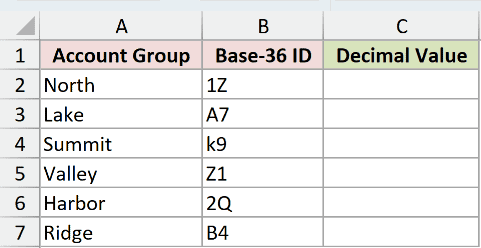
We want to decode all six account IDs into decimal values in C2:C7.
Here is the formula:
=DECIMAL(B2:B7,36)
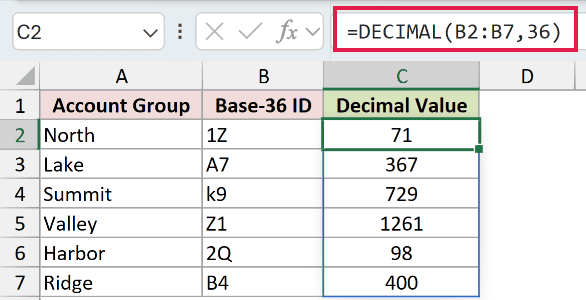
Base 36 uses 0 through 9 and A through Z. The letters represent values from 10 through 35.
The formula returns 71, 367, 729, 1,261, 98, and 400.
DECIMAL is not case-sensitive. The lowercase code k9 returns 729, the same result as K9.
Example 4: Convert Octal Codes to Hexadecimal
You can nest DECIMAL inside BASE to move between two non-decimal systems.
Below is the dataset with legacy octal control codes in column B.
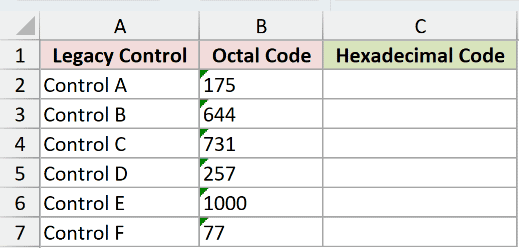
We want to convert the octal codes into hexadecimal text in C2:C7.
Here is the formula:
=BASE(DECIMAL(B2:B7,8),16)
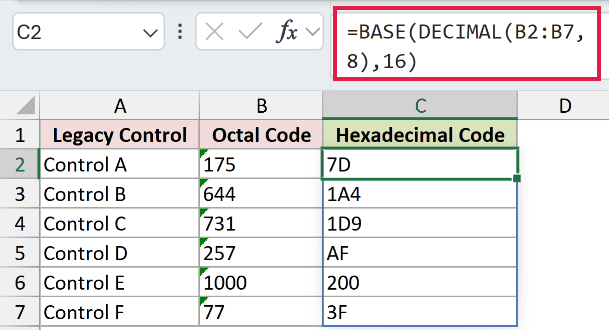
DECIMAL first converts each octal code to a base-10 number. BASE then converts that number to hexadecimal text because its radix is 16.
The results are 7D, 1A4, 1D9, AF, 200, and 3F.
Pro Tip: BASE returns text. Its optional min_length argument can add leading zeros when a fixed-width code is required.
Example 5: Flag Invalid Imported Codes
Imported data often contains a digit that does not belong to the stated base.
Below is the dataset with encoded values in column B and their radices in column C.
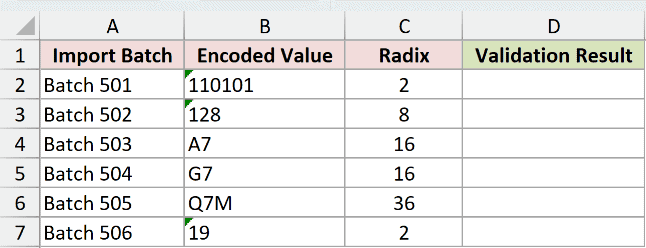
We want valid conversions in D2:D7 and a clear message for records that need correction.
Here is the formula:
=IFERROR(DECIMAL(B2:B7,C2:C7),"Check code/base")
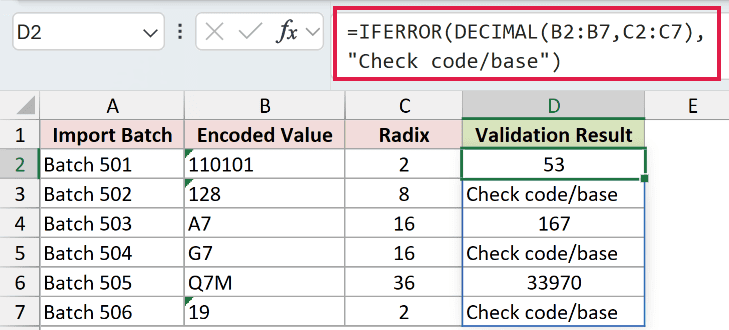
DECIMAL converts the valid rows to 53, 167, and 33,970. IFERROR replaces each conversion error with Check code/base.
The codes 128, G7, and 19 are invalid for bases 8, 16, and 2 respectively.
Pro Tip: IFERROR catches every Excel error, not only invalid digits and radices. Check the unwrapped DECIMAL formula while troubleshooting.
Tips & Common Mistakes
- Use only characters allowed by the radix. Binary accepts 0 and 1, hexadecimal accepts 0 through 9 and A through F, and base 36 accepts 0 through 9 and A through Z.
- Keep the spill range blank. A value blocking the output cells causes a
#SPILL!error in dynamic-array versions of Excel. - The
@operator forces implicit intersection and can reduce a range formula to one result. Remove it when you want the full spill. - Use a radix from 2 through 36. A radix outside that range, or invalid text, can return
#NUM!or#VALUE!. - DECIMAL supports text up to 255 characters. Values near or above 2^53 can lose precision.
- Changing a cell’s number format does not convert its base. DECIMAL calculates the base-10 value.
I covered fixed-base and mixed-base conversions, along with base-36 IDs and octal-to-hexadecimal codes.
I also used IFERROR to flag bad imports. I hope you found this article helpful.
Related Excel Functions / Articles:
