
Excel’s ROMAN function converts an Arabic number to Roman numeral text. By default, it uses the familiar classic notation, such as IV for 4.
The optional form argument lets you request progressively shorter versions. That choice matters when you are matching an existing numbering style rather than creating new labels.
In this article, I’ll show you how to convert a list, build outline labels, compare notation styles, and standardize imported Roman numerals.
ROMAN Function Syntax in Excel
The ROMAN function uses this syntax:
=ROMAN(number, [form])
numberis the Arabic number you want to convert.[form]is optional. Use 0 or omit it for classic notation. Values 1 through 4 produce increasingly concise forms.
When to Use ROMAN Function
- Number chapters, modules, sections, or appendices with Roman numerals.
- Match a classic or simplified Roman numeral style used in an existing document.
- Create text labels that combine Roman numerals with names or descriptions.
- Standardize nonclassic Roman labels into classic notation.
Example 1: Convert Numbers to Roman Numerals
Let’s start with a simple list of curriculum modules.
Below is the dataset with module numbers in column A and a result column for the Roman numeral text.
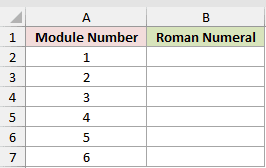
I want to convert all six module numbers with one formula entered in cell B2.
Here is the formula:
=ROMAN(A2:A7)
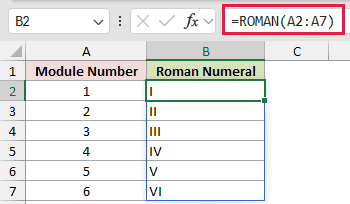
The formula returns I through VI in cells B2:B7. ROMAN returns text, even though the source values in column A are numbers.
In Excel versions that support dynamic arrays, the results spill from B2. In older versions, use =ROMAN(A2) and fill the formula down.
Example 2: Create Roman Outline Labels
Roman numerals become more useful when they form part of a complete label.
Below is a project outline with section numbers, topic names, and an empty column for the finished labels.
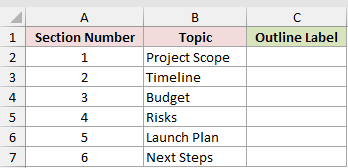
I want each result to combine the Roman section number, a separator, and the matching topic.
Here is the formula:
=ROMAN(A2:A7)&" - "&B2:B7
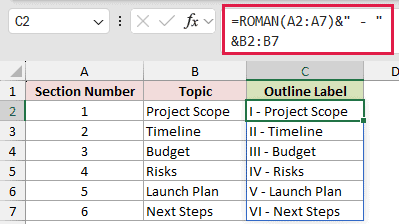
ROMAN converts each number in A2:A7. The ampersands join that text to the separator and the corresponding topic in B2:B7.
The spilled results run from I - Project Scope through VI - Next Steps.
Pro Tip: ROMAN returns text, so it works well in labels. Keep the original numeric column when you still need calculations or numeric sorting.
Example 3: Compare ROMAN Form Styles
The optional form argument changes how compactly Excel writes the numeral.
Below is the number 1999 repeated beside form values 0 through 4 and a short style description.
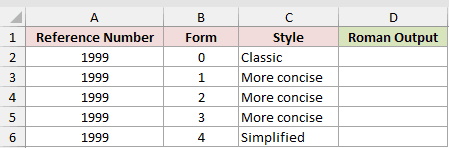
I want to compare every numeric form option in one result column.
Here is the formula:
=ROMAN(A2:A6,B2:B6)
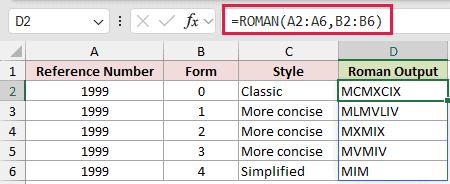
Each row pairs 1999 with a different form value. Form 0 returns the classic MCMXCIX, while form 4 returns the simplified MIM.
Values 1, 2, and 3 return progressively more concise forms. For labels you create yourself, the omitted argument or form 0 is usually clearest.
Example 4: Standardize Imported Roman Labels
Imported data can contain lowercase or abbreviated Roman numerals that do not match your preferred style.
Below are four labels that all represent the same number, including lowercase text and three concise forms.
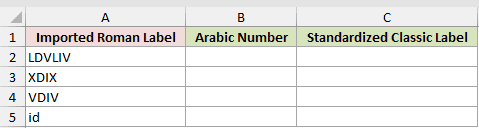
I first want to convert every imported label back to its Arabic number.
Here is the ARABIC formula:
=ARABIC(A2:A5)
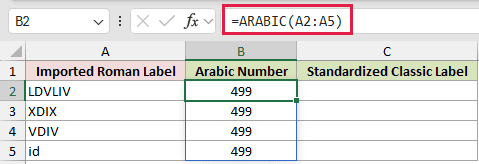
ARABIC returns 499 for every label in B2:B5. It reads the concise forms and ignores the lowercase letters in id.
I can now rebuild each value in the classic style.
Here is the ROMAN formula:
=ROMAN(B2:B5)
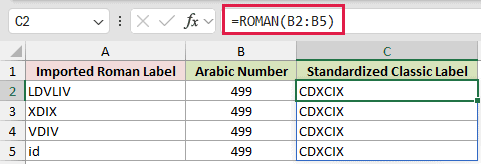
ROMAN converts all four numeric results to CDXCIX. This two-step check is handy when imported labels use inconsistent Roman numeral styles.
Tips & Common Mistakes
- ROMAN returns text. Keep the source number if you need to add, average, or sort the values numerically.
- A negative number or a number greater than 3999 returns
#VALUE!. - Omitting the form argument is the same as using 0. Both return the classic form.
- TRUE also requests the classic form, while FALSE requests the simplified form.
- There is no newer Excel function that directly replaces ROMAN. ARABIC performs the reverse conversion.
I covered basic conversions, complete outline labels, the five numeric form choices, and a practical way to standardize imported Roman numerals.
I hope you found this article helpful.
Other Excel articles you may also like:
