
Excel’s MUNIT function returns an identity matrix, a square grid with 1 on the main diagonal and 0 everywhere else.
The main diagonal runs from top left to bottom right. Multiplying a matrix by an identity matrix leaves it unchanged, just as multiplying a number by 1 does.
That makes it useful for checking matrix inverses. You can also use its diagonal pattern to keep selected entries or change only the diagonal of another matrix.
I’ll show you how to create an identity matrix, check an inverse without floating-point noise getting in the way, and build diagonal matrices from existing values.
MUNIT Function Syntax in Excel
MUNIT takes the size of the square matrix:
=MUNIT(dimension)
- dimension (required): The number of rows and columns in the identity matrix. Use a positive whole number or a reference to a cell containing it.
MUNIT truncates decimal dimensions. For example, a dimension of 3.7 produces a 3 x 3 matrix.
When to Use MUNIT Function
- Create an identity matrix whose size comes from a worksheet cell.
- Check whether multiplying a matrix by its inverse produces an identity matrix.
- Build a diagonal matrix from a list of values or scale an identity matrix.
- Subtract a candidate eigenvalue from a matrix’s diagonal before checking its determinant.
- Keep only a square matrix’s diagonal and add those entries to find its trace.
Example 1: Create an Identity Matrix
Let’s start with a matrix whose size you control from a cell.
Below is the dataset. The Size card in A1:B1 holds the dimension, and D1:G4 is reserved for the identity matrix.

We want MUNIT to create a square matrix using the size in B1.
Enter this formula in D1:
=MUNIT(B1)
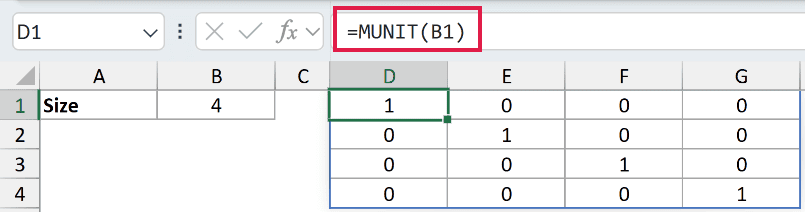
B1 contains 4, so the result fills D1:G4. Cells D1, E2, F3, and G4 contain 1; every other result cell contains 0.
In Excel 2021, Excel 2024, and Microsoft 365, enter the formula in D1 and press Enter. The matrix spills automatically into the surrounding cells.
MUNIT is available from Excel 2013. In Excel 2019 and earlier, select D1:G4, type the same formula, and confirm with Ctrl+Shift+Enter.
In spilling versions, changing B1 resizes the result automatically, provided the new output area is clear.
Pro Tip: Leave the entire square output area empty before entering MUNIT. A value anywhere inside the required area can cause a spill error (#SPILL!), even if the cells directly below the formula are clear.
Example 2: Multiply by an Identity Matrix
Now let’s see what makes this matrix an identity.
Below is the dataset. B2:D4 contains Matrix A, and the labelled A x I block has an empty result area in G2:I4.

We want to multiply Matrix A by an identity matrix and check that its entries stay unchanged.
Enter this formula in G2:
=MMULT(B2:D4,MUNIT(COLUMNS(B2:D4)))
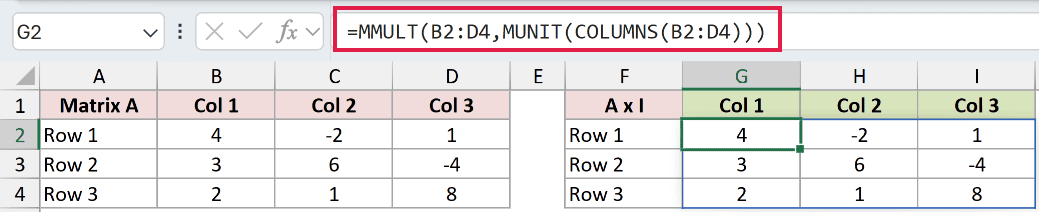
The result spills into G2:I4 and matches Matrix A row for row:
- G2:I2 returns 4, -2, 1.
- G3:I3 returns 3, 6, -4.
- G4:I4 returns 2, 1, 8.
COLUMNS determines the identity matrix’s size from the source. Because the identity is on the right of MMULT, its size must match Matrix A’s column count.
MMULT performs matrix multiplication. The ordinary multiplication operator, *, multiplies corresponding entries instead, which we’ll use for diagonal matrices later.
Example 3: Check an Inverse With Rounding
Multiplying by an inverse should also produce an identity matrix, but tiny rounding residues can get in the way.
Below is the dataset. Matrix A occupies B2:D4, with labelled spaces for the raw product, rounded product, and Matches Identity? check.

We want to check the inverse against MUNIT after removing floating-point noise.
First, enter the raw multiplication in G2 so you can see the comparison before rounding:
=MMULT(B2:D4,MINVERSE(B2:D4))

The raw comparison spills into G2:I4. H2 and I3 display 8.88178E-16 where the mathematical identity has 0.
These tiny values are floating-point residues from the calculation. They’re the reason to round before testing whether the product matches an identity matrix.
Enter the clean version in L2:
=ROUND(MMULT(B2:D4,MINVERSE(B2:D4)),10)

The rounded result spills into L2:N4. L2, M3, and N4 contain 1, and all the off-diagonal cells contain 0.
ROUND keeps 10 decimal places here, removing the small residues visible in the raw comparison.
For the TRUE/FALSE check, enter this formula in B6:
=AND(ROUND(MMULT(B2:D4,MINVERSE(B2:D4)),10)=MUNIT(ROWS(B2:D4)))

B6 returns TRUE, confirming that every entry in the rounded product matches the identity matrix.
How this formula works:
- MINVERSE calculates the inverse, and MMULT multiplies it by the original matrix.
- ROUND removes the tiny residues at the chosen precision.
- ROWS sets the size of the identity matrix created by MUNIT.
- The comparison checks corresponding entries, and AND combines those checks into a single result.
Example 4: Build Diagonal and Scaled Matrices
An identity matrix also provides a convenient starting pattern for other diagonal matrices.
Below is the dataset. B1:D1 holds the diagonal inputs, with labelled output areas at B3:D5 for Diagonal Matrix and B7:D9 for 5 x Identity.
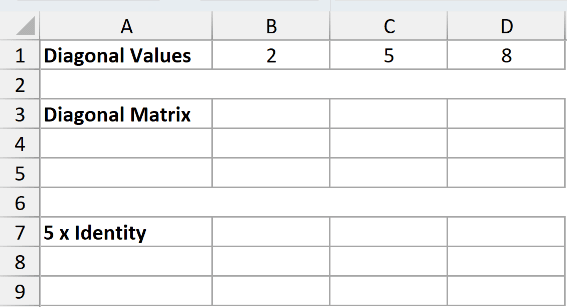
We want to place the input values along a diagonal, then compare that with using the same multiplier throughout.
Enter this formula in B3:
=MUNIT(COLUMNS(B1:D1))*B1:D1
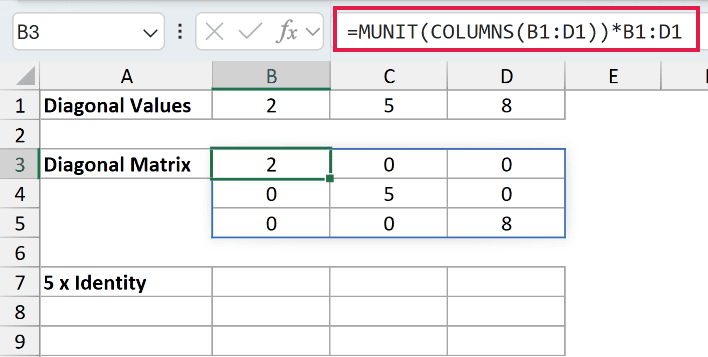
The formula spills into B3:D5. Its diagonal contains 2 in B3, 5 in C4, and 8 in D5. All other entries are 0.
The input row multiplies each corresponding column of the identity matrix. The diagonal retains the input values, while the off-diagonal zeros stay zero.
For comparison, enter the scaled identity formula in B7:
=MUNIT(3)*5
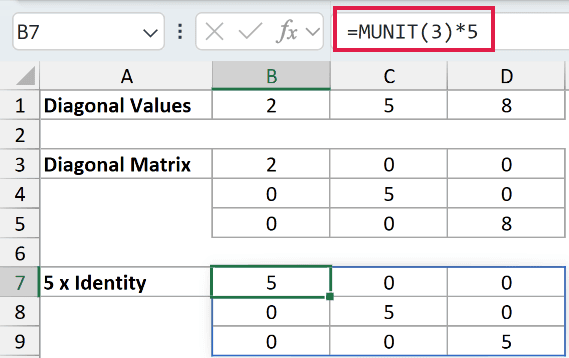
This result spills into B7:D9, with 5 in B7, C8, and D9, and 0 elsewhere.
Use a row of inputs when the diagonal entries differ. Use a single multiplier when every diagonal entry should have the same value.
Example 5: Check Candidate Eigenvalues
We can use MUNIT to subtract a candidate eigenvalue from just the diagonal entries.
Below is the dataset. B2:C3 contains Matrix B, E2:E6 lists candidate lambda inputs, and columns F and G will hold the determinant and eigenvalue check.
The input cells E5 and E6 contain =(5-SQRT(5))/2 and =(5+SQRT(5))/2. SQRT returns the positive square root of its input.
These formulas represent Matrix B’s exact eigenvalues. Keep them so the determinant test uses full-precision candidates instead of rounded display values.
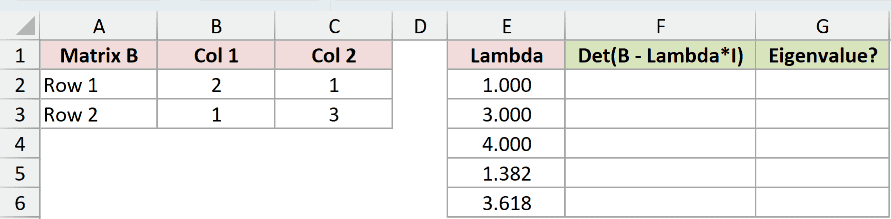
We want to identify which candidate values make the determinant of B minus lambda times the identity effectively zero.
An eigenvalue is a scaling factor for a direction that a matrix leaves unchanged. The zero-determinant test lets us check candidates without finding those directions here.
Enter this formula in F2, then copy it down to F6:
=MDETERM($B$2:$C$3-E2*MUNIT(2))
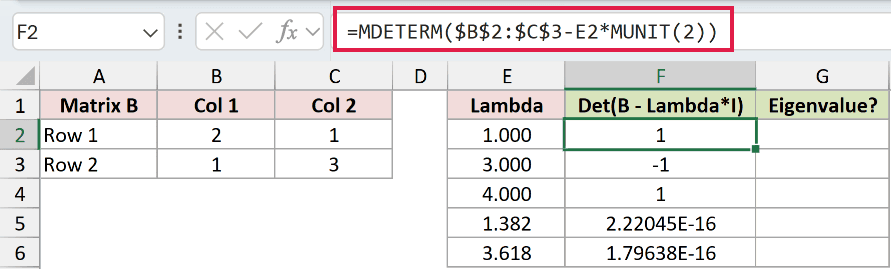
Multiplying the identity by the candidate places that value on its diagonal. Subtracting it from Matrix B changes only the diagonal entries, and MDETERM calculates the determinant.
These are per-row formulas because each candidate needs its own determinant. The absolute reference keeps Matrix B fixed as the lambda reference moves down.
F2:F4 returns 1, -1, and 1. Those candidates don’t produce a zero determinant.
F5 displays 2.22045E-16, and F6 displays 1.79638E-16. These are tiny floating-point residues, effectively zero, so the check needs rounding.
IF returns “Yes” when the rounded determinant equals zero and “No” otherwise, labelling whether each candidate passes the eigenvalue test.
Enter this formula in G2, then copy it down to G6:
=IF(ROUND(F2,10)=0,"Yes","No")
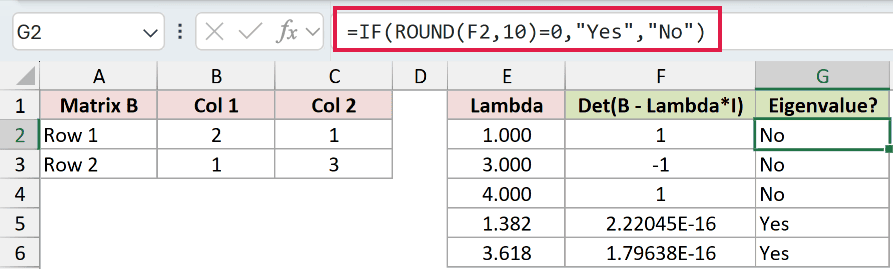
G2:G4 returns No. G5 and G6 return Yes for the formula-based candidates displayed as 1.382 and 3.618.
The check rounds the determinant before comparing it with zero. It doesn’t replace the candidate values with their shortened display values.
Example 6: Keep the Diagonal and Find the Trace
Finally, let’s use MUNIT to isolate values already on a matrix’s diagonal.
Below is the dataset. Matrix M occupies B2:E5, H2:K5 is reserved for Diagonal Only, and the Trace label has its result cell at B7.

We want to keep the main diagonal and add its entries to calculate the matrix’s trace.
Enter this formula in H2:
=MUNIT(ROWS(B2:E5))*B2:E5
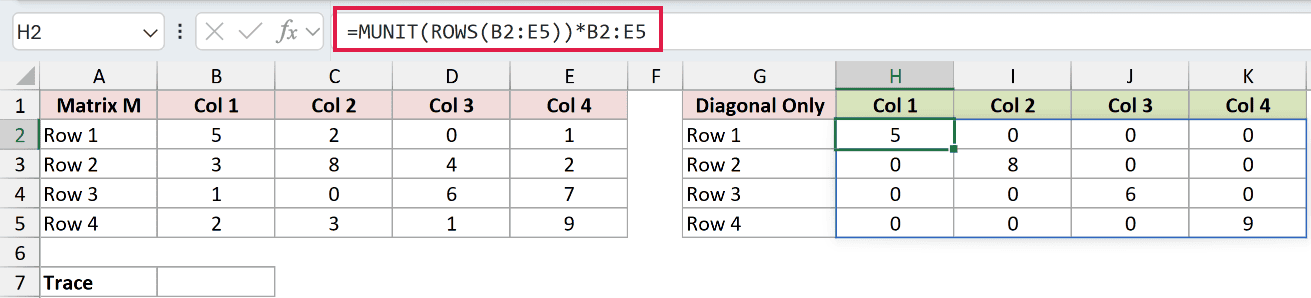
The result spills into H2:K5. The diagonal contains 5, 8, 6, and 9, while every off-diagonal entry becomes 0.
MUNIT’s diagonal ones preserve the corresponding matrix entries. Its zeros remove everything else through ordinary, entry-by-entry multiplication.
To calculate the trace directly, enter this formula in B7:
=SUM(MUNIT(ROWS(B2:E5))*B2:E5)
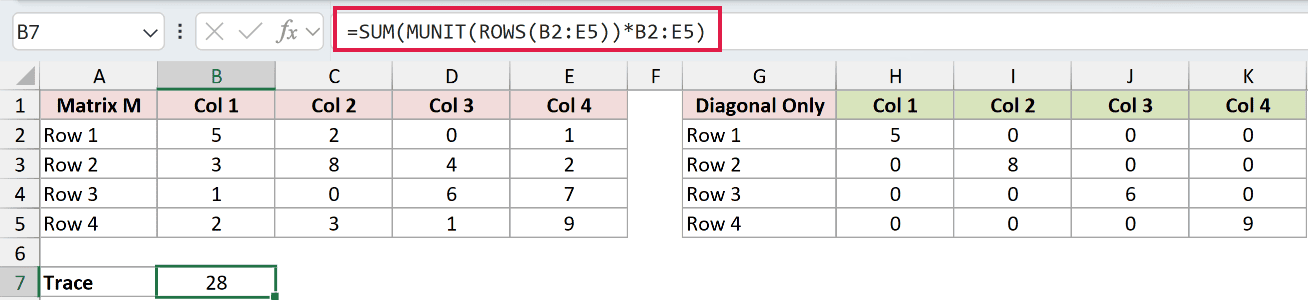
B7 returns 28. SUM adds the diagonal entries and returns a single value, so this formula doesn’t spill even though MUNIT creates an array inside it.
Excel has no TRACE function. Combining SUM with MUNIT calculates the trace without selecting and adding each diagonal cell separately.
Tips & Common Mistakes
- Check the dimension. Zero, negative values, and nonnumeric text such as “a” return
#VALUE!. - Decimals are truncated. A dimension of 3.7 creates a 3 x 3 identity matrix. Numeric text such as “3” also works, but a whole-number input makes the intended size clearer.
- Choose the right multiplication. Using
*with an identity matrix clears the off-diagonal entries, so use MMULT when the whole matrix should stay unchanged. - Round calculated checks. The raw inverse product and eigenvalue determinants can contain tiny residues. Use the rounded checks demonstrated above when testing these examples.
- Pass a single dimension. An array of sizes produces an unexpected result instead of separate identity matrices. Use one size per MUNIT formula.
When adapting these examples, keep the numeric matrix separate from its labels. Use only its numeric cells in the ranges that determine the identity’s size.
MUNIT creates identity matrices for inverse checks and diagonal calculations. The examples also show how to build diagonal matrices, test eigenvalues, and calculate a trace.
Related Excel Functions / Articles:
