
Excel’s yellow “External Data Connections have been disabled” bar tells you it has blocked your workbook’s data connections until you decide the file is safe.
You can get this warning when your workbook pulls data through a data connection, such as a Power Query query.
The numbers you see are the values saved last time, so they may be outdated.
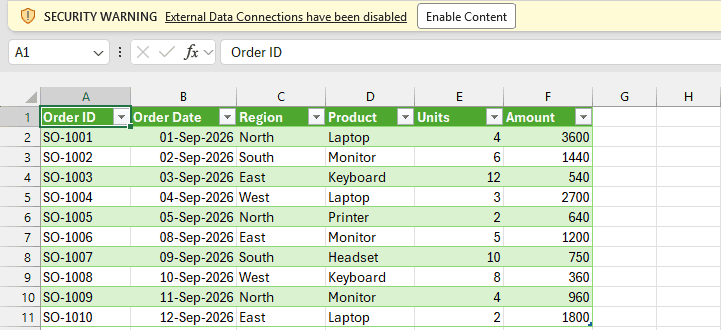
For a file you trust, I recommend Enable Content first. I’ll also show you how to trust a reports folder, change the Excel-wide setting, or remove an unwanted connection.
Reason #1: Excel Doesn’t Trust the Workbook Yet
You may see the warning the first time you open a workbook you received, downloaded, or created on another computer.
In this example, you have Sales Report.xlsx in C:\SalesData\. Its Power Query query, Sales, pulls 10 sales orders from Sales.csv into the Sales Report sheet.
When you import a CSV file through Power Query, that query creates a data connection. Here, the connection is named Query - Sales.
You can get the warning even with Refresh data when opening the file switched off. Having a data connection is enough to trigger it in an untrusted workbook.
Fix: Click Enable Content
This is the fix I recommend for most people, provided you recognize the report and trust its source.
Here’s how to allow your report’s connection:
- On the yellow Message Bar, click Enable Content.
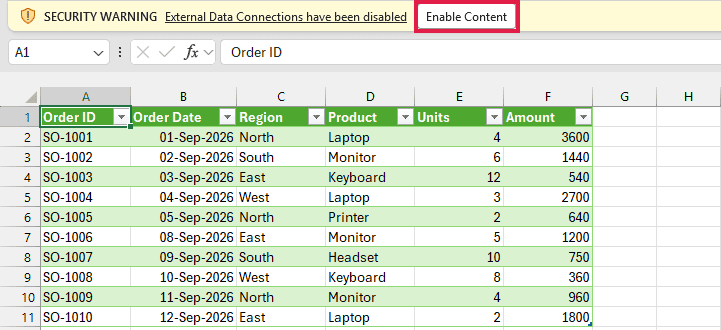
The warning bar disappears, and you can use the report’s data connection.
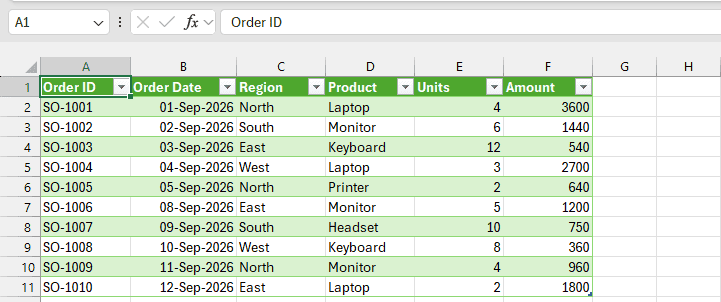
If your connection has Refresh data when opening the file enabled, Excel refreshes the sales data right away.
If that option is off, you still see the saved values. Use the next step to bring in the latest orders from the CSV.
- Go to the Data tab and click Refresh All, or press Ctrl + Alt + F5.
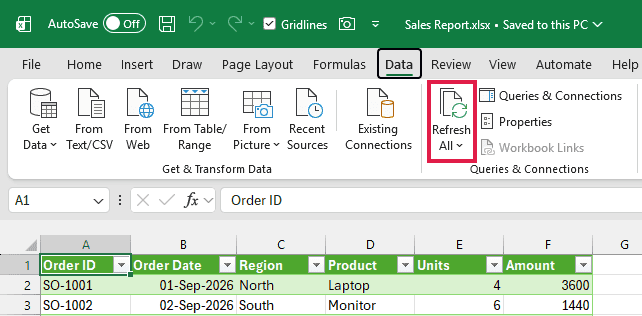
Clicking Enable Content also makes your workbook a trusted document. When you reopen the same file from the same place, you won’t get the bar again.
Files on a network location work differently. Excel shows you a security dialog when you try to trust them, and your administrator can turn off network document trust.
Clicked Refresh All before Enable Content? Then you saw a Microsoft Excel Security Notice instead.
The dialog warns you that the operation connects to an external data source and asks you to allow it only if you trust the file’s source.
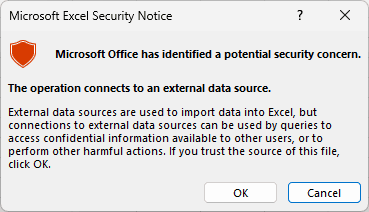
Click OK if you trust the source. Excel refreshes the data and clears the bar for this session, but doesn’t make your file trusted like Enable Content does.
Click Cancel to stop the refresh and leave the connection blocked.
Note: Only enable content when you know and trust the file’s source. A connection can read data from locations your account can access.
Reason #2: The File Opens From a Folder Excel Doesn’t Trust
For reports you open every day, you may prefer to trust their folder. Clicking Enable Content for each new file gets repetitive.
For example, you keep Sales Report.xlsx in C:\SalesData\, with a Power Query query that pulls orders from Sales.csv.
You might receive new reports in that folder from a colleague or a scheduled export. A trusted location lets you open those files without the warning.
Fix: Add the Folder as a Trusted Location
Choose a folder where you control the files. Excel skips Trust Center checks for files you open from a trusted location.
Here are the steps to trust your reports folder:
- Click File, then Options.
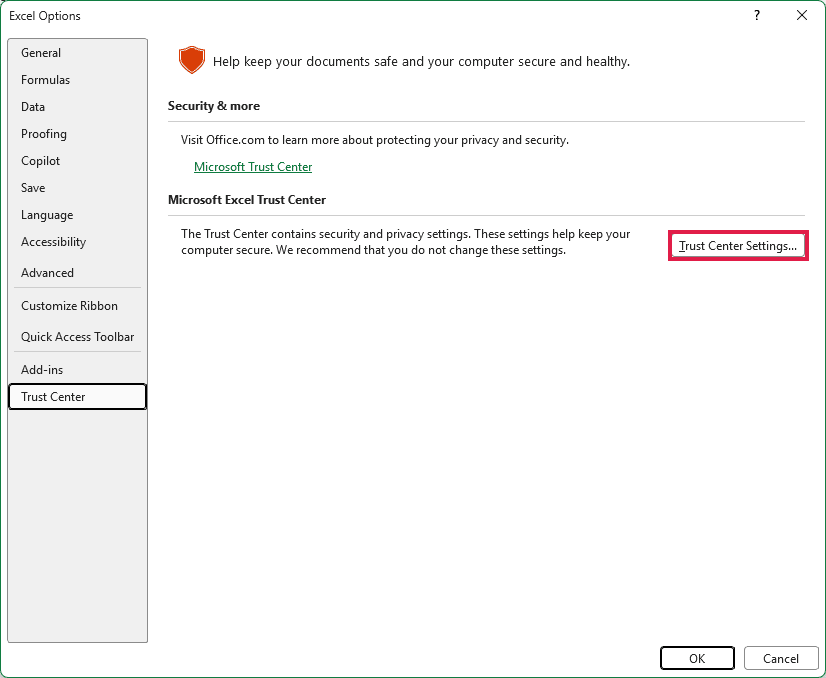
- In Excel Options, click Trust Center, then click Trust Center Settings.
- Click Trusted Locations, then click Add new location.
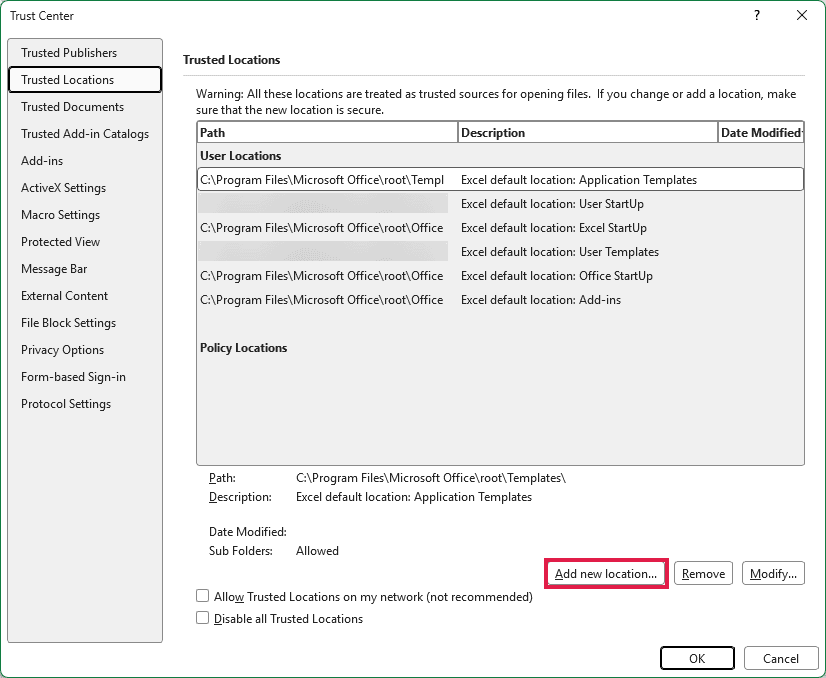
If your reports sit on a network folder, first select Allow Trusted Locations on my network (not recommended) at the bottom of the Trusted Locations page.
Only trust a network folder if you control what goes into it.
- In the Microsoft Office Trusted Location dialog, type C:\SalesData\ or click Browse to choose your folder. Select Subfolders of this location are also trusted if you need those included, then click OK.
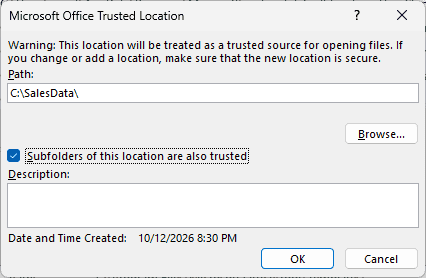
- Your folder now appears in the User Locations list. Click OK to close Trust Center, then OK again to close Excel Options.
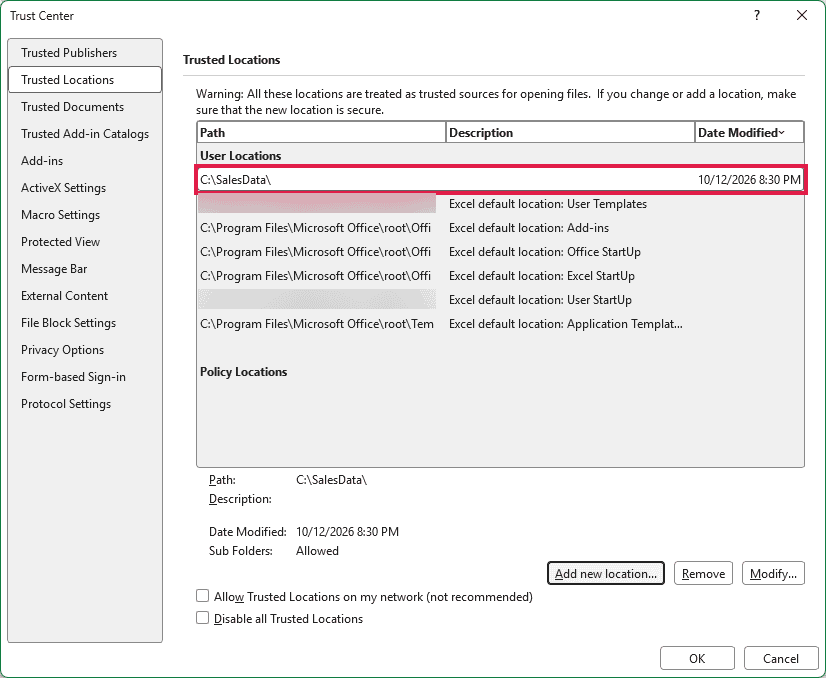
When you reopen the report from C:\SalesData\, you won’t see the security warning bar.
Note: Keep your trusted location narrow. Avoid trusting Downloads or your whole C drive, where files from unfamiliar sources could appear.
Reason #3: Trust Center Is Set to Prompt About Data Connections
If the bar shows up on every new report you open, check Excel’s general setting for data connections.
The default tells Excel to ask before allowing them in untrusted files.
Your Sales Report.xlsx, which uses Power Query to read C:\SalesData\Sales.csv, falls under that setting too.
Fix: Change the Data Connections Setting
You can remove the warning across Excel by allowing all data connections. I recommend a trusted location instead for most situations, because this setting covers every workbook you open.
Here’s where you can review and change it:
- Click File, then Options.
- Click Trust Center, then click Trust Center Settings.
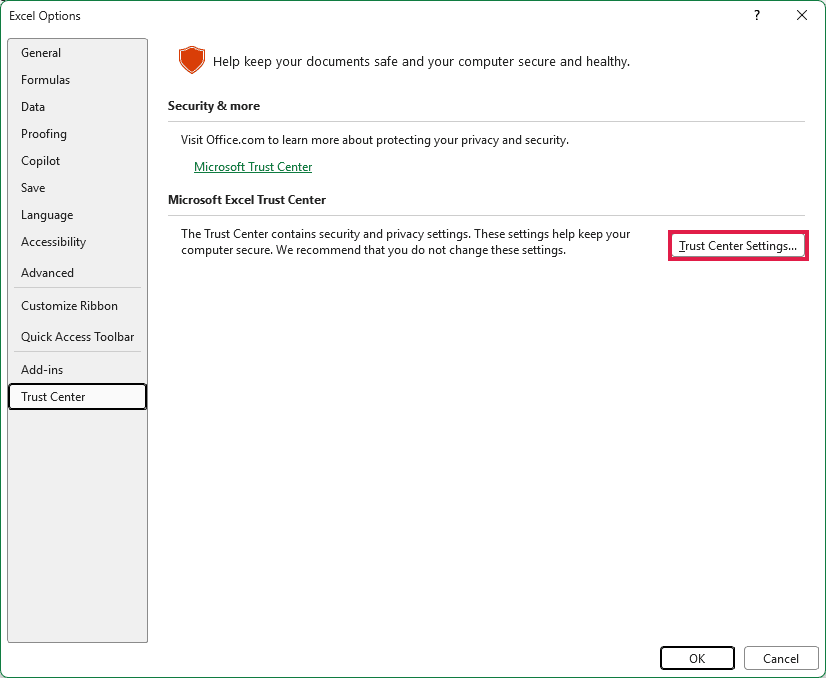
- Click External Content.
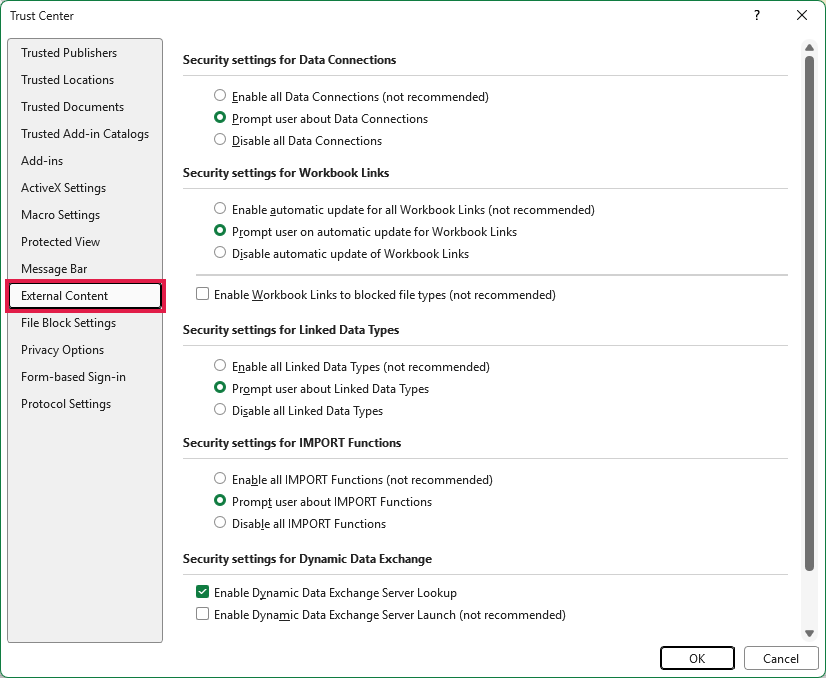
Under Security settings for Data Connections, you decide how Excel handles connections in the workbooks you open. You have three options:
- Enable all Data Connections (not recommended) allows connections without asking you first.
- Prompt user about Data Connections asks you to allow connections. This is the default.
- Disable all Data Connections blocks every data connection. You’ll lose the ability to refresh connected data.
- To allow every workbook’s data connections, select Enable all Data Connections (not recommended). Click OK, then OK again.
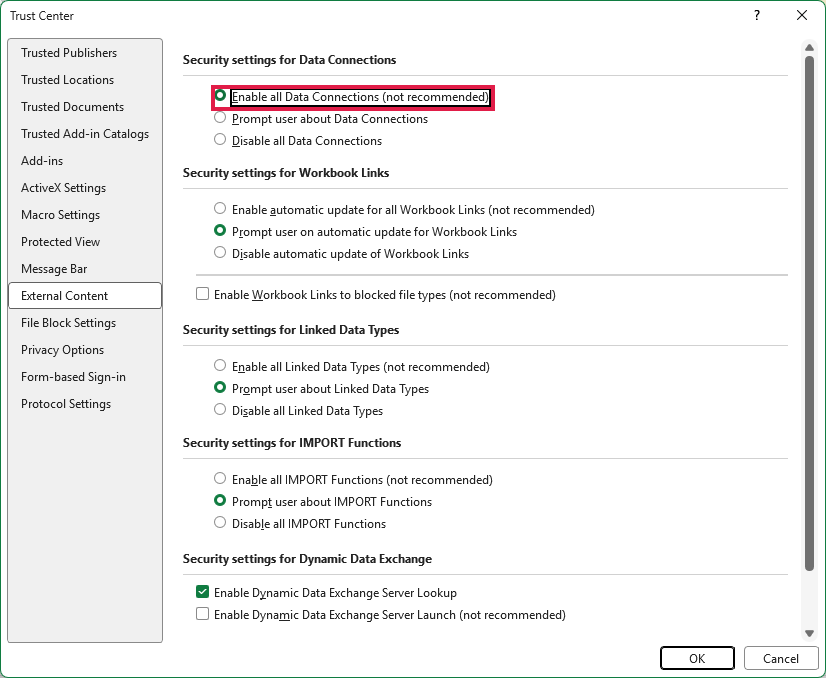
You’ll also see separate settings for Workbook Links and Linked Data Types on this page. Changing Data Connections doesn’t change those settings.
Note: You can return to this page and select Prompt user about Data Connections whenever you want Excel to ask again, unless your administrator controls the setting.
Reason #4: The Workbook Has a Connection You Don’t Need
If you only need the saved numbers, you can remove the query and its connection.
For example, your Sales Report.xlsx uses Power Query to pull orders from C:\SalesData\Sales.csv, but you’re sending it to someone who can’t access that CSV.
You can keep the loaded sales table while removing its ability to refresh from the source.
Fix: Delete the Query and Its Connection
Save a backup copy before you delete anything. You’ll keep the current values, but your report will no longer pick up changes from the CSV.
If the bar is still showing, those saved values may be out of date.
To keep the latest numbers, click Enable Content and Refresh All before you save the backup and delete the query.
Here are the steps to remove the Sales query:
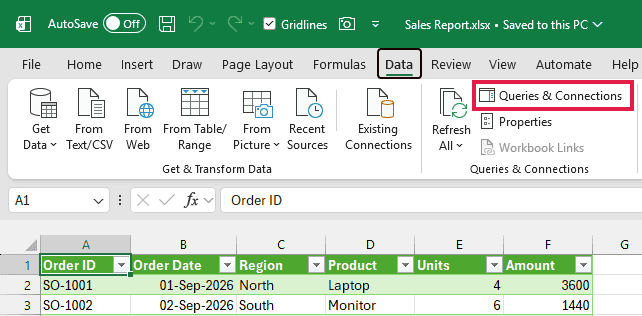
- Go to the Data tab and click Queries & Connections.
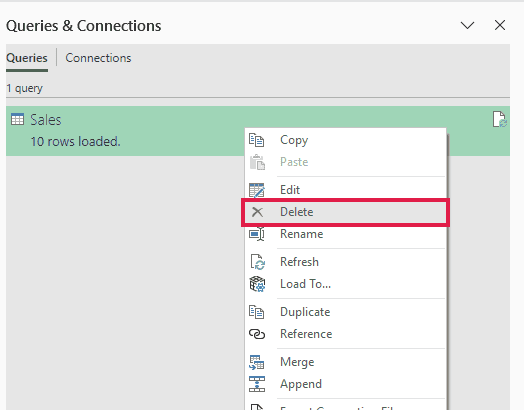
- In the Queries & Connections pane on the right, find Sales, listed with 10 rows loaded. Right-click the query and click Delete.
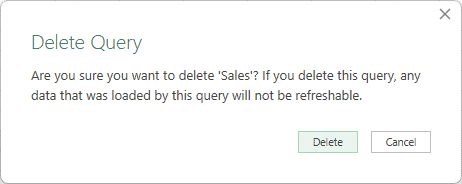
- In the Delete Query dialog, Excel warns that data loaded by the query will no longer be refreshable. Click Delete.
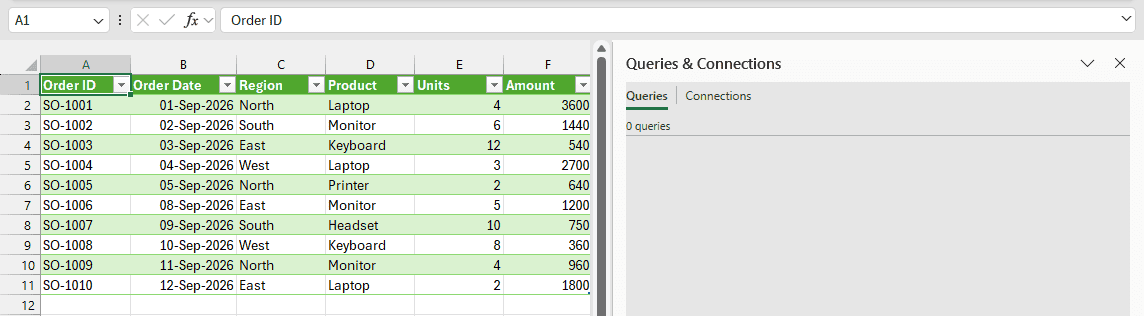
Your query and its connection are gone. You still have the data as plain values in a regular Excel table, but it no longer refreshes.
Save the file. When you open this report again, you won’t see the bar because you’ve removed its only data connection.
Additional Notes About External Data Connections in Excel
- Excel remembers a trusted document by its location. If you move or rename the workbook, the bar can come back, and you click Enable Content again.
- Using Table Design > Unlink won’t remove the query or its connection. You can unlink the table and still get the warning.
- If you use formulas that reference another workbook, you may see “Automatic update of links has been disabled” instead. You control workbook links through a separate Trust Center setting.
- To undo your trusted-document choices, go to File > Options > Trust Center > Trust Center Settings > Trusted Documents. Click Clear beside Clear all Trusted Documents so that they are no longer trusted.
Frequently Asked Questions
Here are a few questions you might have when the warning doesn’t behave as you expected.
How Do I Stop the External Data Connections Have Been Disabled Message in Excel?
For one report you trust, click Enable Content once. Excel then treats it as a trusted document, so the bar stays away when you open it from the same place.
For a new report file every day, add its folder as a trusted location.
Only pick Enable all Data Connections if you control every file you open.
Is It Safe to Click Enable Content in Excel?
Yes, when you know where the file came from and expect it to pull data.
Don’t enable content in an unexpected attachment or download.
Why Does Excel Say External Data Connections Are Disabled When My Query Uses Data From the Same Workbook?
You can get this warning even when a connection-only query reads a table inside your workbook. Excel responds to the presence of a data connection.
The wording doesn’t prove your query reaches outside the file. You don’t need an external CSV or database for the warning to appear.
Why Are the External Content Settings Grayed Out?
Your IT team may control these settings by policy, so ask them to help.
I’d ask them to add your reports folder as a trusted location.
Why Didn’t My Data Update After I Clicked Enable Content?
Enable Content only allows the connection. Your data refreshes on its own only if the connection is set to refresh when the file opens.
Otherwise, click Data > Refresh All (Ctrl + Alt + F5).
Conclusion
For a report you trust, I’d start with Enable Content. If you open new reports from the same controlled folder daily, I’d add that folder as a trusted location.
I hope you found this article helpful.
Other Excel articles you may also like:
