
Excel shows the yellow “Automatic update of links has been disabled” bar when a workbook pulls information from another file and Excel pauses that connection for safety.
Until you allow the update, the workbook can display the external values saved during its previous update. Those numbers may no longer match the source file.
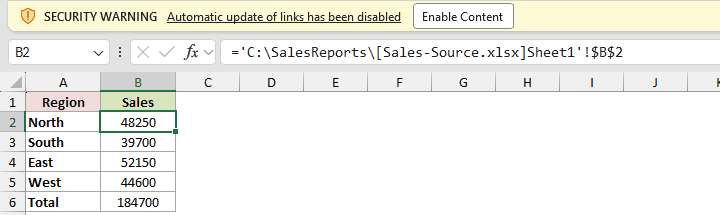
If you trust the workbook, clicking Enable Content is usually the quickest safe fix. The other settings suit repeated folders, global behavior, or unwanted links.
Reason #1: Excel Doesn’t Trust the Workbook Yet
Excel blocks workbook links when it has not yet established that the file is safe. This commonly happens the first time you open a downloaded or received workbook.
The warning does not necessarily mean the workbook is harmful. It means Excel wants you to decide whether its connections should run.
Fix: Click Enable Content
This is the recommended fix if you recognize the workbook and trust its source.
Here is how to allow its links to update:
- On the yellow Message Bar, click Enable Content. If Excel asks whether to make the workbook a trusted document, select Yes.
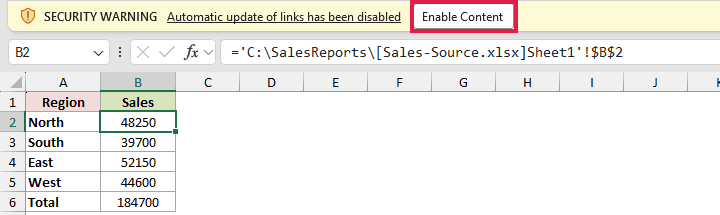
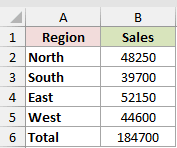
Excel refreshes the workbook links and replaces the last saved values with the current values from the available source workbook.
Selecting Yes in the trusted-document dialog should prevent the warning next time you open the file in the same location. Otherwise, trust may last only this session.
Files on network locations can behave differently. Excel may show a security dialog instead of permanently trusting the document, and an administrator can restrict this feature.
Note: Click Enable Content only when you recognize the workbook and trust the person or system that supplied it.
Reason #2: The File Opens From a Location Excel Doesn’t Trust
This warning can keep appearing when the workbook sits in a folder that Excel does not treat as a Trusted Location.
A Trusted Location lets Office open files in that folder with all active content enabled, including workbook links and macros. It suits a controlled reporting folder you use regularly.
Fix: Add the Folder as a Trusted Location
Do not trust a broad downloads folder or a shared folder where unverified files can appear. Choose the narrowest folder that contains your known workbooks.
Here are the steps to add that folder:
- Go to File > Options > Trust Center, then click Trust Center Settings.
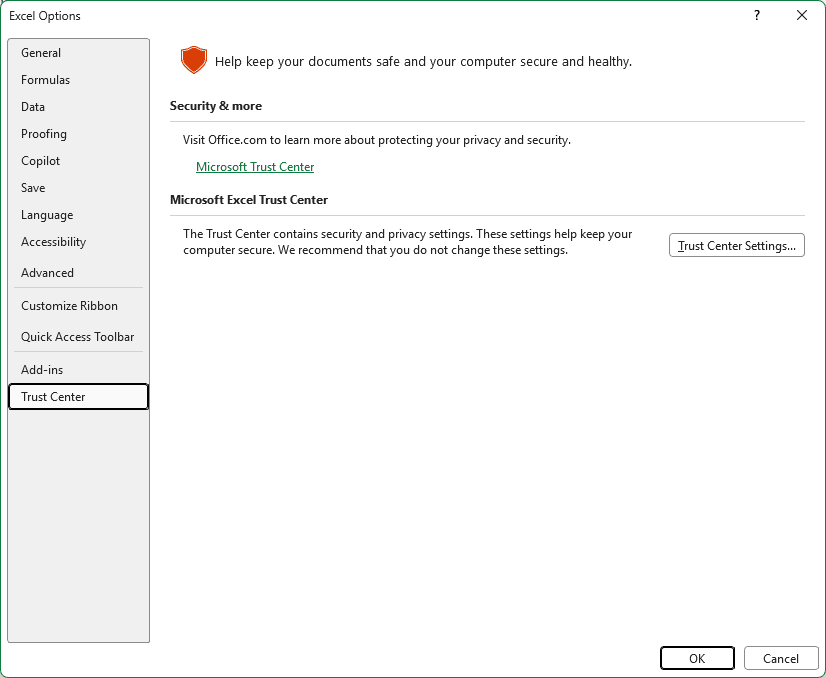
- Select Trusted Locations in the Trust Center.
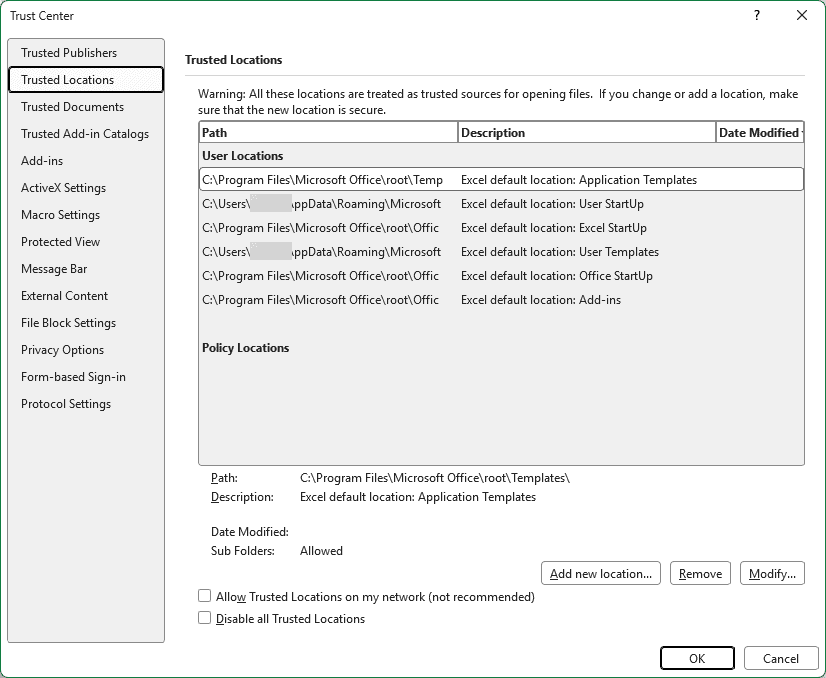
- For a network folder, first select Allow Trusted Locations on my network. Then click Add new location, browse to the folder, and choose whether its subfolders should also be trusted.
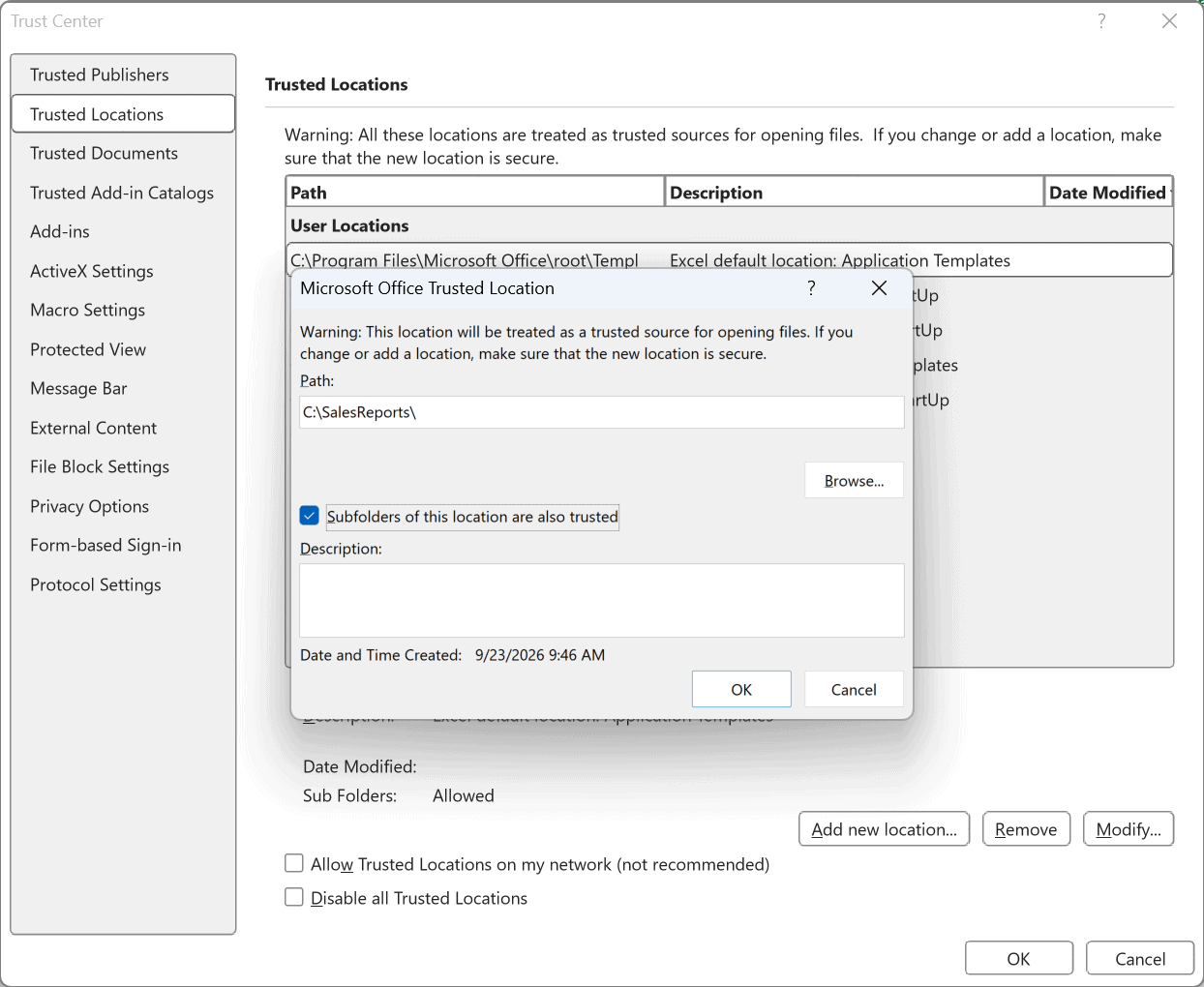
- Click OK to save the location, close the remaining dialogs, and reopen the linked workbook.
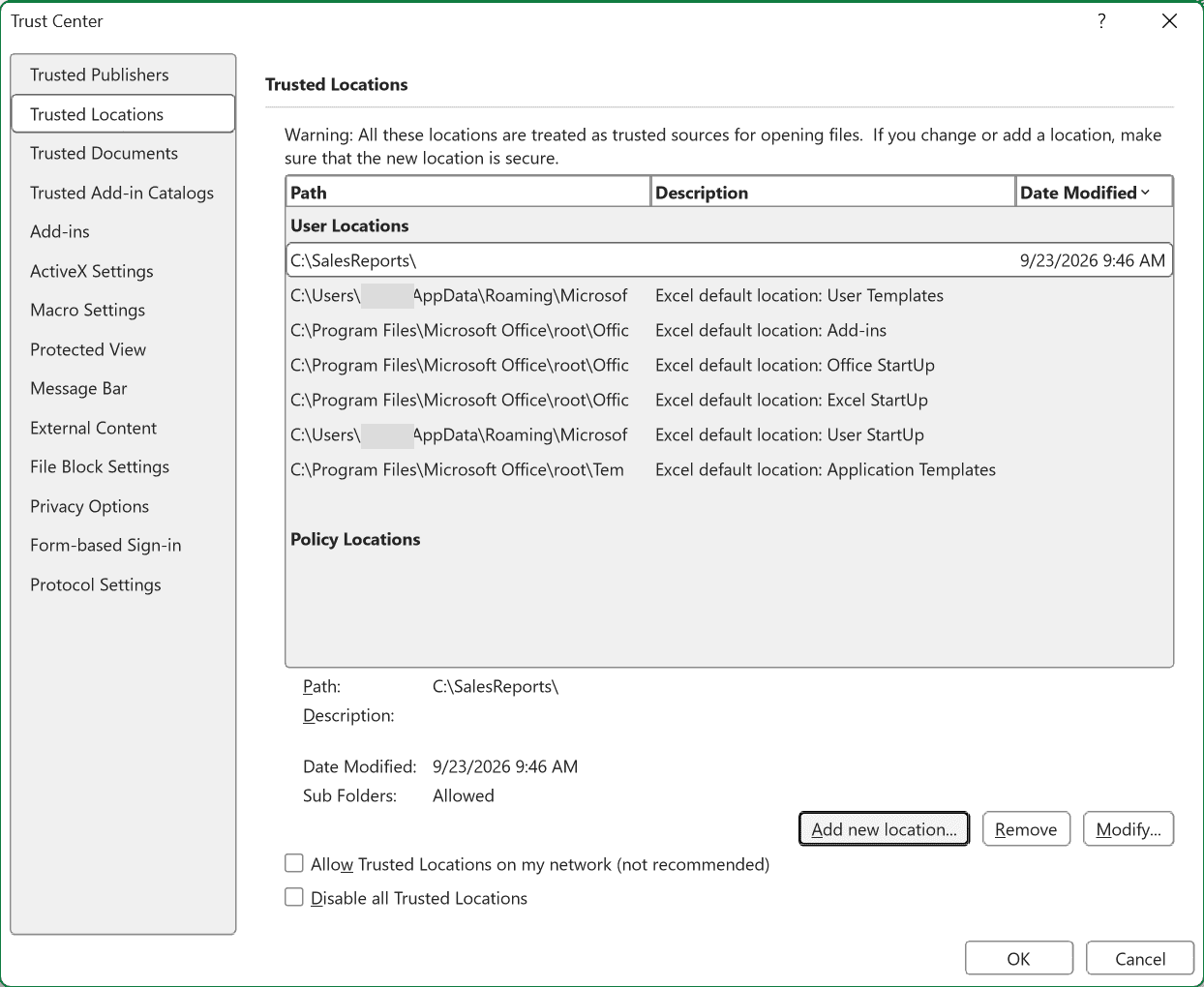
The file should now open without the security bar, provided it remains in that trusted folder. Trust a network path only when you control it.
Reason #3: Trust Center Is Set to Prompt for Workbook Links
If the warning appears across several workbooks, Excel’s workbook-link security setting may be telling it to ask before every automatic update.
That prompt is the default and safest general setting. You can change it, but the change applies to all workbook links opened in Excel.
Fix: Change the External Content Setting
I would use this fix only when you control the workbooks and their linked sources. For occasional outside files, the default prompt is the better choice.
Here are the steps to review the setting:
- Go to File > Options > Trust Center, then click Trust Center Settings.
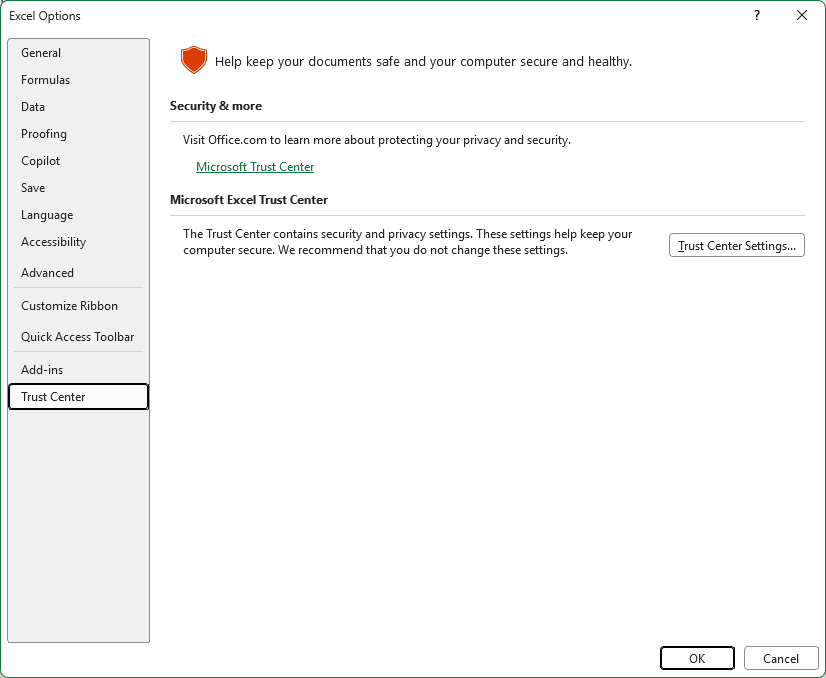
- Select External Content, then find Security settings for Workbook Links.
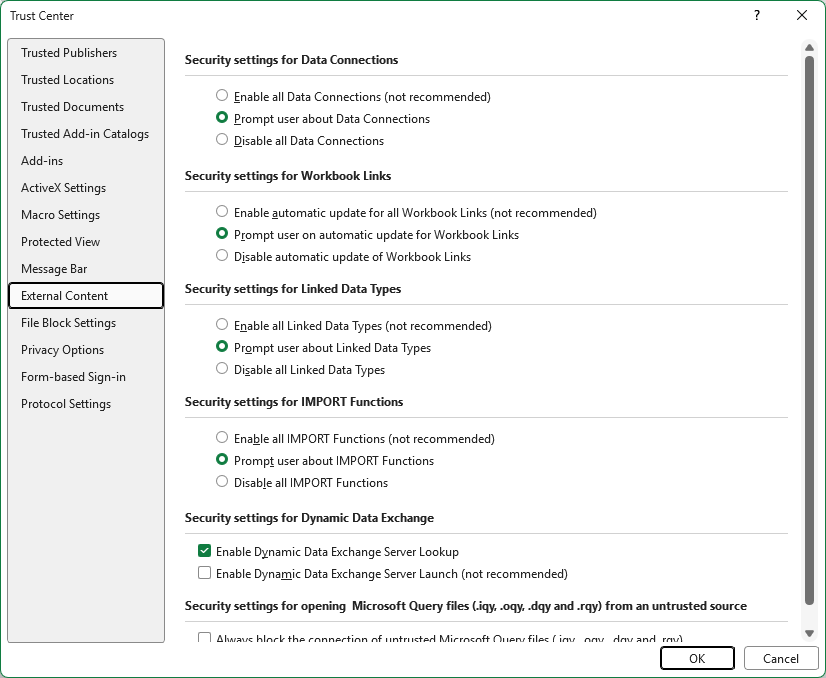
The Security settings for Workbook Links section has these three options:
- Prompt user on automatic update for Workbook Links asks before links update. This is the default setting.
- Enable automatic update for all Workbook Links allows every workbook link to update without the security warning.
- Disable automatic update of Workbook Links prevents workbook links from updating automatically.
- Select the setting you need, click OK twice, and reopen a linked workbook to test it.
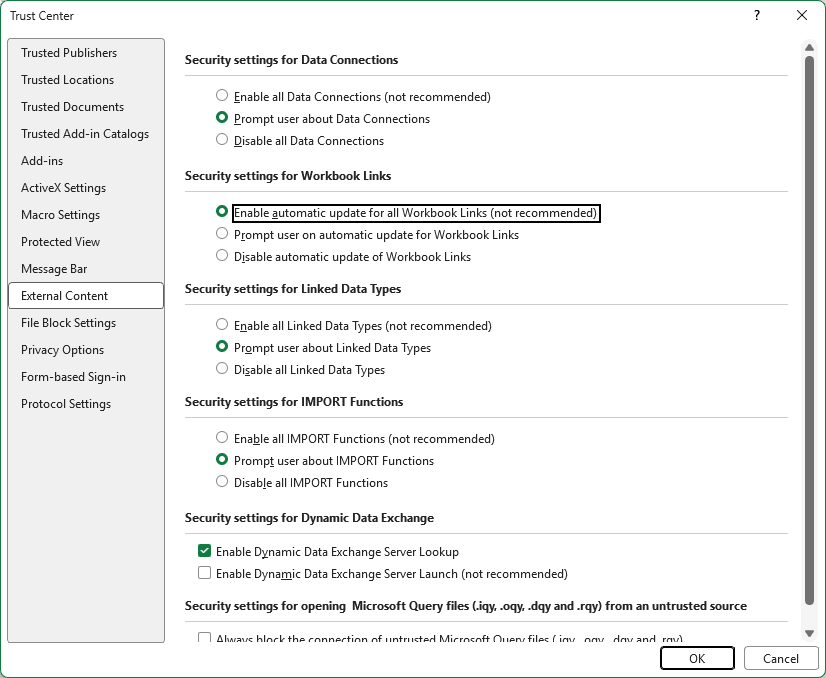
Note: Microsoft does not recommend enabling automatic updates for all workbook links because an untrusted link could connect to harmful content.
Reason #4: The Workbook Has Links You Don’t Need (or That Point to a Moved File)
The workbook may contain links that are old, no longer needed, or broken because a source file moved.
Open the Workbook Links pane before deciding what to do. Breaking a link and changing its source solve different problems.
Fix #1: Break the Links in the Workbook Links Pane
Break a link when the workbook should keep its current displayed numbers but no longer needs any connection to the source file.
Breaking a link converts its external formulas to fixed values. You cannot undo this action in desktop Excel, so save a backup copy before continuing.
Here is how to break an unwanted link:
- Open Data > Queries and Connections > Workbook Links. For the unwanted source, open More Commands (…) and choose Break links.
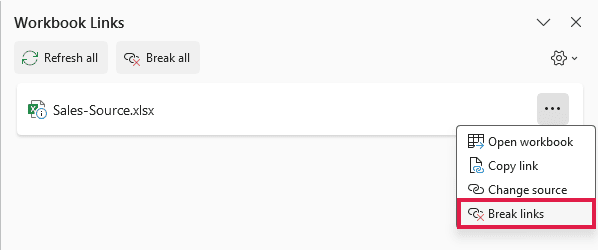
- Read the warning, then confirm that you want to break the link.
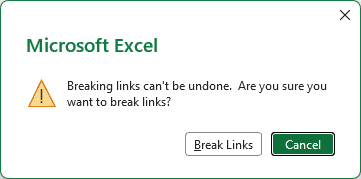
The visible results stay in the cells as values, but they will no longer change when the former source workbook changes.
If the link remains, check for external references in defined names, conditional formatting, data validation, charts, and PivotTable sources.
Fix #2: Change Source to the Correct File
Use this fix when the link is still useful but the source workbook was moved or renamed. It redirects the existing link instead of removing it.
Here are the steps to point the link to the right file:
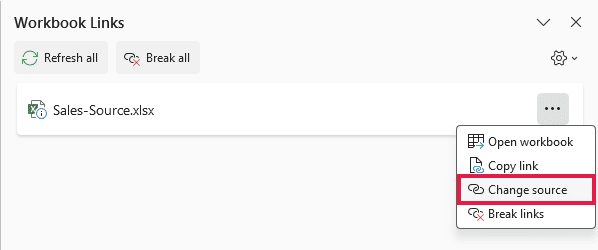
- In the Workbook Links pane, open More Commands (…) for the affected source and choose Change source.
- Browse to the renamed or relocated source workbook, select it, and click OK.
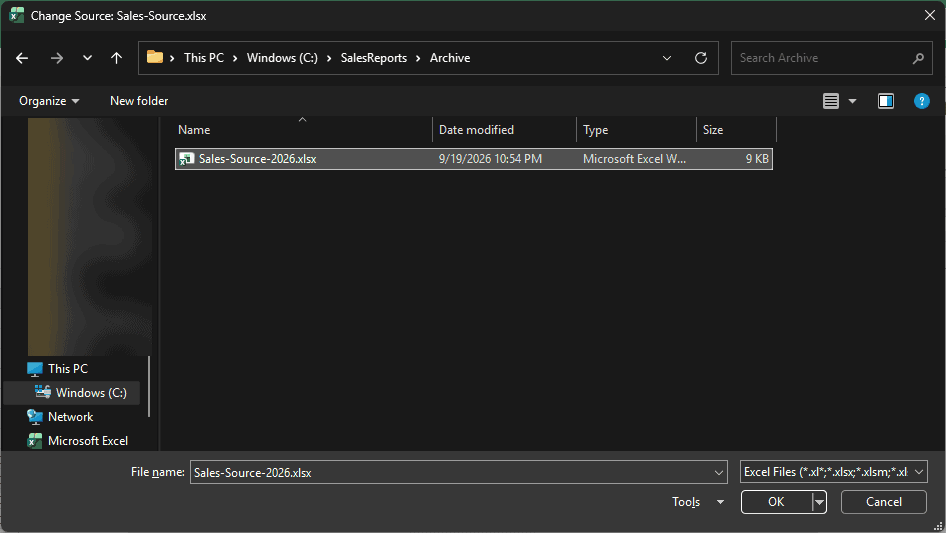
Excel updates the connection to the selected file. Refresh the link and confirm that the returned values match the intended source.
Additional Notes About Automatic Update of Links in Excel
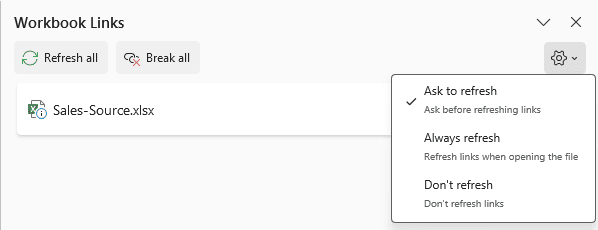
- The Workbook Links pane has Ask to refresh, Always refresh, and Don’t refresh options. These Refresh settings apply to the current workbook.
- Older Excel builds may show Data > Edit Links > Startup Prompt instead of the newer Workbook Links pane and Refresh settings.
- File > Options > Advanced > Ask to update automatic links controls a separate update prompt. It does not remove the security warning bar.
- To reverse the trusted-document choice, open Trust Center Settings > Trusted Documents and clear the trusted documents. Excel will ask again when you reopen them.
- Excel for the web manages workbook links through its Workbook Links pane. Its refresh behavior and available commands differ from desktop Excel.
Frequently Asked Questions
How Do I Stop the Automatic Update of Links Has Been Disabled Message in Excel?
For one trusted file, click Enable Content and accept the trusted-document prompt if it appears. For recurring reports, add a controlled folder as a Trusted Location.
Avoid enabling all workbook links unless you control every linked file you open.
Is It Safe to Click Enable Content in Excel?
It is reasonable when you recognize the workbook, trust its sender, and expected it to connect to another file.
Do not enable content in an unexpected download or attachment. Check the file’s source first.
How Do I Find External Links in Excel?
Open Data > Queries and Connections > Workbook Links to see the linked workbooks Excel recognizes.
If a suspected link does not appear there, inspect formulas, defined names, conditional formatting, data validation, charts, and PivotTable sources.
Why Does Excel Still Show Old Values After I Enable Links?
The source workbook may be unavailable, moved, renamed, or blocked by your permissions. Open the Workbook Links pane and check its status.
Use Change source when the source moved. Then refresh the link and compare the result with the source workbook.
How Do I Enable Automatic Update of Links in Excel for All Workbooks?
Go to Trust Center Settings > External Content and select Enable automatic update for all Workbook Links.
This reduces Excel’s protection for every workbook you open. I recommend keeping the default prompt unless all those files and sources are under your control.
Conclusion
When I trust a workbook, I start with Enable Content and confirm the trusted-document choice if Excel asks. I save a backup before breaking links I no longer need.
I hope you found this article helpful.
Other Excel articles you may also like:
