
To turn off an active Sheet View in Excel, go to View > Sheet View > Exit. Excel returns you to Default, the worksheet’s main view.
Sheet View lets you sort and filter a shared worksheet without continually changing what your coworkers see. The eye beside the sheet tab helps identify an active view.
I’ll show you how to exit using the ribbon or the view menu, remove an unwanted saved view, and check why the controls are grayed out.
Method #1: Using the Exit Button
I recommend Exit when you simply want to leave the current Sheet View. You don’t need to delete a saved view to stop using it.
Below is a meeting-room booking list with a Sheet View named Confirmed Bookings. It shows only reservations whose Status is Confirmed.
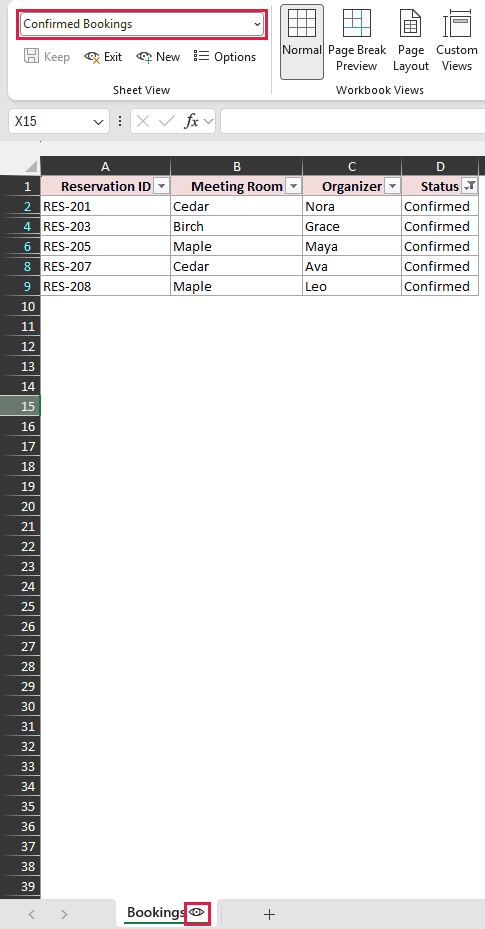
Here are the steps to leave that view:
- On the worksheet with the active Sheet View, click the View tab. Find the Sheet View group.
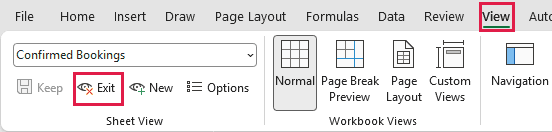
- Click Exit. Check that the Sheet View name changes to Default.
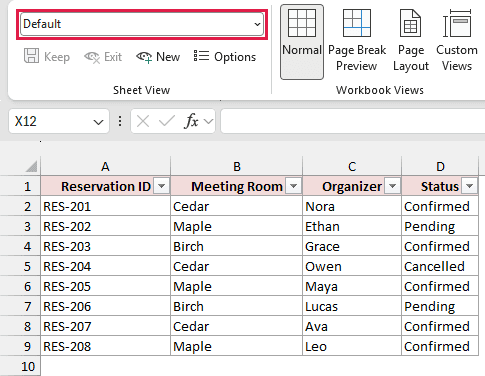
In this example, Default has no filter, so all eight reservations are visible again. Your workbook’s Default view may already contain its own filters.
Note: Before sorting or filtering in Default, check whether other people are using the workbook. Changes in the main view can affect what they see.
Method #2: Selecting Default in the View Menu
You can also leave a Sheet View through the same menu you use to switch between saved views.
In the booking example below, Confirmed Bookings is active. The goal is to return to the main view without removing that saved choice.
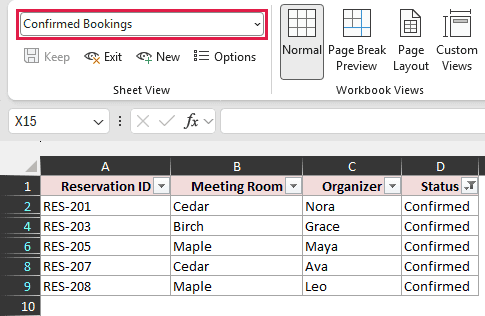
Follow these steps:
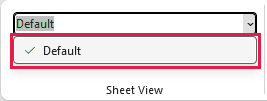
- On the View tab, open the view-name drop-down in the Sheet View group.
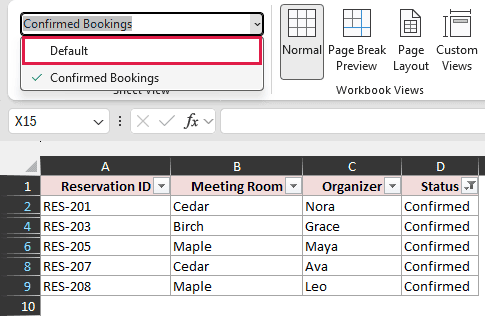
- Select Default from the list.
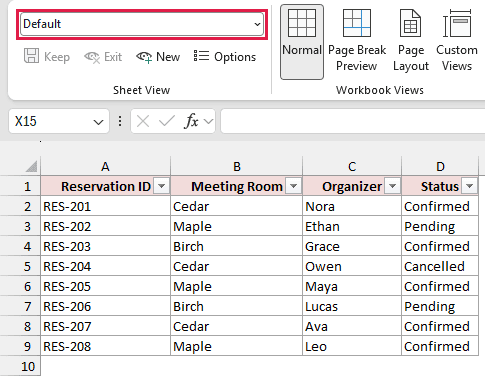
Choosing another named view switches to that view instead. Choose Default when you want to leave Sheet View.
How to Delete a Saved Sheet View in Excel
Delete a saved view only when you no longer need it in the workbook. Other collaborators can access saved views, so check before removing one they use.
For this example, we’ll remove Confirmed Bookings from the booking sheet. The reservation records themselves stay in the worksheet.
Here are the steps:
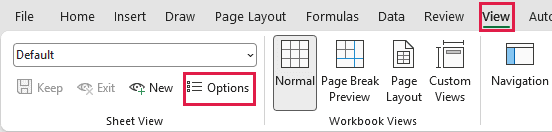
- Select the worksheet containing the saved view. On the View tab, click Options in the Sheet View group.
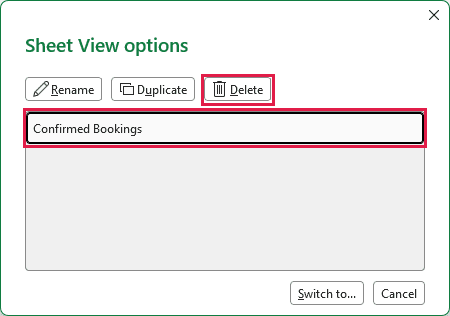
- Select Confirmed Bookings in the dialog, then click Delete. Confirm the deletion if Excel asks.
- Close the dialog and open the Sheet View drop-down. Check that Confirmed Bookings is no longer listed.
Why Are the Sheet View Controls Grayed Out?
Sheet Views require a workbook stored in OneDrive or SharePoint. A copy saved only on your computer cannot use them, even if it contains saved views.
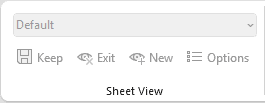
Use the cloud workbook when you need Sheet View. Turning on AutoSave alone doesn’t make an ordinary local file eligible.
Microsoft lists support in Microsoft 365, Excel 2021, Excel 2024, and Excel for the web, with corresponding supported Mac versions. Older desktop editions may lack these controls.
The Microsoft Sheet View documentation also explains why Excel may automatically put you into a view during coauthoring.
Additional Notes About Turning Off Sheet View in Excel
- Default may still be filtered. Exiting Sheet View doesn’t guarantee every row appears. If Default has a filter, clearing that filter is a separate action that can affect coworkers.
- Check the active sheet. The view menu lists views for the current worksheet. A view saved on another tab won’t appear there.
- Normal is a different setting. Returning to Normal view changes the worksheet’s page layout display. It doesn’t replace the Sheet View Exit command.
Frequently Asked Questions
These questions cover what happens to your work and saved views after you exit.
Does Exiting Sheet View Undo My Cell Edits?
No. Sheet View controls how you look at the worksheet. Edits to cell contents belong to the workbook and remain after you leave the view.
Can I Return to the Same Sheet View Later?
Yes, if you saved it with a name. Select it from the Sheet View menu. An unsaved temporary view is discarded when you exit or switch views.
Are Saved Sheet Views Private?
No. Other people with access to the workbook can find saved views in the menu. A named view isn’t a way to hide sensitive information from collaborators.
Conclusion
I’ve shown you how to leave Sheet View and remove a saved view you no longer need. For a quick return to Default, I’d use the Exit command.
Other Excel articles you may also like:
