
Open Excel’s macro settings and find the options dimmed and unclickable? That’s frustrating, especially when you just want to run a macro you trust.
The good news is that you can usually work out the cause in a couple of minutes. The first step is checking whether the controls are really disabled or whether you’re looking at something else.
In this article, I’ll show you how to tell the difference, what to do in each case, and what to send your IT team if the choices are locked.
Identify What Is Actually Unavailable
Start with what Excel shows you. Only the first row in the table below is a true greyed-out macro setting. The other three look similar but have different causes.
| What You See | What to Check Next |
|---|---|
| Macro security choices are disabled and cannot be selected | Ask IT whether an organization policy controls those settings |
| Choices are editable, but a workbook shows a Security Risk banner | Check the file’s origin and applicable security rules |
| The workbook is open in a browser | Use desktop Excel if you need to run VBA |
Expected VBA macros are absent from an .xlsx file | Locate the original macro-enabled workbook |
Leave your current security setting alone while you check. You don’t need to enable macros to look at these controls.
Check What the Trust Center Shows
Open the Macro Settings pane first. It tells you whether the choices themselves are unavailable. These steps are for desktop Excel on Windows.
- Click File, then select Options to open the Excel Options dialog.
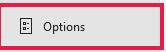
- Select Trust Center in the left sidebar.
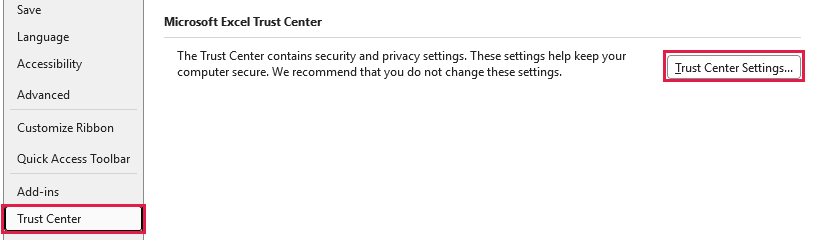
- Click Trust Center Settings, then select Macro Settings.
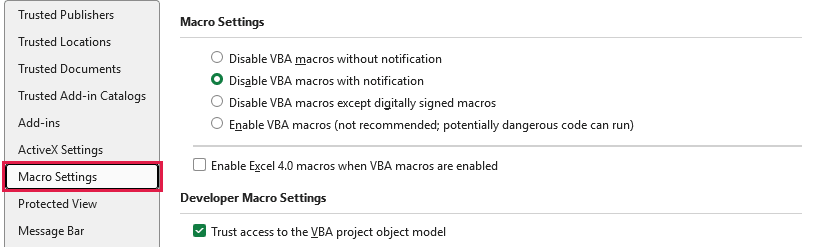
The pane in my screenshot has editable choices, so it isn’t an example of a locked setting. A filled radio button just shows the option that’s currently selected. It doesn’t mean the choice is disabled.
Windows offers four macro choices:
- Disable VBA macros without notification
- Disable VBA macros with notification
- Disable VBA macros except digitally signed macros
- Enable VBA macros (not recommended, potentially dangerous code can run)
Microsoft’s general documentation drops the word “VBA” and says things like “Disable all macros with notification.” It’s the same choice. Microsoft’s guide to enabling or disabling macros covers each one.
When the choices are greyed out, the radio buttons look dimmed and nothing happens when you click them. That’s the situation this article is about.
Once you’ve looked, click Cancel in Trust Center, then Cancel in Excel Options. Your setting stays exactly as it was.
Contact IT When Macro Choices Are Disabled
Microsoft says an administrator can block changes to these settings. So if the radio buttons are dimmed, the most likely explanation is that your organization manages them.
Microsoft documents two policies that admins use to control macros. One is VBA Macro Notification Settings (called Macro Notification Settings in Excel’s policy list). The other is Block macros from running in Office files from the Internet.
These policies apply to Microsoft 365 Apps for enterprise. Mentioning them can save your IT team some searching.
Greyed-out choices don’t tell you which policy is behind them, and they don’t mean every macro problem has the same cause. So give IT enough to investigate:
- A screenshot showing the disabled controls and the selected choice.
- Your Excel version and build.
- Whether the problem affects one workbook or every workbook you’ve checked.
- Where the workbook came from and what its macros are meant to do.
- Any warning message that appears when you open the file.
Also ask whether your organization allows this workbook’s macros and whether an approved, digitally signed version exists.
A signed workbook still has to meet your organization’s rules. A signature doesn’t automatically make a file acceptable.
If this is your own computer and nobody manages it, collect the same details for support. I’d avoid guessing at registry or policy changes.
Check the Individual File When Choices Are Editable
If you can click the macro choices, the pane itself is fine. That still doesn’t guarantee a particular workbook’s macros will run.
Office for Windows blocks macros in files marked as coming from the internet. That includes browser downloads and email attachments. Excel for Mac and Excel for the web aren’t affected.
When this happens, you see a red Security Risk banner. Unlike the older yellow warning, it has no Enable Content button.
Changing the Macro Settings choices won’t fix this. The block is on the file, so look at where the workbook came from.
Before you do anything else, check who sent it and why it needs macros. An unexpected workbook shouldn’t be treated as trusted.
If you’ve verified the source, Microsoft explains the internet-file macro restrictions and the fix. Right-click the file, choose Properties, and tick the Unblock checkbox on the General tab.
The Unblock checkbox won’t always be there. Files on a network share often don’t show it, and ticking it does nothing if the share counts as the Internet zone.
Our separate guide walks through how to unblock a trusted downloaded workbook step by step.
Unblocking a file can’t change organization-managed controls. If your IT team blocks macros from the internet by policy, that policy can still apply afterward.
Check the Platform and Workbook Format
Browser limits and missing VBA can look like macro security problems, but neither explains dimmed Windows Trust Center radio buttons. Here’s how to rule them out.
Excel for the Web
Excel for the web cannot create, run, or edit VBA macros. It keeps existing macros in macro-enabled files, but they won’t run there.
Open the workbook in desktop Excel if you need to run VBA. Desktop security rules still apply.
Excel for Mac
On a Mac, the path is Excel > Preferences > Security. Microsoft’s Mac macro security instructions list three choices:
- Enable all macros
- Disable all macros with notification (the default)
- Disable all macros without notification
The Windows Trust Center screenshots above don’t apply to Mac.
A Workbook Saved as .xlsx
An .xlsx file can’t store VBA. Both .xlsm and .xlsb file formats can keep it, as Microsoft explains in its macro module guidance.
If you expected macros in an .xlsx workbook, find the original macro-enabled file. No security setting can bring back code that isn’t there.
Frequently Asked Questions
These questions cover a few controls and file changes that tend to cause confusion while you troubleshoot.
Does Trust Access to the VBA Project Object Model Enable Macros?
No. That checkbox controls programmatic access to VBA projects, such as automation that reads or edits VBA code.
It doesn’t give workbook macros permission to run. Leave it unchanged while you diagnose this problem.
Do I Need the Developer Tab to Check Macro Settings?
No. The File > Options route works without the Developer tab.
Developer > Macro Security opens the same Trust Center controls. It’s just another way in, not a way around enforced restrictions.
Will Saving an .xlsx File as .xlsm Restore Its Macros?
No. If the VBA was removed when the workbook was saved as .xlsx, saving it as .xlsm can’t recreate it.
Use the original macro-enabled workbook or a backup that still has the VBA.
Conclusion
In this article, I showed you how to check whether the macro choices are disabled or whether one workbook is being blocked, and what to do next in each case.
I hope you found this article helpful.
Other Excel articles you may also like: