
In Excel VBA, you concatenate strings when you want to turn separate pieces of text into one value, like a label or a message. You choose what goes between the pieces. If you join "Tomato" and "Roma" without a space between them, you get TomatoRoma.
I’ll show you how to add separators with the ampersand operator, join an array with one separator, and combine cells while skipping blanks.
Method #1: Using the Ampersand Operator
Use & when you have a few pieces to put together. For example, "Tomato" & " " & "Roma" returns Tomato Roma. The middle string supplies the space.
On the Seed Labels sheet, columns A to E contain a seed lot ID, crop, cultivar, packet count, and packed date. I want one label per lot in column F. The Dill lot has a blank cultivar and a packet count of zero.
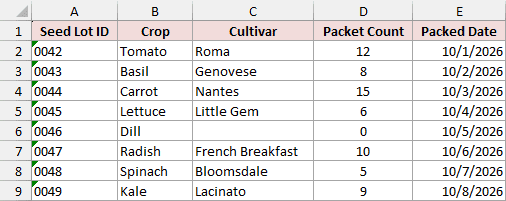
Here are the steps to set up and run the first macro.
- Open the example workbook. If Excel shows Protected View, click Enable Editing, then use File > Save As to save a working copy as an Excel Macro-Enabled Workbook (
.xlsm). - On Seed Labels, clear the contents of
F2:F9so you can watch the macro fill the results. On String Examples, clearB2:B7if you want to run the shorter examples too. - In desktop Excel for Windows, press Alt + F11 to open the Visual Basic Editor. In the project for your working copy, choose Insert > Module and paste the code below into that module.
Option Explicit

Public Sub CreateSeedLabels()
    Dim ws As Worksheet
    Dim lastRow As Long, r As Long, c As Long
    Dim plant As String, cultivar As String

    Set ws = ThisWorkbook.Worksheets("Seed Labels")
    lastRow = ws.Cells(ws.Rows.Count, "A").End(xlUp).Row
    ws.Range("F1").Value2 = "Display Label"

    For r = 2 To lastRow
        For c = 1 To 5
            If IsError(ws.Cells(r, c).Value) Then
                Err.Raise vbObjectError + 1301, "CreateSeedLabels", _
                    "Fix the worksheet error in " & ws.Cells(r, c).Address(False, False)
            End If
        Next c
        If Not IsDate(ws.Cells(r, "E").Value) Then
            Err.Raise vbObjectError + 1302, "CreateSeedLabels", _
                "Packed Date must be a valid date in row " & r
        End If

        plant = CStr(ws.Cells(r, "B").Value2)
        cultivar = CStr(ws.Cells(r, "C").Value2)
        If Len(cultivar) > 0 Then plant = plant & " " & cultivar

        ws.Cells(r, "F").Value2 = ws.Cells(r, "A").Value2 & " | " & _
            plant & " | qty " & ws.Cells(r, "D").Value2 & " | " & _
            Format$(ws.Cells(r, "E").Value, "yyyy-mm-dd")
    Next r
End Sub

Public Sub ShowStringExamples()
    Dim ws As Worksheet, source As Worksheet
    Dim crop As String, cultivar As String

    Set ws = ThisWorkbook.Worksheets("String Examples")
    Set source = ThisWorkbook.Worksheets("Seed Labels")
    crop = CStr(source.Range("B2").Value2)
    cultivar = CStr(source.Range("C2").Value2)

    ws.Range("B2").Value2 = crop & " """ & cultivar & """"
    ws.Range("B3").Value2 = crop & vbLf & cultivar
    ws.Range("B3").WrapText = True
    ws.Range("B4").Value2 = "Packed " & Format$(source.Range("E2").Value, "yyyy-mm-dd")
    ws.Range("B5").Value2 = "Lot " & Format$(42, "0000")
    ws.Range("B6").NumberFormat = "@"
    ws.Range("B6").Value2 = 25 & 5
    ws.Range("B7").Value2 = 25 + 5
End Sub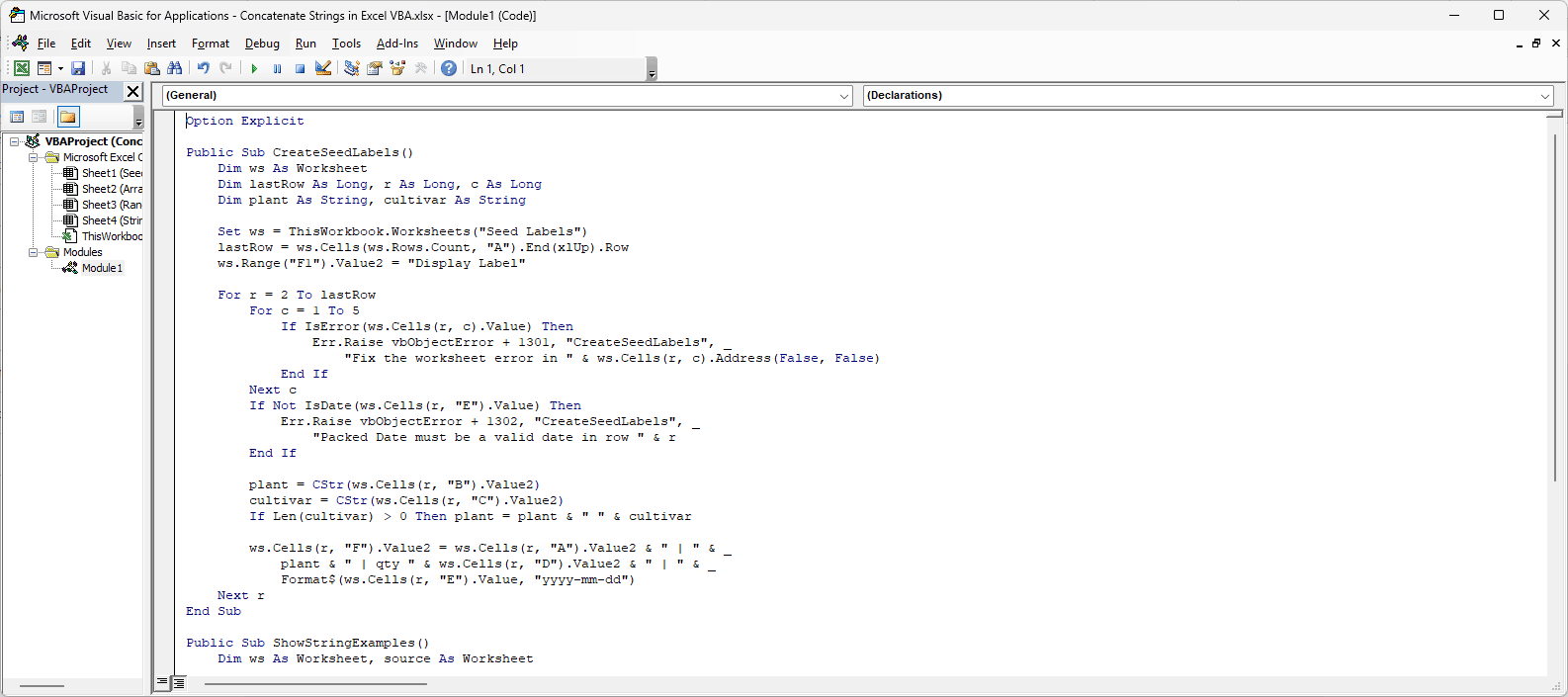
- Return to Excel and press Alt + F8. Select CreateSeedLabels, then click Run.
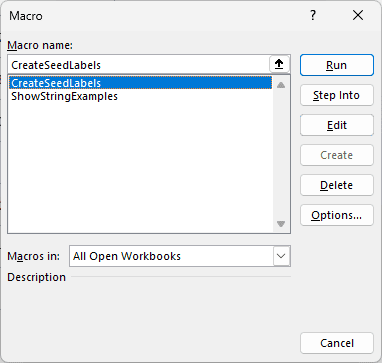
The macro reads each lot and puts a pipe separator between the ID, plant name, quantity, and date. The If line adds a space and cultivar only when the cultivar contains text.
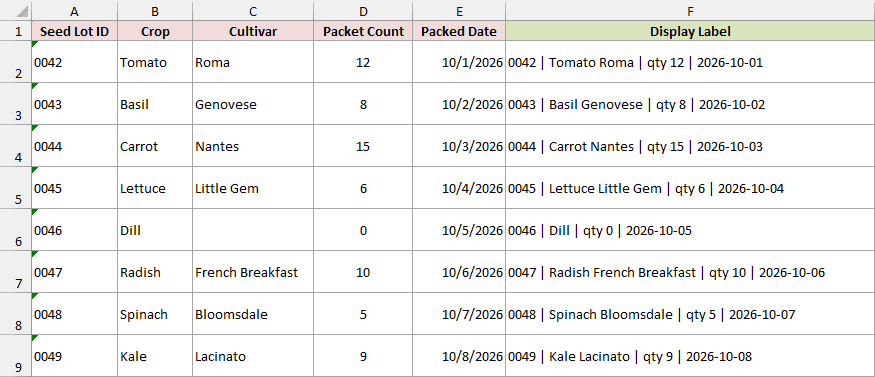
For the first lot, the result is 0042 | Tomato Roma | qty 12 | 2026-10-01. Dill comes out as 0046 | Dill | qty 0 | 2026-10-05. The zero is a real count, so it stays in the label.
Adding Quotes, Line Breaks, and Formatted Values
Run ShowStringExamples from the same macro dialog to fill B2:B7 on the String Examples sheet. It uses the first lot to show what a few small changes to the expression do.
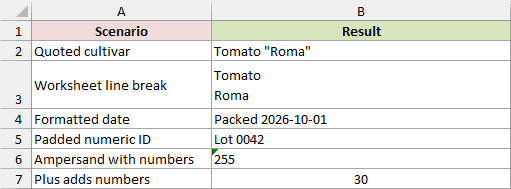
- Double the quote inside a VBA string literal to include a literal quote. The first example returns
Tomato "Roma". - Insert
vbLfbetween two strings and turn on Wrap Text to show them on separate lines in one cell. - Use VBA’s Format function when the output needs a particular format. The examples use
Format$to returnPacked 2026-10-01andLot 0042.
Method #2: Using the Join Function
If your strings are already in a list, Join can put the same separator between every pair. It takes a one-dimensional array and returns a single string.
On the Array Join sheet, B2:B4 contains the first lot’s ID, crop, and cultivar. I’ll put those three values into a VBA array and try a few separators.
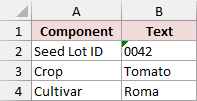
Clear B7:B9 on Array Join, then paste this procedure below the code from Method #1. Return to Excel, press Alt + F8, and run ShowArrayJoins.
Public Sub ShowArrayJoins()
    Dim ws As Worksheet
    Dim parts As Variant
    Dim lot As String, crop As String, cultivar As String

    Set ws = ThisWorkbook.Worksheets("Array Join")
    lot = CStr(ws.Range("B2").Value2)
    crop = CStr(ws.Range("B3").Value2)
    cultivar = CStr(ws.Range("B4").Value2)
    parts = Array(lot, crop, cultivar)

    ws.Range("A6").Value2 = "Join Example"
    ws.Range("B6").Value2 = "Result"
    ws.Range("A7").Value2 = "Hyphen separator"
    ws.Range("A8").Value2 = "No delimiter"
    ws.Range("A9").Value2 = "Empty element retained"
    ws.Range("B7").Value2 = Join(parts, " - ")
    ws.Range("B8").Value2 = Join(parts, "")
    ws.Range("B9").Value2 = Join(Array(lot, crop, ""), " - ")
End SubThe code uses Array(lot, crop, cultivar) to collect the three strings. With " - " as the separator, the result is 0042 - Tomato - Roma. Passing "" as the separator produces 0042TomatoRoma. If you leave the separator argument out, Join uses one space.
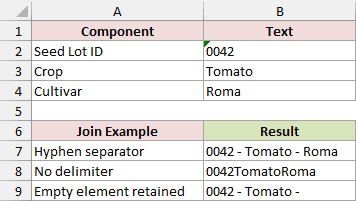
Notice the final hyphen in the third result. The cultivar is an empty string in that example, and Join still inserts a separator before that array element.
Method #3: Calling WorksheetFunction.TextJoin
When your values are in a worksheet range, you can call Excel’s TEXTJOIN function from VBA. I use it here to skip a blank cultivar without having to write a separate If for each row.
Note: This method requires a desktop version of Excel with TEXTJOIN, such as Microsoft 365 or Excel 2019 and later.
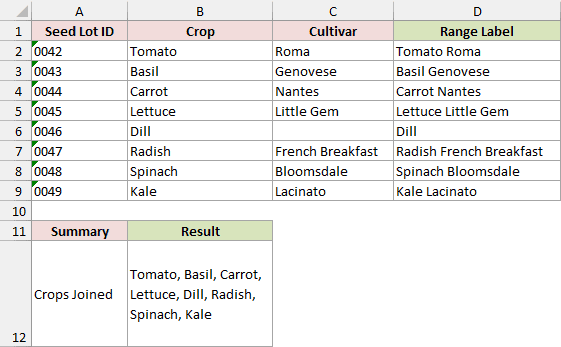
On Range Join, the seed lot IDs are in column A, crops in B, and cultivars in C. I’ll combine each crop and cultivar in column D, then join all eight crop names into one cell.
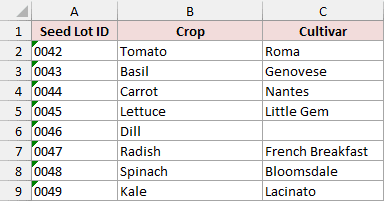
Clear D2:D9 and B12 on Range Join. Paste this procedure below the earlier code in the same module, then run CreateRangeLabels from the macro dialog.
Public Sub CreateRangeLabels()
    Dim ws As Worksheet
    Dim r As Long, c As Long

    Set ws = ThisWorkbook.Worksheets("Range Join")
    ws.Range("D1").Value2 = "Range Label"

    For r = 2 To 9
        For c = 2 To 3
            If IsError(ws.Cells(r, c).Value) Then
                Err.Raise vbObjectError + 1303, "CreateRangeLabels", _
                    "Fix the worksheet error in " & ws.Cells(r, c).Address(False, False)
            End If
        Next c
        ws.Cells(r, "D").Value2 = WorksheetFunction.TextJoin( _
            " ", True, ws.Range(ws.Cells(r, "B"), ws.Cells(r, "C")))
    Next r

    ws.Range("A11").Value2 = "Summary"
    ws.Range("B11").Value2 = "Result"
    ws.Range("A12").Value2 = "Crops Joined"
    ws.Range("B12").Value2 = WorksheetFunction.TextJoin( _
        ", ", True, ws.Range("B2:B9"))
    ws.Range("B12").WrapText = True
End SubIn the first call, " " is the separator and True tells TEXTJOIN to ignore empty cells. Each call inside the loop reads the two cells in columns B and C on that row. D2 returns Tomato Roma, and D6 returns Dill without a trailing space.
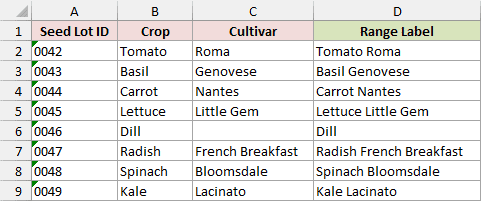
The last call passes B2:B9 as a single range and uses a comma and space between the crops. It writes Tomato, Basil, Carrot, Lettuce, Dill, Radish, Spinach, Kale to B12.
Additional Notes About Concatenating Strings in Excel VBA
- Excel for the web can open a workbook containing VBA macros. Run or edit the macros in the desktop app.
- VBA writes the examples’ results as values. If you change the source cells, run the macro again to refresh the labels.
- A space typed into a cell counts as text. If you want to skip cells that contain only spaces, clean those inputs before joining them.
- Excel returns an error if a
TEXTJOINresult exceeds 32,767 characters. Keep longer output in smaller chunks if it needs to fit in worksheet cells.
Frequently Asked Questions
The data type matters when you join values from cells. It affects how VBA handles numbers, ranges, and identifiers.
Why Does the Plus Operator Sometimes Add the Values?
VBA uses the types of the operands to decide what + does. With two numbers, 25 + 5 returns the number 30. With 25 & 5, VBA joins them as the text 255. Use & when you want the values joined as text.
Why Does Join Fail When I Pass a Range Directly?
The Value of a multi-cell range is a two-dimensional array, even if you select just one column. VBA’s Join takes a one-dimensional array. You can build that array first, as in Method #2, or pass the range directly to WorksheetFunction.TextJoin.
How Do I Keep Leading Zeros in a Code?
Store the code as text in Excel if the zeros are part of the identifier. VBA reads the sample’s text ID 0042 with its zeros intact. If the cell holds the number 42 and you need to add leading zeros, use Format$(42, "0000") to produce 0042.
Conclusion
Start with & if you’re building a label from a few fields. Run the macro once with a blank field and once with a zero so you can check that your separators look right and the zero stays in the result.
Other Excel articles you may also like: