
Excel’s EFFECT function returns the effective annual interest rate from a nominal annual rate and the number of compounding periods per year.
It puts rates with different compounding schedules on the same annual basis.
This helps you compare borrowing or savings rates without doing the compound-interest calculation by hand.
EFFECT measures compounding only. It does not account for loan fees, payment timing, or irregular cash flows.
In this article, I’ll show you how to compare compounding schedules and loan rates, estimate one year’s interest, and check rate conversions with EFFECT.
EFFECT Function Syntax in Excel
The EFFECT function has two required arguments:
=EFFECT(nominal_rate, npery)
nominal_rateis the stated annual interest rate.nperyis the number of compounding periods per year.
When to Use EFFECT Function
- Compare rates that compound at different frequencies.
- Convert a nominal annual rate into an effective annual rate.
- Estimate one year of interest when earnings remain invested.
- Check whether a NOMINAL calculation returns the intended effective rate.
- See how Excel handles a fractional compounding-period input.
Example 1: Compare Compounding Frequencies
The first example holds the stated rate constant and changes only the compounding frequency.
Below is the dataset with annual through daily schedules, their periods per year, and an Effective Annual Rate result column.
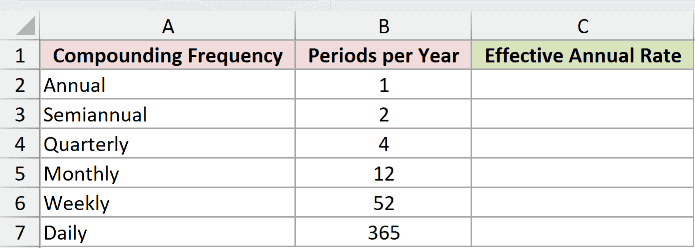
I want to calculate the effective annual rate for each schedule using a 6% nominal annual rate.
Here is the formula:
=EFFECT(6%,+B2:B7)
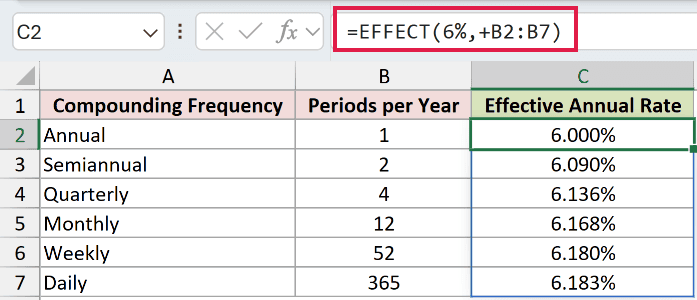
The formula returns rates from 6.000% for annual compounding to 6.183% for daily compounding. More frequent compounding raises the effective annual rate slightly.
The unary plus before B2:B7 converts the range reference into an array of values. This lets the legacy EFFECT function spill one result per row.
Pro Tip: In Excel 2021, Excel 2024, and Microsoft 365, enter the formula once in C2. Keep C3:C7 empty so the six results can spill.
Example 2: Compare Loan Rates With EFFECT
This example compares lender rates that use different compounding schedules.
Below is the dataset with each lender, its nominal annual rate, its periods per year, and an Effective Annual Rate result column.
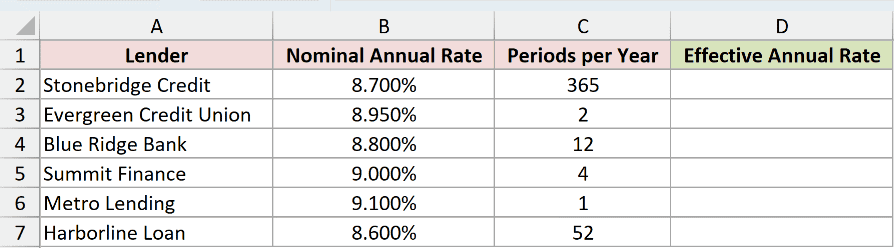
I want to convert every stated rate to an effective annual rate before comparing the offers.
Here is the formula:
=EFFECT(+B2:B7,+C2:C7)
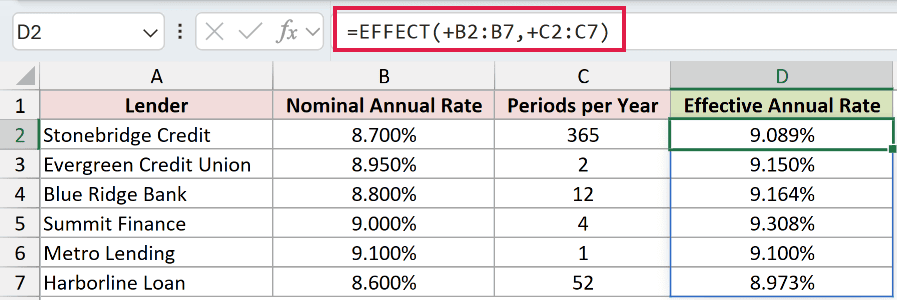
Both unary-plus operators convert their ranges into arrays. EFFECT pairs each nominal rate with the compounding frequency on the same row.
Harborline Loan has the lowest effective annual rate in this table at 8.973%. Its 8.600% nominal rate compounds weekly.
Pro Tip: These inputs are nominal annual rates. They are not APR figures that include fees, so EFFECT alone is not a complete borrowing-cost comparison.
A loan amortization schedule is more useful when you need the payment-by-payment split between principal, interest, and the remaining balance.
Example 3: Calculate One-Year Interest
You can place EFFECT inside a larger calculation when you need a money result.
Below is the dataset with five investments, opening deposits, stated annual rates, compounding periods, and one-year interest results.
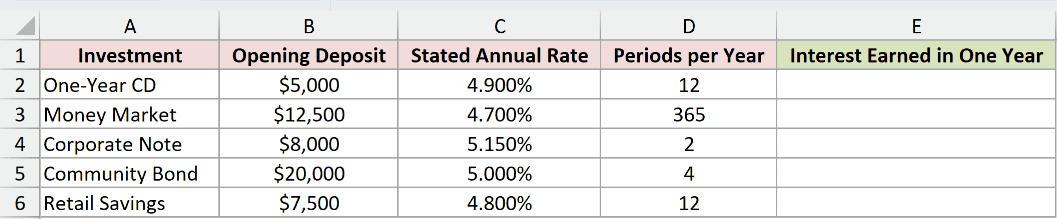
I want to calculate the interest each opening deposit earns over one year.
Here is the formula:
=B2:B6*EFFECT(+C2:C6,+D2:D6)
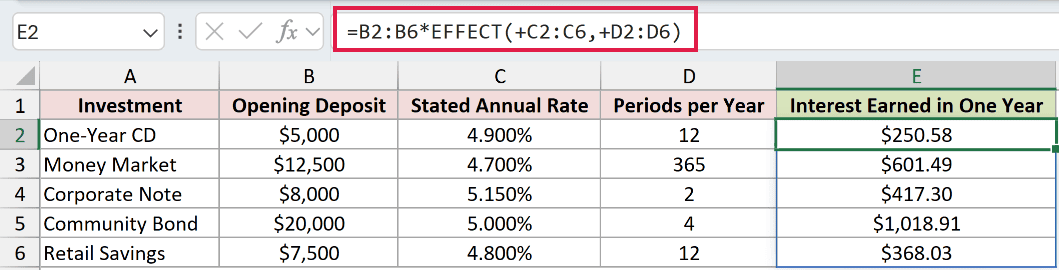
EFFECT returns each investment’s effective annual rate. Multiplying that array by B2:B6 converts the rates into dollar amounts.
The One-Year CD earns $250.58 on $5,000. The other results range from $368.03 for Retail Savings to $1,018.91 for the Community Bond.
Pro Tip: This one-year estimate assumes each rate stays unchanged, all interest remains invested, and there are no deposits or withdrawals during the year.
Example 4: Verify a NOMINAL Conversion
NOMINAL works in the opposite direction, so the two functions make a useful check.
Below is the dataset with target APYs, compounding periods, required nominal rates, and an EFFECT Check column.
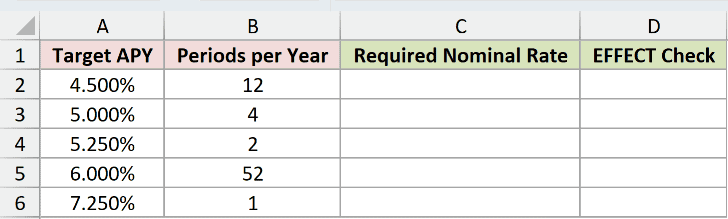
First, I want to calculate the nominal annual rate required for each target APY.
Here is the NOMINAL formula:
=NOMINAL(+A2:A6,+B2:B6)
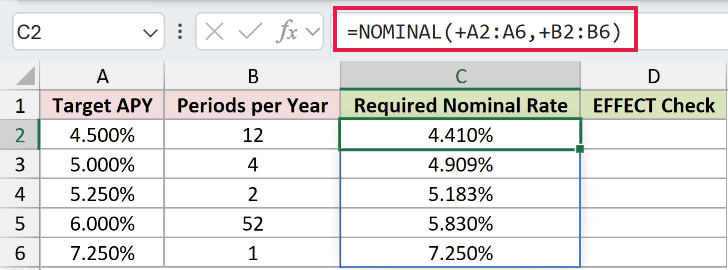
NOMINAL converts each target effective rate back to a stated annual rate for the corresponding compounding schedule.
I then want to convert those nominal rates back to effective annual rates.
Here is the EFFECT formula:
=EFFECT(+C2:C6,+B2:B6)
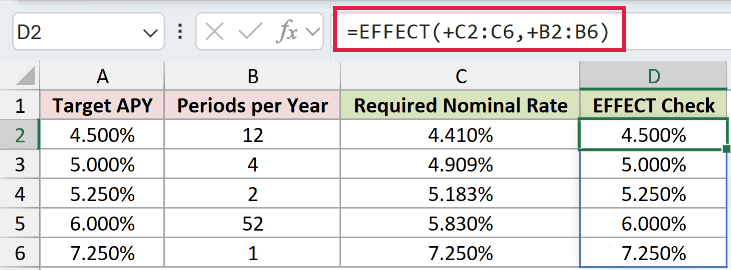
The EFFECT Check values match the Target APY values in column A. For example, a 4.410% nominal rate compounded monthly returns an effective rate of 4.500%.
That round trip confirms the NOMINAL result without changing the intended annual yield.
Example 5: Understand Fractional Npery Values
Excel does not use a fractional number of compounding periods.
Below is the dataset with standard schedules plus two decimal npery entries and their effective annual rates.
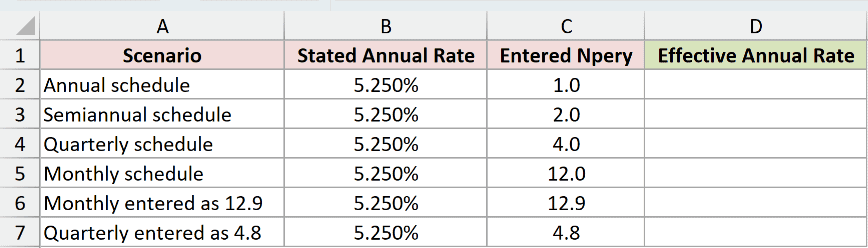
I want to see how EFFECT handles 12.9 and 4.8 periods per year.
Here is the formula:
=EFFECT(+B2:B7,+C2:C7)
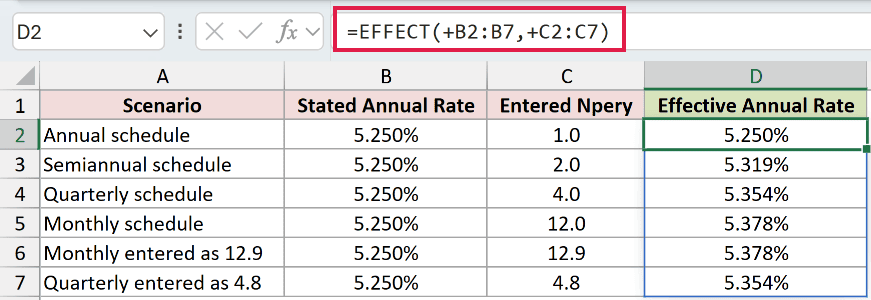
EFFECT truncates npery to an integer. Therefore, 12.9 produces the same 5.378% result as 12, while 4.8 produces the same 5.354% result as 4.
Use the actual integer compounding schedule rather than relying on truncation. A decimal entry can hide a data-entry mistake.
Tips & Common Mistakes
- Enter the nominal annual rate as a percentage or decimal. For example, use
6%or0.06, not6. nperymust be at least 1, and EFFECT truncates a fractional value to an integer.- EFFECT returns
#NUM!whennominal_rateis zero or negative, or whennperyis below 1. - Nonnumeric arguments return
#VALUE!. - Do not place
@before a spilling EFFECT formula. It requests implicit intersection and can reduce the array to one result. - In Excel 2019 and earlier, calculate one row at a time and fill the formula down instead of using a spilling range formula.
- EFFECT and NOMINAL convert between nominal and effective annual rates. Neither function includes loan fees or models irregular cash flows.
- The RATE function solves for a periodic rate from regular cash flows. That is a different task from converting a stated annual rate with EFFECT.
I covered compounding comparisons, loan-rate normalization, one-year interest, a NOMINAL check, and fractional npery behavior with EFFECT.
I hope you found this article helpful.
Related Excel Functions / Articles:
