
Excel’s PMT function returns the fixed periodic payment for a loan or savings plan using a constant interest rate.
The rate, number of periods, and amount determine the payment. Match the rate to the payment schedule, such as a monthly rate for monthly payments.
In this article, I’ll show you how to calculate loan payments, compare rates and terms, and work out monthly savings contributions.
PMT Function Syntax in Excel
Here is how the PMT function is put together.
=PMT(rate, nper, pv, [fv], [type])
- rate is the interest rate PER period. For a monthly payment, that is the annual rate divided by 12.
- nper is the total number of payments. For a 5-year monthly loan, that is years times 12.
- pv is the present value, which is the loan amount or principal you are borrowing.
- fv is optional. It is the balance you want left at the end. The default is 0.
- type is optional. Use 0 for payments at the end of the period (the default) or 1 for the beginning.
The result comes back negative because the payment is cash going out. Put a minus in front to show it as a positive number.
When to Use PMT Function
Here are some common situations where PMT comes in handy.
- Work out the monthly payment on a car loan.
- Calculate a mortgage payment from the rate, term, and price.
- Figure out the installment on a personal loan.
- Find the monthly contribution needed to hit a savings goal.
- Compare loan offers by changing the rate, term, or amount.
Example 1: Monthly Loan Payment
Let us start with the most common use, a fixed monthly payment on a loan.
Below is the dataset. The inputs sit in a small card with labels in column A and values in column B. There is a loan amount, an annual interest rate, and a loan term in years.
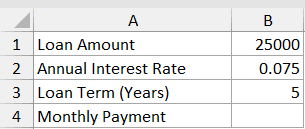
I want to work out the fixed monthly payment on this car loan.
Here is the formula:
=-PMT(B2/12,B3*12,B1)
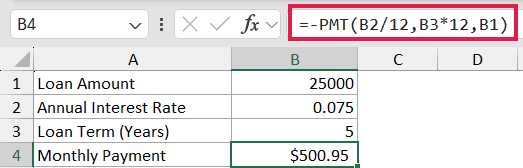
The result is about 500.95. Here is what each piece does.
- B2/12 converts the 7.5% annual rate into a monthly rate.
- **B3*12** turns 5 years into 60 monthly payments.
- B1 is the amount borrowed.
- The leading minus flips the result so the payment shows as a positive number.
Pro Tip: The leading minus just flips the sign so the payment shows positive. Make sure the rate is the monthly rate and nper is the number of months, otherwise the answer will be way off.
Example 2: Payment Across Loan Amounts
Say you want to see the payment for several loan sizes at once.
Below is the dataset. Column A holds a list of loan amounts, and column B will show the monthly payment for each.
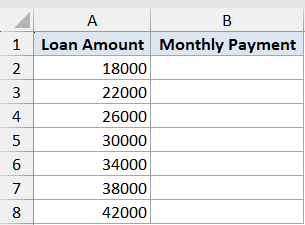
I want to compare the monthly payment across several loan amounts at one fixed rate and term.
Here is the formula:
=-PMT(0.069/12,60,A2:A8)
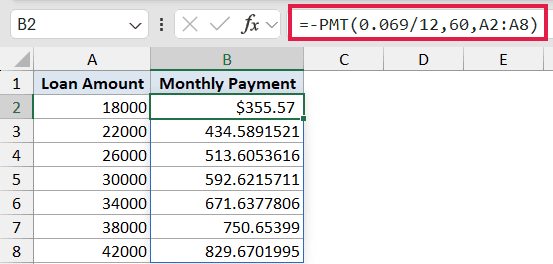
The first value is about 355.57. The rate (6.9% annual, so 0.069/12) and the term (60 months) stay fixed. By feeding the range A2:A8 in as the amount, one formula spills a payment for every loan size down the column in Excel 365.
Pro Tip: If you need the interest and principal parts of a payment separately, use the IPMT function for the interest and PPMT for the principal. For any period, PMT equals IPMT plus PPMT.
Example 3: Payment Across Interest Rates
Now let us watch the payment change as the interest rate climbs.
Below is the dataset. Column A lists a set of annual rates, and column B will show the monthly payment for each one.
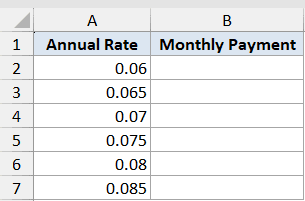
I want to see how the monthly payment moves as the rate rises, for a fixed amount and term.
Here is the formula:
=-PMT(A2:A7/12,48,20000)
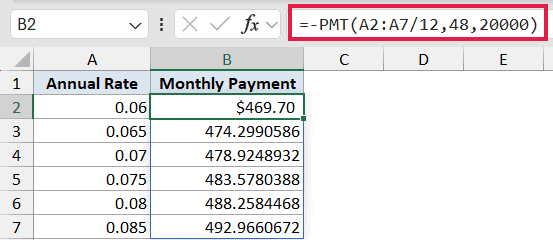
The first value is about 469.70. This is a 20,000 loan over 48 months. The rate column is fed in as A2:A7/12 to turn each annual rate into a monthly one, and the formula spills a payment per rate. Even small jumps in the rate nudge the payment up.
Example 4: How Term Length Changes the Payment
Stretching a loan over more years lowers the monthly payment, so let us see that play out.
Below is the dataset. Column A lists a few term lengths in years, and column B will show the monthly payment for each.
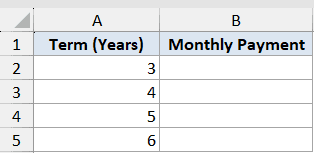
I want to see how a longer term lowers the monthly payment on the same loan.
Here is the formula:
=-PMT(0.0775/12,A2*12,28000)
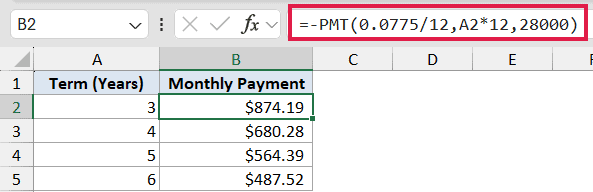
A 3-year term comes to about 874.19, while a 6-year term drops to about 487.52. The rate (7.75% annual, so 0.0775/12) and the amount (28,000) stay fixed. A2*12 turns each term in years into months. A longer term means a smaller monthly payment, but you pay more total interest over the life of the loan.
Example 5: Monthly Savings Contribution
PMT is not only for loans. You can flip it around to plan a savings goal.
Below is the dataset. The inputs sit in a card with labels in column A and values in column B. There is a savings goal, an annual return rate, and a number of years.
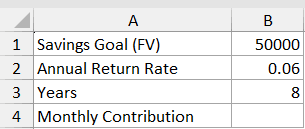
I want to work out how much to deposit each month to reach the savings goal.
Here is the formula:
=-PMT(B2/12,B3*12,0,B1)
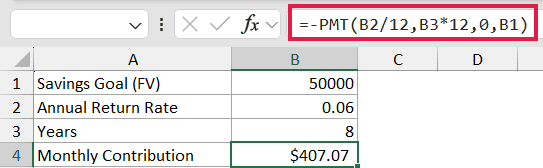
The result is about 407.07. Here the present value is 0 because you start from nothing, and the future value is the goal in B1, so PMT solves for the deposit. It is the same function as before, just pointed at a savings angle instead of a loan.
Example 6: Beginning vs End of Period
Whether you pay at the start or the end of each period makes a small difference, and PMT can show it.
Below is the dataset. Column A names the scenario, column B holds the type value (0 or 1), and column C will show the monthly payment.
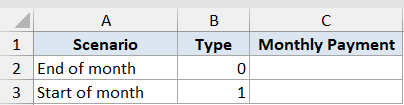
I want to compare a payment made at the end of each period against one made at the start.
Here is the formula:
=-PMT(0.08/12,36,15000,0,B2)
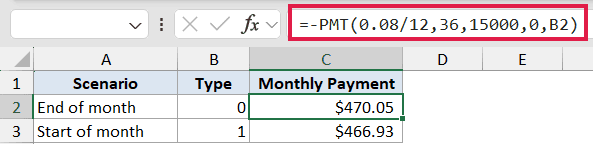
Paying at the end of the month comes to about 470.05, and paying at the start comes to about 466.93. The last argument is the type. 0 (the default) means the payment lands at the end of the period, and 1 means the beginning, which is an annuity due like rent or a lease. Paying at the start costs slightly less.
Tips & Common Mistakes
- Match your units. If you want a monthly payment, divide the annual rate by 12 AND multiply the years by 12. Mixing them is the most common PMT mistake.
- PMT returns a negative number because the payment is money leaving your pocket. Put a minus in front of PMT (or use a negative pv) to show it as positive.
- Forgetting the /12 on the rate makes the payment roughly 12 times too high. It is an easy slip to miss.
- Use the type argument (1) for payments made at the start of each period, like leases or rent.
- PMT gives the total payment. Use IPMT for the interest portion and PPMT for the principal portion of any single period, which is how you build a loan amortization schedule.
PMT does a lot of work from just three required arguments. Keep the rate and the periods on the same time scale, and remember the result is negative until you flip it. Once that clicks, you can size up loans and savings plans in seconds.
Related Excel Functions / Articles:
- NPER Function in Excel
- PV Function in Excel
- IPMT Function in Excel
- Compound Interest Formula in Excel
- Simple Interest Calculator
- Calculate Growing Annuity in Excel
- How to Calculate NPV in Excel (Net Present Value)
- How to Calculate IRR with Excel
- How to Build a Car Loan Amortization Schedule in Excel
