
Excel’s GEOMEAN function returns the geometric mean of positive numbers.
It is useful for ratios and growth factors that multiply across periods. For percentage growth rates, convert each rate to a growth factor before taking the mean.
This differs from adding the rates and dividing by their count. The geometric mean reflects their combined multiplicative effect.
In this article, I’ll show you how to average performance ratios, calculate compound growth, and work with filtered data.
GEOMEAN Function Syntax in Excel
The GEOMEAN function uses the following syntax:
=GEOMEAN(number1,[number2],...)
number1is required. It can be a number, array, or reference containing the positive values you want to average.number2and later arguments are optional. You can supply up to 255 arguments in total.
When to Use GEOMEAN Function
- Find a typical ratio when values combine through multiplication.
- Calculate an average periodic growth rate from a series of changing rates.
- Average positive factors from filtered records.
- Combine positive values stored in separate ranges.
- Check whether a dataset contains zero or negative values that GEOMEAN cannot use.
Example 1: Average Benchmark Speed Ratios
Let’s start with benchmark speed ratios.
Below is a dataset with eight benchmark tasks and the measured speed ratio for each one.
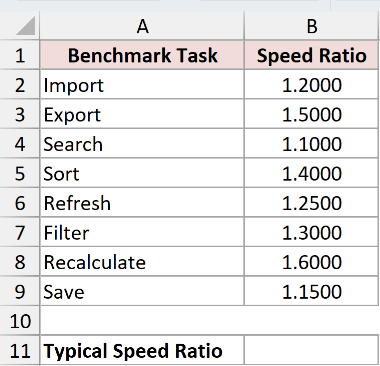
I want to calculate the typical speed ratio across all eight tasks.
Enter this formula in cell B11:
=GEOMEAN(B2:B9)
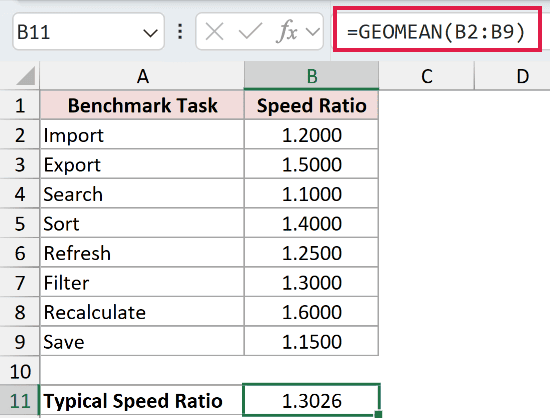
The formula multiplies the eight ratios and takes the eighth root of that product. The result is 1.3026.
This means the typical multiplicative speed ratio is about 1.30, rather than the middle or most frequent value in the list.
Example 2: Calculate Compound Quarterly Growth
Growth rates need one extra step because GEOMEAN only accepts positive numbers.
Below is a dataset with eight quarters of membership growth, including two quarters with negative growth.
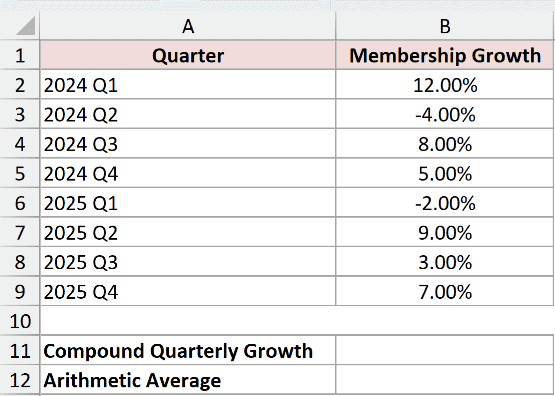
I want to find the constant quarterly rate that would produce the same compounded change.
Enter this compound growth formula in cell B11:
=GEOMEAN(1+B2:B9)-1
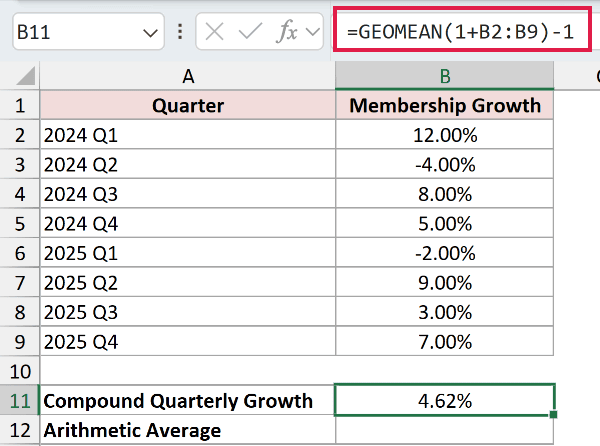
Adding 1 converts each rate into a positive growth factor. GEOMEAN averages those factors, and subtracting 1 converts the result back into a rate.
The compound quarterly growth rate is 4.62%.
For comparison, enter this arithmetic average formula in cell B12:
=AVERAGE(B2:B9)
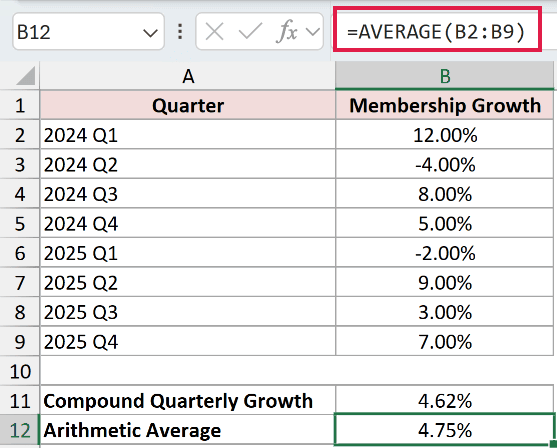
AVERAGE returns 4.75%. It is slightly higher because it adds the rates and divides by eight without accounting for compounding.
Pro Tip: Do not feed percentage changes directly into GEOMEAN. Convert each rate to a factor with 1+rate, then subtract 1. In Excel 2019 or earlier, confirm this array calculation with Ctrl+Shift+Enter on Windows or Control+Shift+Return on Mac.
Example 3: GEOMEAN With Filtered Data
You can also calculate a geometric mean for records that meet a condition.
Below is a dataset with renewal growth factors for Basic and Plus service plans. Cell B11 contains the selected plan, Plus.
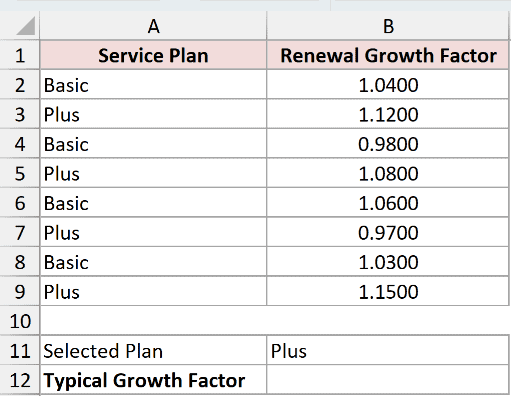
I want to average only the renewal growth factors for the selected Plus plan.
Enter this formula in cell B12:
=GEOMEAN(FILTER(B2:B9,A2:A9=B11))
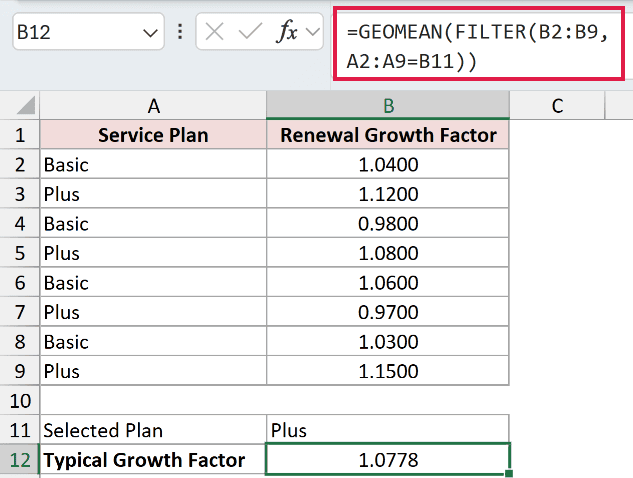
FILTER returns the values from B2:B9 where the plan in A2:A9 equals the selection in B11. GEOMEAN then reduces that filtered array to one result.
The typical renewal growth factor for the Plus plan is 1.0778.
Pro Tip: FILTER is available in Excel 2021 and later. In Excel 2019 or earlier, copy the matching values to a separate helper range. Hiding rows with AutoFilter does not exclude them from GEOMEAN.
Example 4: Combine Nonadjacent Ranges
GEOMEAN can accept more than one range in the same formula.
Below are separate speed ratios for desktop and laptop workflows. Each range contains four positive ratios.
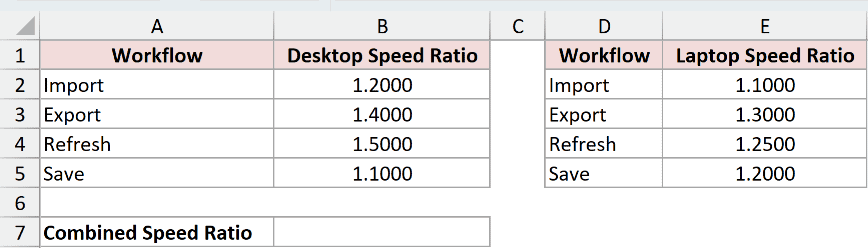
I want one geometric mean across both groups without moving the values into a single column.
Enter this formula in cell B7:
=GEOMEAN(B2:B5,E2:E5)
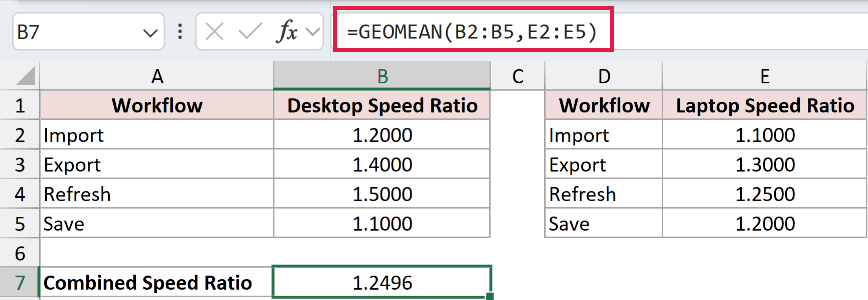
The first argument supplies the desktop ratios, and the second supplies the laptop ratios. GEOMEAN treats all eight numbers as one set.
The combined speed ratio is 1.2496.
Example 5: Fix a GEOMEAN #NUM! Error
GEOMEAN returns an error when any data point is zero or negative.
Below is a dataset with four recorded ratios. Run 3 contains a zero.
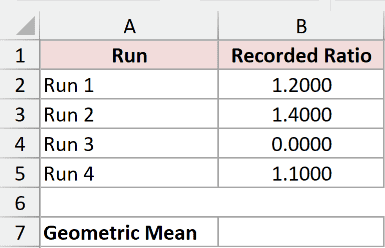
I want to calculate the geometric mean and identify why this dataset fails.
Enter this formula in cell B7:
=GEOMEAN(B2:B5)
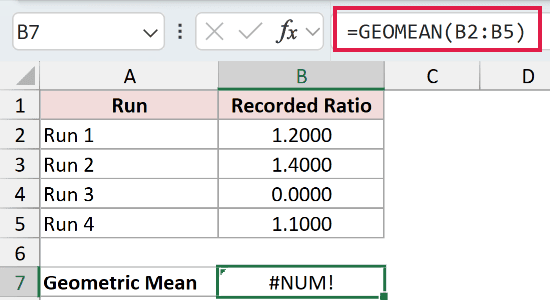
The formula returns #NUM! because B4 contains zero. GEOMEAN requires every data point to be greater than zero.
Check whether the zero represents a bad measurement, missing data, or a valid outcome before changing it. Removing a valid zero would distort the analysis.
Tips & Common Mistakes
- Use GEOMEAN for multiplicative changes, ratios, and factors. Use AVERAGE when values combine through addition.
- Convert percentage changes to factors before using GEOMEAN. For example, 8% becomes 1.08 and -4% becomes 0.96.
- Use the RRI function when you only have a starting value, ending value, and number of equal periods.
- Keep every data point positive. A zero or negative number causes a #NUM! error.
- Text, logical values, and empty cells inside a referenced range are ignored. A zero is included and causes #NUM!.
- GEOMEAN returns one value. You can pass it a spilled range such as
=GEOMEAN(A2#)or wrap FILTER inside it for conditional calculations.
I covered the basic GEOMEAN calculation, compound growth rates, filtered data, separate ranges, and the #NUM! error.
I hope you found this article helpful.
Other Excel articles you may also like:
