
The IMSUM function in Excel returns the sum of complex numbers written in x+yi or x+yj text format.
It adds the real components together and does the same for the imaginary components. This makes it useful for totals such as series impedance and paired signal readings.
In this article, I’ll show you how to add individual values and ranges, build inputs with COMPLEX, total filtered values, and avoid suffix errors.
IMSUM Function Syntax in Excel
The IMSUM function accepts one required argument and up to 254 additional arguments. Each can supply a complex number or a range.
=IMSUM(inumber1, [inumber2], ...)
- inumber1 (required) is the first complex number or range you want to add.
- inumber2, … (optional) are additional complex numbers or ranges. IMSUM accepts up to 255 arguments in total.
When to Use IMSUM Function
- Add complex numbers stored in separate cells or supplied as individual arguments.
- Total a range of series impedance values or other complex measurements.
- Combine paired complex readings for each record.
- Aggregate complex values created from separate real and imaginary coefficients.
- Sum only the complex values that meet a condition.
Example 1: Add Individual Complex Numbers
Let’s start by adding three separate complex values.
Below is the dataset. It contains three labelled source values and an empty cell for their combined complex value.
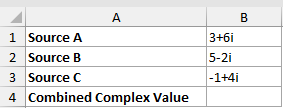
We want to add the three sources and return one complex result in B4.
Enter this formula in B4:
=IMSUM(B1,B2,B3)
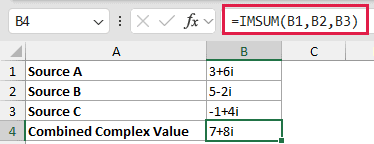
IMSUM adds 3, 5, and -1 for a real component of 7. It adds 6, -2, and 4 for an imaginary component of 8.
The result is 7+8i.
Example 2: Total Series Component Impedance
A range keeps the formula tidy when every impedance belongs to the same series path.
Below is the dataset. It lists five components connected in series, with each impedance written using the j suffix and an empty total cell.
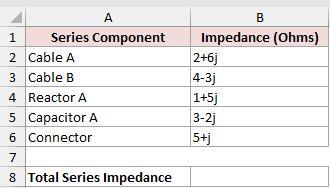
We want the total series impedance in B8.
Enter this formula in B8:
=IMSUM(B2:B6)
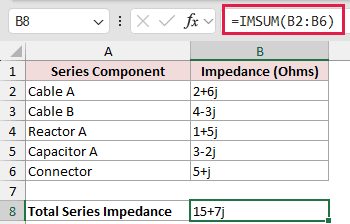
IMSUM reads every complex value in B2:B6 and returns one result. The real components total 15, while the imaginary components total 7.
The total series impedance is 15+7j.
Pro Tip: A range keeps the formula easy to extend. If you add another series component, expand the referenced range so the new impedance is included.
Example 3: Combine Paired Readings by Row
Each test run now has two readings to combine.
Below is the dataset. Columns B and C contain channel readings, while column D is reserved for each run’s combined result.
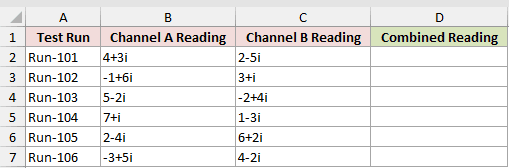
We want to add the two channel readings for every test run.
Enter this formula in D2, then copy it down through D7:
=IMSUM(B2,C2)
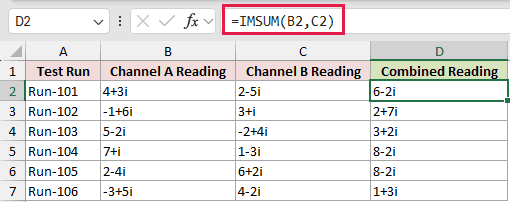
Each row is calculated separately because each result belongs to one test run.
Run-101 returns 6-2i. The remaining rows return 2+7i, 3+2i, 8-2i, 8-2i, and 1+3i.
IMSUM is a reducer, so each copied formula turns its pair of inputs into one result instead of spilling several answers.
Example 4: Build Values with COMPLEX, Then Total
Real and imaginary coefficients often begin in separate columns.
Below is the dataset. Columns B and C contain the coefficients. Column D and the net-reading cell B9 are empty.
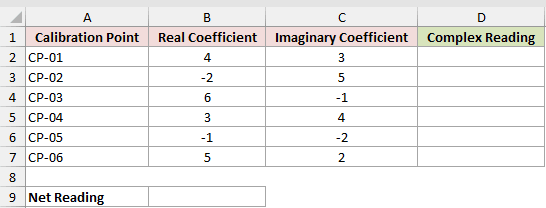
We first want to create valid complex values in D2:D7.
Enter this COMPLEX formula in D2, then copy it down through D7:
=COMPLEX(B2,C2)
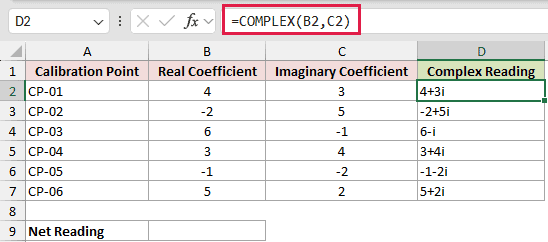
COMPLEX joins each pair of coefficients using the default i suffix.
Now we want to add the six complex readings and return the net reading in B9.
Enter this IMSUM formula in B9:
=IMSUM(D2:D7)
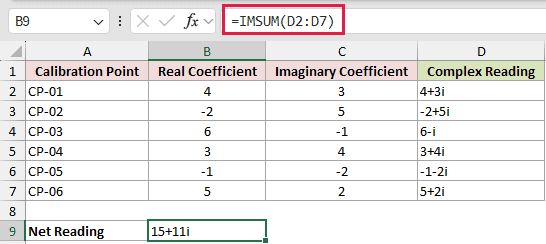
The first created value is 4+3i, and the last is 5+2i. IMSUM totals the real and imaginary components separately and returns 15+11i.
Pro Tip: Use COMPLEX when real and imaginary coefficients are stored separately. It handles signs and compact values such as 6-i without manual text assembly.
Example 5: Sum Filtered Complex Values
You can combine IMSUM with a dynamic array when only some rows belong in the total.
Below is the dataset. It contains work packages, their status, complex adjustments, and an empty approved-total cell in E2.
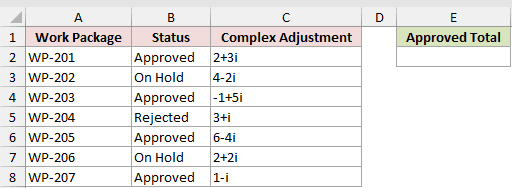
We want to total the adjustments only for work packages marked Approved.
Enter this formula in E2:
=IMSUM(FILTER(C2:C8,B2:B8="Approved"))
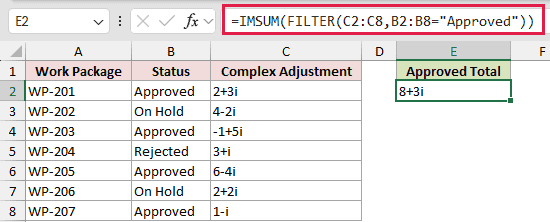
FILTER returns the adjustments from rows 2, 4, 6, and 8. IMSUM then reduces that filtered array to one complex total.
The approved total in E2 is 8+3i.
Pro Tip: This formula expects at least one Approved row. If FILTER finds none, its omitted if_empty argument returns #CALC! before IMSUM can total anything.
Example 6: Handle Suffix and Input Errors
Complex-number suffixes must agree before IMSUM can add the inputs.
Below is the dataset. Each row contains two inputs and an empty IMSUM result cell, including matching suffixes, mixed suffixes, and an invalid suffix.
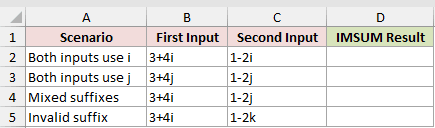
We want to test each pair with the same formula pattern.
Enter this formula in D2, then copy it down through D5:
=IMSUM(B2,C2)
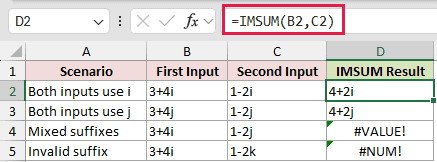
Matching i inputs return 4+2i, while matching j inputs return 4+2j.
Mixing i and j suffixes returns #VALUE!.
The unsupported k suffix is not valid complex-number text, so that row returns #NUM!.
Pro Tip: Keep every complex number in one calculation on the same lowercase suffix. Use either i throughout or j throughout.
Tips & Common Mistakes
- IMSUM returns text in complex-number format. Use Excel’s IM functions when you need to continue calculating with that result.
- Keep all suffixes in one calculation consistent. Mixing i and j returns
#VALUE!. - Use only valid complex-number text. An unsupported suffix such as k returns
#NUM!. - Use COMPLEX to create complex values from separate numeric coefficients instead of joining text by hand.
- A range passed to IMSUM returns one total. IMSUM does not spill one result per source cell.
- FILTER is available in Excel 2021, Excel 2024, Microsoft 365, and Excel for the web. Earlier versions need another way to select the inputs.
- IMSUM has no newer direct replacement. FILTER can select an array first, while IMSUM performs the complex-number addition.
I have shown how IMSUM adds individual values, ranges, paired readings, constructed complex numbers, and filtered arrays while preserving the chosen i or j notation.
I hope you found this article helpful.
Related Excel Functions / Articles:
