
The INFO function in Excel returns information about your current Excel environment, including the operating system, calculation mode, and worksheets in open workbooks.
You choose the detail you need with a text keyword. This makes INFO useful for a troubleshooting sheet or a visible calculation-mode warning in a shared workbook.
Its answers describe the computer and Excel session where the formula runs. Someone opening the same file elsewhere can see different results.
I’ll show you how to build a calculation warning for a shared workbook.
INFO Function Syntax in Excel
INFO takes a keyword that identifies the information you want:
=INFO(type_text)
- type_text (required) is a supported text keyword, entered in double quotes or supplied through a cell reference.
The supported keywords are:
"system": the operating-system code, such aspcdosfor Windows ormacfor Mac."osversion": operating-system version text."release": Excel’s release number, returned as text."recalc": the current calculation mode."numfile": the number of worksheets in all open workbooks."origin": information identifying the top-left cell visible in the window."directory": the current folder path. A placeholder isC:\Users\<you>\Documents\. The actual result can contain personal information, so avoid sharing it in screenshots.
Keywords aren’t case-sensitive. Invalid or misspelled keywords return #VALUE!. The removed memory keywords memavail, memused, and totmem return #N/A instead, as Example 5 shows.
When to Use INFO Function
- Add environment details to a workbook used for troubleshooting.
- Display a warning when Excel is using manual calculation.
- Turn the operating-system code into a readable platform label.
- Report how many worksheets are open across workbooks.
Example 1: Read Excel Environment Details
Let’s start with a list of keywords and what each one tells you.
Below is the dataset. Column A contains keywords, column B explains them, and column C has a result header with empty cells for the INFO answers.
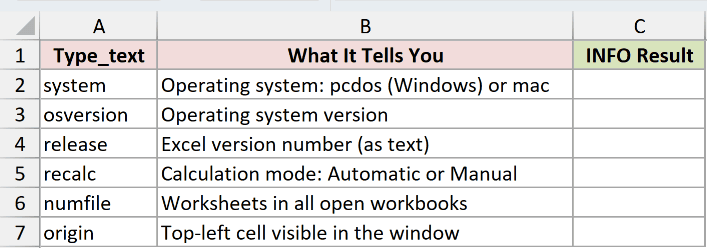
We want to return the environment detail named on each row.
Enter this formula in C2:
=INFO(A2)
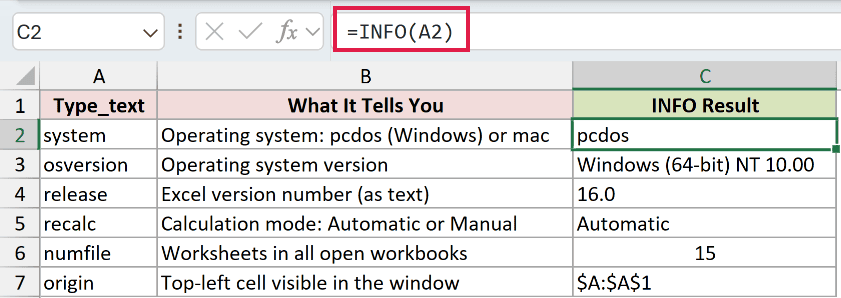
Copy C2 down through C7. Each formula reads the keyword from its own row in column A.
The results are:
- C2 shows
pcdos, the Windows system code. - C3 shows
Windows (64-bit) NT 10.00, the operating-system version text. - C4 shows
16.0, Excel’s release text. - C5 shows
Automatic, the calculation mode. - C6 counts worksheets across all open workbooks.
- C7 shows
$A:$A$1, the origin text for the current window view.
Pro Tip: The release result 16.0 is text, and it doesn’t distinguish Excel 2016 from Microsoft 365. Don’t use it alone to decide whether a newer function is available.
Example 2: Display a Manual Calculation Warning
Let’s add a reminder to recalculate when Excel is in manual mode.
Below is the dataset. Column A labels Calculation Mode and Status Message, with empty result cells beside them in B1 and B2.
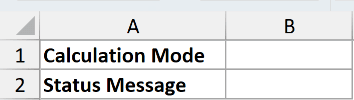
We want to read the calculation mode and turn it into a visible status message.
First, enter the mode formula in B1:
=INFO("recalc")
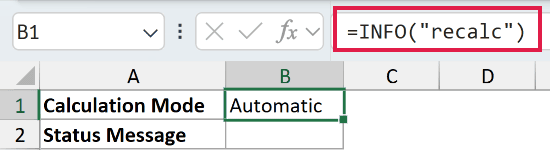
B1 shows Automatic.
IF checks a condition and returns one message if it’s true, another if it’s false. Here, it turns INFO’s calculation mode into a warning.
Enter the warning formula in B2:
=IF(INFO("recalc")="Manual","Manual mode: press F9 before trusting totals","Automatic: results are current")
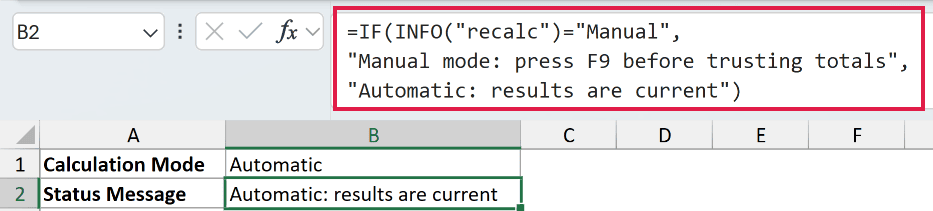
B2 returns Automatic: results are current.
When INFO reports Manual, the formula displays a reminder to recalculate. Otherwise, it displays the automatic-calculation message.
The message checks the calculation setting. It doesn’t audit your formulas or confirm that external data has refreshed.
Pro Tip: This warning is a formula too. It updates when Excel recalculates, so don’t expect the displayed message to change immediately after switching calculation modes.
Example 3: Show Windows or Mac
Let’s turn the system code into a Windows or Mac label.
Below is the dataset. Column A labels System Code, Platform, and Status Line, with empty result cells in B1:B3.
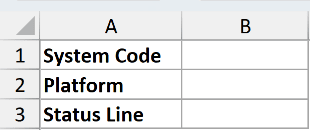
We want to identify the platform and combine it with Excel’s release text.
Start with the system code in B1:
=INFO("system")
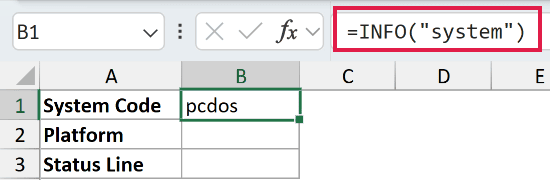
B1 returns pcdos. Despite its older-looking name, this is the code INFO reports on Windows.
To turn that code into a readable label, enter this in B2:
=IF(INFO("system")="pcdos","Windows","Mac")
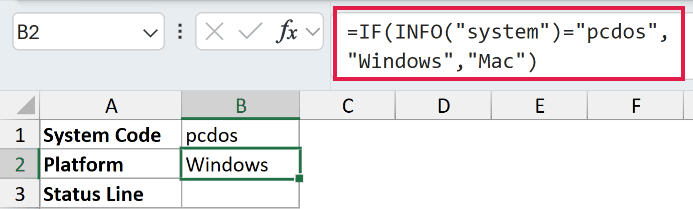
B2 returns Windows. IF uses the Windows label when the system code matches and the Mac label otherwise.
Now build the status line in B3:
="Excel "&INFO("release")&" on "&IF(INFO("system")="pcdos","Windows","Mac")
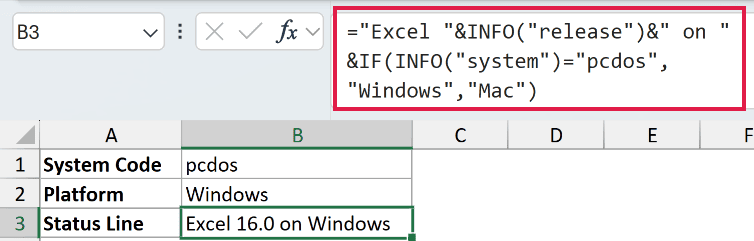
B3 returns Excel 16.0 on Windows.
The ampersands join the fixed wording, release text, and platform label. Spaces inside the quoted text keep the result readable.
This status line is a quick environment label. The release text still doesn’t identify the exact Excel edition or subscription.
Example 4: Compare Worksheet Counts
The keyword numfile counts worksheets across all open workbooks.
Below is the dataset. Column A labels the all-open-workbooks count, the current-workbook comparison, and status text. Column B has the empty result cells.
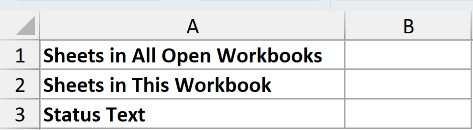
SHEETS counts sheets in the current workbook when used without arguments. Comparing it with INFO shows how INFO’s worksheet count extends across all open workbooks.
Enter the INFO formula in B1:
=INFO("numfile")
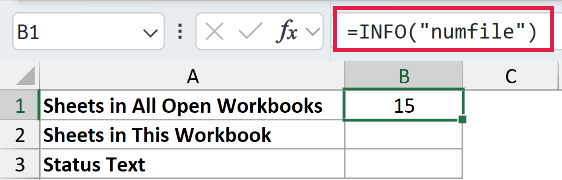
This returns a number counting worksheets in all open workbooks. Opening another workbook can change the count when the formula recalculates.
For the current-workbook comparison, enter this in B2:
=SHEETS()
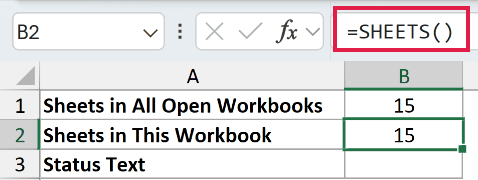
The SHEETS comparison counts sheets in the workbook containing the formula. Use it when your question is about this file rather than the whole Excel session.
SHEETS is available in Excel 2013 and later. Each function keeps its own counting scope even when the totals match.
To label the all-open-workbooks count, enter this in B3:
=INFO("numfile")&" sheets open"
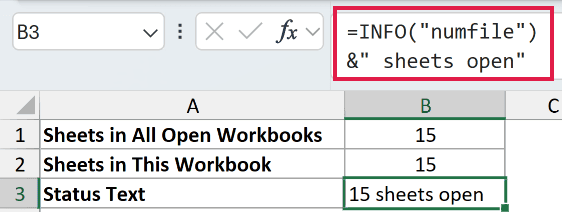
This appends the words sheets open to the current count. The combined result is text; B1 remains the numeric count.
The screenshot reflects the workbooks open when it was captured. There’s no fixed count you should expect to reproduce.
Example 5: Understand INFO Keyword Errors
Some older INFO keywords no longer work, while a misspelled keyword produces a different error.
Below is the dataset. Column A lists test keywords, column B has empty INFO result cells, and column C explains each deliberate error or case-insensitivity check.
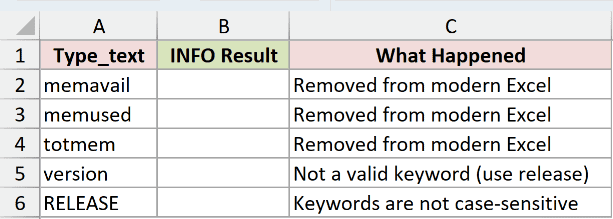
We want to distinguish removed keywords from invalid names and confirm that capitalization doesn’t matter.
Enter this formula in B2:
=INFO(A2)
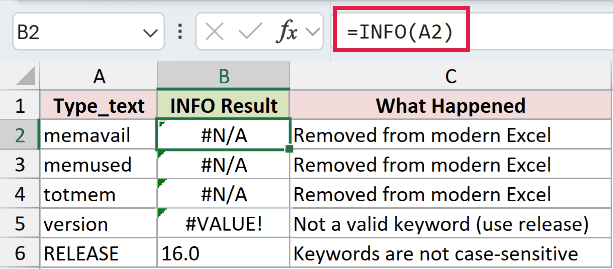
Copy B2 down through B6. The error results in B2:B5 are deliberate demonstrations:
- B2,
memavail: returns#N/Abecause the available-memory keyword was removed from modern Excel. - B3,
memused: returns#N/Abecause the used-memory keyword was removed too. - B4,
totmem: returns#N/Abecause the total-memory keyword is also no longer supported. - B5,
version: returns#VALUE!because this isn’t a valid keyword. Usereleaseinstead. - B6,
RELEASE: returns16.0. This successful comparison confirms that uppercase keywords work.
Changing capitalization won’t repair a removed keyword. For an invalid name, check the spelling against the supported keyword list in the syntax section.
Tips & Common Mistakes
- Keep literal keywords in double quotes. When the keyword is stored in a cell, reference that cell as shown in the copied-down examples.
- Read release values as text. A release string that looks numeric isn’t a reliable test for whether your Excel edition supports a particular function.
- Don’t confuse worksheet counts with workbook counts. INFO’s
numfilekeyword spans open workbooks; the SHEETS comparison in Example 4 focuses on the current workbook. - Recalculate before reading a status message. INFO describes the environment when its formula is evaluated. A displayed warning can lag behind a changed setting.
- Use desktop Excel. INFO isn’t available in Excel for the web.
- Match the information to the function. INFO describes the Excel environment. CELL returns details about a cell or its workbook, so use it when you need that narrower scope.
Related Excel Functions / Articles:
