
Excel’s NOW function returns the current date and time. The result updates when Excel recalculates, rather than ticking continuously while the worksheet sits idle.
You can use it to calculate elapsed hours or check whether a deadline has passed. For a permanent record of an event, enter a static timestamp instead.
In this article, I’ll show you how to calculate elapsed hours, flag overdue items, and round the current time to the nearest hour.
NOW Function Syntax in Excel
The NOW function takes no inputs:
=NOW()
- Arguments: None. Keep the empty parentheses after
NOW, even though there’s nothing to put inside them.
NOW returns both the current date and time as a number. The cell’s number format controls how you see it.
It’s a volatile function, which means Excel calculates it again whenever the workbook recalculates. It doesn’t keep ticking while the worksheet sits idle.
When to Use NOW Function
- Display the current date and time in a report.
- Calculate how many hours have passed since an order was placed.
- Check whether a shipment’s deadline has passed, including the time of day.
- Extract the current time without the date.
- Group the current timestamp into an hourly slot.
Example 1: Get the Current Date and Time
Let’s start with what NOW actually puts in a cell.
Below is the dataset. The card has labels in A1:A3. This example doesn’t need any typed dates or other inputs.
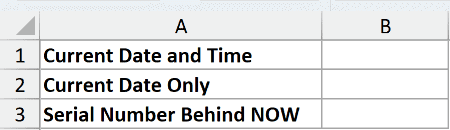
We want to compare the current date and time with the date alone, then see the number behind NOW.
Here is the formula for B1:
=NOW()
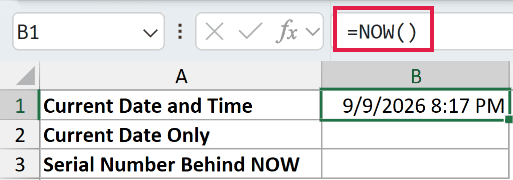
Cell B1 shows the current date and time using the format m/d/yyyy h:mm AM/PM. Your timestamp will change when the workbook recalculates.
The displayed arrangement follows your regional settings; the format shown here is the one these examples use.
For the date-only comparison, enter this formula in B2:
=TODAY()
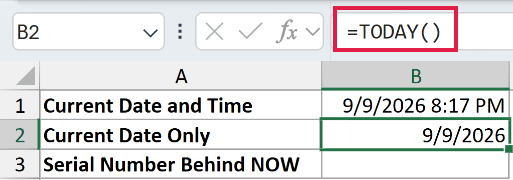
TODAY returns the current date with the time portion set to midnight. The m/d/yyyy format displays only the date.
Now enter the original NOW formula in B3, which uses the number format 0.00000:
=NOW()
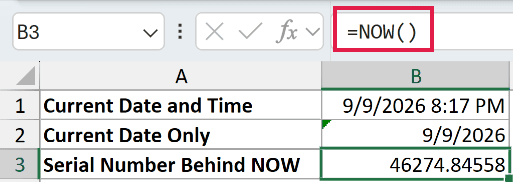
This time you see a serial number with five decimal places. The whole-number part represents the date, and the fractional part represents the time within that day.
The formula hasn’t changed. You’re looking at the number Excel uses for date and time calculations instead of its formatted display.
Pro Tip: Formatting =NOW() as a date hides the time, but doesn’t remove it from the stored value. Use =TODAY() when your calculation needs the date without a time portion.
Example 2: Calculate Hours Elapsed Since a Timestamp
Now let’s use that stored number to work out how long orders have been waiting.
Below is the dataset. Column A contains eight order IDs, and column B contains the date and time each order was placed.
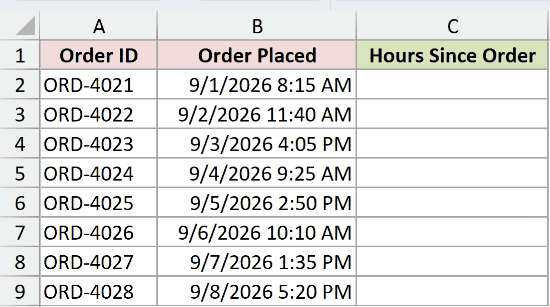
We want to calculate the hours elapsed since each order was placed.
Here is the formula for C2, which you then copy down through C9:
=(NOW()-B2)*24
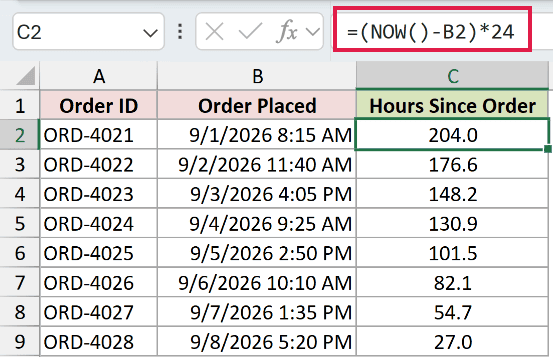
How this formula works:
NOW()supplies the current date and time at recalculation.- Subtracting
B2gives the elapsed time in days, including any fraction of a day. - Multiplying by
24converts that difference to decimal hours.
Column C shows the hours elapsed so far, displayed to one decimal place. These totals grow as time passes and Excel recalculates.
The formula counts all elapsed hours across dates, so it doesn’t reset after midnight. Each copied formula uses the order timestamp on its own row.
Pro Tip: Keep column C formatted as a number, such as 0.0. The formula already converts the duration to hours, so a clock-time format would give a misleading display.
Example 3: Flag Overdue Rows Against a Deadline
A deadline needs a time check when the hour matters as much as the date.
Below is the dataset. Column A lists eight shipment IDs, and column B holds their ship-by deadlines, including both dates and times.
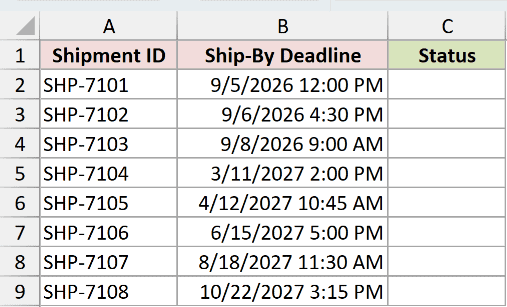
We want each shipment to show whether its deadline has passed.
Here is the formula for C2, which you copy down through C9:
=IF(NOW()>B2,"Late","On Track")
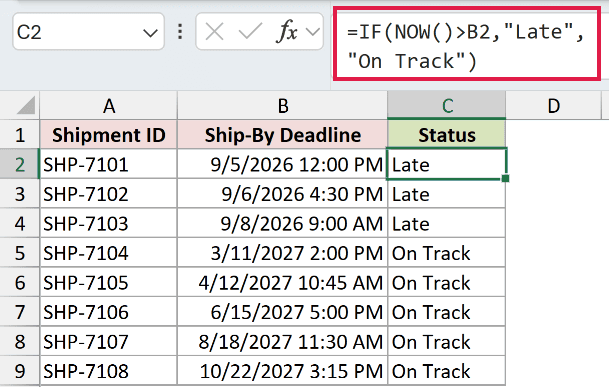
IF compares the current timestamp with the deadline in B2. It returns Late when NOW is later than the deadline, and On Track otherwise.
When the sample file was built, the first three shipments showed Late, while the remaining five showed On Track. Those statuses aren’t permanent.
Each row flips to Late on the first recalculation after its deadline passes. At an exact match, the strict greater-than test still returns On Track.
NOW matters here because it includes the hour and minute. A date-only check wouldn’t distinguish a morning deadline from an afternoon deadline on the same day.
Pro Tip: This formula checks the deadline only. It doesn’t know whether a shipment has already left, so use it for a list of outstanding shipments.
Example 4: Get Just the Time From NOW
Sometimes you need the time portion on its own for another calculation.
Below is the dataset. Labels for the full timestamp and time portion occupy A1:A2.
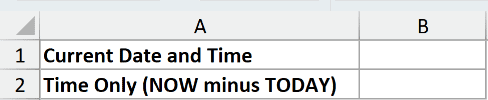
We want to remove the date portion and keep only the current time of day.
First, enter this formula in B1 to show the complete timestamp:
=NOW()
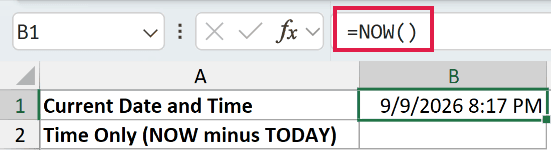
Cell B1 uses m/d/yyyy h:mm AM/PM, so you can see both parts of the value.
Here is the time-only formula for B2:
=NOW()-TODAY()
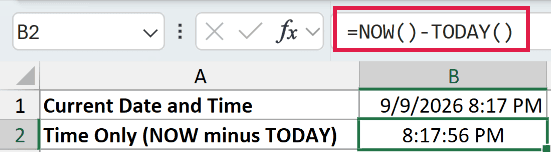
TODAY supplies the current date at midnight. Subtracting it from NOW removes the whole days and leaves the fraction representing the current time.
Cell B2 uses h:mm:ss AM/PM, so it displays a clock time with seconds. The result changes when Excel recalculates.
This actually removes the date portion. Applying a time format to NOW alone would hide the date while leaving it in the value.
Example 5: Round the Current Time to the Nearest Hour
Let’s finish by putting the current timestamp into an hourly slot.
Below is the dataset. In A1:A3, the three labels identify the current timestamp, nearest hour, and rounded-down hour.
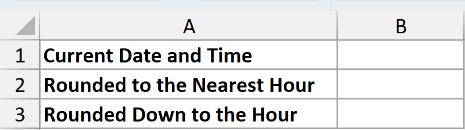
We want to compare the current timestamp with its nearest hour and its rounded-down hour.
Start with this formula in B1:
=NOW()
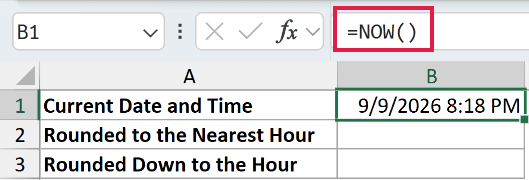
This gives us the current date and time for comparison.
To round to the nearest hour, enter this formula in B2:
=MROUND(NOW(),"1:00")
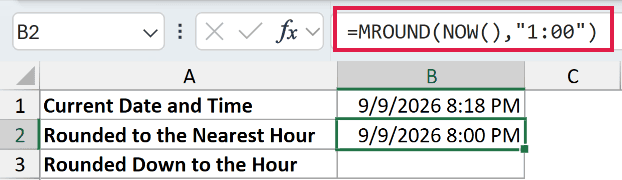
MROUND treats "1:00" as a one-hour interval. It rounds the timestamp to the closest whole hour, which can be earlier or later than the current time.
To round down instead, enter this formula in B3:
=FLOOR(NOW(),"1:00")
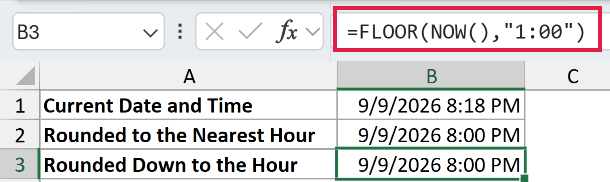
FLOOR returns the start of the current hour. That’s useful when the hourly slot should never move ahead of the current timestamp.
All three cells use m/d/yyyy h:mm AM/PM. Both rounding formulas retain the date, so their results are still complete timestamps.
FLOOR.MATH behaves the same as FLOOR for this positive timestamp and one-hour interval. You don’t need to swap FLOOR for FLOOR.MATH in this case.
Tips & Common Mistakes
- NOW isn’t a permanent timestamp. On Windows,
Ctrl+;inserts a static date, andCtrl+Shift+;inserts a static time. Use those when recording an event that must keep its original timestamp. - Recalculation drives updates. With automatic calculation enabled, worksheet edits and opening the file refresh NOW. Press
F9to recalculate; leaving the sheet idle doesn’t make it tick like a clock. - Keep the parentheses empty. NOW takes no arguments, so don’t put a cell reference or range inside them.
- Use real timestamps for subtraction and comparisons. The order times and shipment deadlines in the examples are numeric Excel dates and times, not text that only looks like a date.
- MOD is another time-only option. MOD can isolate the time fraction as the remainder after division by one. If the inherited date format shows
1/0/1900, apply a time format explicitly. - No newer function replaces NOW. TODAY is the better choice when you need only the current date; NOW supplies both the date and time.
I hope you found this article helpful.
I covered the current timestamp and its serial number, then calculated hours elapsed since an order and added a deadline flag.
I also showed the time-only formula and rounded the current timestamp to the nearest hour and down to the start of the hour.
Other Excel articles you may also like:
