
Excel’s FLOOR.MATH function rounds a number down to the nearest integer or a chosen multiple.
The optional mode argument matters for negative values. By default, FLOOR.MATH rounds them away from zero. A nonzero mode switches the direction toward zero.
In this article, I’ll show you how to round prices to fixed increments, control rounding for negative numbers, and group times into intervals.
FLOOR.MATH Function Syntax in Excel
FLOOR.MATH has one required argument and two optional arguments.
=FLOOR.MATH(number, [significance], [mode])
numberis the value you want to round down.significanceis the optional multiple to which Excel rounds. It defaults to 1.modecontrols negative-number direction. Omit it for rounding away from zero, or use a nonzero value to round toward zero.
When to Use FLOOR.MATH Function
- Remove decimal portions by rounding values down to whole numbers.
- Keep only complete packs or batches based on a required multiple.
- Round prices down to an allowed increment.
- Choose whether negative values move away from or toward zero.
- Assign times, weights, or measurements to lower interval boundaries.
Example 1: Round Down to Whole Numbers
This first example uses measured lengths with decimal portions.
Below is the dataset with eight measurements in column A and an empty result column.
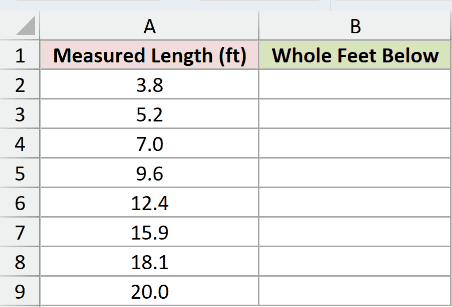
We want one formula in B2 to return the whole-foot value below each measurement.
Here is the formula:
=FLOOR.MATH(A2:A9)
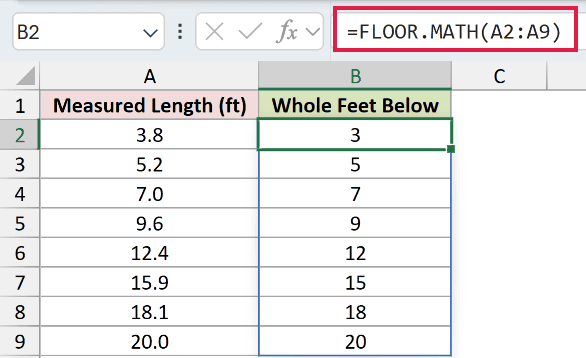
Because significance is omitted, FLOOR.MATH uses 1. The results are 3, 5, 7, 9, 12, 15, 18, and 20.
Values already at a whole number stay unchanged, as the results for 7.0 and 20.0 show.
Pro Tip: The INT function is shorter when you only need whole integers. FLOOR.MATH also handles other multiples.
Example 2: Keep Units in Complete Packs
Pack sizes can vary between products, so one fixed multiple will not always work.
Below is the dataset with stock units, pack sizes, and an empty full-pack result column.
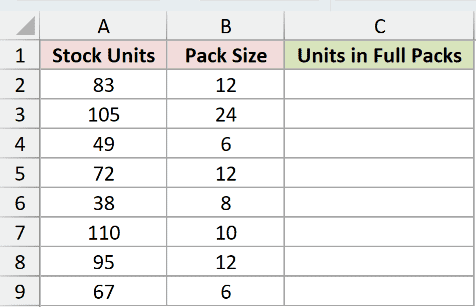
We want to return the largest usable quantity made from complete packs in each row.
Here is the formula:
=FLOOR.MATH(A2:A9,B2:B9)
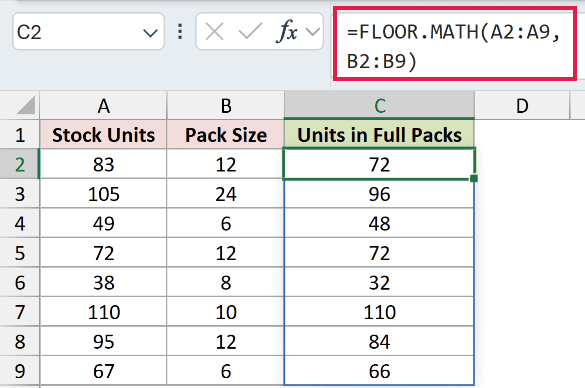
Excel rounds each stock value down to a multiple of its matching pack size.
The results are 72, 96, 48, 72, 32, 110, 84, and 66 units.
An exact multiple stays unchanged. The 72 units in row 5 and 110 units in row 7 already form complete packs.
Example 3: Round Prices Down to Quarters
A significance can be a fraction, which makes FLOOR.MATH useful for price increments.
Below is the dataset with eight calculated prices and an empty rounded-price column.
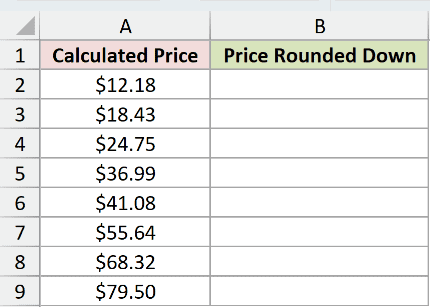
We want to lower every price to the nearest $0.25 increment.
Here is the formula:
=FLOOR.MATH(A2:A9,0.25)
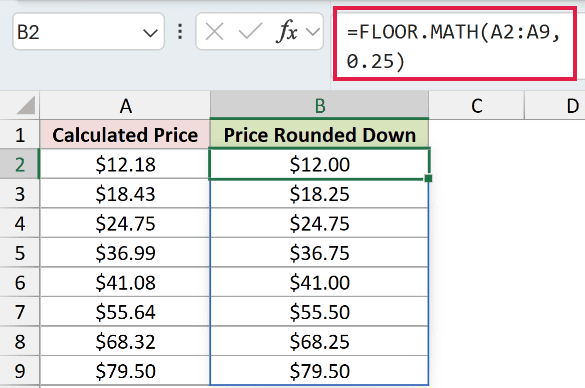
The results are $12.00, $18.25, $24.75, $36.75, $41.00, $55.50, $68.25, and $79.50.
The 0.25 argument is an increment, not a decimal-place count. Exact quarter-dollar values stay unchanged.
Pro Tip: Use MROUND when you need the nearest multiple. FLOOR.MATH always chooses the lower multiple for positive values.
Example 4: Control Rounding for Negative Numbers
Negative values reveal the difference made by the mode argument.
Below is the dataset with adjustments and two empty result columns for the rounding directions.
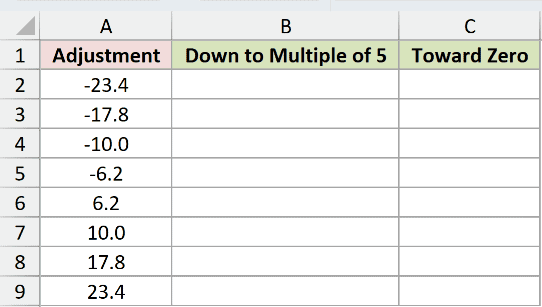
We first want to round every adjustment to a multiple of 5 using the default direction.
Here is the default formula:
=FLOOR.MATH(A2:A9,5)
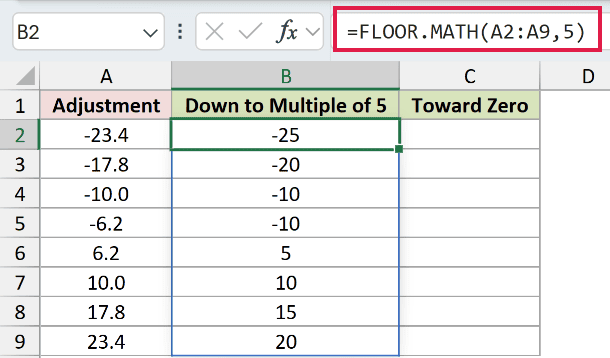
Negative results move away from zero. The first four values become -25, -20, -10, and -10.
Positive results move down normally, producing 5, 10, 15, and 20.
We also want the negative adjustments to move toward zero.
Here is the formula with mode set to 1:
=FLOOR.MATH(A2:A9,5,1)
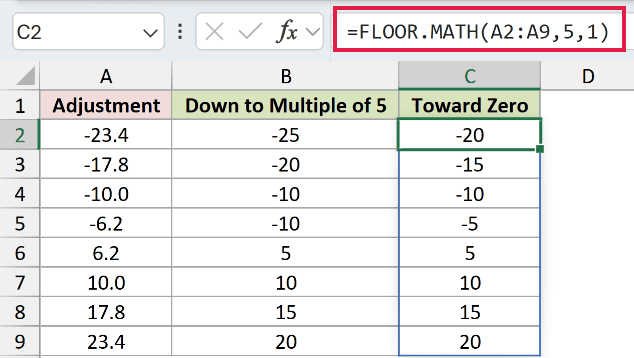
The negative results change to -20, -15, -10, and -5. The positive results remain 5, 10, 15, and 20.
Pro Tip: Name the intended direction before choosing mode. For negatives, “down” can mean a smaller number or a smaller magnitude.
Example 5: Assign Times to 15-Minute Slots
Excel stores times as fractions of a day, so time values can also use a significance.
Below is the dataset with booking times and an empty column for each slot’s start time.
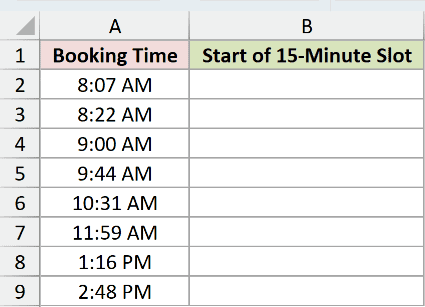
We want to assign each booking to the 15-minute slot that starts at or before it.
Here is the formula:
=FLOOR.MATH(A2:A9,TIME(0,15,0))
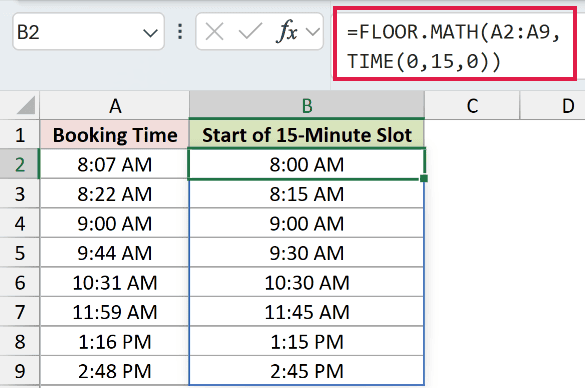
TIME creates a 15-minute fraction for significance. FLOOR.MATH uses that interval to return each lower slot boundary.
For example, 8:07 AM becomes 8:00 AM, 9:44 AM becomes 9:30 AM, and 2:48 PM becomes 2:45 PM.
Pro Tip: This formula finds the previous quarter hour. Use a nearest-quarter-hour method when the closest slot is required.
Example 6: Create Five-Pound Weight Bands
Rounded values can act as lower boundaries for numeric bands.
Below is the dataset with parcel weights and an empty column for each band’s lower bound.
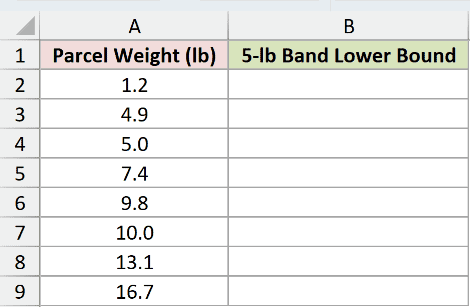
We want to place every parcel into the five-pound band that begins at or below its weight.
Here is the formula:
=FLOOR.MATH(A2:A9,5)
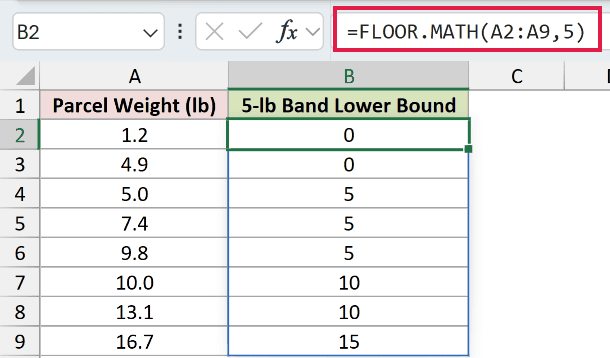
The lower boundaries are 0, 0, 5, 5, 5, 10, 10, and 15 pounds.
A boundary value belongs to the band that starts there. Five pounds stays at 5, while 4.9 pounds remains in the band beginning at 0.
Tips & Common Mistakes
- Treat
significanceas the rounding increment. It does not specify the number of decimal places. - Check the direction for negative inputs. The default moves away from zero, while a nonzero
modemoves toward zero. - Keep the spill area blank in Excel 2021, Excel 2024, Microsoft 365, and Excel for the web to avoid a
#SPILL!error. - Use a consistent unit for
numberandsignificance. A time needs a time increment, while a weight needs a weight increment. - Use the CEILING function when the task requires rounding upward to a multiple.
- Remember that exact multiples stay unchanged. FLOOR.MATH does not move a value already on a boundary.
I covered whole numbers, variable pack sizes, price increments, negative-number direction, time slots, and numeric bands.
I hope you found this article helpful.
Related Excel Functions / Articles:
