
The TODAY function in Excel returns the current date as a date serial number, without a time component.
It is useful for age, deadline, and elapsed-day calculations that should use today’s date. The value updates on recalculation; NOW returns the current date and time.
In this article, I’ll show you how to count days until deadlines, calculate age or tenure, and flag overdue items automatically.
TODAY Function Syntax in Excel
The syntax could not be simpler. There is nothing to fill in:
=TODAY()
- TODAY takes no arguments. The parentheses are still required and stay empty.
- It returns the current date from your computer’s clock, with no time part.
- It is volatile: it recalculates every time the sheet recalculates or the workbook reopens, so the date is always current.
When to Use TODAY Function
Reach for TODAY whenever a date or a date-based number needs to stay current on its own. A few common cases:
- Age or tenure that should always reflect today, so you never edit it manually.
- Days until a future date (a deadline) or days since a past date (an invoice).
- “As of today” headers on dashboards and reports.
- Aging reports where the buckets need to shift forward every day.
- Due-date flags and conditional formatting that compare a date to today.
Example 1: Show today’s date
Let’s start with the simplest possible use, just getting today’s date into a cell.
Below is a small two-column table. Column A holds a short label, and cell B2 is where the live date goes.
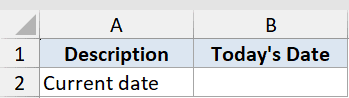
We want a cell that always shows the current date.
Here is the formula:
=TODAY()
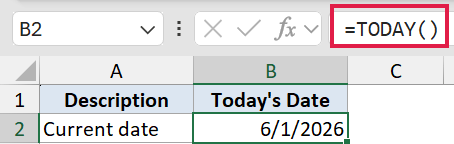
TODAY reads your computer’s date and drops it into B2. On a June 1, 2026 run it returns 6/1/2026.
Because it is volatile, open the file tomorrow and it shows tomorrow’s date. It never needs editing.
Pro Tip: If you want a date that stays put, like a record of when something was entered, press Ctrl+; (semicolon) to type a fixed date instead of using TODAY.
Example 2: Count days since a past date
Now let’s put TODAY to work in a little math problem. This is great for tracking how long something has been sitting.
Below is the dataset. Column A has “Invoice ID” with INV-1001 through INV-1007 in A2:A8, column B has “Invoice Date” (4/15/2026, 4/28/2026, 5/2/2026, 5/10/2026, 5/18/2026, 5/25/2026, 5/30/2026) in B2:B8, and column C is “Days Outstanding”.
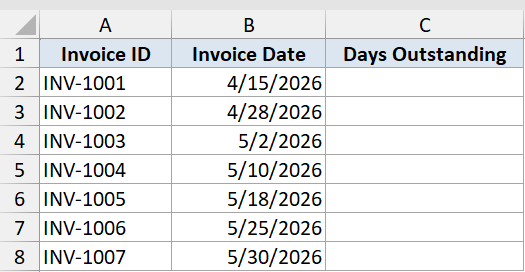
We want how many days each invoice has been outstanding as of today.
Here is the formula:
=TODAY()-B2
Fill it down C2:C8.
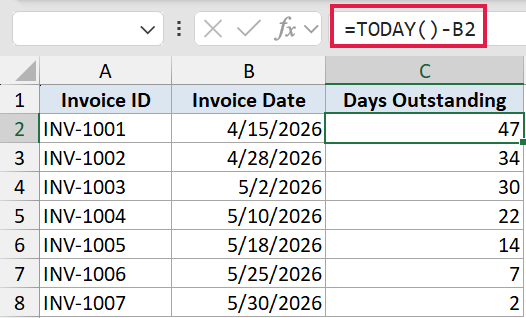
On a June 1, 2026 run this returns 47, 34, 30, 22, 14, 7, and 2.
Subtracting the invoice date from TODAY gives the number of days in between. Fill it down and every row updates itself each day the file is opened.
Pro Tip: Format column C as Number or General. If it shows a date instead of a count, Excel kept the date format from the subtraction.
Example 3: Count days until a future date
Same idea as the last one, but flipped around so you count down to something instead of up from it.
Below is the dataset. Column A has “Task” (Submit proposal, Client review, Final draft, Launch, Post-mortem, Renewal) in A2:A7, column B has “Deadline” (6/10/2026, 6/20/2026, 7/1/2026, 7/15/2026, 8/1/2026, 5/28/2026) in B2:B7, and column C is “Days Left”.
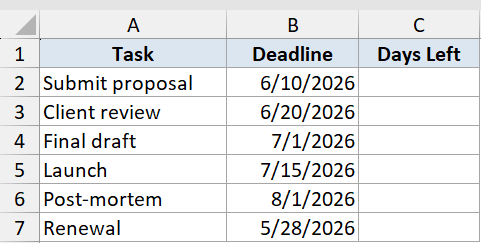
We want how many days are left until each deadline.
Here is the formula:
=B2-TODAY()
Fill it down C2:C7.
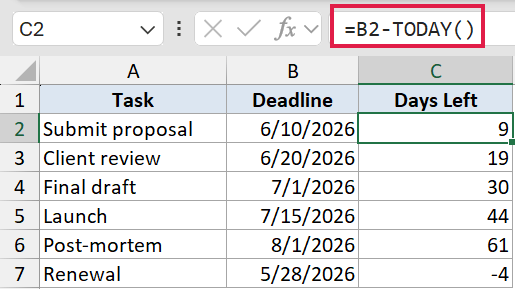
On a June 1, 2026 run this returns 9, 19, 30, 44, 61, and -4.
Here the order is flipped, future date minus TODAY, so you count down instead of up. The Renewal row shows -4 because its deadline (5/28) has already passed. A negative number means past due.
Pro Tip: Order matters. future – TODAY() counts down to a deadline, while TODAY() – past counts up since an event.
Example 4: Calculate age or tenure in years
TODAY is perfect for anything that ages over time, like how long someone has worked somewhere. Pair it with DATEDIF and you get clean whole years.
Below is the dataset. Column A has “Employee” (Aisha Khan, Ben Ortiz, Carla Diaz, Derek Lin, Eva Novak, Frank Mwangi) in A2:A7, column B has “Hire Date” (3/12/2015, 7/1/2018, 11/23/2020, 1/9/2022, 9/30/2023, 2/14/2025) in B2:B7, and column C is “Years of Service”.
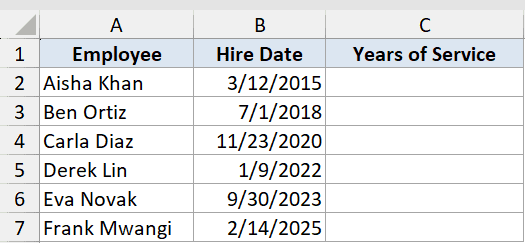
We want each employee’s completed years of service as of today.
Here is the formula:
=DATEDIF(B2,TODAY(),"Y")
Fill it down C2:C7.
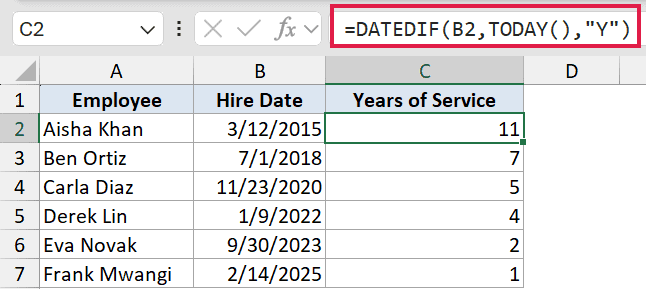
On a June 1, 2026 run this returns 11, 7, 5, 4, 2, and 1.
DATEDIF with “Y” counts the completed years between the hire date and TODAY. For age, swap the hire date for a birth date and use the same formula.
This is more accurate than dividing days by 365, which drifts on leap years.
Pro Tip: The start date must come first in DATEDIF. Reverse the arguments and it returns a #NUM! error.
Example 5: Flag overdue items with IF
Finally, let’s turn TODAY into a status checker that labels things on its own as dates pass.
Below is the dataset. Column A has “Task” (Renew license, Pay vendor, Submit report, Order supplies, Audit prep, Update website) in A2:A7, column B has “Due Date” (5/28/2026, 6/1/2026, 6/5/2026, 6/12/2026, 7/1/2026, 5/20/2026) in B2:B7, and column C is “Status”.
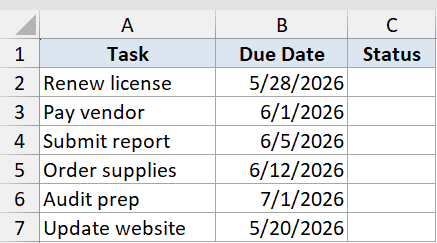
We want each task labelled Overdue or OK based on whether its due date has passed.
Here is the formula:
=IF(B2<TODAY(),"Overdue","OK")
Fill it down C2:C7.
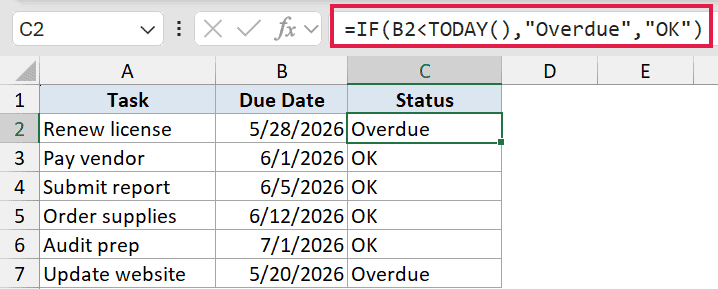
On a June 1, 2026 run, the rows with due dates before today (the 5/28 and 5/20 rows) show “Overdue”, and the ones due today or later show “OK”.
IF compares each due date to TODAY. If the due date is earlier than today, it returns “Overdue”, otherwise “OK”.
Because TODAY updates daily, the flags flip on their own as dates pass.
Pro Tip: Use < to treat today as already overdue, or <= if a task due today should still count as OK. For a three-way flag, nest another IF for a “Due Soon” window, like within the next 7 days.
Tips & Common Mistakes
- TODAY is volatile, so any “days since” or “days left” column changes every day. For a frozen snapshot, copy then Paste Special > Values, or use Ctrl+; for a static date.
- If =TODAY() shows a number like 46174, the cell is formatted as Number. Format it as Date. If a day-count shows as a date, format that cell as Number.
- TODAY returns the date only. Use NOW when you also need the time.
- The date comes from your computer’s clock, so collaborators in other time zones can briefly see a different “today” near midnight.
- For age or tenure, prefer DATEDIF(start, TODAY(), “Y”) over dividing days by 365, which drifts on leap years.
That is TODAY in a nutshell. One tiny formula that keeps your dates and date math current without you ever touching them again.
Drop it into headers, aging columns, and status flags, and let Excel do the daily updating for you.
Related Excel Functions / Articles:
- Using IF Function with Dates in Excel (Easy Examples)
- Calculate Days Left in the Year (Formula)
- Get End of Year Date in Excel (Formula)
- EOMONTH Function in Excel
- WEEKDAY Function in Excel
- EDATE Function in Excel
- WEEKNUM Function in Excel
- Days Between Dates Calculator
- How to Create an Aging Formula in Excel
