
The IMSEC function in Excel returns the secant of a complex number as text. Secant is the reciprocal of cosine, so IMSEC handles that calculation directly.
A complex input can contain both real and imaginary parts. Even when the answer has no imaginary part, IMSEC still returns text, which matters when formatting or comparing results.
I’ll show you how to calculate complex secants, check them against reciprocal cosine, and handle real angles near 90 degrees.
IMSEC Function Syntax in Excel
IMSEC takes a complex number as its input:
=IMSEC(inumber)
- inumber (required): The complex number to evaluate, supplied as text, a number, or a cell reference. Complex text uses the form
x+yiorx+yj.
Use lowercase i or j for the imaginary suffix. COMPLEX can build the input when the real and imaginary parts are in separate cells.
IMSEC is available in Excel 2013 and later. For real angles, supply radians; use RADIANS first when your inputs are in degrees.
When to Use IMSEC Function
- Calculate secants for a list of complex inputs in a math worksheet.
- Check a reciprocal-cosine calculation against Excel’s direct secant function.
- Work with real and complex inputs in the same calculation while keeping complex-text output.
- Investigate unusually large secant results near an angle where cosine vanishes.
Example 1: Calculate Secants of Complex Numbers
Let’s start with a list containing positive, negative, and mixed complex inputs.
Below is the dataset. Column A labels each input, column B contains the complex numbers, and column C will hold their secants.
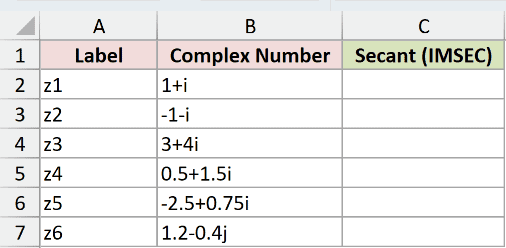
We want to calculate a secant for each complex number in column B.
Enter this formula in C2, then copy it down through C7:
=IMSEC(B2)
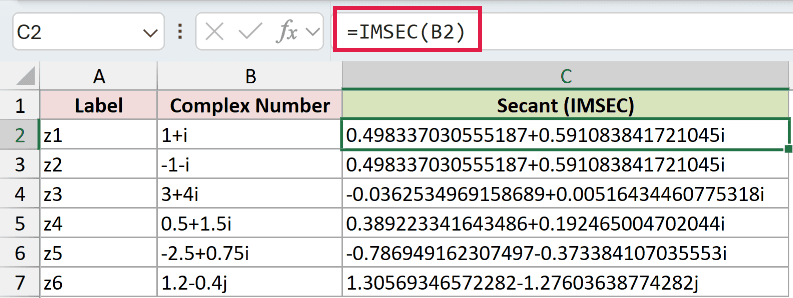
For 1+i, the result is 0.498337030555187+0.591083841721045i. The next input, -1-i, returns exactly the same text.
Secant has even symmetry, so reversing the sign of the whole input leaves its secant unchanged.
The 1.2-0.4j input returns 1.30569346572282-1.27603638774282j. Excel keeps the lowercase j suffix in the output.
These results are text, so changing the cell’s decimal format won’t shorten them. Use IMREAL or IMAGINARY when you need a numeric component.
Pro Tip: IMSEC with a bare range returns #VALUE!. Unary plus enables spilling in Excel 2021, Excel 2024 and Microsoft 365; in Excel 2019 and earlier, copy formulas down.
Example 2: Check Against Reciprocal Cosine
Now let’s check the relationship between secant and cosine without relying on identical text strings.
Below is the dataset. Column A contains complex inputs; columns B through F provide space for cosine, secant, reciprocal cosine, numerical differences, and a text-comparison check.
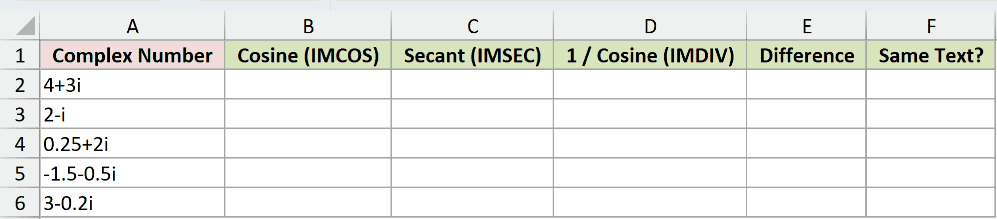
We want to compare IMSEC with the reciprocal of IMCOS, then see why text equality can mislead us.
First, calculate cosine in B2 and copy down through B6:
=IMCOS(A2)
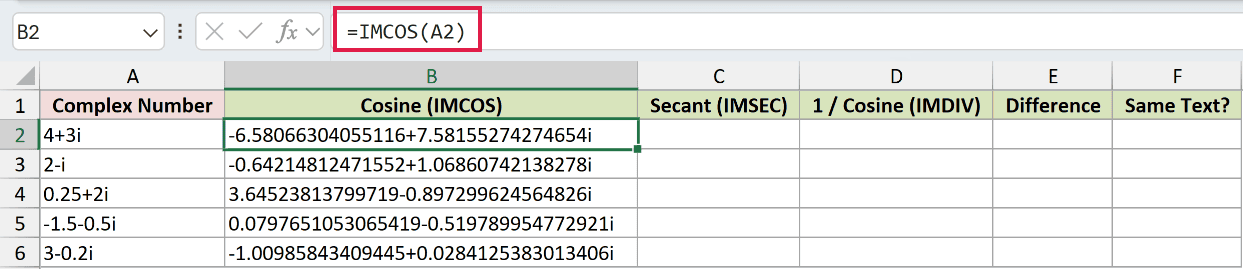
For 4+3i, IMCOS returns -6.58066304055116+7.58155274274654i.
Calculate the direct secant in C2 and copy down through C6:
=IMSEC(A2)

C2 returns -0.0652940278579471-0.0752249603027732i.
For the reciprocal-cosine comparison, enter this in D2 and copy down through D6:
=IMDIV(1,B2)

D2 returns the same text as C2. IMDIV performs complex division using the cosine already calculated in column B.
But the 2-i row returns -0.41314934426694-0.687527438655479i through IMSEC and -0.413149344266939-0.687527438655478i through the reciprocal route.
Those final digits differ because of numerical rounding. Let’s measure the difference instead of judging the strings.
Enter this check in E2 and copy down through E6:
=IMABS(IMSUB(C2,D2))

IMSUB subtracts the complex results, and IMABS returns the magnitude of that difference as a number.
The comparison differences display as 0.0E+00, 1.4E-15, 1.9E-16, 0.0E+00, and 5.0E-15, in row order. The nonzero differences are tiny rounding residues.
Finally, demonstrate the unreliable text-equality check in F2 and copy down through F6:
=C2=D2

This text comparison returns TRUE for 4+3i and -1.5-0.5i. It returns FALSE for 2-i, 0.25+2i, and 3-0.2i.
A FALSE here doesn’t disprove the reciprocal relationship. Use the Difference column to assess numerical agreement, allowing for the precision your calculation needs.
Example 3: Compare IMSEC With SEC
For real angles, the main difference is the type of result you receive.
Below is the dataset. Column A contains angles in degrees, column B will hold IMSEC results, and column C provides the real-number SEC comparison.
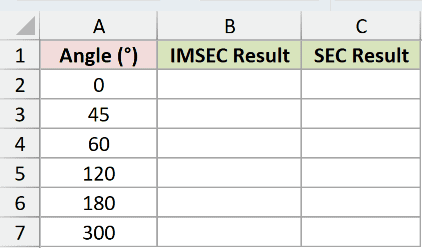
We want to calculate each angle’s secant and compare text output with numeric output.
Enter this in B2 and copy down through B7:
=IMSEC(RADIANS(A2))
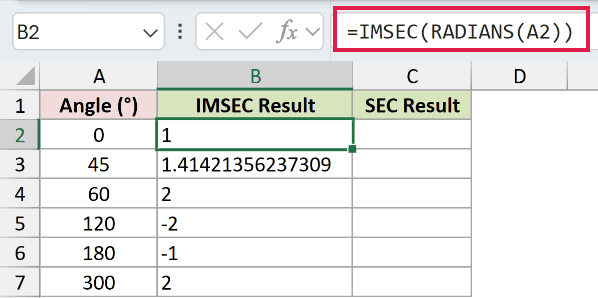
RADIANS converts the degree input before IMSEC evaluates it. At 45 degrees, IMSEC returns the text 1.41421356237309; at 60 degrees, it returns 2.
For the real-number comparison, enter this SEC formula in C2 and copy down through C7:
=SEC(RADIANS(A2))
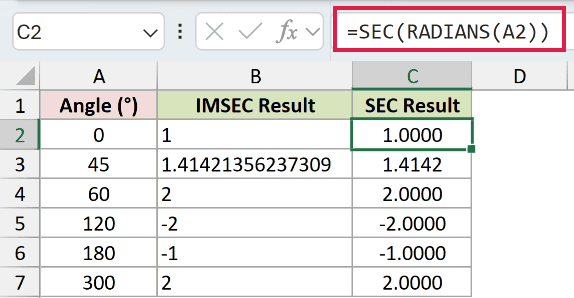
The SEC comparison displays 1.4142 at 45 degrees and 2.0000 at 60 degrees. Its number format controls the displayed decimals because SEC returns numbers.
At 120 degrees, IMSEC returns -2, while the numeric SEC comparison displays -2.0000. The sign agrees; the output types remain different.
Use SEC when your inputs are ordinary real angles and you need numbers for further arithmetic. Use IMSEC when the calculation needs complex inputs or complex-text output.
Example 4: Guard Against Undefined Secants
An angle near 90 degrees can produce a surprisingly large result without any Excel error.
Below is the dataset. Column A contains angles approaching 90 degrees, column B will show unguarded results, and column C will hold guarded results.
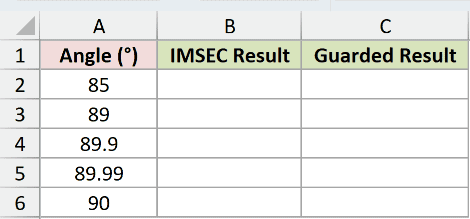
We want to identify angles whose cosine is too close to zero before accepting the secant.
First, demonstrate the unguarded calculation in B2 and copy down through B6:
=IMSEC(RADIANS(A2))
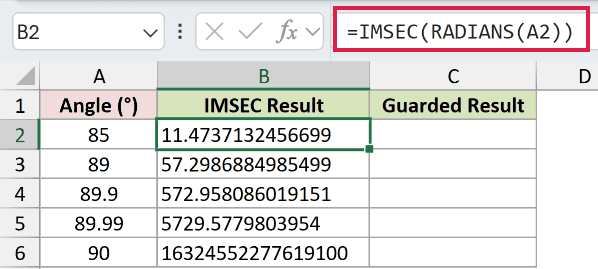
The unguarded result increases from 11.4737132456699 at 85 degrees to 5729.5779803954 at 89.99 degrees.
At 90 degrees, the unguarded cell returns 16324552277619100. It’s a huge numeric-looking text value, not #DIV/0! or infinity.
Mathematically, secant is undefined there. Excel’s floating-point calculation leaves a tiny cosine instead of exact zero, so taking its reciprocal produces that huge value.
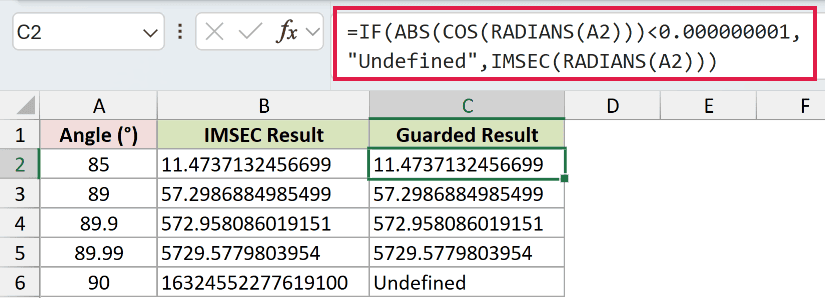
Enter the guard in C2 and copy down through C6:
=IF(ABS(COS(RADIANS(A2)))<0.000000001,"Undefined",IMSEC(RADIANS(A2)))
How this formula works:
- RADIANS converts the angle to radians, and COS calculates its cosine.
- ABS checks the cosine’s size without regard to its sign.
- IF returns
Undefinedwhen that size falls below the chosen tolerance; otherwise, it calculates IMSEC.
The guarded cell at 90 degrees displays Undefined. At 89.99 degrees, it still returns 5729.5779803954, matching the unguarded comparison for that angle.
The tolerance sets a practical cutoff for treating the cosine as zero. Choose it to suit the precision your worksheet needs.
Pro Tip: IFERROR won’t catch the unguarded result at 90 degrees because Excel hasn’t returned an error. Check the cosine before accepting the result.
Example 5: Understand Special Inputs and Errors
Some unusual inputs return valid text, while others deliberately fail in this example.
Below is the dataset. Column A describes each input type, column B holds the test inputs, and column C will show the secants or deliberate errors.
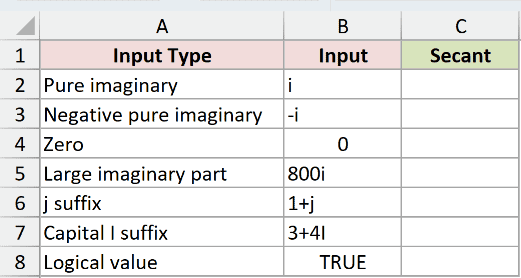
We want to see how IMSEC handles imaginary inputs, zero, suffixes, and a logical value.
Enter this in C2 and copy down through C8:
=IMSEC(B2)
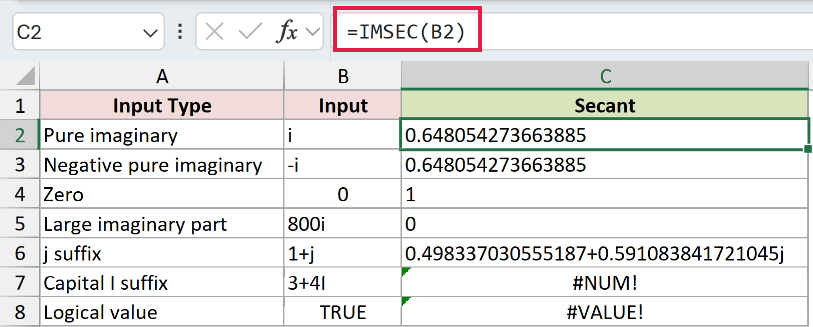
Here’s what each row shows:
- C2, input
i: Returns0.648054273663885. A pure imaginary input has a real-valued secant, equivalent to SECH applied to its imaginary coefficient. IMSEC still returns text. - C3, input
-i: Also returns0.648054273663885, showing the same even symmetry as the earlier sign-reversal example. - C4, input
0: Returns the text1, the secant at zero. - C5, input
800i: Returns the text0without an error. Excel reduces this extremely small result to zero, so don’t treat it as an exact mathematical zero. - C6, input
1+j: Returns0.498337030555187+0.591083841721045j. Lowercasejis accepted and preserved. - C7, input
3+4I: Deliberately returns#NUM!because the imaginary suffix is uppercase. Change it to lowercase. - C8, input
TRUE: Deliberately returns#VALUE!because a logical value isn’t a supported complex-number input.
The errors in C7 and C8 are intentional demonstrations. The text 0 in C5 is a separate numerical edge case.
Tips & Common Mistakes
- Keep result types in mind. IMSEC returns text even when the answer looks numeric. Number formatting won’t round a complex string, and SUM won’t directly total a range of these strings.
- Extract numbers when needed. IMREAL, IMAGINARY, and IMABS return numeric components or magnitudes that can feed ordinary calculations.
- Check missing inputs. A blank referenced cell is treated as zero, so IMSEC silently returns the text
1. That doesn’t mean the source data was complete. - Check malformed text. Unsupported suffixes and incorrectly arranged complex text return
#NUM!. Excel accepts spaced complex inputs. - Use the right comparison. SEC handles real angles. IMSEC handles complex secants, while IMSECH is the separate hyperbolic-secant function.
Related Excel Functions / Articles:
