
The SECOND function in Excel returns the seconds part of a time as a whole number from 0 to 59.
It lets you pull that part out of a timestamp for a separate calculation. It doesn’t tell you how many seconds have passed between events.
I’ll show you how to extract seconds from timestamps, compare them with total elapsed seconds, and handle fractional seconds before removing seconds from a time.
SECOND Function Syntax in Excel
SECOND takes a time value as its argument:
=SECOND(serial_number)
- serial_number (required): The time you want to read. It can be an Excel time or date-time, recognizable time text, a numeric serial value, or a formula result.
Excel stores times as fractions of a day. SECOND reads the seconds component and returns a number you can use in calculations.
When to Use SECOND Function
- Extract the seconds part of transaction or sensor timestamps.
- Read seconds from recognizable time strings in an exported log.
- Check how fractional seconds affect a whole-second result.
- Remove the seconds component from timestamps recorded at whole-second precision.
Example 1: Extract Seconds From Card-Swipe Timestamps
Let’s start with a card-swipe log that includes dates and times.
Below is the dataset. Column A lists transactions, column B contains swipe timestamps, and column C has the Second header and empty result cells.
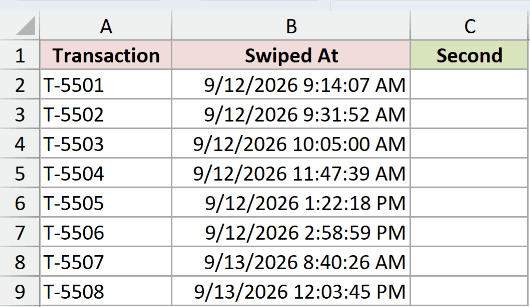
We want to extract the seconds component from every swipe timestamp.
Enter this formula in C2:
=SECOND(B2:B9)
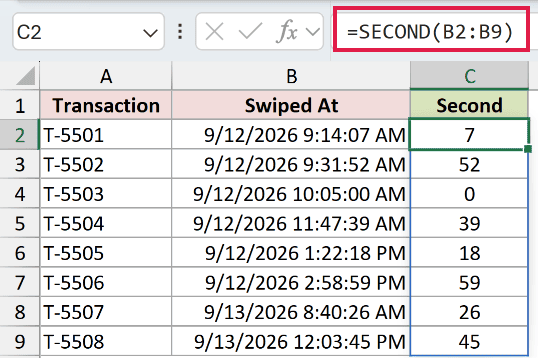
The formula spills into C2:C9, so each timestamp gets its own result without copying the formula down.
Range formulas spill in Excel 2021, Excel 2024, and Microsoft 365. In Excel 2019 and earlier, use a reference to each row’s time and copy down.
The timestamp 9/12/2026 9:14:07 AM returns 7. The date, hour, and minute aren’t included in that answer.
The remaining results are 52, 0, 39, 18, 59, 26, and 45. The zero belongs to the timestamp displayed as 9/12/2026 10:05:00 AM.
Example 2: Read Seconds From Text Times
Exported logs may hold time strings instead of numeric Excel times.
Below is the dataset. Column A lists app events, column B holds text entries, and column C provides the Second header and empty result cells.
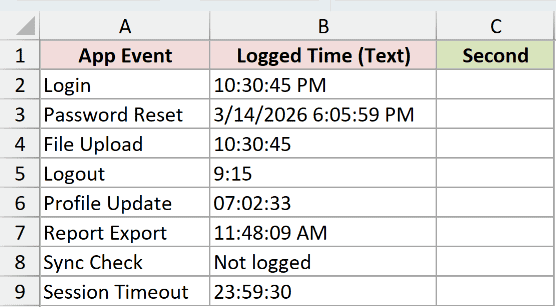
We want to read each recognizable time and see what happens when the entry isn’t a time.
Enter this formula in C2:
=SECOND(B2:B9)
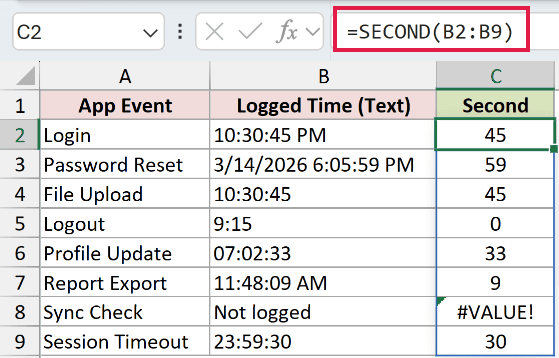
SECOND parses the text directly. Both 10:30:45 PM and 10:30:45 return 45, while 3/14/2026 6:05:59 PM returns 59.
The Logout entry, 9:15, returns 0. Excel reads it as hours and minutes, so there are no seconds to extract.
The entries 07:02:33, 11:48:09 AM, and 23:59:30 return 33, 9, and 30, respectively.
The #VALUE! in C8 is a deliberate error demonstration. Its source says Not logged, which isn’t a recognizable time.
Correct that source entry when the actual time becomes available. Replacing the error with zero would make missing information look like a valid whole-minute timestamp.
Example 3: Seconds Part Versus Total Seconds
A quiz duration makes the difference between a seconds component and an elapsed-time total easier to see.
Below is the dataset. Column A lists students, B and C contain start and submission times, and D and E have Seconds Part and Total Seconds headers.
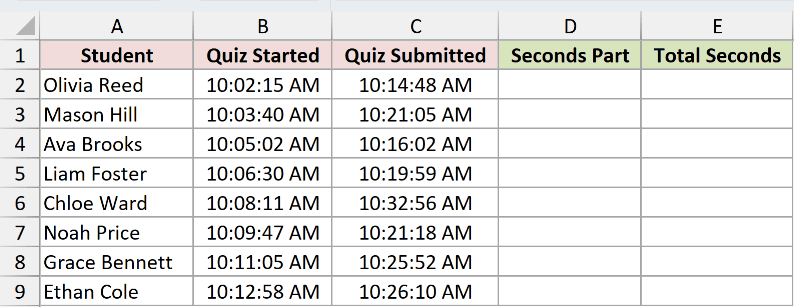
We want to compare SECOND’s component result with the total seconds each student spent on the quiz.
For Seconds Part, enter this formula in D2:
=SECOND(C2:C9-B2:B9)
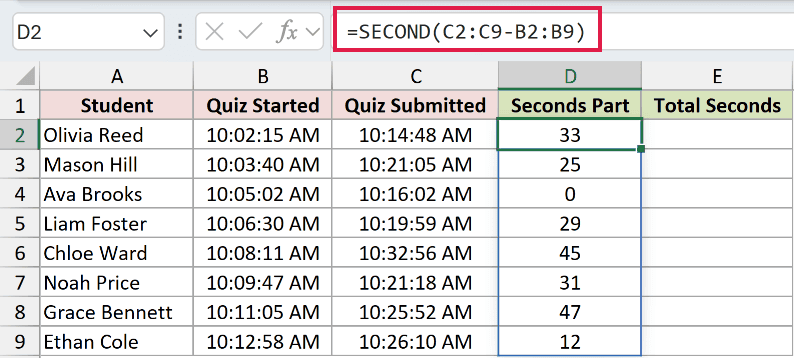
Subtracting the start times from the submission times produces durations. SECOND then reads only the seconds component of each duration.
Seconds Part shows 33 for Olivia Reed and 0 for Ava Brooks. Treating these as total quiz times would be a mistake.
For Total Seconds, ROUND rounds the converted duration to a whole number. This gives the full elapsed seconds to compare with SECOND’s component result.
Enter this formula in E2:
=ROUND((C2:C9-B2:B9)*86400,0)
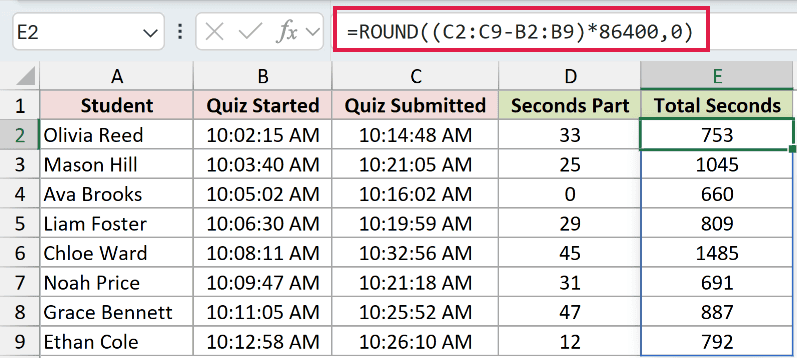
Excel’s time difference is measured in days. Multiplying by 86400, the seconds in a day, converts the full duration to seconds.
The final argument requests a whole-number result. Total Seconds in column E shows 753 for Olivia and 660 for Ava.
Chloe Ward’s seconds component is 45, and her total duration is 1485 seconds.
Use the total-seconds calculation when measuring elapsed time. SECOND answers only which second within the minute the duration reaches.
Example 4: See How SECOND Rounds Fractions
Lap times show why extracting seconds doesn’t preserve fractional precision.
Below is the dataset. Column A identifies each kart, B holds lap times, and C and D have SECOND Result and Exact Seconds headers.
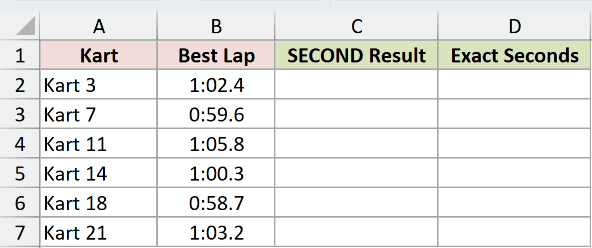
We want to compare SECOND’s rounded component with a calculation that keeps the fractional seconds.
For SECOND Result, enter this formula in C2:
=SECOND(B2:B7)
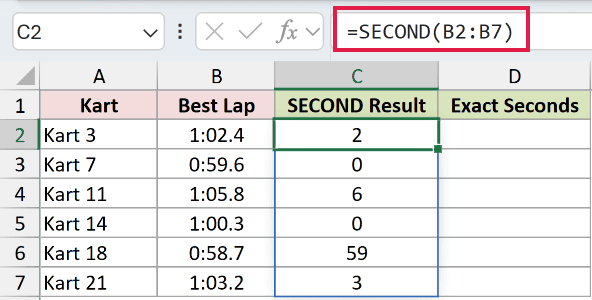
SECOND rounds to the nearest second instead of cutting off the decimal part. Column C returns 2, 0, 6, 0, 59, and 3.
Kart 7’s lap displays as 0:59.6, but SECOND returns 0. Rounding carries the time into the next minute, where the seconds component starts again.
Kart 11’s 1:05.8 returns 6, which also shows that SECOND doesn’t truncate the fractional part.
For Exact Seconds, MOD returns the remainder after division. It lets us remove complete minutes while retaining fractional seconds.
Enter this formula in D2:
=MOD(B2:B7*86400,60)
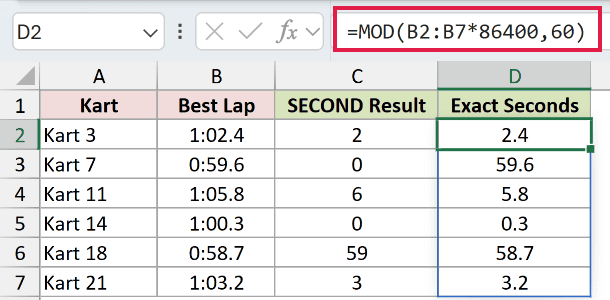
The formula converts the lap times to seconds, then keeps the remainder after dividing by 60. Column D uses the number format 0.0.
Exact Seconds displays 2.4, 59.6, 5.8, 0.3, 58.7, and 3.2. These are seconds components with their fractions, not total lap durations.
The Exact Seconds column preserves the detail that SECOND rounds away.
Example 5: Remove Seconds From Sensor Timestamps
You can also use the extracted seconds to bring whole-second timestamps back to the start of their minute.
Below is the dataset. Column A lists dock doors, B contains sensor timestamps, and C provides the Time Without Seconds header and empty result cells.
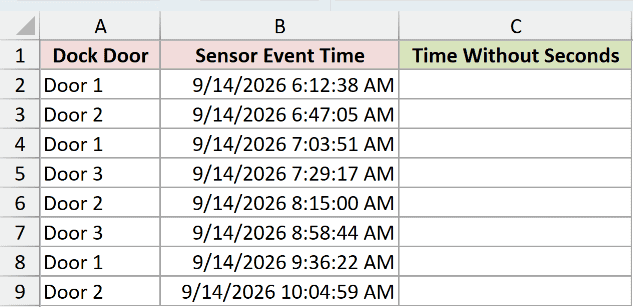
We want to remove the seconds while keeping each timestamp’s date, hour, and minute.
Enter this formula in C2:
=B2:B9-SECOND(B2:B9)/86400
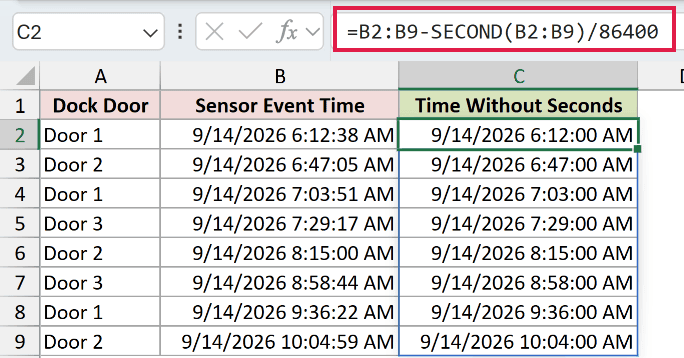
SECOND extracts the seconds. Dividing by 86400 converts that amount back to a fraction of a day, which the formula subtracts from the original timestamp.
The first timestamp changes from 9/14/2026 6:12:38 AM to 9/14/2026 6:12:00 AM. The date stays intact.
The entry 9/14/2026 8:15:00 AM remains 9/14/2026 8:15:00 AM, since its seconds component is already zero.
Both timestamp columns use m/d/yyyy h:mm:ss AM/PM, so you can see the seconds disappear. The formula subtracts the seconds from the stored timestamp.
Pro Tip: Use this subtraction method only with whole-second timestamps. SECOND rounds fractional seconds, so subtracting its result from a fractional timestamp may leave a fraction behind or cross into the previous minute.
Tips & Common Mistakes
- A zero doesn’t prove the source is complete. SECOND returns zero for a blank cell, as well as for a valid time with no seconds component. Check missing inputs separately.
- Negative times return #NUM!. When subtracting timestamps, check that the ending value follows the starting value. Include dates when events span midnight.
- Seconds wrap within the minute. SECOND reads the clock component even when the input represents a longer duration. It doesn’t count completed minutes or days.
- Preserve fractional precision when it matters. Use the Exact Seconds calculation in Example 4 for subsecond data. SECOND’s whole-number result has already lost that detail.
These examples used SECOND to read timestamps and text times, then showed how its result differs from total elapsed seconds.
They also covered fractional-second rounding and removing seconds from whole-second timestamps.
Related Excel Functions / Articles:
