
Excel VBA gives you several ways to describe a cell color, but they do not store the same thing.
ColorIndex stores a position in the workbook’s 56-slot palette. .Color stores the actual color as a number, while RGB() builds that number from red, green, and blue values.
That difference matters most when you read colors back. A theme-colored light blue cell can report ColorIndex = 42, even though slot 42 is teal.
In this article, I’ll show you all 56 default ColorIndex codes, how to convert RGB values, and how to read fills without losing color information.
ColorIndex vs RGB: The Short Answer
For most new VBA code, set an exact color with .Color = RGB(red, green, blue) and read it back with .Color.
Use .ColorIndex when you need a palette slot, or when you need xlNone to test for or remove a fill.
| Property or function | What it represents | Best use |
|---|---|---|
.ColorIndex | A slot in the workbook’s 56-entry palette | Legacy palette code and detecting no fill |
.Color | The actual 24-bit color as a Long | Reading and preserving an exact color |
RGB(r, g, b) | A safe way to build the Long used by .Color | Setting an exact color |
.ThemeColor with .TintAndShade | A theme role plus a lighter or darker variation | Formatting that should follow the workbook theme |
This sets A1 to the exact blue represented by R75, G139, B203:
Range("A1").Interior.Color = RGB(75, 139, 203)This reads the exact color back:
Dim cellColor As Long
cellColor = Range("A1").Interior.Color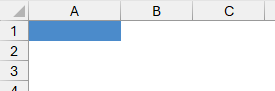
Note: The measured examples in this article use Microsoft 365 desktop Excel for Windows. The palette may differ in Excel for Mac or older builds.
What Excel VBA ColorIndex Really Returns
ColorIndex is not a color value. It is a number pointing to one of the 56 entries in the current workbook’s palette.
For example, slot 3 is red in Excel’s default palette:
Range("A1").Interior.ColorIndex = 3In a new default workbook, that cell reads ColorIndex = 3 and .Color = 255.
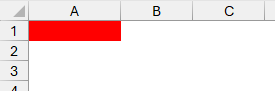
The palette belongs to the workbook. If someone changes slot 3, every cell pointing to slot 3 follows the new color.
Valid palette slots run from 1 to 56. VBA also accepts xlNone and xlAutomatic in places where those states make sense.
All 56 Excel VBA ColorIndex Codes
The downloadable chart has one sheet named ColorIndex Chart. It includes every index, a filled Swatch, Hex, RGB Value, Long (.Color), and Duplicate Of.
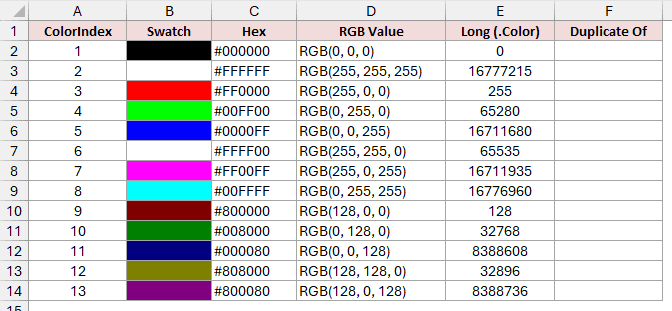
The table below matches that workbook. These are the values measured in a brand-new default workbook in Microsoft 365 for Windows.
| ColorIndex | Hex | RGB Value | Long (.Color) | Duplicate Of |
|---|---|---|---|---|
| 1 | #000000 | RGB(0, 0, 0) | 0 | |
| 2 | #FFFFFF | RGB(255, 255, 255) | 16777215 | |
| 3 | #FF0000 | RGB(255, 0, 0) | 255 | |
| 4 | #00FF00 | RGB(0, 255, 0) | 65280 | |
| 5 | #0000FF | RGB(0, 0, 255) | 16711680 | |
| 6 | #FFFF00 | RGB(255, 255, 0) | 65535 | |
| 7 | #FF00FF | RGB(255, 0, 255) | 16711935 | |
| 8 | #00FFFF | RGB(0, 255, 255) | 16776960 | |
| 9 | #800000 | RGB(128, 0, 0) | 128 | |
| 10 | #008000 | RGB(0, 128, 0) | 32768 | |
| 11 | #000080 | RGB(0, 0, 128) | 8388608 | |
| 12 | #808000 | RGB(128, 128, 0) | 32896 | |
| 13 | #800080 | RGB(128, 0, 128) | 8388736 | |
| 14 | #008080 | RGB(0, 128, 128) | 8421376 | |
| 15 | #C0C0C0 | RGB(192, 192, 192) | 12632256 | |
| 16 | #808080 | RGB(128, 128, 128) | 8421504 | |
| 17 | #9999FF | RGB(153, 153, 255) | 16751001 | |
| 18 | #993366 | RGB(153, 51, 102) | 6697881 | |
| 19 | #FFFFCC | RGB(255, 255, 204) | 13434879 | |
| 20 | #CCFFFF | RGB(204, 255, 255) | 16777164 | |
| 21 | #660066 | RGB(102, 0, 102) | 6684774 | |
| 22 | #FF8080 | RGB(255, 128, 128) | 8421631 | |
| 23 | #0066CC | RGB(0, 102, 204) | 13395456 | |
| 24 | #CCCCFF | RGB(204, 204, 255) | 16764108 | |
| 25 | #000080 | RGB(0, 0, 128) | 8388608 | Same as 11 |
| 26 | #FF00FF | RGB(255, 0, 255) | 16711935 | Same as 7 |
| 27 | #FFFF00 | RGB(255, 255, 0) | 65535 | Same as 6 |
| 28 | #00FFFF | RGB(0, 255, 255) | 16776960 | Same as 8 |
| 29 | #800080 | RGB(128, 0, 128) | 8388736 | Same as 13 |
| 30 | #800000 | RGB(128, 0, 0) | 128 | Same as 9 |
| 31 | #008080 | RGB(0, 128, 128) | 8421376 | Same as 14 |
| 32 | #0000FF | RGB(0, 0, 255) | 16711680 | Same as 5 |
| 33 | #00CCFF | RGB(0, 204, 255) | 16763904 | |
| 34 | #CCFFFF | RGB(204, 255, 255) | 16777164 | Same as 20 |
| 35 | #CCFFCC | RGB(204, 255, 204) | 13434828 | |
| 36 | #FFFF99 | RGB(255, 255, 153) | 10092543 | |
| 37 | #99CCFF | RGB(153, 204, 255) | 16764057 | |
| 38 | #FF99CC | RGB(255, 153, 204) | 13408767 | |
| 39 | #CC99FF | RGB(204, 153, 255) | 16751052 | |
| 40 | #FFCC99 | RGB(255, 204, 153) | 10079487 | |
| 41 | #3366FF | RGB(51, 102, 255) | 16737843 | |
| 42 | #33CCCC | RGB(51, 204, 204) | 13421619 | |
| 43 | #99CC00 | RGB(153, 204, 0) | 52377 | |
| 44 | #FFCC00 | RGB(255, 204, 0) | 52479 | |
| 45 | #FF9900 | RGB(255, 153, 0) | 39423 | |
| 46 | #FF6600 | RGB(255, 102, 0) | 26367 | |
| 47 | #666699 | RGB(102, 102, 153) | 10053222 | |
| 48 | #969696 | RGB(150, 150, 150) | 9868950 | |
| 49 | #003366 | RGB(0, 51, 102) | 6697728 | |
| 50 | #339966 | RGB(51, 153, 102) | 6723891 | |
| 51 | #003300 | RGB(0, 51, 0) | 13056 | |
| 52 | #333300 | RGB(51, 51, 0) | 13107 | |
| 53 | #993300 | RGB(153, 51, 0) | 13209 | |
| 54 | #993366 | RGB(153, 51, 102) | 6697881 | Same as 18 |
| 55 | #333399 | RGB(51, 51, 153) | 10040115 | |
| 56 | #333333 | RGB(51, 51, 51) | 3355443 |
Ten ColorIndex Values Are Exact Duplicates
The 56 slots contain only 46 distinct colors. Ten later indexes repeat an earlier color exactly.
Those duplicate pairs are:
- 25 = 11
- 26 = 7
- 27 = 6
- 28 = 8
- 29 = 13
- 30 = 9
- 31 = 14
- 32 = 5
- 34 = 20
- 54 = 18
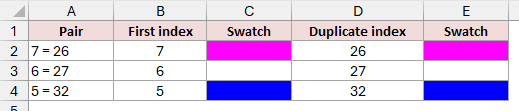
For example, indexes 7 and 26 both produce #FF00FF. Reading the color later cannot tell you which of those two indexes a different process intended.
This is another reason I avoid using ColorIndex as a color identity.
Why a ColorIndex Can Change Appearance
The workbook can redefine any of its 56 palette slots, which makes ColorIndex risky for portable code.
Start by filling D1 with slot 3. In the default palette, the cell is red and .Color returns 255.
Range("D1").Interior.ColorIndex = 3
Debug.Print Range("D1").Interior.ColorIndex
Debug.Print Range("D1").Interior.Color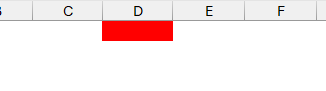
Now rewrite slot 3 as green. This short routine copies the palette, changes one entry, and writes the array back.
Sub MakePaletteSlot3Green()
    Dim palette As Variant

    palette = ActiveWorkbook.Colors
    palette(3) = RGB(0, 255, 0)
    ActiveWorkbook.Colors = palette
End SubThe untouched D1 turns green. Its .Color becomes 65280, but its .ColorIndex remains 3.
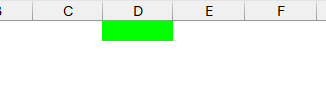
The number 3 means “look in slot 3.” It does not permanently mean red.
You can restore Excel’s default palette with ResetColors:
ActiveWorkbook.ResetColorsThe cell turns red again, .Color returns 255, and .ColorIndex still returns 3.
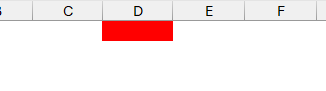
This behavior is useful for legacy workbooks built around custom palettes. For portable color code, .Color is much safer.
How the .Color Property Stores RGB Values
The .Color property returns a Long containing the actual 24-bit color. It can represent 16,777,216 colors and does not depend on the workbook palette.
The byte order catches people out. VBA stores the number as red + green × 256 + blue × 65536.
Written in hexadecimal, that order is &HBBGGRR, not the familiar web format #RRGGBB.
That means this line makes A1 blue, not red:
Range("A1").Interior.Color = &HFF0000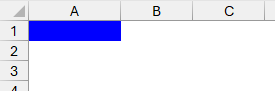
If your design tool gives you #4B8BCB, the stored VBA form is &HCB8B4B.
I would still use RGB() because the component order remains obvious:
Range("A1").Interior.Color = RGB(&H4B, &H8B, &HCB)Converting Between RGB, Hex, and Long
The safest RGB-to-Long conversion is the built-in RGB() function:
Dim c As Long
c = RGB(75, 139, 203)Here, c becomes 13339467. Assigning that value to .Color produces R75, G139, B203.
To split a .Color Long back into its red, green, and blue parts, use this code:
Dim c As Long
Dim r As Long
Dim g As Long
Dim b As Long

c = Range("A1").Interior.Color
r = c Mod 256
g = (c \ 256) Mod 256
b = c \ 65536

Debug.Print r, g, b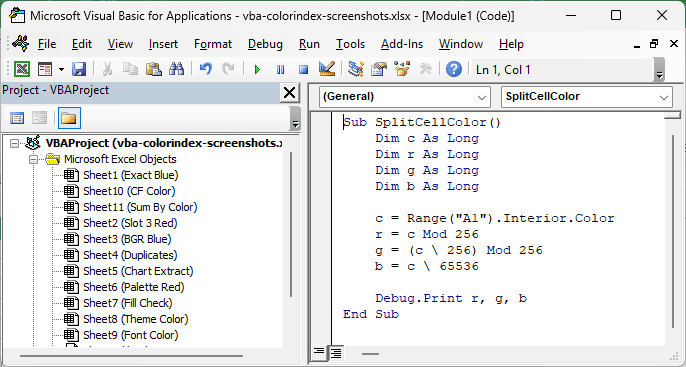
The backslash matters. It performs integer division, which keeps these byte calculations exact.
For a web hex code, take each RRGGBB pair and pass it to RGB() in the same order.
For example, #4B8BCB becomes RGB(&H4B, &H8B, &HCB).
How to Get a Cell’s Existing Fill Color
Before reading .Color, check whether the cell has a fill. This avoids confusing an unfilled cell with a white-filled cell.
Dim c As Long
Dim r As Long
Dim g As Long
Dim b As Long

If Range("A1").Interior.ColorIndex = xlNone Then
    Debug.Print "No fill"
Else
    c = Range("A1").Interior.Color
    r = c Mod 256
    g = (c \ 256) Mod 256
    b = c \ 65536
    Debug.Print r, g, b
End If
An unfilled cell returns .Interior.Color = 16777215, the same number as white.
Its .Interior.ColorIndex returns xlNone, or -4142. A cell explicitly filled white returns ColorIndex 2 in the default palette.
The safest rule is simple: if you set with .Color, read with .Color. Use ColorIndex only to test whether a fill exists.
Why ColorIndex Can Misread Theme and RGB Colors
ColorIndex becomes lossy when you read a color that was not set from the 56-slot palette.
This code applies Accent1 with a TintAndShade of 0.4:
Range("A2").Interior.ThemeColor = xlThemeColorAccent1
Range("A2").Interior.TintAndShade = 0.4With the default Office theme, the visible fill is light blue: R68, G179, B225.
.Color returned 14791492, which was the exact fill. .ColorIndex returned 42, whose default-palette color is #33CCCC, a saturated teal.
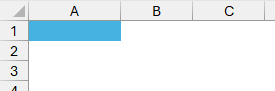
The fill itself was never damaged. Only the ColorIndex reading was a lossy projection onto the old 56-slot palette.
The same thing happened with an arbitrary burnt orange fill:
Range("A3").Interior.Color = 4881352The exact .Color remained 4881352, which is R200, G123, B74. Its .ColorIndex read as 22, the pale salmon #FF8080.
Reapplying that index changed the color from 4881352 to 8421631.
Two different fills can also collapse to the same index. Code that groups cells by ColorIndex can quietly merge colors that are visibly different.
Excel’s exact matching algorithm is not documented. What matters is that the returned slot may look nothing like the real color.
Using xlNone and xlAutomatic Correctly
xlNone and xlAutomatic are negative constants. Their values are -4142 and -4105.
For a cell interior, use xlNone to remove the fill:
Range("A1").Interior.ColorIndex = xlNoneDo not use .Interior.Color = xlNone. The special no-fill state belongs to ColorIndex or Pattern, not to .Color.
Fonts behave differently. To reset a font color, use xlAutomatic:
Range("A1").Font.ColorIndex = xlAutomaticSetting Font.ColorIndex = xlNone does not clear the color. Excel accepts the line silently, then the font reads back as black, index 1.
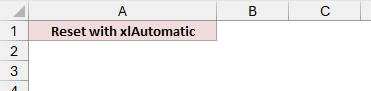
The behavior also depends on the object you are formatting:
| Object | xlNone | xlAutomatic |
|---|---|---|
| Interior | Removes the fill | Not the right choice for a fill |
| Font | Lands on black rather than clearing the color | Resets the font to automatic |
| Border | Represents no border when read from an unbordered cell | Uses the automatic border color |
Reading Font and Border Colors
The same two properties work on fonts and borders:
Debug.Print Range("A1").Font.Color
Debug.Print Range("A1").Font.ColorIndex
Debug.Print Range("A1").Borders(xlEdgeBottom).Color
Debug.Print Range("A1").Borders(xlEdgeBottom).ColorIndexYou can set an exact font color with .Font.Color = RGB(...) the same way you would for a fill.
Border formatting needs more care. Excel interlocks a border’s visual properties, so changing its color can also affect whether the border becomes visible.
Check or set the border’s LineStyle and Weight when you need predictable results.
Getting Colors Created by Conditional Formatting
Interior.Color and Interior.ColorIndex read the cell’s base formatting. They do not return the color currently displayed by Conditional Formatting.
In a red Conditional Formatting example, Interior.ColorIndex returns xlNone, while DisplayFormat.Interior.ColorIndex returns 3.
Use the read-only DisplayFormat property to get what Excel is showing:
Dim shownColor As Long
shownColor = Range("A1").DisplayFormat.Interior.Color
Debug.Print shownColorFor that red cell, DisplayFormat.Interior.Color returned 255.
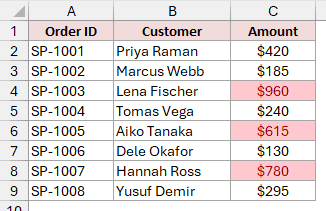
There is one important limit. DisplayFormat does not work inside a worksheet user-defined function and returns #VALUE! there.
It does work from VBA code such as a Sub or from the Immediate window.
Note: Microsoft does not document which Excel version first introduced DisplayFormat. It works in modern desktop Excel.
Summing Values by Their Exact Fill Color
If you sum or count cells by color, compare .Color, not .ColorIndex. That prevents different theme or RGB fills from collapsing into one palette slot.
Here is a small worksheet function that sums values matching the sample cell’s exact base fill:
Function SumByColor(rng As Range, colorCell As Range) As Double
    Dim c As Range
    Dim target As Long

    target = colorCell.Interior.Color

    For Each c In rng
        If c.Interior.Color = target Then
            SumByColor = SumByColor + c.Value
        End If
    Next c
End Function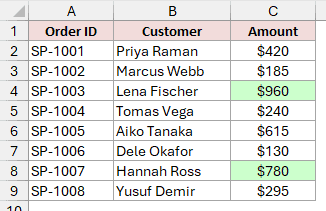
This function reads direct cell formatting. Excel does not recalculate a UDF when you change a cell’s fill, so the result stays stale until you press Ctrl+Alt+F9. It does not see colors created by Conditional Formatting because DisplayFormat cannot be used in a worksheet UDF.
For macros that apply colors by conditions, the worked VBA cell-color examples cover ranges, cell values, and date-based rules.
Using ThemeColor and TintAndShade
Theme colors are the modern choice when a workbook’s design should update as a unit.
Use .ThemeColor for the theme role, then .TintAndShade to make it lighter or darker:
With Range("A1").Interior
    .ThemeColor = xlThemeColorAccent1
    .TintAndShade = 0.4
End WithTintAndShade accepts values from -1 to 1. Negative values darken the color, positive values lighten it, and 0 leaves it unchanged.
Use .Color for one exact brand color. Use .ThemeColor with .TintAndShade when formatting should follow the workbook’s theme.
Reading .ThemeColor from an object that is not currently theme-colored raises a run-time error. Check your color model before trying to read that property.
Which VBA Color Property Should You Use?
| What you need to do | Use |
|---|---|
| Set one exact color | .Color = RGB(r, g, b) |
| Read one exact color | .Color |
| Test whether a cell has no fill | .ColorIndex = xlNone |
| Remove a cell fill | .Interior.ColorIndex = xlNone |
| Reset a font color | .Font.ColorIndex = xlAutomatic |
| Follow the workbook theme | .ThemeColor with .TintAndShade |
| Read a Conditional Formatting color | .DisplayFormat.Interior.Color from VBA |
| Work with legacy palette code | .ColorIndex and Workbook.Colors |
My default is .Color with RGB(). It is exact, portable across workbooks, and much harder to misread later.
Additional Notes About Excel VBA Cell Colors
- A white fill and no fill are different states.
.Colorreports 16777215 for both, so use.ColorIndexor.Patternto tell them apart. - Palette-dependent code is workbook-dependent. If the same index looks different in another file, inspect
Workbook.Colorsbefore blaming the macro. - Keep your read and write models matched. Read
.Colorafter writing.Color, and read theme properties after writing theme properties.
Frequently Asked Questions
Is ColorIndex the same as the cell’s color?
No. ColorIndex is a slot number in the workbook’s 56-entry palette, and the workbook can redefine what that slot displays.
Why does .Interior.Color = &HFF0000 make the cell blue instead of red?
VBA’s hexadecimal Long uses BGR byte order. &HFF0000 puts FF in the blue byte, while red is &H0000FF.
Why does ColorIndex give the wrong color for a theme-filled cell?
Excel maps the exact fill onto one of the 56 palette slots. That projection is lossy, so read .Color when you need the actual displayed fill.
How do I get the red, green, and blue numbers from a cell color?
Use c Mod 256 for red, (c \ 256) Mod 256 for green, and c \ 65536 for blue.
How do I remove a fill and tell an unfilled cell from a white one?
Set .Interior.ColorIndex = xlNone to remove the fill. Test ColorIndex because .Color returns 16777215 for both no fill and white.
Why does my macro not see Conditional Formatting colors?
Use Range.DisplayFormat from VBA to read the displayed formatting. It is read-only and cannot be used from a worksheet UDF.
Conclusion
ColorIndex is a palette pointer, not a permanent color code. Its 56 slots contain only 46 distinct colors, and a workbook can redefine any slot.
For reliable VBA, I use .Color = RGB(...) and read .Color back. I keep ColorIndex for xlNone, legacy palettes, and code that deliberately uses palette slots.
I hope you found this article helpful.
Other Excel articles you may also like:
