
Select Case in Excel VBA checks one value against several possibilities and runs only the matching block. Its tidy list of outcomes replaces a long chain of If…ElseIf lines.
The catch is that only the first matching Case runs, so the order of your Case lines matters.
I’ll show you how to match several values, test number ranges with To and Is, and check different columns with Select Case True.
VBA Select Case Syntax
You give Select Case one value to check. VBA compares it with each Case in order and runs the lines under the first match.
Here’s how you write the block:
Select Case testexpression
    Case expressionlist1
        statements1
    Case expressionlist2
        statements2
    Case Else
        elsestatements
End SelectYou can read its parts like this:
testexpression(required): the value you want to check, usually a number or text from a cell or a variable.Case expressionlist(required for each Case): what to compare the value with. Options include one value, comma-separated values, a range withTo, or a comparison withIs.statements(optional): the lines that run when that Case matches.Case Else(optional): the lines that run when no other Case matches.End Select(required): closes the block.
For each Case, you can write your check in three ways:
- Match an exact value with
Case "Express"orCase 10. - Match a range with
Case 10 To 24. Both ends of the range are included. Put the smaller value first. - Compare with
Case Is >= 50. If you typeCase >= 50, the Visual Basic Editor addsIsfor you.
You can also mix these checks on one Case line, separating them with commas:
Case 1 To 4, 7 To 9, 11, Is > 20Here’s how VBA runs the block:
- Only the first matching Case runs. VBA continues after
End Select, even if a later Case would also match. - If nothing matches and there’s no
Case Else, nothing runs and the macro continues afterEnd Select. You don’t get an error. - You need a separate
End Selectfor every Select Case block.
Example #1: Show a Message From a Cell Value
I’ll start with a shipping message. You select a shipping method, and a message box tells you how long delivery takes.
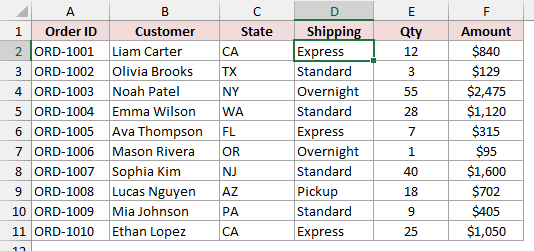
Below I have 10 online-store orders in A1:F11, with Order ID, Customer, State, Shipping, Qty, and Amount. You can see Express selected in D2.
Use this VBA code to read your selected cell and show the delivery message:
Sub ShowDeliveryTime()
    Dim shipMethod As String
    shipMethod = ActiveCell.Value
    Select Case shipMethod
        Case "Standard"
            MsgBox "Standard orders arrive in 5 to 7 business days."
        Case "Express"
            MsgBox "Express orders arrive in 2 to 3 business days."
        Case "Overnight"
            MsgBox "Overnight orders arrive the next business day."
        Case Else
            MsgBox "There is no delivery time for " & shipMethod & "."
    End Select
End Sub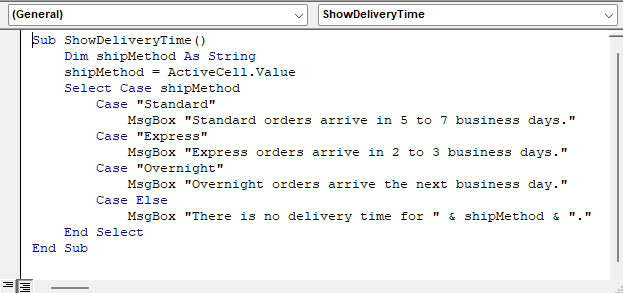
Here are the steps to run it:
- Press Alt + F11 to open the Visual Basic Editor.
- Click Insert > Module.
- Paste the code into the module.
- Go back to the Delivery Time sheet and select a cell in the Shipping column, D2 in this example.
- Press Alt + F8, select ShowDeliveryTime, and click Run.
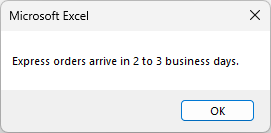
With D2 selected, you’ll get the message “Express orders arrive in 2 to 3 business days.”
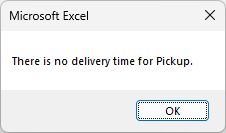
Now select D9, which contains Pickup, and run it again. Since no Case lists Pickup, you’ll get “There is no delivery time for Pickup.”
How does this code work?
I store the text from your selected cell in shipMethod. ActiveCell.Value reads whichever cell you currently have selected.
With Select Case shipMethod, I check that text against Standard, Express, and Overnight in order.
When the text matches, its MsgBox line displays the message. VBA then skips the remaining cases and continues after End Select.
For anything else, I use Case Else. You get this message for Pickup, a blank cell, or a typo.
The & symbols join the message text with your cell’s shipping method and a final period.
You get these other messages when you select the matching shipping methods:
- Standard: “Standard orders arrive in 5 to 7 business days.”
- Overnight: “Overnight orders arrive the next business day.”
Note: Text matching in Select Case is case-sensitive by default. A cell containing “express” won’t match Case "Express", so you’ll get the Case Else message.
To ignore capitalization, you can write Select Case LCase(shipMethod) and use lowercase text in every Case.
Alternatively, put Option Compare Text at the very top of your module to make its text comparisons ignore capitalization.
Example #2: Match Several Values in One Case
You don’t need a separate Case for every state. I’ll group state codes together so you can assign each order a region.
Below I have 10 online-store orders in A1:F11, with Order ID, Customer, State, Shipping, Qty, and Amount. You’ll use the State codes in column C.
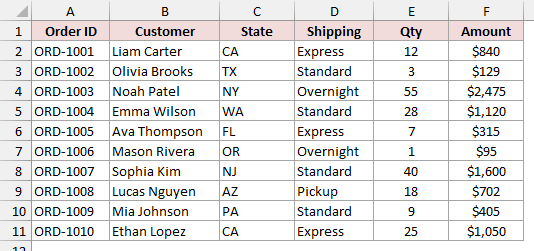
In the example file, the Region sheet already has a Region header in G1. Use this code to fill G2:G11 below it:
Sub AddRegion()
    Dim i As Long
    For i = 2 To 11
        Select Case Range("C" & i).Value
            Case "CA", "OR", "WA"
                Range("G" & i).Value = "West"
            Case "NY", "NJ", "PA"
                Range("G" & i).Value = "Northeast"
            Case "TX", "AZ"
                Range("G" & i).Value = "Southwest"
            Case Else
                Range("G" & i).Value = "Other"
        End Select
    Next i
End Sub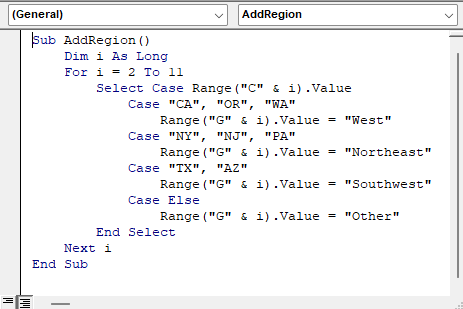
Switch to the Region sheet first. These macros don’t name a sheet in their Range(...) references, so they write to whichever worksheet is active.
Paste it into a module and run AddRegion the same way as in Example #1. You don’t need to select a particular cell.
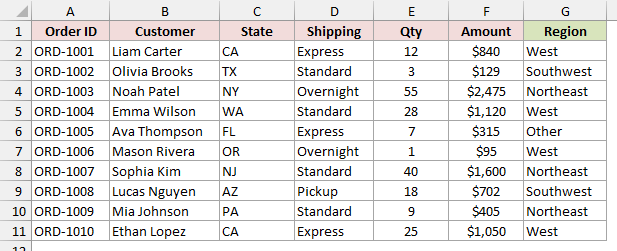
In G2:G11, you’ll get West, Southwest, Northeast, West, Other, West, Northeast, Southwest, Northeast, West, in that order.
How does this code work?
I use a For Next loop to count i from 2 to 11. Each pass handles one order.
Inside the loop, I read the state code from column C with Range("C" & i).Value.
Case "CA", "OR", "WA" matches if the state is any of those three. The commas mean “or”, so one match is enough.
I write the region into column G on the same row, and the loop moves to the next order.
FL isn’t in any of the lists, so Case Else writes Other for ORD-1005.
Example #3: Test Number Ranges With To and Is
For quantity discounts, you need number ranges instead of text lists. I’ll use the order quantities to assign a discount to each row.
Below I have 10 online-store orders in A1:F11, with Order ID, Customer, State, Shipping, Qty, and Amount. You’ll check Qty in column E.
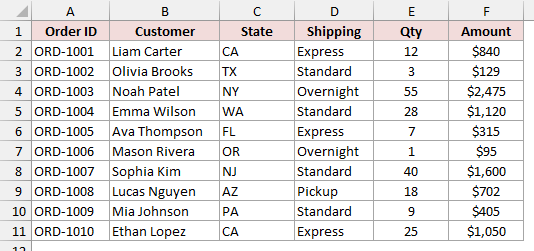
Here are the discounts you’ll assign:
- 1 to 9 units: 0%.
- 10 to 24 units: 5%.
- 25 to 49 units: 10%.
- 50 or more units: 15%.
In the example file, the Discount sheet already has a Discount header in G1. Use this code to fill G2:G11 below it:
Sub AddDiscount()
    Dim i As Long
    For i = 2 To 11
        Select Case Range("E" & i).Value
            Case 1 To 9
                Range("G" & i).Value = 0
            Case 10 To 24
                Range("G" & i).Value = 0.05
            Case 25 To 49
                Range("G" & i).Value = 0.1
            Case Is >= 50
                Range("G" & i).Value = 0.15
        End Select
    Next i
End Sub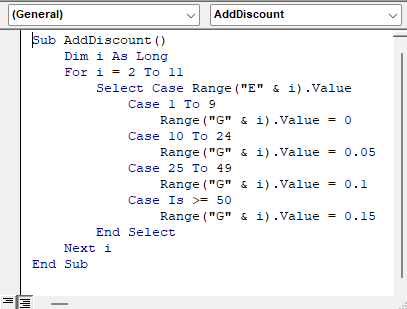
Paste it into a module, switch to the Discount sheet, and run AddDiscount as in Example #1. You don’t need a particular cell selected.
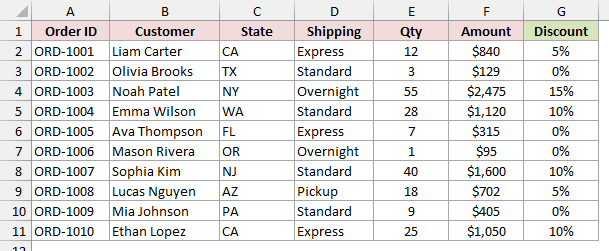
You’ll get 5%, 0%, 15%, 10%, 0%, 0%, 10%, 5%, 0%, 10% in G2:G11.
The Discount column in the example file is already formatted as a percentage, so 0.05 shows as 5%.
How does this code work?
I read the quantity from column E on each pass through the loop. Case 1 To 9 matches every number from 1 through 9.
Both ends of each range are included. ORD-1009 has exactly 9 units and gets 0%. ORD-1010 has exactly 25 and gets 10%.
I use Case Is >= 50 for the highest tier. It has no upper limit, so anything from 50 up, like ORD-1003’s 55 units, gets 15%.
Note: Put the smaller number before To. If you write Case 24 To 10, that Case never matches. You won’t get an error.
For decimal quantities, you could miss values between ranges. A Qty of 9.5 matches neither 1 To 9 nor 10 To 24.
I’d use Is comparisons such as Case Is < 10 when your quantities can include decimals.
Example #4: Check Multiple Conditions With Select Case True
Sometimes you need to check different columns. I’ll assign order priorities using both the shipping method and the order amount.
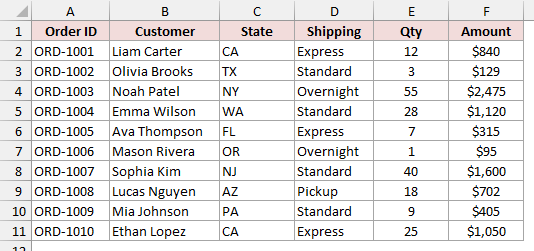
Below I have 10 online-store orders in A1:F11, with Order ID, Customer, State, Shipping, Qty, and Amount. You’ll use columns D and F.
You want these priorities, checked in this order:
- Overnight orders get Rush.
- Orders worth $1,000 or more get High Value.
- Pickup orders get Hold at Store.
- All other orders get Normal.
In the example file, the Priority sheet already has a Priority header in G1. Use this code to fill G2:G11 below it:
Sub AddPriority()
    Dim i As Long
    Dim shipMethod As String
    Dim amount As Double
    For i = 2 To 11
        shipMethod = Range("D" & i).Value
        amount = Range("F" & i).Value
        Select Case True
            Case shipMethod = "Overnight"
                Range("G" & i).Value = "Rush"
            Case amount >= 1000
                Range("G" & i).Value = "High Value"
            Case shipMethod = "Pickup"
                Range("G" & i).Value = "Hold at Store"
            Case Else
                Range("G" & i).Value = "Normal"
        End Select
    Next i
End Sub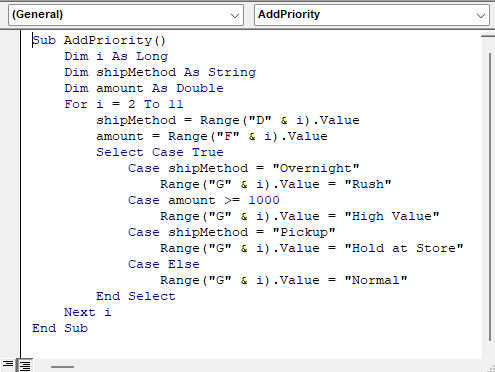
Paste it into a module, switch to the Priority sheet, and run AddPriority as in Example #1. You don’t need to select a particular cell.
In G2:G11, you’ll get Normal, Normal, Rush, High Value, Normal, Rush, High Value, Hold at Store, Normal, High Value.
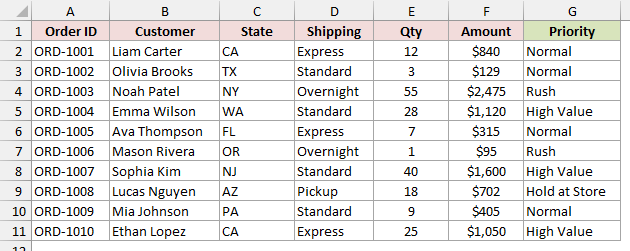
How does this code work?
Normally, you compare one value with a list of possibilities. Here, the checks involve two columns, so I use Select Case True.
Each Case now contains a condition that returns True or False. VBA runs the first Case whose condition is True.
I first read your shipping method and amount from columns D and F into shipMethod and amount. That keeps the Case lines short.
ORD-1003 is an Overnight order worth $2,475, so both the first and second conditions are True.
It gets Rush because the Overnight check comes first. If you move the amount check above it, it gets High Value instead.
You can also combine conditions within one Case using And or Or. For example, Case shipMethod = "Express" And amount >= 1000 requires both tests to pass.
Example #5: Use Select Case in a Custom Function
Select Case also works inside a custom function you can call from a worksheet formula.
I’ll build one that returns the shipping charge for the method you pass to it.
Below I have 10 online-store orders in A1:F11, with Order ID, Customer, State, Shipping, Qty, and Amount. You’ll use the Shipping values in column D.
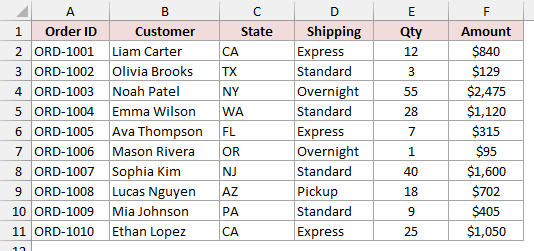
Use this code to create a user defined function, or UDF, named ShippingCost:
Function ShippingCost(shipMethod As String) As Variant
    Select Case shipMethod
        Case "Standard"
            ShippingCost = 4.99
        Case "Express"
            ShippingCost = 12.99
        Case "Overnight"
            ShippingCost = 24.99
        Case "Pickup"
            ShippingCost = 0
        Case Else
            ShippingCost = CVErr(xlErrNA)
    End Select
End Function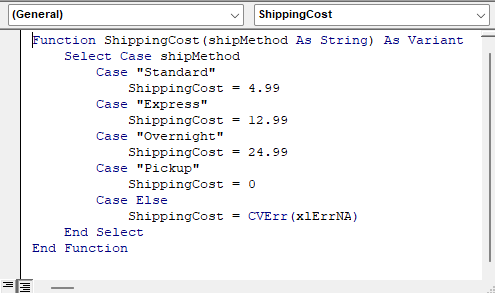
Here are the steps to use it on your Shipping Cost sheet:
- Open the Visual Basic Editor and click Insert > Module. Paste the function into the new module. It must be a regular module, not a worksheet’s code window.
- Go back to your worksheet and enter this formula in G2:
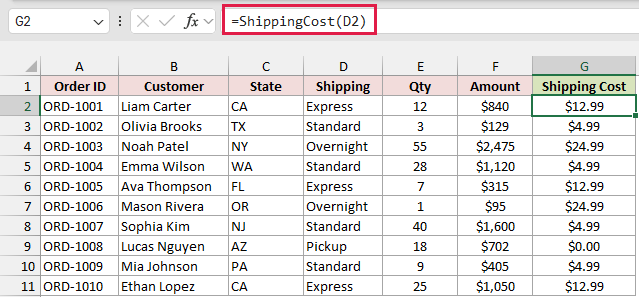
=ShippingCost(D2)
The function takes one cell at a time, so copy the formula down to G11. If you pass the whole range D2:D11 instead, it returns #VALUE!
In G2:G11, you’ll get $12.99, $4.99, $24.99, $4.99, $12.99, $24.99, $4.99, $0.00, $4.99, $12.99.
The Shipping Cost column in the example file is formatted as currency, so 12.99 shows as $12.99.
How does this code work?
Inside a function, you return an answer by assigning it to the function’s own name. I use ShippingCost = 4.99 for Standard shipping.
The shipping method decides which line runs:
- Standard returns $4.99.
- Express returns $12.99.
- Overnight returns $24.99.
- Pickup returns $0.00.
For an unknown method, I return CVErr(xlErrNA) through Case Else. If you enter =ShippingCost("Drone"), you’ll see #N/A instead of a misleading zero.
I declare the function As Variant because it returns either a number or an error value.
Save the workbook as a macro-enabled workbook (.xlsm) to keep this function and the macros from the earlier examples.
If you save it as a regular .xlsx file, Excel removes the VBA code. The ShippingCost formulas show #NAME? once Excel recalculates them.
Select Case vs If Then ElseIf
I’d use Select Case when you check the same value repeatedly. With If Then Else, you write a complete condition for each branch.
Here’s how your choices compare:
| Feature | Select Case | If Then ElseIf |
|---|---|---|
| Best for | Checking one value against many possible values | Conditions that test different things, or need And / Or |
| Ranges | Case 10 To 24 | ElseIf qty >= 10 And qty <= 24 Then |
| Several values | Case "CA", "OR", "WA" | If st = "CA" Or st = "OR" Or st = "WA" Then |
| Readability with many branches | Stays easy to scan | Gets long and repetitive |
| Which branch runs | First matching Case only | First True condition only |
For one or two simple conditions, you can stick with If Then Else.
When your conditions involve different values, Select Case True gives you the Case layout you saw in Example #4.
Additional Notes About Using Select Case in Excel VBA
Keep these details in mind when you adapt these examples:
- Put your most specific Case first. A broad
Case Is >= 10aboveCase Is >= 50catches 55 before your higher tier can run. - I recommend adding
Case Elseto handle unexpected input. Without it, a typo or blank cell can leave your output empty without explaining why. - Watch empty cells in numeric checks. VBA treats their values as 0, so your
Case 0orCase Is < 1also matches blanks. - Be careful with text ranges.
Case "A" To "M"matches Apple and M, but not Mango, because Mango sorts after M. - You can shorten a small Case with a colon, like
Case "Express": days = 3, to keep its assignment on the same line.
Frequently Asked Questions
You can also use Select Case with pattern matches, nested decisions, and dates. Here’s how I’d approach those situations.
Can I Use Wildcards in VBA Select Case?
You can’t use wildcards inside a normal Case, because Is only works with comparison operators like = or >=, not Like.
I’d use Select Case True with Case orderID Like "ORD-10*", where orderID holds the cell’s text. That matches any order ID starting with ORD-10.
Can You Nest Select Case Statements in VBA?
Yes. You can put another Select Case block inside one of your Case blocks, and each block needs its own End Select.
I’d use that when you need a second decision within the first, such as checking the shipping method after matching a region.
Does VBA Select Case Work With Dates?
Yes. You can compare date values with To ranges or Is comparisons, just as you compare numbers.
For a date range, you can write Case #1/1/2026# To #3/31/2026#. Both the starting and ending dates are included.
This works for whole dates. A date with a time on March 31 won’t match, because #3/31/2026# means midnight on that day.
Conclusion
Select Case is the cleanest way to let one value pick between several outcomes in a macro. When your conditions involve different values, switch to Select Case True.
Either way, put your most specific Case first and add a Case Else for unexpected input.
I hope you found this article helpful.
Other Excel articles you may also like:
