
When you compare dates in Excel VBA, two cells showing the same date can still contain different times and return False for an equality check.
A VBA Date value includes the time. Decide whether you need to compare the full timestamp or check whether both values fall on the same calendar day.
I’ll show you how to compare full timestamps with <, >, and =, then use DateSerial to compare calendar days while ignoring the time.
Method #1: Using Comparison Operators
Use this method when the time matters, such as checking whether an event occurred before or after a particular cutoff.
The Date Checks sheet has event IDs in A2:A13 and event dates in B2:B13. Cell B15 contains the reference timestamp, October 15, 2026, at noon.
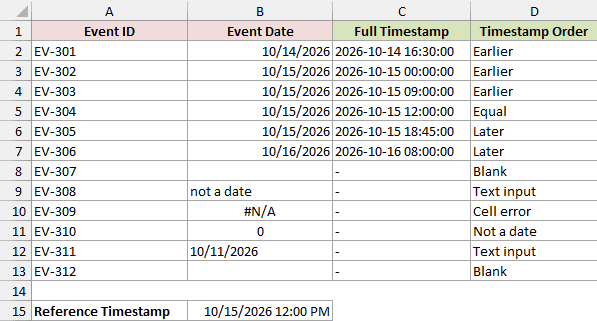
Column B displays dates without their times. We want to reveal each valid timestamp in column C and label it Earlier, Equal, or Later in column D.
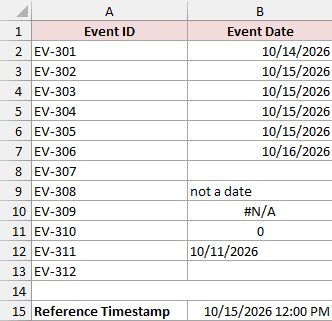
The input also includes a blank, text, a worksheet error, numeric zero, and an empty-string formula. These cases should produce explanatory labels instead of date comparisons.
The download is a plain .xlsx file with no macro inside. You’ll paste the code into it yourself, and it only takes a minute.
ThisWorkbook means the workbook containing the code. Add the code to your Date Checks workbook, and update the sheet and range references for different data.
Here are the steps in Excel for Windows:
- Open the example workbook. If you see the yellow Protected View bar at the top, click Enable Editing.
- Save a copy as Excel Macro-Enabled Workbook (
*.xlsm), so the code stays with the file. - On Date Checks, select C2:D13 and press Delete. That clears the finished results so you can watch the macro fill them in.
- Press Alt + F11 to open the Visual Basic Editor.
- In the Project pane, select your workbook and choose Insert > Module. Click the copy button on the code below, then paste it into the new module.
- Place the cursor inside
SPCompareTimestamps, press F5, and return to Date Checks to check columns C and D.
Option Explicit

Public Sub SPCompareTimestamps()
    Dim ws As Worksheet
    Dim cell As Range
    Dim eventTime As Date
    Dim referenceTime As Date
    Dim issue As String
    Set ws = ThisWorkbook.Worksheets("Date Checks")

    If Not TryReadCellDate(ws.Range("B15"), referenceTime, issue) Then
        Err.Raise vbObjectError + 2101, "SPCompareTimestamps", _
                  "B15 must contain a real, date-formatted Excel date/time."
    End If

    For Each cell In ws.Range("B2:B13")
        If TryReadCellDate(cell, eventTime, issue) Then
            ' This formatted text is display output, never an input to comparison.
            ws.Cells(cell.Row, "C").Value2 = Format$(eventTime, "yyyy-mm-dd hh:nn:ss")
            If eventTime < referenceTime Then
                ws.Cells(cell.Row, "D").Value2 = "Earlier"
            ElseIf eventTime > referenceTime Then
                ws.Cells(cell.Row, "D").Value2 = "Later"
            Else
                ws.Cells(cell.Row, "D").Value2 = "Equal"
            End If
        Else
            ws.Cells(cell.Row, "C").Value2 = "-"
            ws.Cells(cell.Row, "D").Value2 = issue
        End If
    Next cell
End Sub

Private Function TryReadCellDate(ByVal source As Range, ByRef result As Date, _
                                 ByRef issue As String) As Boolean
    Dim rawValue As Variant
    rawValue = source.Value  ' Deliberately Value, because Value2 removes the Date subtype.
    issue = vbNullString

    ' Separate tests prevent error/empty values reaching a conversion or comparison.
    If IsError(rawValue) Then
        issue = "Cell error"
        Exit Function
    End If
    If IsEmpty(rawValue) Then
        issue = "Blank"
        Exit Function
    End If
    If VarType(rawValue) = vbString Then
        If Len(Trim$(rawValue)) = 0 Then
            issue = "Blank"
        Else
            issue = "Text input"
        End If
        Exit Function
    End If
    If VarType(rawValue) <> vbDate Then
        issue = "Not a date"
        Exit Function
    End If

    result = rawValue
    TryReadCellDate = True
End FunctionThe Full Timestamp column reveals the stored times, and Timestamp Order shows how each event compares with the noon reference.
How does the code work?
The helper reads B15 into referenceTime, then reads each valid event into eventTime. Both variables are declared As Date.
The < operator identifies earlier timestamps, > identifies later ones, and the final Else handles equality after those two checks fail.
VBA compares Date values numerically, so the time participates in these comparisons.
Look at the four events dated October 15, 2026:
- EV-302 at 00:00:00 is Earlier than noon.
- EV-303 at 09:00:00 is also Earlier.
- EV-304 at 12:00:00 is Equal.
- EV-305 at 18:45:00 is Later.
EV-301, on October 14 at 16:30, is Earlier. EV-306, on October 16 at 08:00, is Later.
The Format$ call writes readable timestamp text into column C. The comparison uses the Date variables directly, so the timestamp text doesn’t affect the result.
The helper checks each source cell before assigning it to a Date variable. It returns Blank, Text input, Cell error, or Not a date when appropriate.
It deliberately accepts only date-formatted Excel cells that Range.Value returns with the Date subtype. Convert imported text to real Excel dates before using this code.
Note: The helper uses .Value, not .Value2. Microsoft documents that Value2 doesn’t use the Date data type, so replacing it would reject the valid dates here.
Method #2: Using DateSerial
If you only care about the day, rebuild both dates without their times before comparing them.
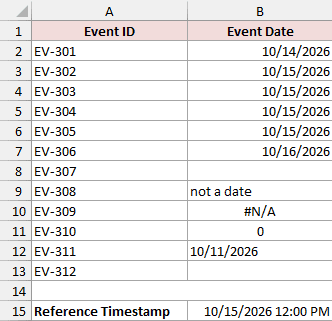
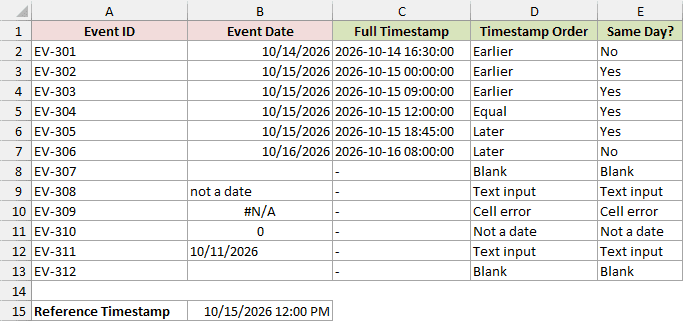
On Date Checks, B2:B13 contains event dates and B15 holds October 15, 2026, at noon. We want Same Day? in column E to show Yes or No.
The visible dates hide different times. This check should treat all four valid October 15 events as the same day as the reference.
Here are the steps to run the calendar-day check in Excel for Windows:
- Open the example workbook and save a copy as Excel Macro-Enabled Workbook (
*.xlsm) if you haven’t already. - On Date Checks, select E2:E13 and press Delete so you can watch the macro fill the column.
- Press Alt + F11, select that workbook’s project, and choose Insert > Module to create a new standard module.
- Paste the complete code below into that new module, separate from the first example. Each example includes its own private helper.
- Place the cursor inside
SPCompareCalendarDays, press F5, and return to Date Checks to check column E.
Note: If you see “Ambiguous name detected”, both examples are in one module. Give each example its own module.
Option Explicit

Public Sub SPCompareCalendarDays()
    Dim ws As Worksheet
    Dim cell As Range
    Dim eventTime As Date
    Dim referenceTime As Date
    Dim eventDay As Date
    Dim referenceDay As Date
    Dim issue As String
    Set ws = ThisWorkbook.Worksheets("Date Checks")

    If Not TryReadCellDate(ws.Range("B15"), referenceTime, issue) Then
        Err.Raise vbObjectError + 2102, "SPCompareCalendarDays", _
                  "B15 must contain a real, date-formatted Excel date/time."
    End If
    referenceDay = DateSerial(Year(referenceTime), Month(referenceTime), Day(referenceTime))

    For Each cell In ws.Range("B2:B13")
        If TryReadCellDate(cell, eventTime, issue) Then
            eventDay = DateSerial(Year(eventTime), Month(eventTime), Day(eventTime))
            If eventDay = referenceDay Then
                ws.Cells(cell.Row, "E").Value2 = "Yes"
            Else
                ws.Cells(cell.Row, "E").Value2 = "No"
            End If
        Else
            ws.Cells(cell.Row, "E").Value2 = issue
        End If
    Next cell
End Sub

Private Function TryReadCellDate(ByVal source As Range, ByRef result As Date, _
                                 ByRef issue As String) As Boolean
    Dim rawValue As Variant
    rawValue = source.Value  ' Deliberately Value, because Value2 removes the Date subtype.
    issue = vbNullString

    ' Separate tests prevent error/empty values reaching a conversion or comparison.
    If IsError(rawValue) Then
        issue = "Cell error"
        Exit Function
    End If
    If IsEmpty(rawValue) Then
        issue = "Blank"
        Exit Function
    End If
    If VarType(rawValue) = vbString Then
        If Len(Trim$(rawValue)) = 0 Then
            issue = "Blank"
        Else
            issue = "Text input"
        End If
        Exit Function
    End If
    If VarType(rawValue) <> vbDate Then
        issue = "Not a date"
        Exit Function
    End If

    result = rawValue
    TryReadCellDate = True
End FunctionSame Day? shows Yes for EV-302, EV-303, EV-304, and EV-305. It shows No for EV-301 and EV-306.
Year, Month, and Day extract the calendar components from each valid Date value. DateSerial rebuilds them as a date at midnight.
The macro does this for both referenceDay and eventDay. Comparing those values with = checks the calendar date without comparing the original times.
This example assumes Gregorian calendar settings. DateSerial can roll out-of-range components into another month or year, so don’t use it to validate typed date parts.
Here it receives components from existing dates, which avoids that issue.
This changes the 09:00 and 18:45 events from different timestamps into matching calendar days. It doesn’t change the source values in column B.
I’ve included the helper again so this example runs by itself. It produces the same invalid-input labels as the timestamp example.
This procedure reads column B and B15, then writes only to column E. Columns C and D hold the results from the first example.
Additional Notes About Comparing Dates in Excel VBA
These details are useful when you adapt the comparison to your own data:
- Changing the number format to show only a date doesn’t remove a stored time. VBA’s Date data type includes both date and time.
- Keep real date inputs date-formatted for this helper. A number with a General or ordinary number format is outside its accepted input types, even if it could represent a serial date.
- The text 10/11/2026 in B12 intentionally returns Text input. It could mean October 11 or November 10, depending on the intended date order.
- Don’t use
CDateto guess that order. Its text-date recognition depends on system locale. Convert text using an explicit source format before comparing it.
Frequently Asked Questions
These questions cover a few details of the validation and output.
Why Does a Formula Returning an Empty String Show Blank?
The helper tests strings after checking truly empty cells. A zero-length string passes its blank-text check, so B13 returns Blank instead of Text input.
Does Timestamp Equality Allow a Few Seconds of Difference?
No. The timestamp comparison requires equal Date values. If your task allows a time difference, define that tolerance separately rather than using exact equality.
This matters most for timestamps built by adding fractions of a day, such as 7/24 + 7/1440 + 7/86400. Tiny floating-point differences can make two values that display identically fail an equality check.
Compare the absolute difference against a small tolerance instead, such as Abs(a - b) < 0.5 / 86400, which treats values within half a second as equal.
What Happens if the Reference Cell Is Invalid?
The procedure raises an error explaining that B15 must contain a real, date-formatted Excel date/time. It stops before processing the event rows.
Can I Use Greater Than or Equal To?
Yes. >= includes the matching timestamp along with later ones, while <= includes the matching timestamp along with earlier ones.
Conclusion
I’ve shown you how to compare full timestamps and calendar days.
I hope you found this article helpful.
Other Excel articles you may also like: