
When you build a data table in Excel, you may run into an error that stops it before it starts. The message is: Input cell reference is not valid.
It shows up because Excel is strict about what a row or column input cell can be. Most often it sits on a different worksheet than the table.
Three other references trigger the same message. In this article, I’ll show you all four causes and the fix for each.
Reason #1: The Input Cell Is on Another Sheet
This is the most common reason for the error. A data table’s row and column input cells must be on the same worksheet as the table.
Below I have a loan model on Loan Model and a sensitivity table on Rate Table. The Column input cell points to 'Loan Model'!B3.
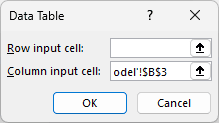
Excel rejects that reference when I click OK. The table can use a result formula from another sheet, but its input cell cannot live there.
Fix 1: Put the Data Table on the Same Sheet as the Input
The simplest fix is to keep the data table beside the model. This lets the table use the model’s real input cell directly.
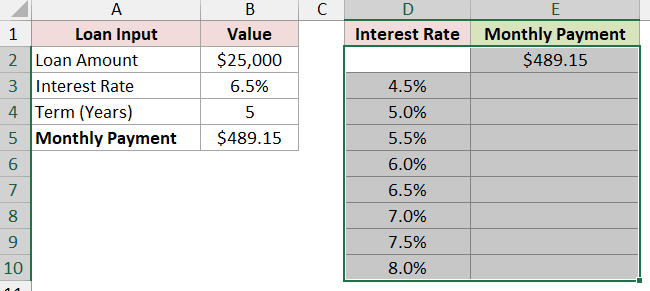
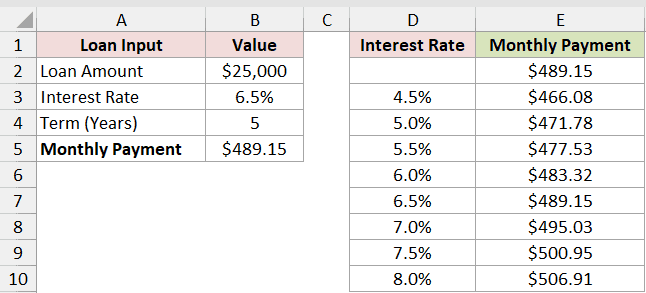
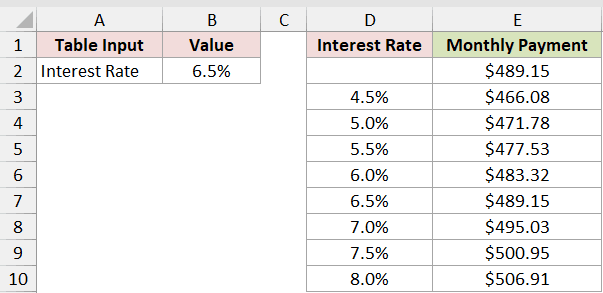
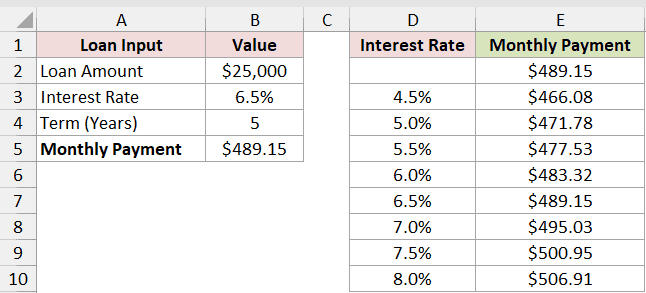
On Same Sheet, B2 is $25,000, B3 is 6.5%, and B4 is 5 years. B5 calculates a monthly payment of $489.15.
Here are the steps to create the working one-variable table:
- Select D2:E10. D3:D10 contains interest rates from 4.5% through 8.0%, and E2 refers to the monthly payment in B5.
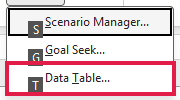
- Go to the Data tab, click What-If Analysis, and choose Data Table.
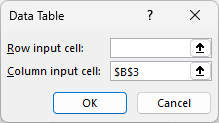
- Leave Row input cell empty. Click the Column input cell box, then select B3 on
Same Sheet.
- Click OK.
E3:E10 now returns $466.08, $471.78, $477.53, $483.32, $489.15, $495.03, $500.95, and $506.91.
Fix 2: Move the Input Cell to the Data Table’s Sheet
If the table must stay on a separate worksheet, move the real input there. Then make the model read that same-sheet input.
Below I have Rate Table with Interest Rate in A2 and 6.5% in B2. The sensitivity table remains in D1:E10.
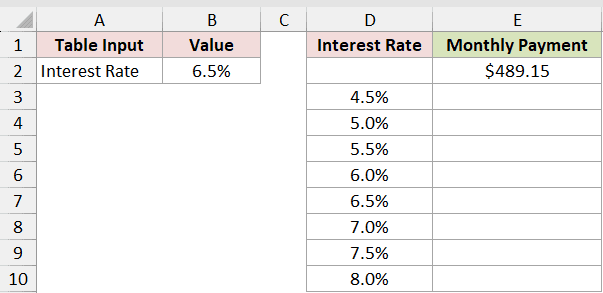
Here are the steps to connect the model correctly:
- Enter 6.5% in
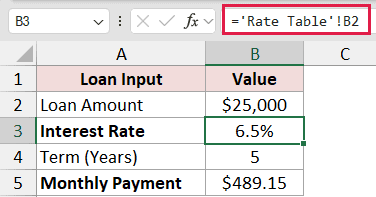
Rate Table!B2. OnLoan Model, replace the interest rate in B3 with this formula:
='Rate Table'!B2
- On
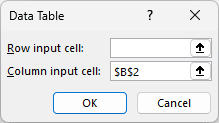
Rate Table, select D2:E10. Open Data > What-If Analysis > Data Table, leave Row input cell empty, and select B2 for Column input cell.
- Click OK.
The table now returns the same eight monthly payments as the working table on Same Sheet.
Note: A popular workaround puts ='Loan Model'!B3 on the table sheet and uses that linking cell as the input. It removes the error but returns $489.15 in every row because the model does not read the cell Excel changes.
Reason #2: The Row and Column Input Cells Are the Same Cell
Here’s another reference Excel rejects. In a two-variable table, the row and column input boxes cannot point to the same cell.
Below I have Two-Variable, where rates run down D3:D10 and terms of 3, 4, 5, and 6 years run across E2:H2.
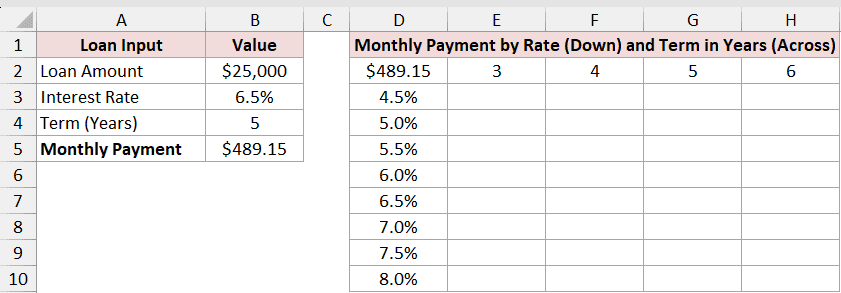
The value across the top replaces the row input. The value down the left replaces the column input, so each one needs its own model cell.
Here are the steps to correct the two-variable table:
- Select D2:H10, then go to Data > What-If Analysis > Data Table. Set Row input cell to B4 and Column input cell to B3.
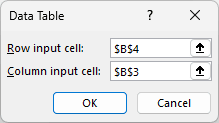
- Click OK.
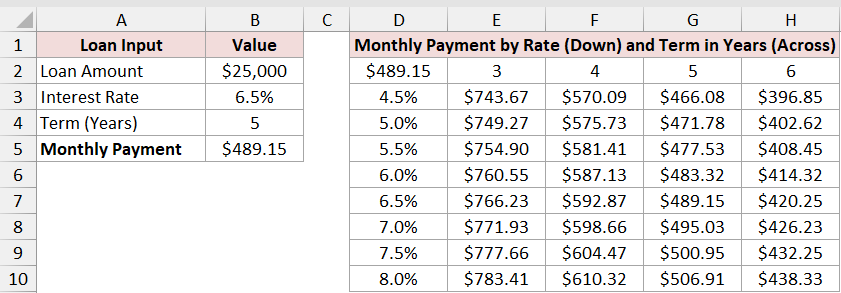
The table returns $743.67 for 4.5% over 3 years, $489.15 for 6.5% over 5 years, and $438.33 for 8.0% over 6 years.
Reason #3: The Input Is Not a Single Cell
The Row input cell and Column input cell boxes accept one cell only. A multi-cell range, merged cell, or whole column triggers the error.
Below I have the one-variable loan table with B3:B4 entered as the Column input cell instead of one cell.
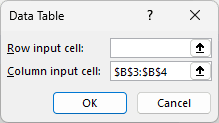
B3:B4 contains two inputs, so Excel cannot know which model value it should substitute. The same problem occurs with B:B or a merged cell.
Here are the steps to fix the reference:
- Clear the invalid reference. If the intended input is merged, unmerge it first. Then select the single interest-rate cell B3.
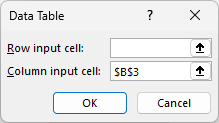
- Click OK.
Excel accepts B3 and fills E3:E10 with a different monthly payment for each interest rate.
Reason #4: The Input Cell Is Inside the Data Table
Excel also rejects an input cell that sits inside the data table’s selected range. The substitution cell must remain separate from the result array.
Below I have D2:E10 selected for the table, with E3 incorrectly entered as the Column input cell.
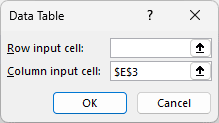
E3 is part of the range Excel is about to fill. It cannot serve as both the changing model input and a calculated table result.
Here are the steps to correct it:
- Clear E3 from the Column input cell box. Select B3, which contains the interest rate and sits outside D2:E10.
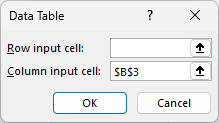
- Click OK.
The valid outside input lets Excel calculate the full result range without the reference error.
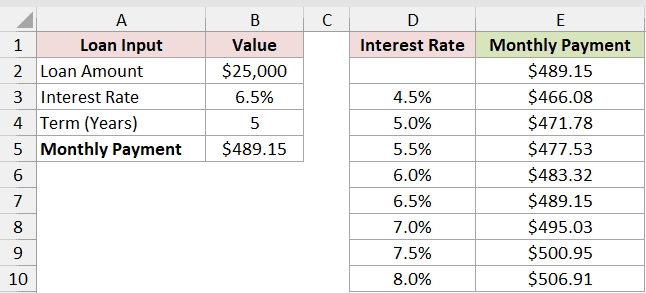
Why Your Data Table Shows the Same Value in Every Row
Sometimes Excel accepts the reference but produces the wrong result. Below, every interest rate returns the original $489.15 payment.
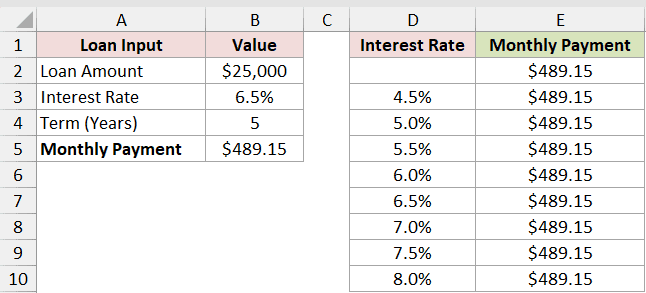
These problems do not cause the Input cell reference is not valid message:
- An unrelated or blank input cell is valid, but changing it does not affect the model.
- A linking cell such as
='Loan Model'!B3fails when the model never reads that linking cell. - Swapping the row and column input cells can calculate incorrect numbers instead of showing an error.
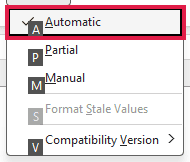
- Automatic Except for Data Tables leaves existing table results stale until you recalculate them.
Here is how to refresh a stale table:
- Press F9. To recalculate data tables with normal workbook changes, go to Formulas > Calculation Options and choose Automatic.
All four causes at a glance:
| Cause | How to spot it | Fix |
|---|---|---|
| Input cell is on another sheet | The table and its row or column input cell have different sheet names | Put the table on the input sheet, or move the real input to the table sheet |
| Row and column inputs are identical | Both boxes in a two-variable Data Table dialog point to the same cell | Use one cell for each variable |
| Input is not one single cell | The box contains a range, merged cell, or whole-column reference | Select one unmerged cell |
| Input is inside the table | The referenced cell sits within the selected data table range | Move the input outside the table |
Frequently Asked Questions
Here are some commonly asked questions about the data table and people getting the Input Cell Reference Is Not Valid in Excel prompt:
Can the Input Cell Be on a Different Sheet From the Data Table?
No. A row or column input cell must be on the data table’s worksheet. The output formula in the table can still refer to another sheet.
Why Can’t I Delete Part of an Excel Data Table?
Excel stores the results as one array, shown as {=TABLE(,B3)} in this example. Select the entire results array before deleting it.
What Is the Difference Between a Row Input Cell and a Column Input Cell?
The row input cell matches test values arranged across the top. The column input cell matches values arranged down the left side.
Can I Type the TABLE Function Myself?
No. Excel creates the TABLE array formula through Data > What-If Analysis > Data Table. You cannot enter TABLE() as a normal worksheet function.
Conclusion
I’d start by checking that the input cell and the data table sit on the same worksheet. That is the most likely cause of this error.
If they already do, make sure each box holds one distinct cell outside the table range. I hope this got your data table calculating again.
Other Excel articles you may also like:
