
If your work involves tracking attendance, building project timelines, creating schedules, or similar tasks, knowing how to generate a list of all dates between two dates in Excel is a handy skill.
I will show you how to generate a list of all dates between two dates in Excel.
Method #1: Using the SEQUENCE Function
You can use a SEQUENCE formula to generate all dates between two dates in Excel. The SEQUENCE function generates a list or array of sequential numbers.
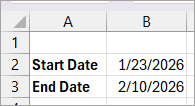
Suppose you want to generate a list of all dates between January 23, 2026, and February 10, 2026.
Here’s how you can do it:
- Enter the start date and end date in cells B2 and B3, respectively.
- Enter the below formula in cell D2 and press Enter
=B2+SEQUENCE(B3-B2-1)
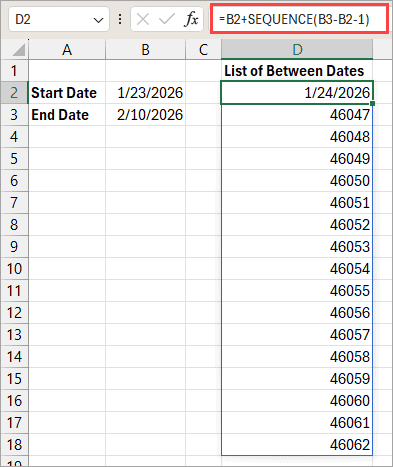
The above steps generate a list of all dates between the specified start and end dates.
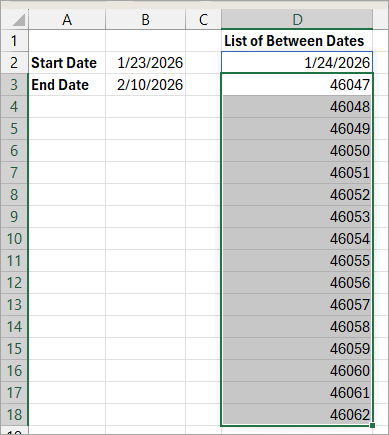
Notice that only the first spilled value is formatted as a date, and the rest are date serial numbers.
You can format the date serial numbers as dates using the steps below:
- Select the date serial numbers.
- Click the Home tab.
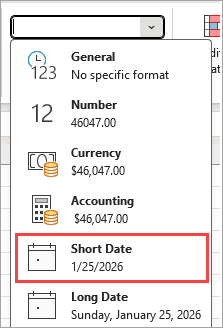
- Open the Number Format drop-down on the Number group.
- Choose a date format.
The date serial numbers are formatted as dates.
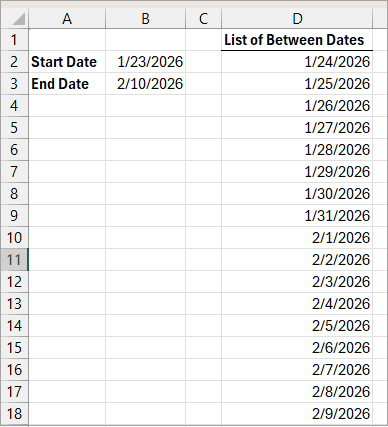
Note: The result dates automatically update if the start or end dates are changed.
Explanation of the Formula
=B2+SEQUENCE(B3-B2-1)
The formula generates all intermediate dates between the specified start date and end date.
Here’s a breakdown of the formula step by step:
- SEQUENCE(B3-B2-1)
- B3-B2 calculates the number of days between the start date and end date.
- B3-B2-1 excludes the end date.
- SEQUENCE(B3-B2-1) creates a vertical array of numbers starting at 1, increasing by 1 for each row.
- Result is {1; 2; 3; …} for each day between the two dates.
- B2+SEQUENCE(B3-B2-1)
- Adding the sequence {1; 2; 3; ….} to the start date in B2 increments the date one day at a time.
- The result is a spilled list of dates between B2 and B3, excluding the start date and end date.
Method #2: Using an IF Formula
If you have an older version of Excel that does not support dynamic arrays, you can use an IF formula to return all dates between two dates in Excel.
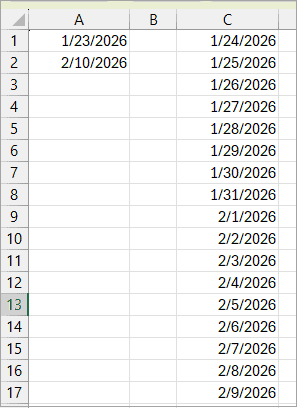
Suppose you want to generate a list of all dates between January 23, 2026, and February 10, 2026.
Here’s how you can do it:
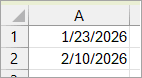
- Enter the start date in cell A1 and the end date in cell A2.
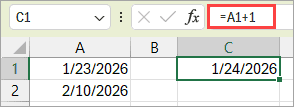
- In cell C1, enter the formula =A1+1 to get the first next date.
- In cell C2, enter the below formula and drag it down until a blank cell appears.
=IF($A$1+ROW(A1)>=$A$2-1,"",C1+1)
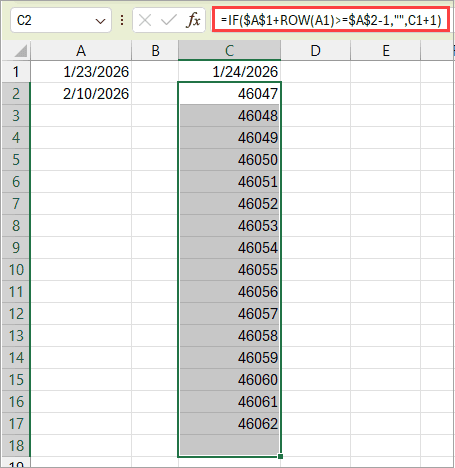
If the formula returns date serial numbers, you can use the steps below to format the serial numbers in the cells as dates.
- Select the date serial numbers.
- Click the Home tab.
- Open the Number Format drop-down on the Number group.
- Choose a date format.
Explanation of the Formula
=IF($A$1+ROW(A1)>=$A$2-1,””,C1+1)
The formula increments the value in column C by 1 on each row until a stop logical condition based on the specified two dates in A1 and A2 is met. Once the condition is met, the formula returns a blank.
Here’s a breakdown of the formula:
- ROW(A1)
- Returns the row number of A1, which is 1.
- When copied down, ROW(A2) = 2, ROW(A3) = 3, and so on.
- The result is a row-based counter.
- $A$1+ROW(A1)
- Adds the row counter to the date in A1, increasing it by 1 per row.
- >=$A$2-1
- Compares the running value against one less than the date in A2.
- This ensures the sequence stops just before reaching the date in A2.
- IF($A$1+ROW(A1)>=$A$2-1,””,C1+1)
- Return a blank (“”) once the generated date reaches one day before the end date in A2. Otherwise, return C1+1.
Method #3: Use Power Query
You can use Power Query to generate a list of all dates between two specified dates.
Suppose you want to generate a list of all dates between January 23, 2026, and February 10, 2026.
Here’s how you can go about it:
- Enter the start date and end date in adjacent cells (A2 and B2 in this case).
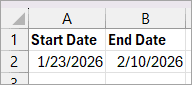
- Select a cell in the dataset and press CTRL+T to convert it to a table.
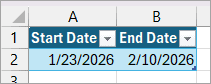
- Select a cell in the table.
- Open the Data tab.
- Click the From Table/Range option on the Get & Transform Data group.
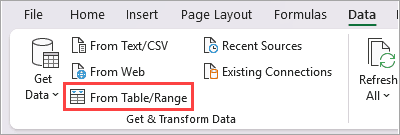
The above step loads the table data into the Power Query Editor.
- In the Power Query Editor, open the Add Column tab and choose the Custom Column option on the General group.
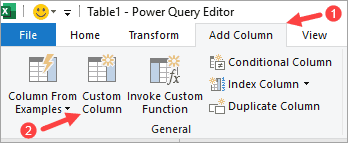
The above step opens the Custom Column dialog box.
- Do the following on the Custom Column dialog box:
- Enter ‘Between Dates’ on the ‘New column name’ box.
- Copy the formula to the ‘New column formula’ box
=List.Dates(
    Date.AddDays(Date.From([Start Date]), 1),
    Duration.Days(Date.From([End Date]) - Date.From([Start Date])) - 1,
    #duration(1,0,0,0)
)
- Click OK.
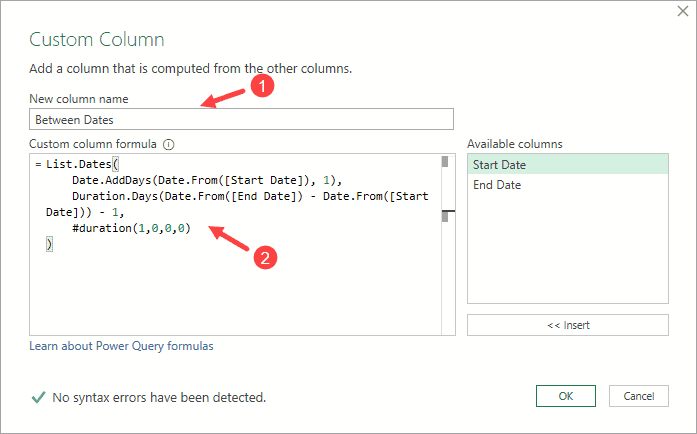
The above step adds a new column with an expand icon to the table in Power Query Editor.
- Click the expand icon in the header of the new column and choose ‘Expand to New Rows’.
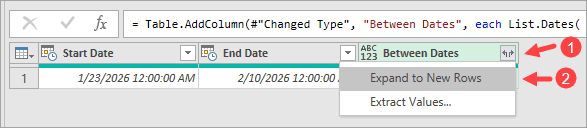
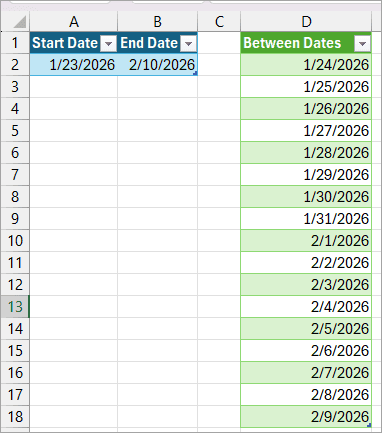
The above step displays the desired dates in the new column.
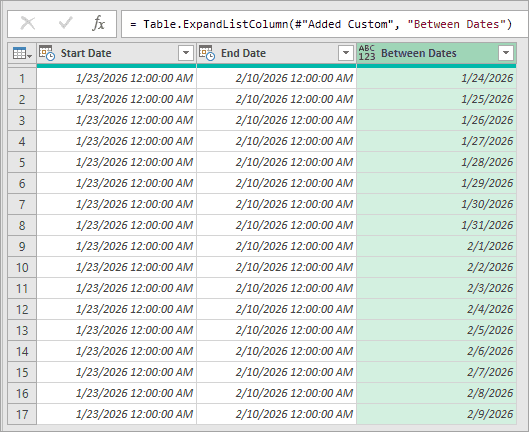
- Remove the Start Date and End Date columns:
- Click the header of the Start Date column.
- Hold down the CTRL key and click the header of the End Date column.
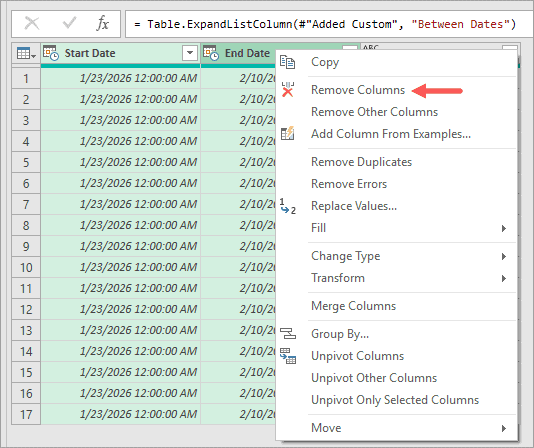
- Right-click a header in the selection and choose ‘Remove Columns’.
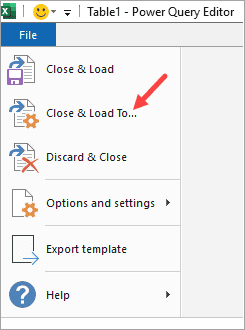
- Click File and choose Close & Load To.
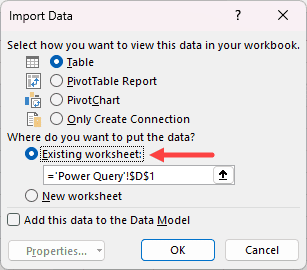
The above step opens the Import Data dialog box.
- On the Import Data dialog box, select where you want the data (in this case, cell D1 of the current sheet).
- Click OK.
Power Query outputs the dates as date serial numbers.
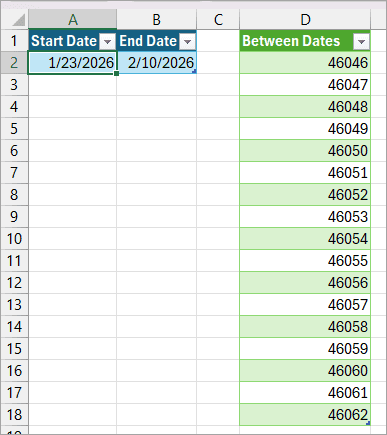
You can format the date serial numbers using the steps below:
- Select the date serial numbers.
- Click the Home tab.
- Open the Number Format drop-down on the Number group.
- Choose a date format.
Method #4: Use VBA User-Defined Function (UDF)
You can create a VBA UDF that functions similarly to a built-in Excel function to generate a list of all dates between two specified dates.
Suppose you want to generate a list of all dates between January 23, 2026, and February 10, 2026.
Here’s how you can do it:
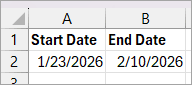
- Enter the start date and end date in adjacent cells (A2 and B2 in this case).
- Copy the VBA code below to a standard module.
Function BETWEENDATES(StartDate As Date, EndDate As Date) As Variant
    Dim arr() As Date
    Dim i As Long, n As Long
    n = EndDate - StartDate - 1
    If n <= 0 Then
        BETWEENDATES = CVErr(xlErrNA)
        Exit Function
    End If
    ReDim arr(1 To n, 1 To 1)
    For i = 1 To n
        arr(i, 1) = StartDate + i
    Next i
    BETWEENDATES = arr
End Function- Enter the formula below in cell D2.
=BETWEENDATES(A2,B2)
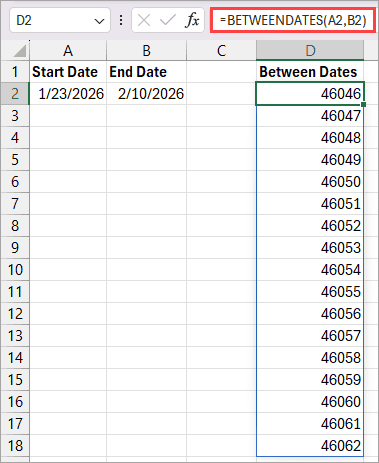
The UDF outputs the dates as date serial numbers.
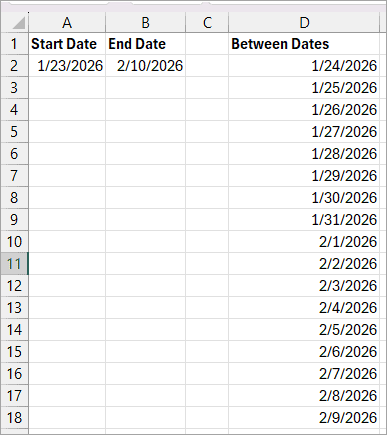
You can format the date serial numbers using the steps below:
- Select the date serial numbers.
- Click the Home tab.
- Open the Number Format drop-down on the Number group.
- Choose a date format.
Explanation of the UDF
The BETWEENDATES UDF generates a list of all dates between a start date and an end date, excluding the start and end dates.
The UDF returns the dates as a vertical array that spills into multiple cells. If there are no dates between the start and end dates, it returns an error.
I hope you found the tutorial helpful.
Other Excel articles you may also like:
