
The Name Conflict dialog is blocking your sheet copy, and resolving one conflict brings up another prompt for the next conflicting name.
Yes to All ends that loop, but it exists only in subscription Excel. Perpetual builds make you handle every prompt one by one.
Name Manager has another trap because it cannot show hidden names. You can clear everything it displays and still leave a conflict behind.
The download uses a source and a destination workbook so you can reproduce the cross-workbook conflict.
The source and destination share three workbook-scoped names, so copying both source sheets into the destination fires the dialog three times and lets you see the loop yourself.
The dialog appears when copied worksheets bring a named range into a workbook that already contains the same name.
Excel displays this exact message:
> The name ‘InterestRates’ already exists. Select Yes to use that version of the name, or click No to rename the version of ‘InterestRates’ you’re moving or copying.
The dialog gives you these choices:
- Yes copies the conflicting name in and leaves two similarly named ranges.
- No opens another dialog with a New name box.
- Yes to All clears the remaining prompts, but this option exists only in subscription Excel.
Method #1: Using Yes to All to Clear the Prompts
Use this method when you need the multi-sheet copy to finish and your subscription version of Excel shows the Yes to All button.
Below I have the Q3 Sales and Q3 Targets sheets in the source workbook, ready to copy into the destination workbook.
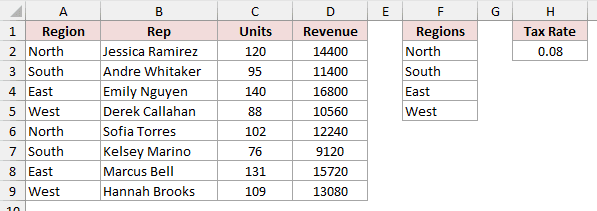
Here are the steps to clear the prompts:
- Select the Q3 Sales and Q3 Targets sheet tabs, then copy them into the destination workbook.
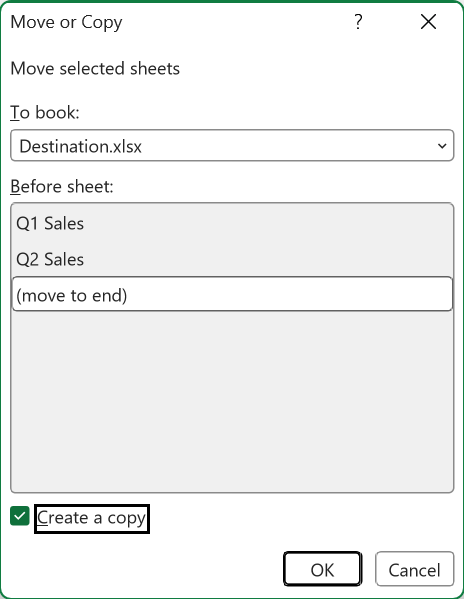
- When the Name Conflict dialog appears, click Yes to All.
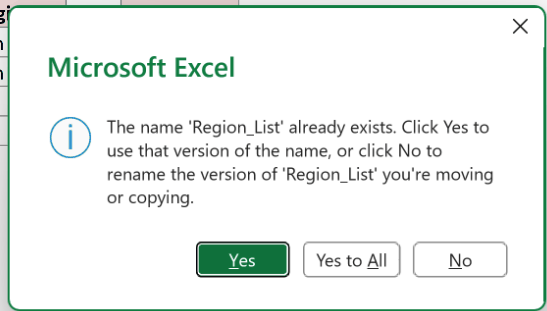
Excel finishes the copy without making you answer the other conflict prompts individually.
Note: Yes to All exists only in subscription Excel. In a perpetual Excel build, answer each conflicting-name prompt individually.
Method #2: Renaming the Incoming Name
If formulas on the copied sheet depend on the incoming name, rename that name instead of discarding it.
Below I have both Q3 source sheets ready to move into the destination workbook, where the same three workbook-scoped names already exist.
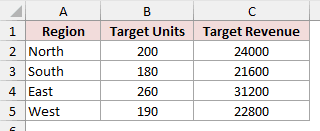
Here are the steps to rename each incoming name:
- Copy the Q3 Sales and Q3 Targets sheets into the destination workbook.
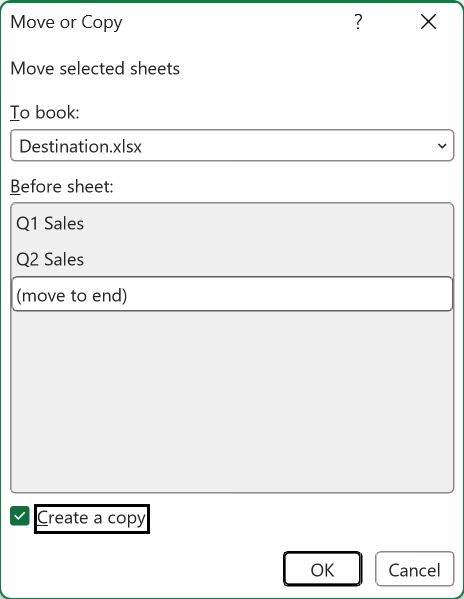
- When the Name Conflict dialog appears, click No.
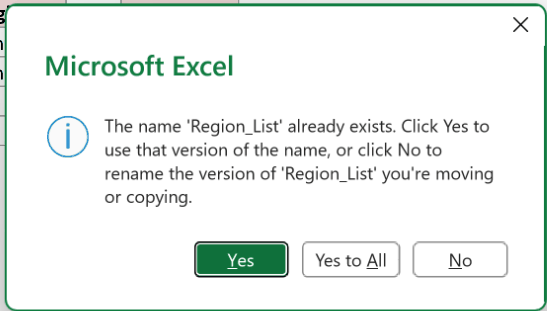
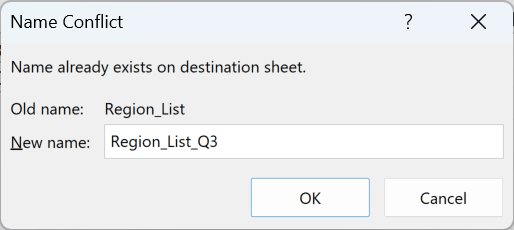
- For the first conflict, enter
Region_List_Q3in the New name box, then accept it. Choose distinct names for the later prompts.
- Repeat steps 2 and 3 when Excel displays each remaining conflict prompt.
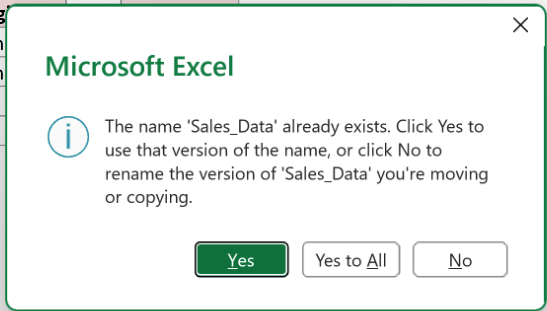
A valid replacement name must follow these rules:
- Start with a letter, underscore, or backslash.
- Contain no spaces.
- Not match a cell reference.
- Stay within 255 characters.
- Differ by more than letter case because Excel names aren’t case-sensitive.
Method #3: Deleting the Conflicting Names Before You Copy
Recommended method: Remove the incoming conflicts before the copy when you don’t need those defined names in the source workbook.
This fixes the cause of the dialog instead of working through the prompts after they appear.
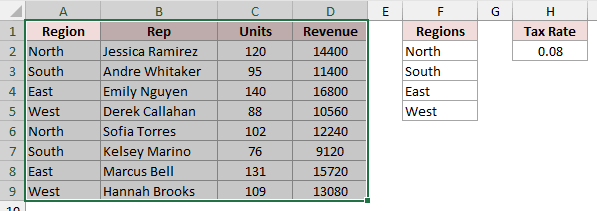
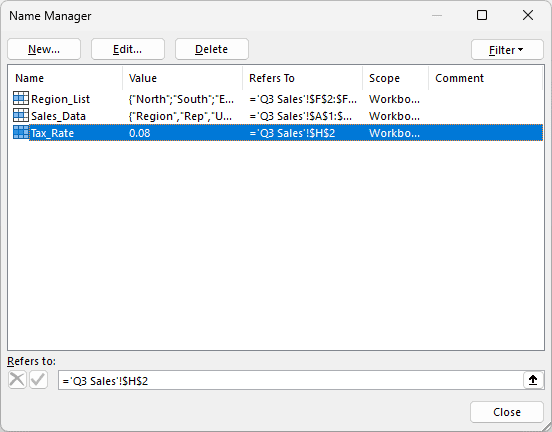
Below I have the source workbook with Sales_Data, Region_List, and Tax_Rate scoped to the workbook.
Here are the conflict-specific steps in Name Manager:
- Activate the source workbook and press Ctrl + F3 to open Name Manager.
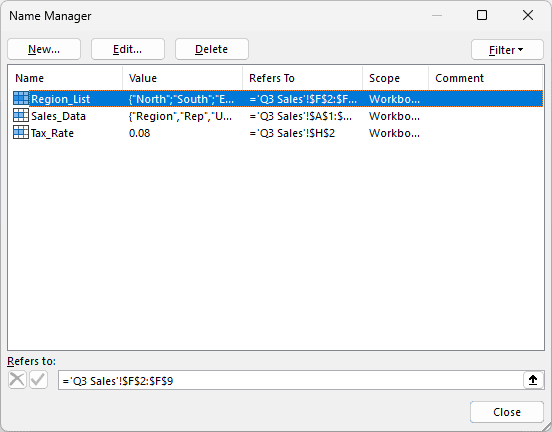
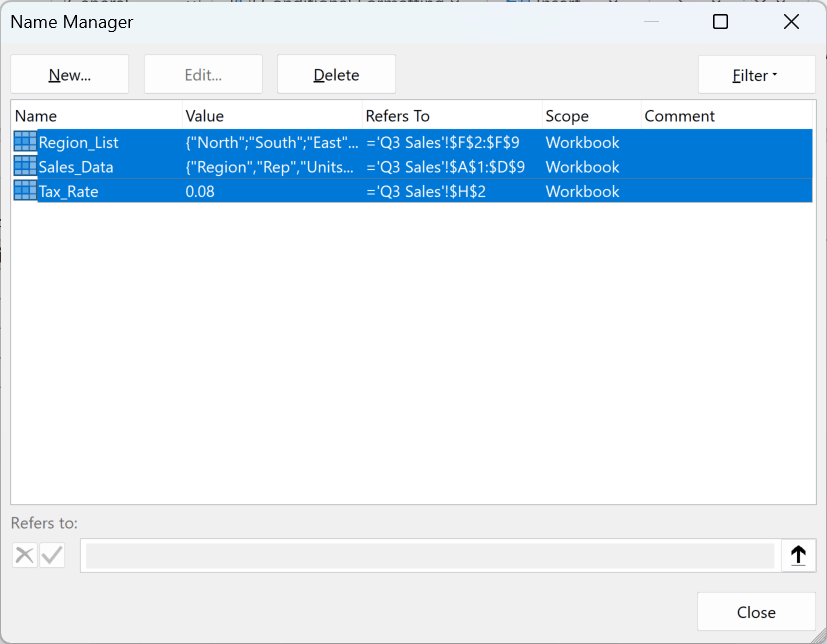
- Use the Scope column to identify Sales_Data, Region_List, and Tax_Rate as workbook-scoped names, then select all three.
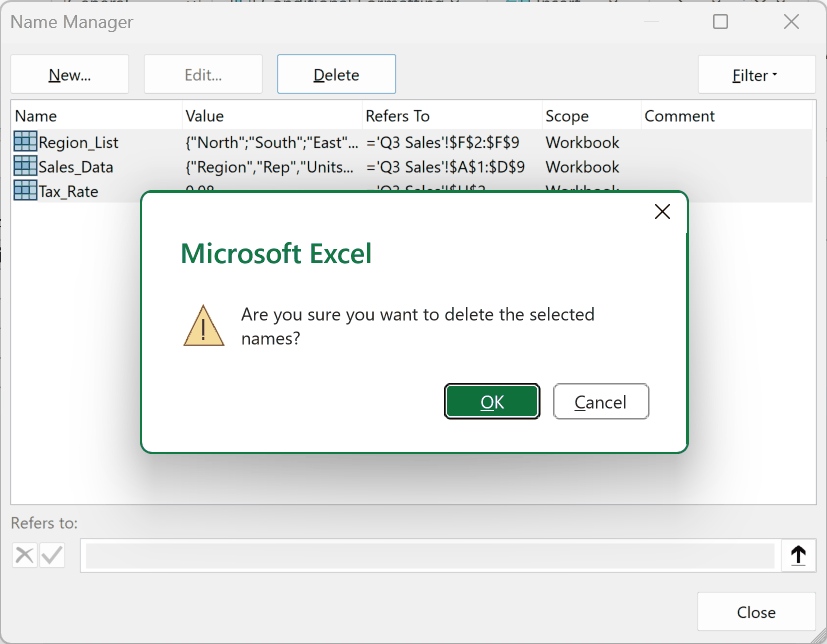
- Click Delete to remove the selected conflicting names.
- Copy the Q3 Sales and Q3 Targets sheets into the destination workbook again.
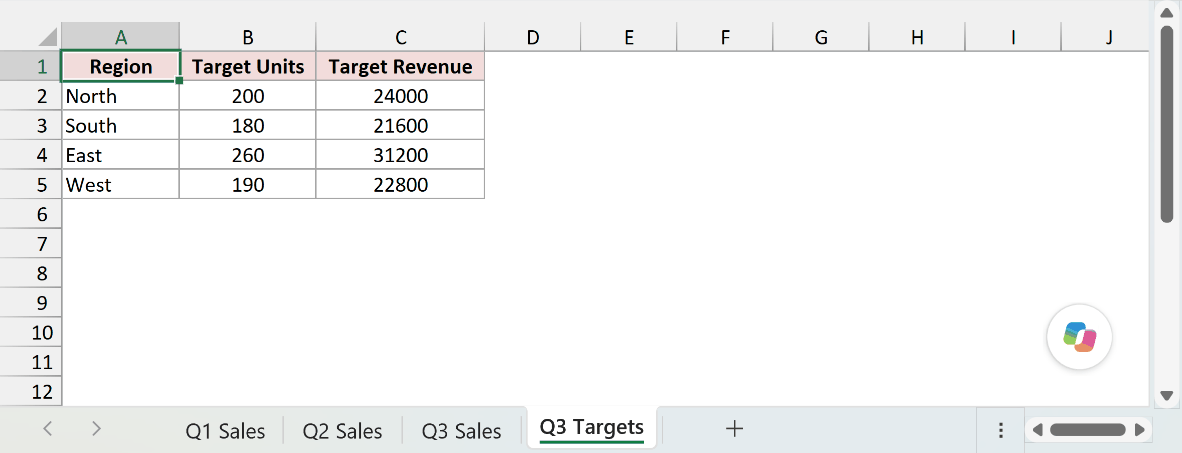
Those three incoming conflicts are gone, so Excel can complete the copy without showing their three prompts.
Note: Name Manager cannot display a name whose Visible property is False. The source workbook contains a hidden name called Legacy_Lookup, so Method #5 finds four names although Name Manager shows only three.
Method #4: Copying One Sheet at a Time
You can try copying the source sheets one at a time. This avoids the prompt with the example files, but the result depends on the names in your workbooks.
Below I have Q3 Sales and Q3 Targets in the source workbook, with the destination workbook open beside it.
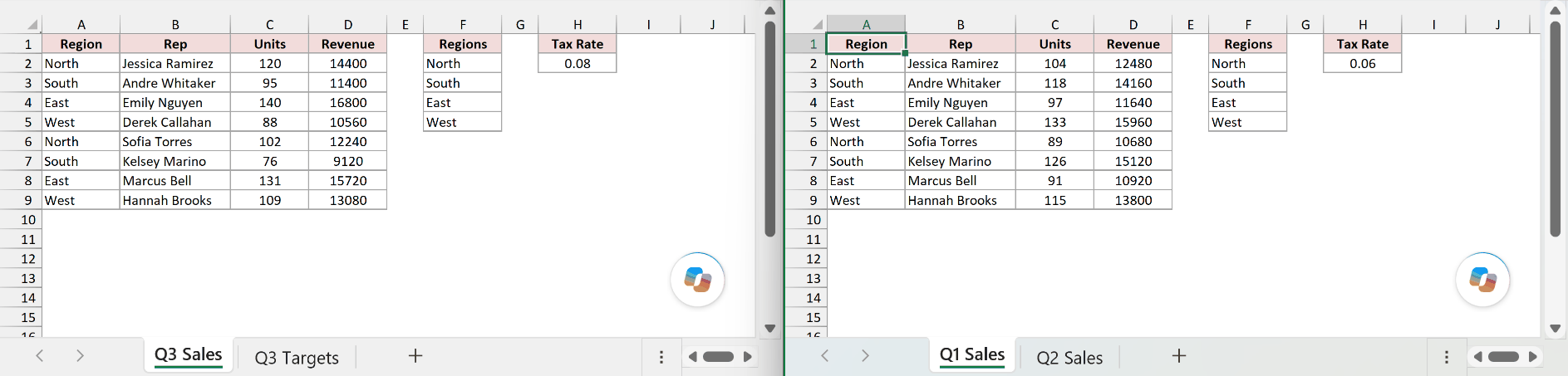
Here are the steps to copy the sheets separately:
- Select only the Q3 Sales sheet and copy it into the destination workbook.
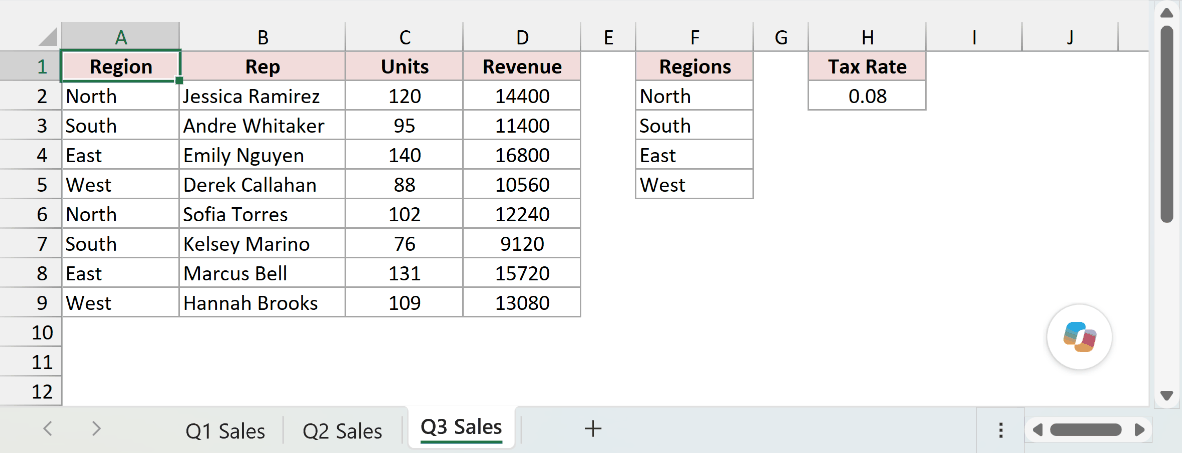
- Return to the source workbook, select only Q3 Targets, and copy it into the destination workbook.
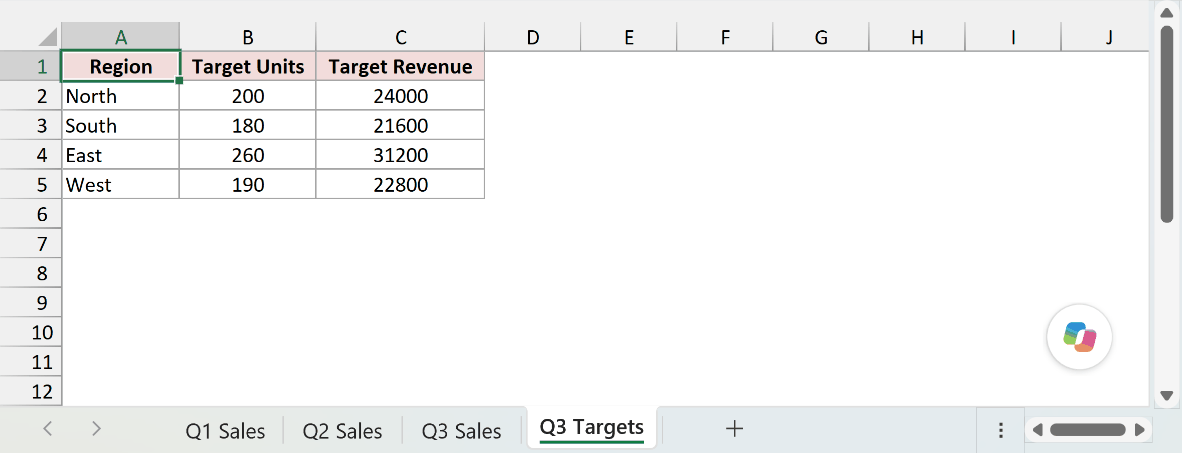
With these example files, copying Q3 Sales alone does not show the dialog. Excel changes its incoming conflicting names to sheet scope. Check the copied names and formulas afterward.
Method #5: Using VBA to Delete Names in Bulk
If a workbook has dozens of names, or Name Manager looks clear but conflicts remain, VBA can delete every name in the active workbook.
Below I have the source workbook where Name Manager shows three names, although the workbook contains the hidden Legacy_Lookup name as well.
Here is the VBA code:
Sub DeleteAllDefinedNames()
    Dim NameIndex As Long
    Dim NamesDeleted As Long

    NamesDeleted = ActiveWorkbook.Names.Count

    For NameIndex = ActiveWorkbook.Names.Count To 1 Step -1
        ActiveWorkbook.Names(NameIndex).Delete
    Next NameIndex

    MsgBox NamesDeleted & " names deleted."
End SubThe macro deletes every name in the active workbook, not only names involved in the current conflict.
Here are the steps to use the macro:
- Make the source workbook active, then press Alt + F11 to open the VBA Editor.
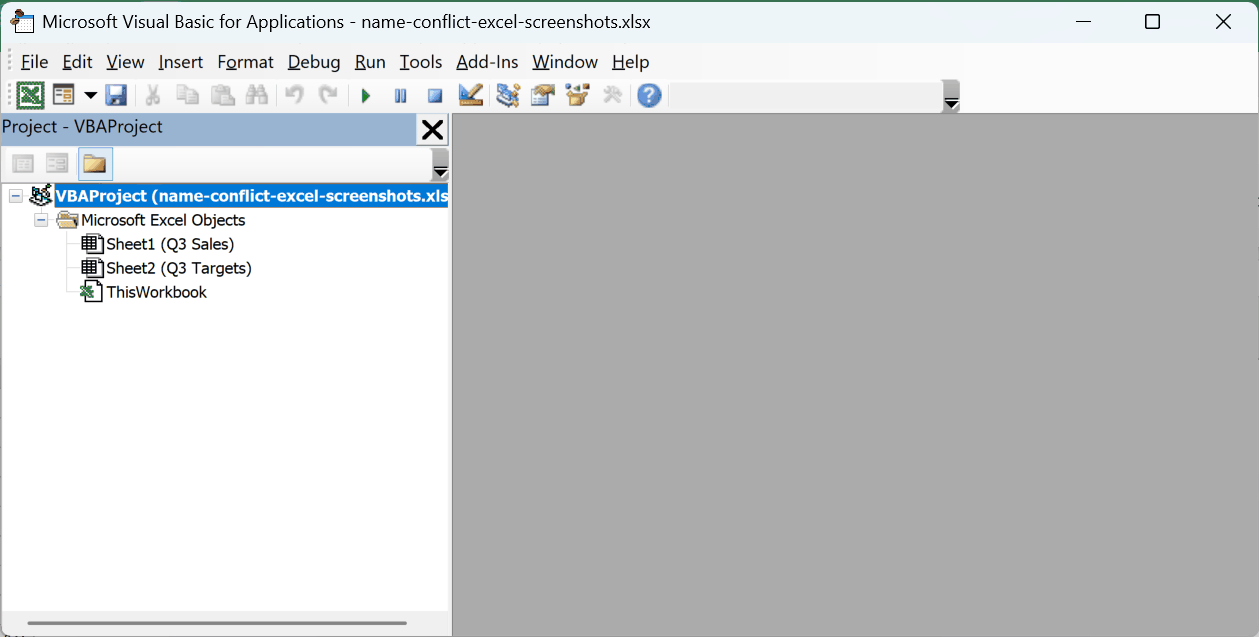
- Choose Insert, then Module.

- Paste the code into the new module.
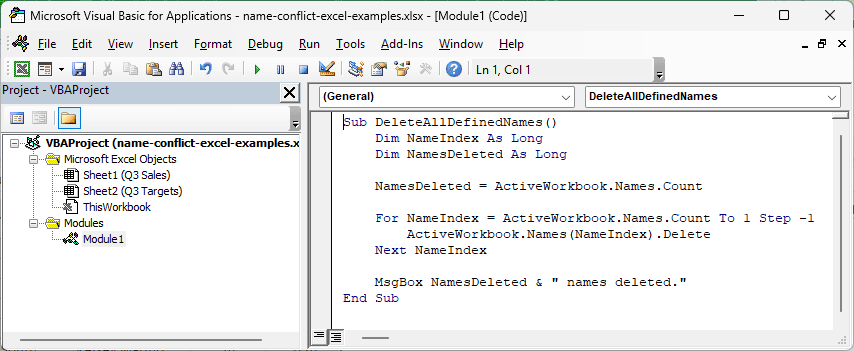
- Press F5 to run the macro.

The message reports four deleted names in the source workbook. The fourth is Legacy_Lookup, which Name Manager could not show because its Visible property was False.
Note: Save the workbook as an .xlsm file if you want to keep the macro.
Additional Notes About the Name Conflict Dialog Box in Excel
- The source workbook contains Q3 Sales and Q3 Targets, while the destination contains Q1 Sales and Q2 Sales.
- Both workbooks use Sales_Data, Region_List, and Tax_Rate as workbook-scoped names, which creates the three-prompt test.
- Tax_Rate is 0.08 in the source and 0.06 in the destination, so you can check which version remains after testing a method.
Frequently Asked Questions
Why does the Name Conflict dialog box keep appearing over and over?
Excel shows the dialog once for every conflicting named range. If three names conflict, you must answer three prompts unless your subscription version offers Yes to All.
What happens if I click Yes instead of No?
Excel copies the conflicting name in and leaves two similarly named ranges. Microsoft warns that formulas referring to those names may be affected and produce workbook errors.
Why don’t I see the Yes to All button?
Yes to All exists only in subscription versions of Excel. Perpetual builds require you to handle each conflicting name separately.
Why does the name conflict still happen when Name Manager shows no duplicates?
The workbook may contain a hidden name. Name Manager does not display names whose Visible property is False, but VBA can find and delete them.
Does copying a single sheet cause a name conflict?
Yes, it can. With these example files, Q3 Sales copies alone without a prompt because Excel changes its incoming conflicting names to sheet scope.
Other workbooks may still show the dialog for one sheet.
Conclusion
I showed how to answer or rename the prompts, then how to remove conflicting names in Name Manager.
The example files also show why hidden names can keep a conflict alive. I hope you found this article helpful.
Other Excel articles you may also like:
