
Calculating payback period in Excel tells you how long a project’s net cash inflows take to recover its initial investment.
Equal annual inflows make this a division problem. Unequal inflows need a running total, and discounted payback adjusts those receipts for the time value of money.
Cash timing matters too. A fractional year assumes receipts arrive during that year; a payment received only at year-end can’t recover an investment earlier.
I’ll show you calculations for equal inflows, unequal inflows, and discounted payback, including a forecast where the investment isn’t recovered.
Method #1: Dividing by Equal Annual Inflows
Use direct division when the annual net cash inflow is the same every year. It also assumes receipts start in the first year.
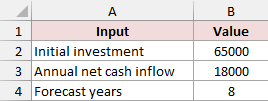
On Equal Cash Flows, B2 contains a $65,000 initial investment, B3 contains $18,000 annual net cash inflow, and B4 contains an eight-year forecast.
The investment is entered as a positive amount here because we’re dividing the amount to recover by the annual inflow.
Calculate Payback for Receipts Throughout the Year
For net inflows received uniformly during each year, enter this formula in B7:
=IF(B3<=0,"No recovery within forecast",IF(B2>B3*B4,"No recovery within forecast",B2/B3))
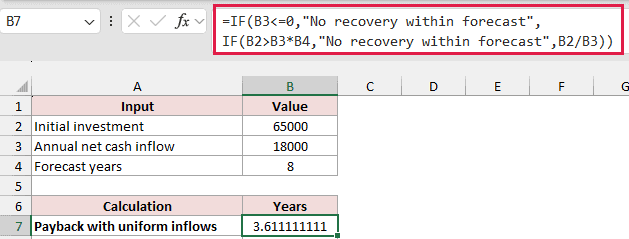
The result is approximately 3.6111 years. Dividing $65,000 by $18,000 gives three full years plus part of the fourth.
The IF function first checks whether annual inflow is positive. It then checks whether the forecast’s total inflows cover the investment.
If either test fails, the formula returns No recovery within forecast. Otherwise, it divides B2 by B3.
Calculate Payback for Year-End Receipts
If each $18,000 arrives only at year-end, use B8 instead:
=IF(B3<=0,"No recovery within forecast",IF(B2>B3*B4,"No recovery within forecast",ROUNDUP(B2/B3,0)))
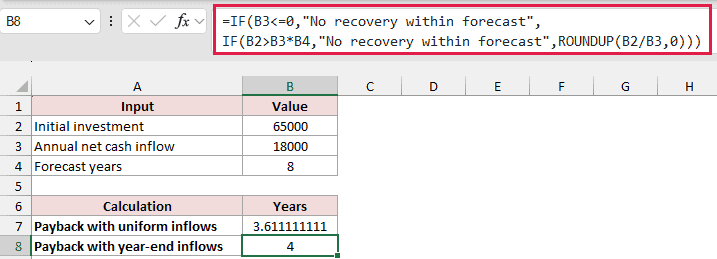
This returns 4 years. After three year-end receipts, only $54,000 has arrived. Recovery happens when the fourth payment arrives.
ROUNDUP rounds the positive division result up to the next whole year, while keeping an already-whole result unchanged.
The distinction follows the cash-flow timing used in payback calculations. Choose the timing assumption that describes your receipts.
Method #2: Tracking Cumulative Cash Flows (Recommended)
When annual receipts vary, a cumulative schedule shows when the outstanding investment reaches zero. I’d use this layout for unequal cash flows.
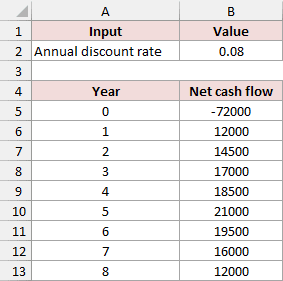
On Unequal Cash Flows, A5:A13 lists years 0 through 8. B5:B13 contains the initial outflow and the following annual net inflows.
The initial investment is -$72,000 in B5. Future receipts range from $12,000 to $21,000. B2 contains a discount rate we’ll use later.
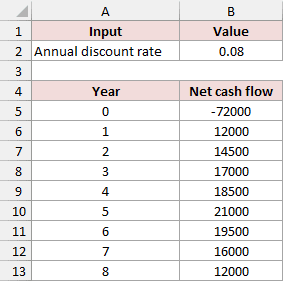
This method assumes one initial outflow, followed by nonnegative annual net cash flows. With those inputs, the cumulative balance can’t fall after it recovers.
Build the Cumulative Schedule
Add Cumulative cash flow in C4. Enter this formula in C5, then fill it down through C13:
=SUM($B$5:B5)
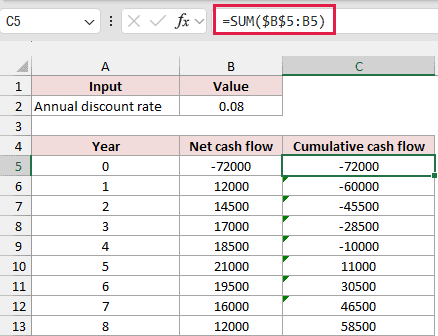
The SUM function adds cash flows from the fixed starting cell B5 through the current row.
Year zero starts at -$72,000. After year 4, the balance is -$10,000; after year 5, it’s $11,000.
That places recovery in year 5. The remaining calculations identify how far into that year it occurs under a uniform-receipt assumption.
The running totals stay per row because each one must include a different ending row. They’re separate cumulative sums rather than a spill of independent inputs.
Count the Full Years Before Recovery
Use the calculation labels in A16:A20. In B16, enter:
=IF(COUNTIF(C6:C13,">=0")=0,"No recovery within forecast",COUNTIF(C6:C13,"<0"))
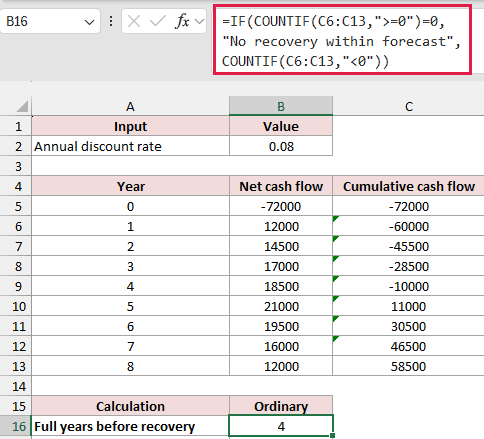
The result is 4. Four future year-end balances remain below zero before the year that recovers the investment.
COUNTIF counts balances meeting each condition. The first count checks whether any future balance reaches or exceeds zero.
Notice that C6:C13 excludes year zero. Counting the initial negative balance would add an extra year to the result.
This counting approach relies on nonnegative future cash flows. Later outflows can create repeated crossings, so this formula shouldn’t be used for that pattern.
Retrieve the Unrecovered Balance
In B17, enter:
=IF(ISNUMBER(B16),-INDEX(C5:C13,B16+1),"No recovery within forecast")
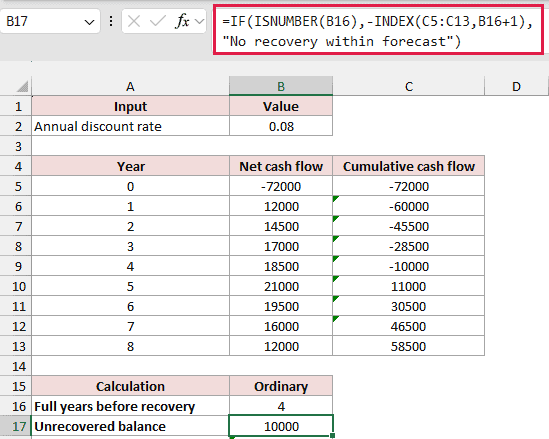
This returns $10,000, the amount still outstanding after year 4.
ISNUMBER checks that B16 contains a numeric year count before the lookup runs.
INDEX retrieves the fifth entry in C5:C13. Because that range starts at year zero, its fifth entry is year 4.
The minus sign converts the negative cumulative balance into a positive amount still to recover.
Retrieve the Recovery Year’s Inflow
In B18, enter:
=IF(ISNUMBER(B16),INDEX(B6:B13,B16+1),"No recovery within forecast")
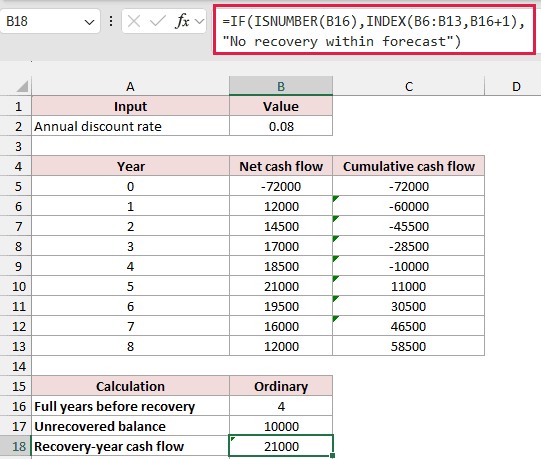
This returns $21,000, the year-5 inflow. B6:B13 starts at year 1, so its fifth entry is year 5.
The two INDEX ranges start in different rows deliberately. One retrieves the balance before recovery; the other retrieves the following year’s receipt.
Calculate Fractional-Year Payback
In B19, enter:
=IF(ISNUMBER(B16),B16+B17/B18,"No recovery within forecast")
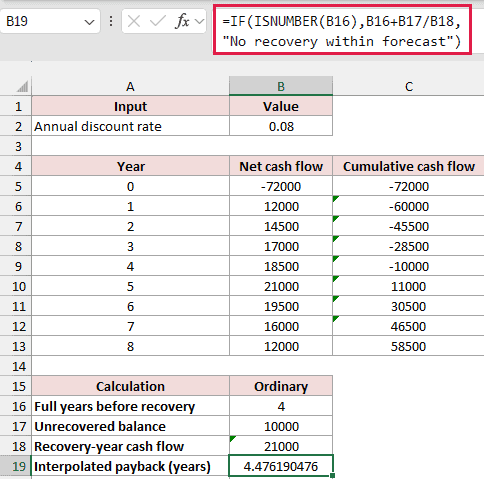
The result is approximately 4.4762 years: four full years plus $10,000 divided by the $21,000 recovery-year inflow.
That fraction assumes the year-5 net inflow arrives uniformly during the year. It doesn’t establish the actual date of a receipt.
Report Recovery at Year-End
If the receipts arrive only at each year-end, enter this formula in B20:
=IF(ISNUMBER(B16),B16+1,"No recovery within forecast")
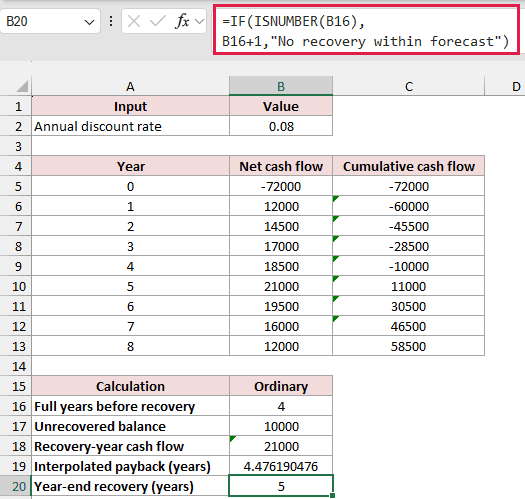
This returns 5 years, the first year-end with a nonnegative cumulative cash flow.
If recovery lands exactly at a year-end, the fractional calculation also returns that whole year because the unrecovered balance equals that year’s receipt.
Method #3: Discounting Future Cash Flows
Discounted payback uses present values instead of the original receipts. At a positive discount rate, a future receipt contributes less toward recovering today’s investment.
We’ll use Unequal Cash Flows again: the -$72,000 investment in B5, annual receipts in B6:B13, and years in A5:A13.
The annual discount rate is 8% in B2, stored as 0.08. We’ll discount each annual receipt, then calculate when cumulative present value reaches zero.
Calculate the Discount Factors
Keep the ordinary cumulative column C for comparison. Add Discount factor in D4, then enter this formula in D5 and fill through D13:
=1/(1+$B$2)^A5
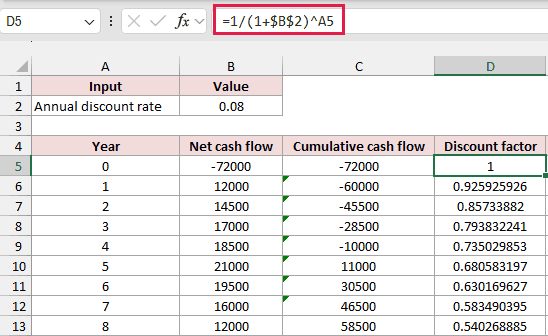
Year zero has a factor of 1, because the exponent is zero. The initial investment happens now, so it isn’t reduced by discounting.
The year-1 factor is approximately 0.925926. The fixed $B$2 reference keeps the discount rate unchanged as the year reference moves down.
Calculate Each Discounted Cash Flow
Add Discounted cash flow in E4. Enter this formula in E5, then fill it down through E13:
=B5*D5
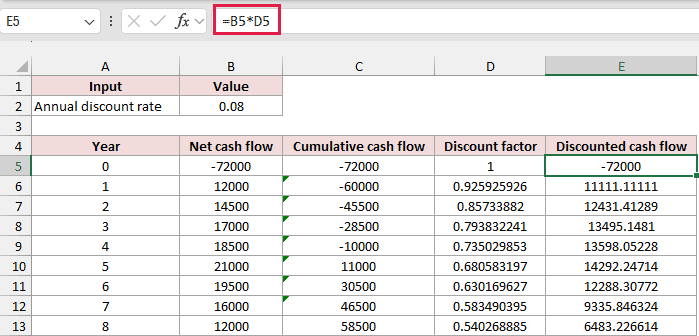
The initial discounted cash flow stays -$72,000. The $12,000 year-1 receipt has a present value of approximately $11,111.11.
These factors use annual periods and an annual rate. They value each future year’s receipt at its year-end.
Accumulate the Present Values
Add Cumulative PV in F4. Enter this formula in F5, then fill it down through F13:
=SUM($E$5:E5)
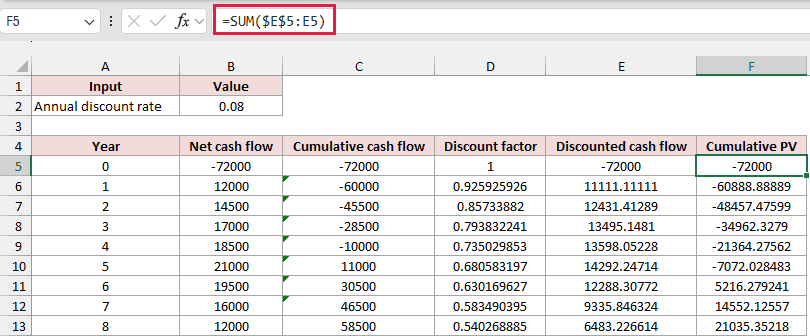
At the end of year 5, cumulative present value is approximately -$7,072.03. At the end of year 6, it’s approximately $5,216.28.
The discounted recovery therefore occurs in year 6, a year later than the ordinary schedule’s first nonnegative year-end balance.
Calculate Discounted Recovery
In C16, count the full unrecovered years using column F:
=IF(COUNTIF(F6:F13,">=0")=0,"No recovery within forecast",COUNTIF(F6:F13,"<0"))
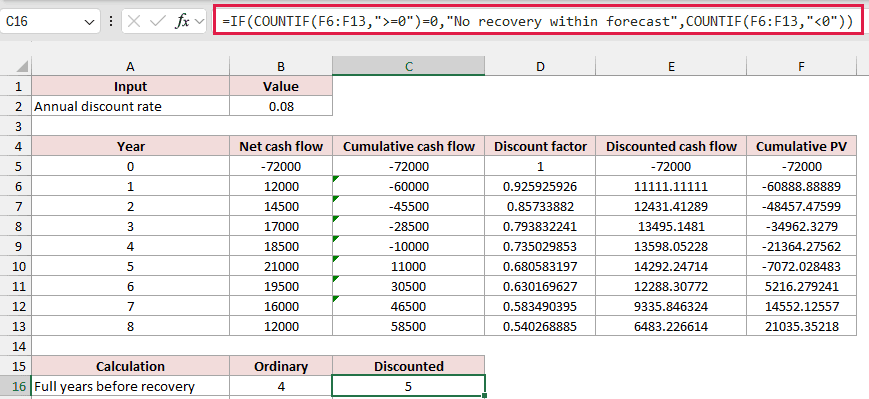
The result is 5. If cumulative present value never reaches zero during the forecast, the formula returns the no-recovery message.
In C17, retrieve the outstanding discounted balance:
=IF(ISNUMBER(C16),-INDEX(F5:F13,C16+1),"No recovery within forecast")
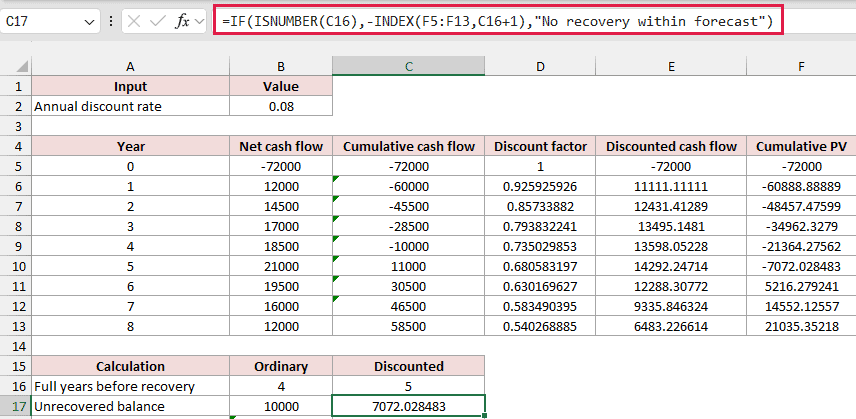
This returns approximately $7,072.03, using the full underlying value rather than its rounded display.
In C18, retrieve the recovery year’s discounted receipt:
=IF(ISNUMBER(C16),INDEX(E6:E13,C16+1),"No recovery within forecast")
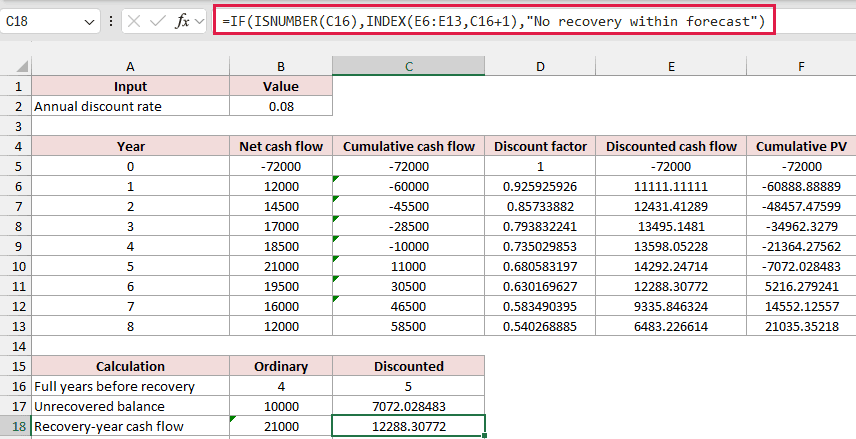
This returns approximately $12,288.31, the present value of the $19,500 year-6 inflow.
In C19, calculate the conventional interpolated discounted payback:
=IF(ISNUMBER(C16),C16+C17/C18,"No recovery within forecast")
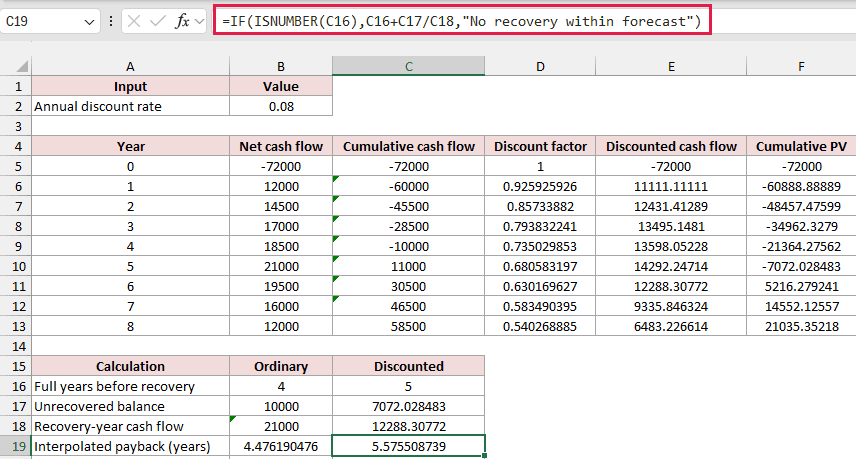
The result is approximately 5.5755 years. It adds five full years to the outstanding balance divided by the recovery year’s discounted inflow.
This is a linear interpolation of the annual discounted totals. It treats that discounted increment as uniform during the recovery year.
It’s an estimate, not an exact continuous-time recovery date. ACCA’s worked discounted-payback answer also uses fractional-year interpolation.
For strictly year-end receipts, use C20:
=IF(ISNUMBER(C16),C16+1,"No recovery within forecast")
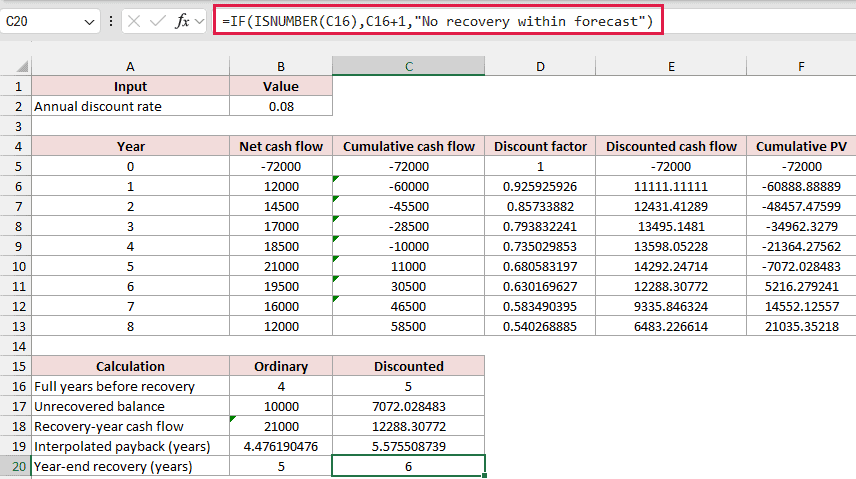
This returns 6 years. The ordinary and discounted year-end results are 5 and 6 years, respectively.
Handle a Forecast That Doesn’t Recover the Investment
The No Recovery sheet keeps the $72,000 initial outflow and 8% rate, but future annual inflows run from $6,000 to $9,500.
Its eight-year ordinary cumulative balance ends at -$10,000. Cumulative present value ends at approximately -$28,617.12.
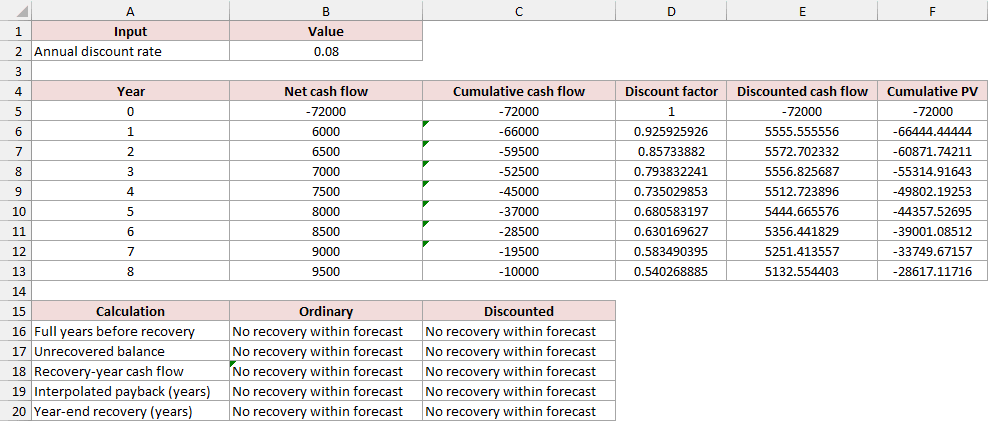
Neither schedule reaches zero, so both payback results show No recovery within forecast. The formulas check this before attempting a recovery-year lookup.
That status means recovery hasn’t happened within these eight modeled years. It doesn’t tell us what happens after the forecast ends.
Additional Notes About Payback Period in Excel
These points matter when you adapt the schedules to a real project:
- Use net cash flows rather than accounting profit. Depreciation alone isn’t a cash payment, although any resulting tax cash effects belong in a cash-flow forecast.
- Keep the time units consistent. An annual discount rate belongs with annual periods; a monthly model needs a matching monthly rate.
- Payback ignores receipts after recovery. Discounted payback adjusts for timing, but it still doesn’t measure the project’s full lifetime return.
Frequently Asked Questions
Here are a few questions about interpreting the results and choosing the right inputs.
Does Excel Have a PAYBACK Function?
Excel doesn’t have a dedicated PAYBACK worksheet function in its worksheet function list. These examples calculate it using arithmetic and the standard worksheet functions shown above.
Can I Divide the Investment by Average Cash Flow?
Use division for equal recurring inflows. An average of unequal inflows loses their order, so it can imply recovery before enough cash has arrived.
How Do I Convert the Decimal Part Into Months?
Multiply only the fractional part by 12. For ordinary payback of 4.4762 years, 0.4762 × 12 is approximately 5.71 months after the fourth year.
Should I Count Sales Revenue as the Annual Inflow?
Use the project’s net cash contribution after relevant cash costs, rather than gross sales. Otherwise, the calculation can show recovery too early.
Conclusion
I’ve covered ordinary and discounted payback, including the different results for uniform and year-end receipts. I recommend keeping the cumulative schedule visible when inflows vary.
I hope you found this article helpful.
