
Excel’s DATEDIF function returns the difference between two dates in complete years, months, or days, depending on the unit code.
It is useful for age or service-length calculations. Some unit modes have known limitations, especially MD, so choose the unit carefully and check boundary dates.
In this article, I’ll show you how to calculate age, count complete months, and express a duration in years, months, and days.
DATEDIF Function Syntax in Excel
The DATEDIF function takes three arguments and returns the difference between two dates.
=DATEDIF(start_date, end_date, unit)
- start_date – the earlier of the two dates. Required.
- end_date – the later of the two dates. Required.
- unit – a text code that tells DATEDIF which kind of difference to return. Required.
The unit codes are:
- “Y” – complete years between the two dates.
- “M” – complete months between the two dates.
- “D” – total days between the two dates.
- “YM” – months remaining after counting whole years.
- “MD” – days remaining after counting whole months.
- “YD” – days remaining after counting whole years.
When to Use DATEDIF Function
DATEDIF comes in handy any time you need to measure how much time has passed between two dates. A few common cases:
- Calculating someone’s age in years from their date of birth.
- Tracking how long an employee has been with the company.
- Counting the months between a subscription’s start and end dates.
- Working out how many days remain until an upcoming deadline.
- Building a duration string like “5 years, 3 months, 12 days” from two dates.
Example 1: Years Between Two Dates
Let’s start with the most common use of DATEDIF: counting complete years between two dates.
Below is a dataset with seven projects in column A, their start dates in column B, and their end dates in column C. Column D is where the years will go.
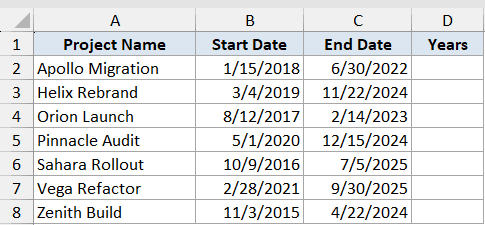
I want to fill column D with the number of full years between the start and end dates for each project.
Here is the formula:
=DATEDIF(B2:B8, C2:C8, "y")
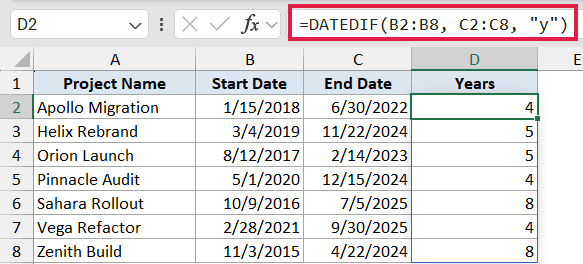
Because the dataset is in Excel 365, a single formula in D2 spills down all seven rows.
DATEDIF reads the start date in each row, compares it to the end date, and returns the number of complete years between them.
Partial years are dropped, so a project that ran for 4 years and 11 months would still return 4.
Pro Tip: The third argument is text, so it needs quotes around it. Writing =DATEDIF(B2, C2, Y) without quotes returns a #NAME? error because Excel reads Y as a reference to a missing named range.
Example 2: Calculate Age in Years from Date of Birth
Here’s a classic real-world use of DATEDIF: working out someone’s current age from their date of birth.
Below is a dataset with eight names in column A and their dates of birth in column B. Column C will hold each person’s current age.
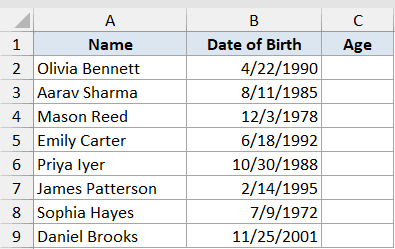
I want to compute the age in complete years for each person, based on today’s date.
Here is the formula:
=DATEDIF(B2:B9, TODAY(), "y")
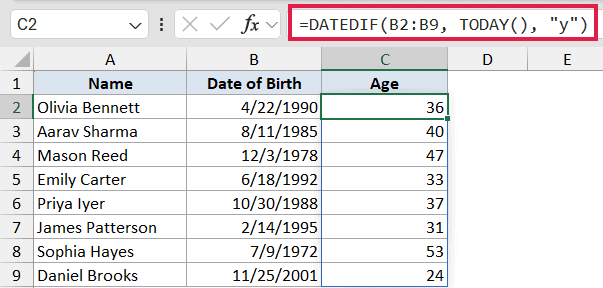
TODAY() returns the current date, which DATEDIF uses as the end date for every row.
The Y unit then returns each person’s age in complete years. Since this is Excel 365, one formula in C2 spills all eight ages down column C.
Pro Tip: Because TODAY() recalculates every time you open the workbook, the ages tick up automatically as the year goes on. You’ll never need to touch the formula on someone’s birthday.
Example 3: Months Between Two Dates
Same idea as Example 1, just a different unit code.
Below is a dataset of seven members in column A, with their sign-up dates in column B and cancellation dates in column C. Column D will hold the months each member stayed subscribed.
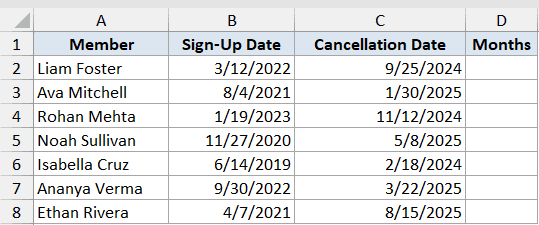
I want to know how many complete months each member was active for.
Here is the formula:
=DATEDIF(B2:B8, C2:C8, "m")
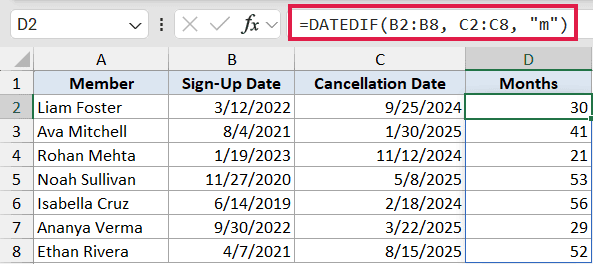
Switching the unit code from Y to M is the only change. DATEDIF now returns the number of full months between sign-up and cancellation for each member.
As before, a single formula in D2 fills the whole column.
Pro Tip: M counts only complete months. A membership that started on Jan 15 and ended on Feb 14 returns 0 months, because the second cycle ended one day shy of a full month.
Example 4: Combined Duration as Years, Months, and Days
Time to combine three DATEDIF formulas into a single readable duration.
Below is a dataset of seven employees in column A and their hire dates in column B. Column C will hold each person’s tenure formatted as “X years, Y months, Z days”.
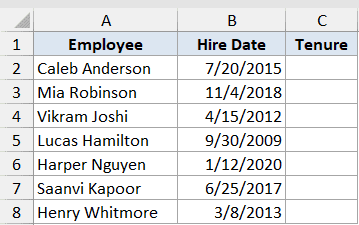
I want to express each employee’s current tenure as a full duration string, broken into years, months, and days.
Here is the formula:
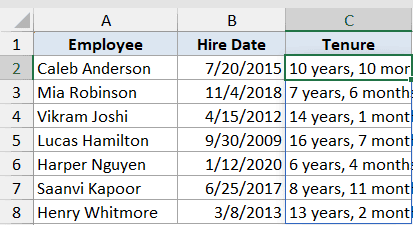
=DATEDIF(B2:B8, TODAY(), "y") & " years, " & DATEDIF(B2:B8, TODAY(), "ym") & " months, " & DATEDIF(B2:B8, TODAY(), "md") & " days"
How this formula works:
DATEDIF(B2:B8, TODAY(), "y")returns the complete years from each hire date to today.DATEDIF(B2:B8, TODAY(), "ym")returns the months left over after those complete years.DATEDIF(B2:B8, TODAY(), "md")returns the days left over after the complete months.- The
&operator stitches the three numbers together with literal text in between.
The result is one spilled column of strings, each reading like “10 years, 10 months, 5 days”.
Pro Tip: To drop zero values from the string (so “5 years, 0 months, 12 days” reads as “5 years, 12 days”), wrap each DATEDIF in an IF that returns an empty string when the result is zero.
Example 5: Days Until a Deadline
For the final example, flip DATEDIF around to count down to a future date.
Below is a dataset of six upcoming tasks in column A and their deadlines in column B. Column C will hold the number of days remaining until each deadline.
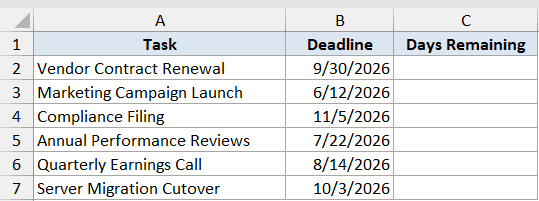
I want to know how many days are left between today and each deadline.
Here is the formula:
=DATEDIF(TODAY(), B2:B7, "d")
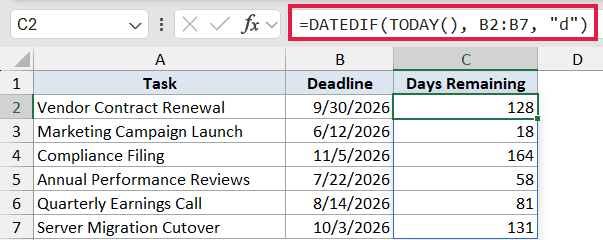
This time TODAY() is the start date and the deadline is the end date.
The D unit returns the total days between them, and the results are all positive because every deadline in the dataset is still ahead of today.
This is the inverse of counting days from a date to today. Same function, swapped arguments.
Pro Tip: If a deadline has already passed, DATEDIF returns a #NUM! error because start_date must be earlier than end_date. Wrap the formula in IFERROR to show “Past due” instead: =IFERROR(DATEDIF(TODAY(), B2:B7, "d"), "Past due").
Tips & Common Mistakes
- The third argument is text, so it always needs quotes around it. Writing the unit code without quotes throws a #NAME? error.
- DATEDIF is hidden from Excel’s autocomplete and the Insert Function dialog. You won’t see it pop up as you type, but it still works fine if you type the whole name yourself.
- The “MD” unit can misfire on certain corner cases, and Microsoft itself flags it in the official docs. If precision matters, build the day remainder manually from the start and end dates instead of relying on “MD”.
- If the start date is later than the end date, DATEDIF returns a #NUM! error. Either swap the arguments or wrap the formula in IFERROR.
- For total days between two dates, you can also just subtract:
=B2-A2gives the same answer as=DATEDIF(A2, B2, "d")with fewer keystrokes. - DATEDIF has no “W” (weeks) unit. To count weeks, divide the day count by 7:
=DATEDIF(A2, B2, "d") / 7. - The unit codes are case-insensitive, so
"y"and"Y"both work. Stick to lowercase in your formulas for readability.
DATEDIF has been quietly powering date math in Excel for decades. Once you know the unit codes, it’ll handle just about every age, tenure, or duration calculation you need.
Across these five examples you’ve seen DATEDIF in its three primary modes (Y, M, and D), in remainder mode (YM and MD), and combined with TODAY() for live age and countdown calculations.
Related Excel Functions / Articles:
