
Excel’s ROUND function rounds a number to a specified number of digits.
It handles decimal places, whole numbers, and multiples of ten. ROUND changes the numeric result, while number formatting changes only how a value appears.
In this article, I’ll show you how to round prices and large numbers, round an average, and compare ROUND with ROUNDUP and ROUNDDOWN.
ROUND Function Syntax in Excel
Here is how the ROUND function is written:
=ROUND(number, num_digits)
- number (required): the value you want to round.
- num_digits (required): how many digits you want to round to.
The num_digits argument works in three ways. When num_digits is greater than 0, it rounds to that many decimal places. When it is 0, it rounds to the nearest whole number. When it is less than 0, it rounds to the left of the decimal, so the nearest 10, 100, or 1000.
When to Use ROUND Function
- Round money values to 2 decimal places so totals stay clean.
- Round to whole numbers when fractions do not matter.
- Round to the nearest 10, 100, or 1000 for tidy report figures.
- Clean up the long decimals you get from division or AVERAGE results.
- Make the stored value match what you actually want to display.
Example 1: Round Prices to 2 Decimals
Let’s start with a simple price list that has messy decimals.
Below is the dataset with product names in column A, the raw price in column B, and the rounded result in column C.
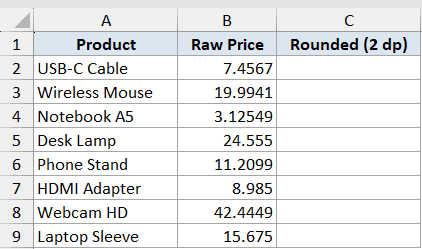
I want to round every raw price to 2 decimal places in one go.
Here is the formula:
=ROUND(B2:B9,2)
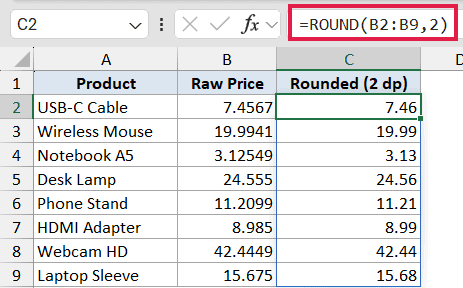
Feeding the whole range B2:B9 into a single formula in cell C2 makes the rounded prices spill down the column in Excel 365. You do not need to copy the formula to each row. One formula handles the entire list, and each price comes back rounded to two decimal places.
Pro Tip: Formatting a cell to 2 decimals only hides the extra digits. The stored value keeps its full precision, so a column of rounded-looking numbers can sum to something that looks off. ROUND changes the real value, so the math matches what you see.
Example 2: Round Scores to a Whole Number
Next, let’s round a set of average scores down to clean integers.
Below is the dataset with student names in column A, the average score in column B, and the rounded value in column C.
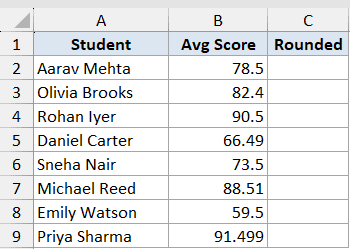
I want to round each average to the nearest whole number.
Here is the formula:
=ROUND(B2,0)
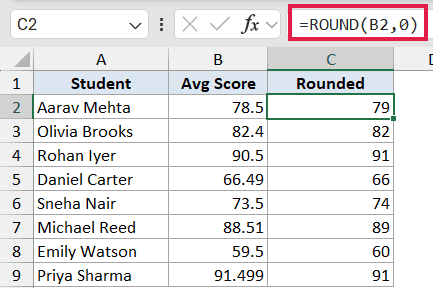
Using 0 for num_digits rounds the value to an integer. Excel rounds a trailing .5 away from zero, so 78.5 becomes 79 and 90.5 becomes 91. It does not use banker’s rounding, where .5 would round to the nearest even number.
Example 3: Round Revenue to the Nearest 1000
Now let’s tidy up some revenue figures for a report.
Below is the dataset with the region in column A, the monthly revenue in column B, and the rounded figure in column C.
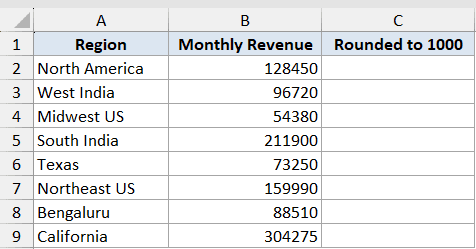
I want to round each revenue figure to the nearest thousand for a clean report.
Here is the formula:
=ROUND(B2,-3)
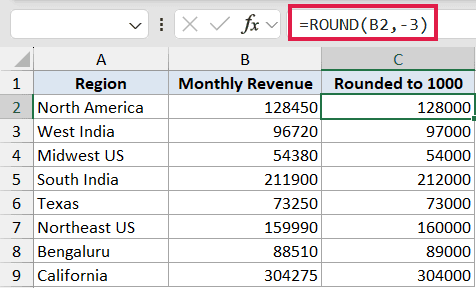
A negative num_digits rounds to the left of the decimal. Here, -3 means the nearest 1000. So 128450 becomes 128000 and 211900 becomes 212000. The figures stay readable without all the trailing digits.
Pro Tip: A negative num_digits is not an error. It tells ROUND to round to the left of the decimal point, so -1 gives you the nearest 10, -2 the nearest 100, and -3 the nearest 1000.
Example 4: Nearest 10 vs Nearest 100
Let’s compare two levels of rounding side by side.
Below is the dataset with the item in column A, the quantity in column B, the nearest 10 in column C, and the nearest 100 in column D.
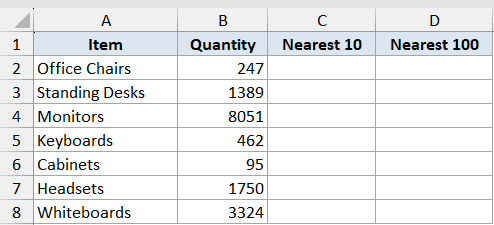
I want to round the same quantity to the nearest 10 and the nearest 100.
Here are the formulas:
=ROUND(B2,-1)
=ROUND(B2,-2)
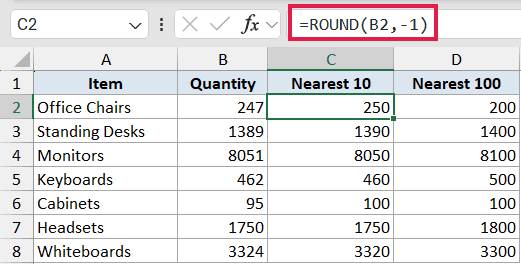
The first formula uses -1 for the nearest 10, and the second uses -2 for the nearest 100. The bigger the negative number, the coarser the rounding gets. So 247 becomes 250 at the nearest 10, and 200 at the nearest 100.
Example 5: Round an AVERAGE Result
Here we round the result of a calculation instead of a single cell value.
Below is the dataset with the month in column A and the daily visitors in column B. The rounded average sits in cell D2, with the header in D1.
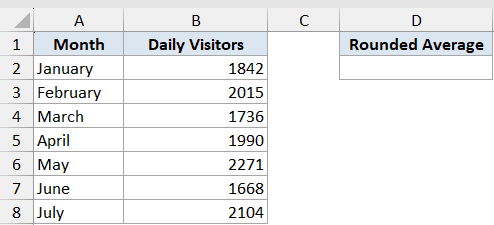
I want to average the daily visitors and round the result to a whole number in one formula.
Here is the formula:
=ROUND(AVERAGE(B2:B8),0)
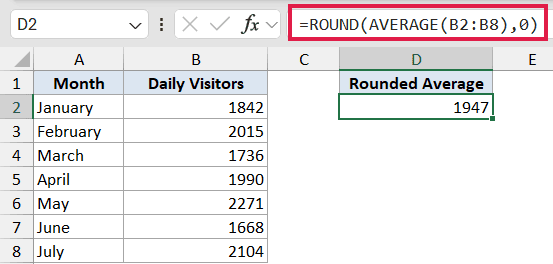
AVERAGE runs first and returns a number with a long decimal tail. Wrapping ROUND around it trims that to a clean whole number. The stored value is now actually rounded, not just visually trimmed by formatting.
Example 6: ROUND vs ROUNDUP vs ROUNDDOWN
Finally, let’s see how the three rounding functions handle the same amounts.
Below is the dataset with the order ID in column A, the amount due in column B, and the three results in columns C, D, and E.
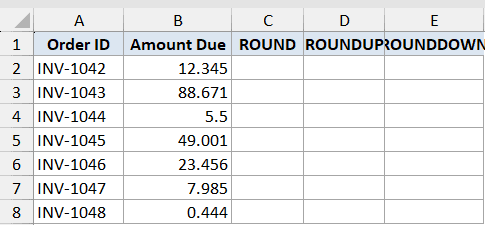
I want to compare ROUND, ROUNDUP, and ROUNDDOWN on the same values.
Here are the formulas:
=ROUND(B2,2)
=ROUNDUP(B2,2)
=ROUNDDOWN(B2,2)
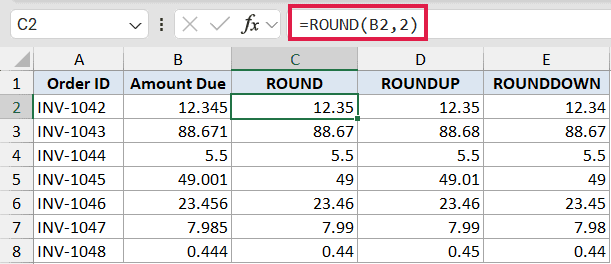
Each one treats the value a little differently:
- ROUND goes to the nearest value, up or down.
- ROUNDUP always pushes away from zero. Use it for billing units so you never undercharge.
- ROUNDDOWN always pulls toward zero. Use it for conservative estimates.
So 12.345 becomes 12.35 with ROUND and ROUNDUP, but 12.34 with ROUNDDOWN.
Tips & Common Mistakes
- Cell formatting only changes the display. The stored value keeps its full precision, so a column of rounded-looking numbers can sum to something that looks wrong. ROUND changes the actual value.
- A negative num_digits is valid, not an error. Use -1, -2, and -3 to round to the nearest 10, 100, and 1000.
- Excel’s ROUND rounds a trailing .5 away from zero, so 2.5 becomes 3 and -2.5 becomes -3. It does not use banker’s rounding.
- Rounding each row first and then summing can differ by a penny or two from summing first and rounding once. Decide which approach your numbers need.
- Use the ROUNDUP function or ROUNDDOWN when you need a guaranteed direction, or MROUND when you need the nearest multiple like 5 or 0.25.
ROUND is one of those small functions you reach for constantly once you know it. Pick the right num_digits and the rest takes care of itself. Just remember it changes the real value, not only the look.
Related Excel Functions / Articles:
- Round Up to the Nearest Whole Number in Excel (Formulas)
- Round to the Nearest Tenth in Excel
- How to Remove Decimals in Excel?
- How to Round Time to the Nearest Quarter Hour in Excel?
- Microsoft Excel Terminology (Glossary)
- How to Sum a Column in Excel?
- Row vs Column in Excel – What’s the Difference?
- Format Numbers to Show in Millions in Excel
- Number.Round Function (Power Query M)
