
The NETWORKDAYS function in Excel counts working days between two dates, excluding Saturdays, Sundays, and any holidays you specify.
It counts both endpoints when they are working days. That makes it useful for workday totals; NETWORKDAYS.INTL supports schedules with different weekend days.
In this article, I’ll show you how to count project workdays, exclude holidays, and calculate the working days remaining before a deadline.
NETWORKDAYS Function Syntax in Excel
The NETWORKDAYS function counts the number of working days between a start and an end date.
=NETWORKDAYS(start_date, end_date, [holidays])
- start_date – the first day of the period. This day is counted.
- end_date – the last day of the period. This day is also counted.
- [holidays] – an optional range of dates to exclude on top of weekends.
NETWORKDAYS always treats Saturday and Sunday as the weekend. Use NETWORKDAYS.INTL if you need a different weekend definition.
When to Use NETWORKDAYS Function
NETWORKDAYS is useful any time you need to measure time in working days rather than calendar days:
- Tracking project duration in working days from start to finish.
- Measuring SLA or ticket resolution time for support teams.
- Calculating how many payroll days fall within a pay period.
- Building a live countdown of working days to a deadline.
- Switching to a custom work week (Friday/Saturday weekend) via NETWORKDAYS.INTL.
Example 1: Count Working Days for a Project
Let’s start with the basic use case: how many working days does a project take?
Below is a dataset with eight projects in column A, their start dates in column B, their end dates in column C, and a blank column D for the working day count.
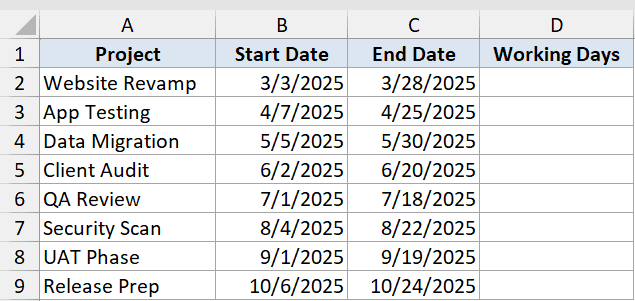
I want to fill column D with the number of working days between the start and end dates for each project.
Here is the formula:
=NETWORKDAYS(B2,C2)
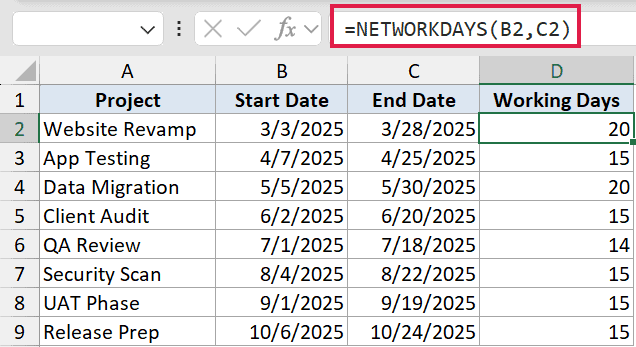
NETWORKDAYS counts every weekday from the start date to the end date, including both boundary days. Website Revamp runs from March 3 to March 28 and returns 20 working days.
Saturdays and Sundays are skipped automatically. No extra arguments needed for the basic count.
Pro Tip: Both the start date and the end date are included in the count. A project that opens and closes on the same Monday returns 1, not 0.
Example 2: Exclude Public Holidays
Here’s how to account for public holidays on top of weekends.
Below is the same project dataset in columns A through D. A holiday table sits in columns F and G, listing six public holidays in column G that should be excluded from the count.
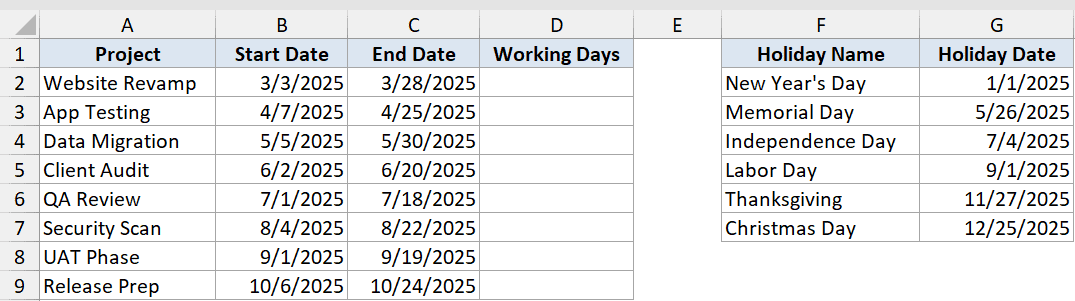
I want to subtract any public holidays from the working day count by passing the holiday list as a third argument.
Here is the formula:
=NETWORKDAYS(B2,C2,$G$2:$G$7)
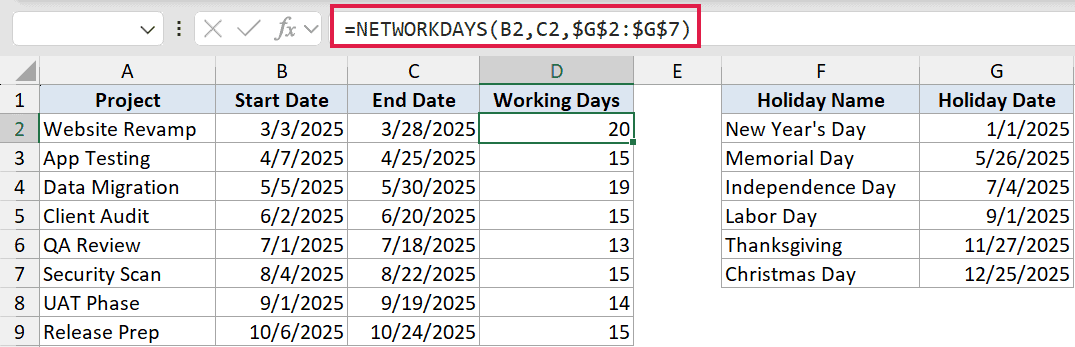
The third argument points to the holiday range. NETWORKDAYS excludes any date in that range that also falls on a weekday.
Data Migration (May 5 to May 30) drops from 20 to 19 because Memorial Day (May 26) is a Monday and falls inside that window.
The dollar signs lock $G$2:$G$7 so the holiday range doesn’t shift when you fill the formula down for each project.
Pro Tip: Always lock the holiday range with $ signs. Without them, the range shifts row-by-row as you fill down, and rows near the bottom of your list will reference empty cells or wrong dates.
Example 3: All Projects in One Formula (MAP)
Now let’s cover all eight projects with a single formula instead of filling down.
Below is the same project dataset with projects in column A, start dates in column B, end dates in column C, and column D waiting for the results.
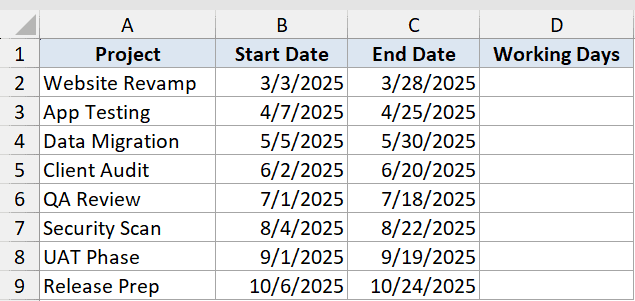
I want one formula in D2 that spills a working day count for every project in the list.
Here is the formula:
=MAP(B2:B9,C2:C9,LAMBDA(s,e,NETWORKDAYS(s,e)))
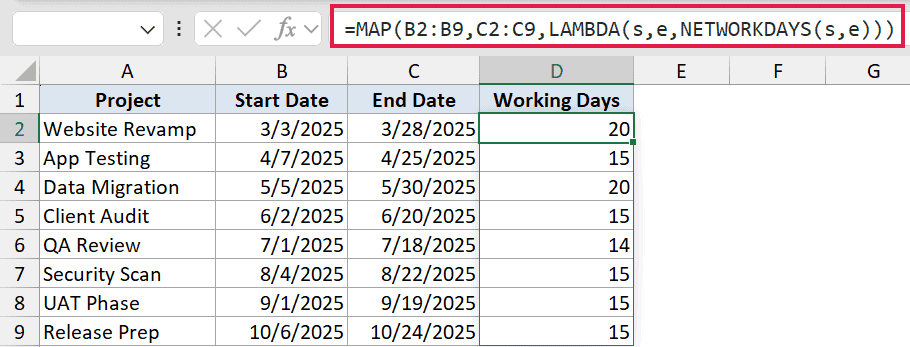
NETWORKDAYS does not accept whole ranges directly. Typing =NETWORKDAYS(B2:B9,C2:C9) returns a #VALUE! error because the function expects a single start and a single end date.
MAP solves this by walking the two columns together. The LAMBDA is simply: “for each start s and each end e, give me NETWORKDAYS(s,e).” The results spill down column D automatically, so one formula covers the whole list.
Pro Tip: MAP and LAMBDA are available in Excel 365 and Excel 2024. If you’re on an older version, fill the formula down the traditional way instead.
Example 4: Custom Weekend With NETWORKDAYS.INTL
Sometimes Saturday and Sunday aren’t the weekend. Here’s how to handle that.
Below is a dataset of six support tickets in column A, with their opened dates in column B, closed dates in column C, and a blank column D for working days under a Friday and Saturday weekend schedule.
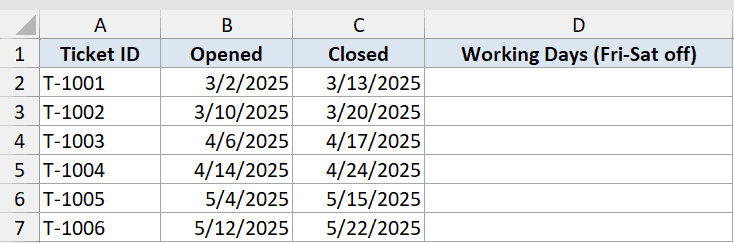
I want to count working days where Friday and Saturday are the weekend, which is common in Gulf-region businesses.
Here is the formula:
=NETWORKDAYS.INTL(B2,C2,7)
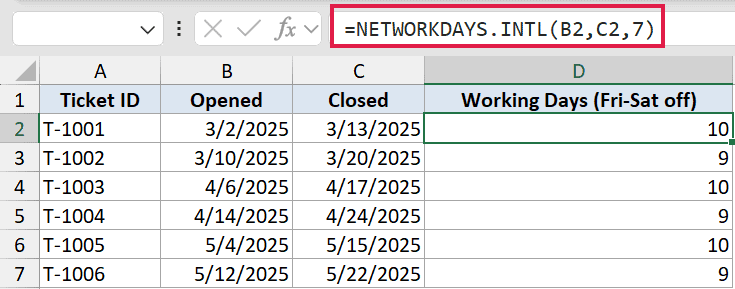
NETWORKDAYS.INTL takes a third argument called a weekend code. Code 7 means Friday and Saturday are non-working days.
T-1001 (March 2 to March 13) returns 10 working days. Plain NETWORKDAYS would count those Fridays as working days and return a higher number, which would be wrong for this team.
The full list of weekend codes is available on the Microsoft Learn page for NETWORKDAYS.INTL.
Pro Tip: NETWORKDAYS.INTL also accepts a custom weekend string like “0000011” (seven characters, 1 = non-working). This lets you define any combination of non-working days, including mid-week rest days.
Example 5: Working Days Remaining With TODAY
For the final example, let’s build a live countdown to each project deadline.
Below is a dataset with five projects in column A, their start dates in column B, their deadlines in column C, and a blank column D for the working days remaining.
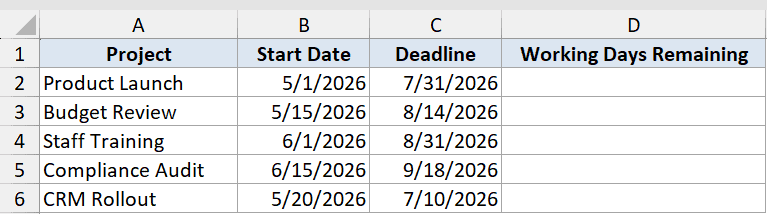
I want to count how many working days are left from today to each project deadline, and have the number update automatically every day.
Here is the formula:
=NETWORKDAYS(TODAY(),C2)
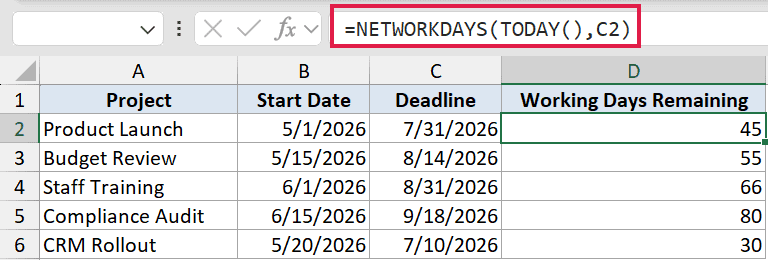
TODAY returns the current date each time the workbook recalculates. NETWORKDAYS then counts the working days from today to the deadline in column C.
The result ticks down by one each working day without any manual updates. If today’s date moves past a deadline, the result goes negative, which doubles as a quick overdue flag.
If you want calendar days (not just working days) from a date to today, see how to count days from date to today for a simpler approach.
Pro Tip: WORKDAY is the inverse of NETWORKDAYS. Instead of counting the days between two dates, WORKDAY adds a number of working days to a start date and returns the resulting date. Handy for calculating delivery dates and due dates.
Tips & Common Mistakes
- Both the start date and the end date are included in the count. If the two dates are the same weekday, the result is 1, not 0.
- NETWORKDAYS only excludes Saturday and Sunday. If your business has a different weekend, use NETWORKDAYS.INTL and pick the right weekend code.
- Always lock the holiday range with $ signs when filling down. Without the lock, the range drifts and the formula silently uses the wrong dates.
- NETWORKDAYS does not spill when given two full column ranges. Either wrap it in MAP (Excel 365/2024) or fill it down the classic way.
- WORKDAY is the companion function: give it a start date and a number of working days, and it returns the resulting date. Think of NETWORKDAYS as the “how many days apart” function and WORKDAY as the “what date is N working days from now” function.
- Need to measure time in calendar days instead of working days? The DATEDIF function handles date differences in days, months, and years without any weekend logic.
- To simply calculate days between two dates including weekends, you can also subtract the two dates directly or use the DAYS function.
NETWORKDAYS is one of those functions that seems simple until you factor in weekends, holidays, and different work schedules. Once you know the three arguments and when to reach for NETWORKDAYS.INTL, it handles most real-world scheduling and SLA calculations cleanly.
Across these five examples you saw NETWORKDAYS used for basic project tracking, holiday-aware counts, a MAP-powered spilling formula, a custom Gulf-region weekend, and a live countdown with TODAY.
Related Excel Functions / Articles:
