
The WEEKNUM function in Excel returns a date’s week number according to a specified week-numbering system.
The return type controls the week’s starting day and, for ISO numbering, how the first week is defined. Choose it to match the reporting convention you need.
In this article, I’ll show you how to choose a week-numbering system, use Monday-based weeks, and understand dates near a year boundary.
WEEKNUM Syntax
Here is the syntax of the WEEKNUM function:
=WEEKNUM(serial_number, [return_type])
- serial_number – The date you want the week number for. This should be a real Excel date, either a cell reference, a date built with the DATE function, or the result of a formula that returns a date.
- return_type – Optional. A number that tells Excel which day the week starts on, and which numbering system to use. If you skip it, Excel uses 1 (Sunday-start, January 1 falls in week 1).
All return_type Codes (Reference Table)
Here’s the full list of values you can pass as the second argument. The first block (1 through 17) all use the same week-1 rule (the week containing January 1). Only the start-of-week day changes.
Code 21 is the odd one out and uses ISO 8601 rules.
| return_type | Week starts on | Week 1 rule |
|---|---|---|
| 1 (or omitted) | Sunday | Week containing January 1 |
| 2 | Monday | Week containing January 1 |
| 11 | Monday | Week containing January 1 |
| 12 | Tuesday | Week containing January 1 |
| 13 | Wednesday | Week containing January 1 |
| 14 | Thursday | Week containing January 1 |
| 15 | Friday | Week containing January 1 |
| 16 | Saturday | Week containing January 1 |
| 17 | Sunday | Week containing January 1 |
| 21 | Monday | Week containing the first Thursday (ISO 8601) |
A quick note on 2 vs 11. They both start the week on Monday and look identical in practice. Code 11 was added later as part of a more consistent set (11 through 17), and 2 is the older code Excel kept around for backward compatibility.
Either one works fine if you want a Monday-start, January-1 week.
Code 21 is the only one that follows the ISO standard, and that’s worth its own example.
When to Use WEEKNUM
Use this function when you need to:
- Group daily data into weekly buckets for reporting
- Build weekly sales, attendance, or production summaries
- Tag rows by the week of the year for filtering or pivot tables
- Match against ISO week numbers used in payroll or project planning
- Figure out which week a given date belongs to without counting manually
Let me show you a few practical examples of how to use WEEKNUM.
Example 1: Get the Week Number of a Date
Let’s start with a simple example.
Below is a list of dates in column A. I want to find the week number of the year for each date using the default settings (Sunday-start).
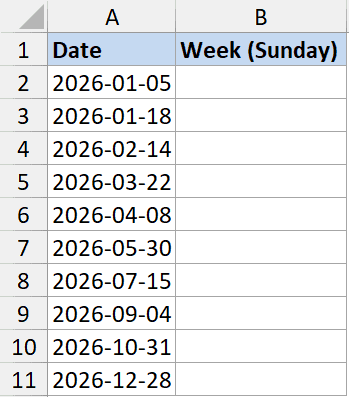
Here is the formula:
=WEEKNUM(A2)
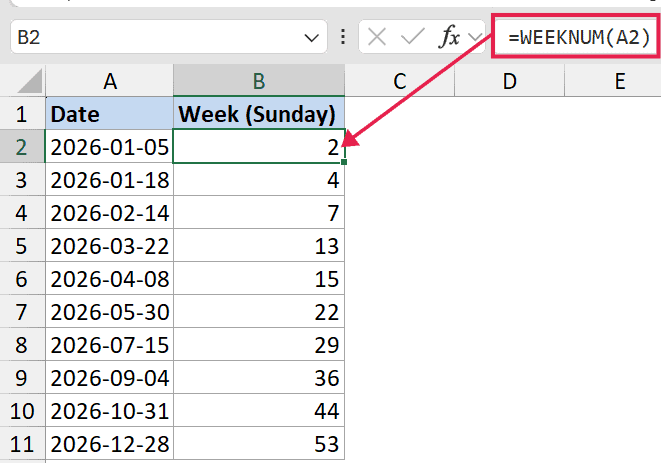
Enter this in B2 and copy it down the column. Since I haven’t passed the second argument, Excel defaults to return_type 1, which means the week starts on Sunday and the week containing January 1 is treated as week 1.
So a date in early January returns 1, and a date in the last week of December returns something close to 52 or 53.
If your result shows up as a date instead of a number, change the cell format to General or Number.
Example 2: Start the Week on Monday
Here’s another practical scenario.
In a lot of countries (and most business calendars I’ve worked with), the week starts on Monday, not Sunday.
To switch WEEKNUM over, pass 2 as the second argument.
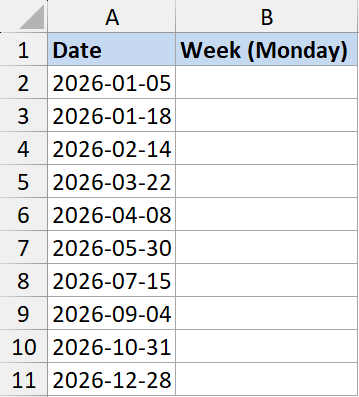
I want the same week numbers as Example 1, but using a Monday-start week.
Here is the formula:
=WEEKNUM(A2, 2)
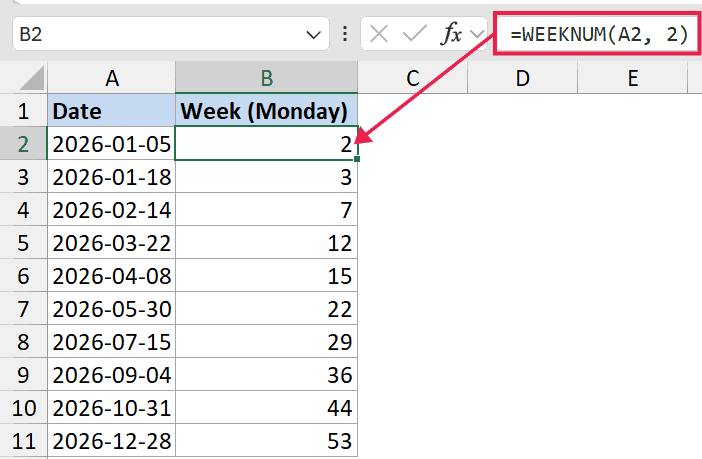
In the above formula, the 2 tells Excel to treat Monday as the first day of the week. The numbering rule is still the same as the default (the week containing January 1 is week 1), only the start-of-week shifts.
For dates that fall on a Sunday, this can change the week number compared to return_type 1. So if you swap between modes, double-check the boundary dates.
Example 3: ISO 8601 Week Numbers (return_type 21)
Now let’s look at something more interesting.
A lot of European businesses, payroll systems, and project tools use ISO 8601 week numbers. The two big differences from the default behavior are:
- The week always starts on Monday.
- Week 1 is the week containing the first Thursday of the year (not January 1).
To get an ISO week number, pass 21 as the second argument.
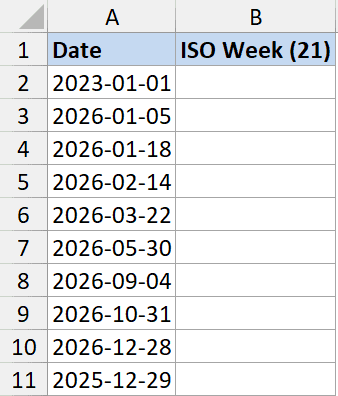
Below I have a dates dataset, and I want the ISO week number for each date in column A.
Here is the formula:
=WEEKNUM(A2, 21)
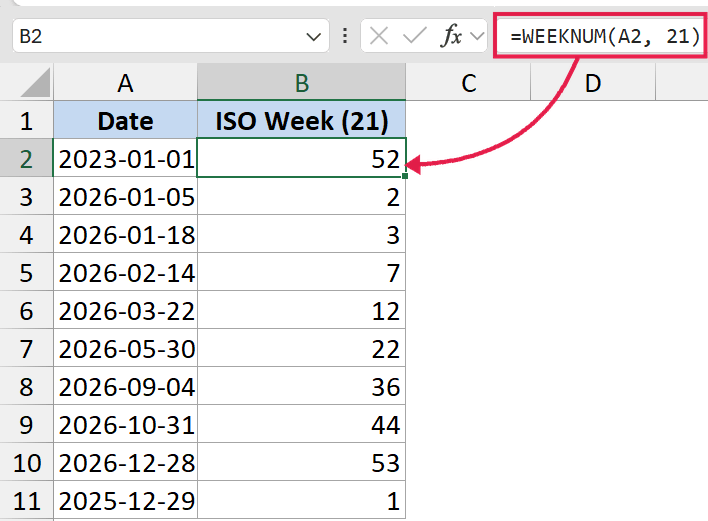
The result you get here can be one or two off from the default WEEKNUM, especially around the start and end of the year.
For example, January 1, 2023, was a Sunday. With the default WEEKNUM, it returns 1. With ISO rules (return_type 21), the same date returns 52, because the week of January 1, 2023, had its first Thursday in 2022.
If you only ever need ISO week numbers, there’s a cleaner alternative: the ISOWEEKNUM function, which I cover next.
Example 4: WEEKNUM vs ISOWEEKNUM
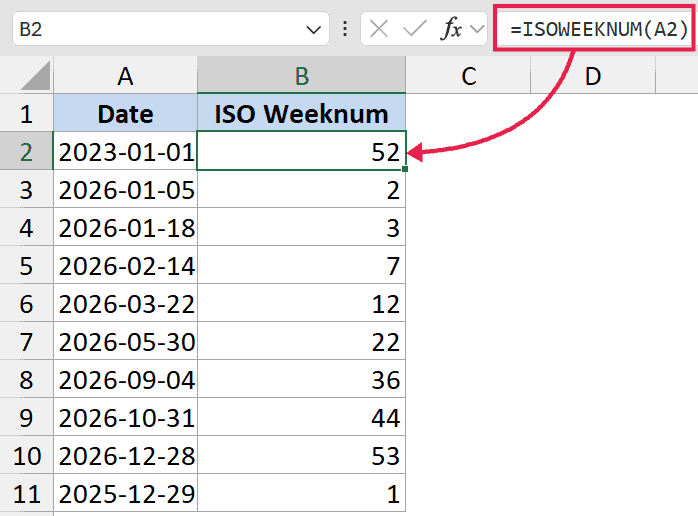
ISOWEEKNUM does exactly what =WEEKNUM(date, 21) does, just without the second argument.
=ISOWEEKNUM(A2)
So when should you use which?
- Use ISOWEEKNUM when you specifically need ISO 8601 week numbers and don’t want the chance of someone changing the second argument by mistake. Cleaner and self-documenting.
- Use WEEKNUM when you need flexibility, like Sunday-start weeks for a US fiscal calendar, or when you need to switch between numbering systems in the same workbook.
If your team works across regions or with payroll systems, ISO is usually the safer default.
Example 5: The Year-Boundary Gotcha
This is the part that trips most people up.
A date in late December can belong to week 1 of the next year under ISO rules, and a date in early January can belong to week 52 or 53 of the previous year.
So if you’re building a YEAR + WEEKNUM key for grouping (like 2026-01), you cannot just use the YEAR of the date. That gives you the wrong year for those edge dates.
For ISO, the correct year is the ISO year, which Excel doesn’t have a direct function for. A common workaround is:
=YEAR(A2 - WEEKDAY(A2, 2) + 4)
This shifts the date to the Thursday of its ISO week, then takes the year of that Thursday. Pair it with ISOWEEKNUM(A2) and you get a clean ISO year + week label that won’t break around January 1.
If you’re using non-ISO WEEKNUM (codes 1 through 17), you don’t have this problem. Week 1 is always tied to January 1, so YEAR and WEEKNUM stay aligned. You just have to live with weeks that get split across years.
If what you actually want is the count of weeks between two dates rather than the week number of a single date, that’s a different problem. See convert number of days to weeks in Excel for that one.
Example 6: Spill WEEKNUM Across a Range (the +0 Trick)
If you’re on Excel 365 and you’d rather write one formula instead of dragging WEEKNUM down a column, there’s a workaround.
WEEKNUM is a legacy function from the old Analysis Toolpak, so it doesn’t natively spill the way modern functions do.
If you write =WEEKNUM(A2:A11), you’ll get just one result, not an array. The fix is to add +0 (or --) to coerce the range into an array first.
=WEEKNUM(A2:A11+0)
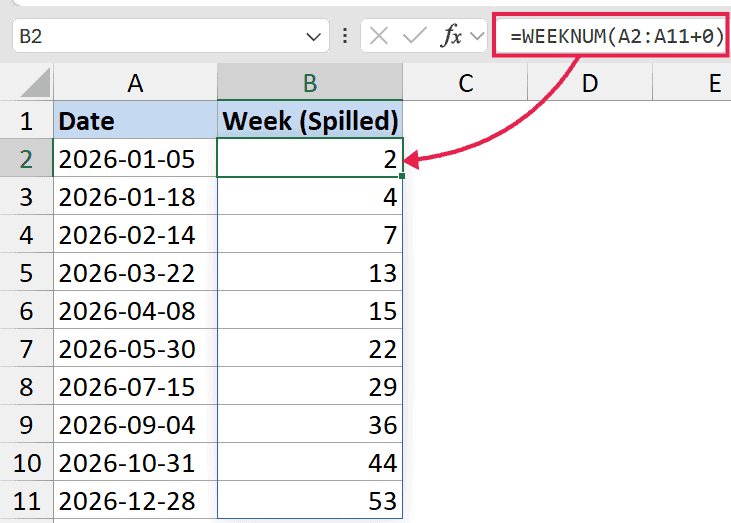
The +0 does nothing to the dates themselves (adding zero leaves the date unchanged), but it forces Excel to evaluate A2:A11 in an array context. Once it’s an array, WEEKNUM happily processes one date at a time and spills the results down the column.
The same trick works with the second argument:
=WEEKNUM(A2:A11+0, 2)
This works for other legacy date functions too: EDATE, EOMONTH, WORKDAY, NETWORKDAYS, and ISOWEEKNUM (though some of these spill cleanly without the trick on newer 365 builds, the +0 version always works as a fallback).
Tips & Common Mistakes
- WEEKNUM does not spill on its own. Write
=WEEKNUM(A2)and copy down, or use the+0trick from Example 6 (=WEEKNUM(A2:A11+0)) if you want a single spilling formula. - Result shows as a date, not a number. Excel sometimes auto-formats the cell to match the source date column. Change the cell format to General or Number.
- Different countries, different defaults. If you’re sharing a file with someone overseas, don’t assume Sunday-start weeks. ISO (21) or Monday-start (2 or 11) is usually safer for international workbooks.
- #NUM! error. This happens when you pass an invalid return_type (anything other than 1, 2, 11-17, or 21). Double-check the second argument.
- #VALUE! error. Usually means the first argument isn’t a real date. A text string like “Jan 5” won’t always work. Convert it to a real date first using DATEVALUE or one of the other text-to-date methods.
- Weeks 52 vs 53. Some years have 53 ISO weeks (years where January 1 falls on a Thursday, or leap years where it falls on a Wednesday). If you’re hardcoding week numbers anywhere, account for week 53.
- Don’t confuse with WEEKDAY. WEEKDAY returns the day of the week (1 to 7). WEEKNUM returns the week of the year (1 to 53). Easy to mix up by name.
In this article, I covered how the WEEKNUM function in Excel works, how to switch between Sunday-start and Monday-start weeks, the full list of return_type codes, and how the ISO option (21) differs from the default.
Because WEEKNUM is a legacy function, the per-cell pattern is the reliable default, but the +0 array trick gets you a single spilling formula in 365 if you want one.
For payroll, project planning, or weekly reports, the ISO version (or ISOWEEKNUM directly) is usually the one you want.
Related Excel Functions / Articles:
- Calculate Days Between Two Dates in Excel (Workdays/Weekends)
- How to Convert Serial Numbers to Date in Excel
- Get End of Year Date in Excel (Formula)
- Days Between Dates Calculator
- Count Days from a Date to Today in Excel (Formula)
- How to Convert Date to Quarter in Excel
- How to Apply Short Date Format in Excel?
- How to Convert Month Name to Number in Excel?
- Find Last Monday of the Month Date in Excel (Formula)
- How To Highlight Weekends In Excel?
- How to Apply Long Date Format in Excel?
- How to Convert Date to Serial Number in Excel?
