
If you know a loan’s true yearly cost but need the stated annual rate behind it, you’re converting an effective rate back to a nominal rate. When interest compounds more than once a year, the effective rate sits higher than the plain rate a lender quotes.
Excel turns an effective rate back into its nominal rate in one step. In this tutorial, I’ll show you two ways to calculate the nominal interest rate in Excel: the built-in NOMINAL function and a manual formula that shows the math behind it.
Method #1: Using the NOMINAL Function
Excel has a dedicated NOMINAL function that converts an effective annual rate into its nominal rate.
You feed it the effective rate and how many times a year the loan compounds, and it hands back the stated rate. This is the fastest route, so it’s the one I reach for first.
The gap between the two rates comes from compounding, the same force behind compound interest.
Below I have a small business weighing eight loan offers. For each lender I know the effective annual rate (what the loan actually costs over a year) and how many times a year it compounds.
I want the nominal (stated) rate so I can compare offers on the same footing. Four of these compound monthly, two quarterly, and two semi-annual.
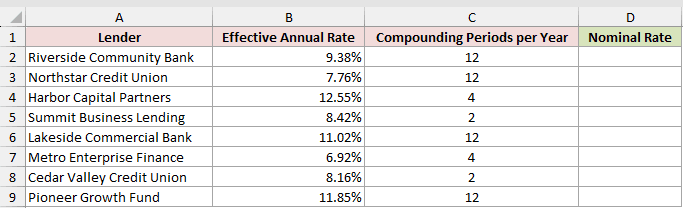
Here is the formula:
=NOMINAL(B2,C2)
I typed it in cell D2, next to the first lender.
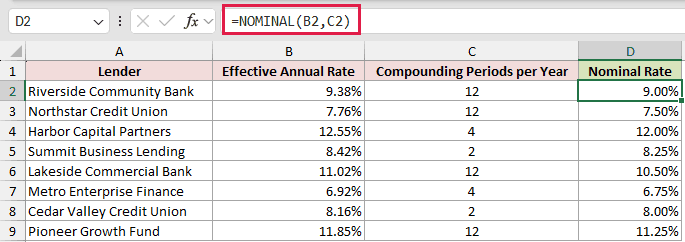
Copy the formula down to D9 and every lender fills in, each row using its own rate and compounding count from columns B and C. NOMINAL is one of Excel’s older functions that expects single values, so pointing it at the whole range B2:B9 returns a #VALUE! error instead of spilling, even in Excel 365.
How does this formula work?
NOMINAL takes two arguments. The first is the effective annual rate, and the second is the number of compounding periods per year.
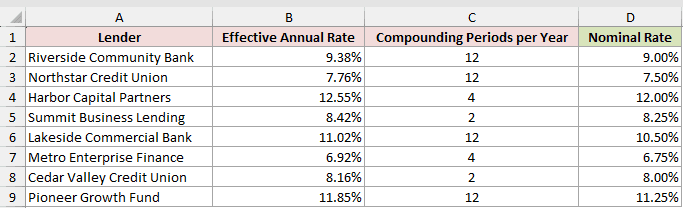
It reverses the compounding math to work out the stated rate that would produce that effective yield. For Riverside Community Bank, the 9.38% effective rate at monthly compounding converts to a 9.00% nominal rate.
Harbor Capital Partners compounds quarterly, so its 12.55% effective rate maps back to a 12.00% nominal rate. Each row uses its own compounding value from column C, which is why the answers differ across offers.
Note: NOMINAL returns a decimal like 0.09, so format the result cells as Percentage. The compounding argument should be a whole number of periods per year. Excel truncates a noninteger npery, and NOMINAL returns a #NUM! error if the effective rate is zero or less or npery is below 1.
Method #2: Using a Manual Formula
If you’d rather see the actual math instead of a black-box function, you can write the conversion out yourself. This is handy when you want to explain the number to someone or drop the calculation into a sheet where NOMINAL isn’t obvious.
I’m using the same eight loan offers, with the NOMINAL results from Method #1 still in column D. Column B has each effective annual rate, and column C has the compounding periods per year.
I’ll drop the manual formula into column E so you can see it line up.
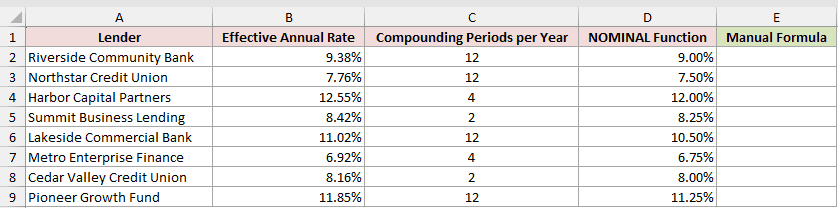
Here is the formula:
=C2:C9*((1+B2:B9)^(1/C2:C9)-1)
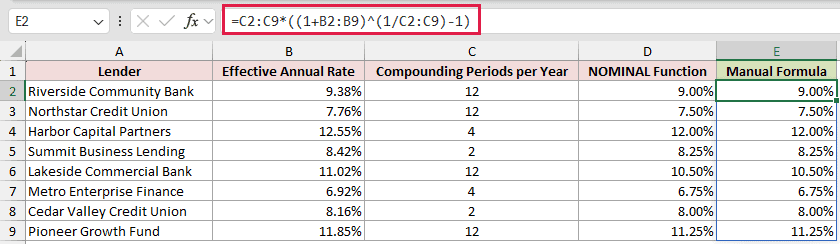
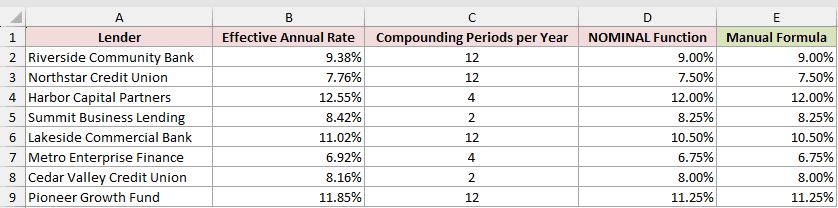
In Excel 365 or Excel 2021, this spills down column E and returns the same nominal rates as Method #1: 9.00%, 7.50%, 12.00%, and so on. In Excel 2019 or earlier, use =C2*((1+B2)^(1/C2)-1) and copy it down. Column E matches column D row for row.
How does this formula work?
The piece (1+B2:B9)^(1/C2:C9) takes the effective rate, adds 1, and finds the per-period growth factor by taking the root that matches the compounding frequency.
Subtracting 1 leaves the rate for a single compounding period. Multiplying by the number of periods in column C annualizes it back into the nominal rate. It’s the algebraic inverse of the formula that builds an effective rate.
Note: With a whole-number compounding frequency, this formula returns what NOMINAL returns, so use it when you want the steps visible. The result is a decimal, so format column E as Percentage here too.
Additional Notes About Calculating Nominal Interest Rate in Excel
- Keep nominal and effective straight. The nominal rate is the stated annual rate before compounding. The effective rate is what you actually pay across the year once compounding is applied.
- The compounding periods must match how the loan really compounds: 12 for monthly, 4 for quarterly, 2 for semi-annual. A wrong count gives a wrong nominal rate.
- Watch your stored precision. Typing an effective rate rounded to two decimals shifts the nominal by a few thousandths of a percent. It looks identical at a two-decimal display, but it shows up if you widen the decimals, so store the exact effective rate when you can.
- EFFECT is the reverse function.
=EFFECT(nominal_rate, npery)turns a nominal rate back into its effective rate, which is a quick way to sanity-check your conversion.
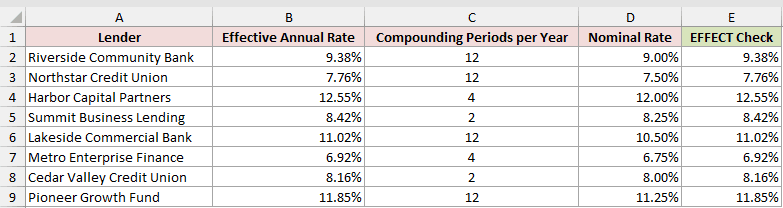
Running EFFECT on the nominal rates from Method #1 returns the original effective rates, confirming the two functions undo each other.
Frequently Asked Questions
What’s the difference between nominal and effective interest rate?
The nominal rate is the stated annual rate before compounding is counted. The effective rate is the real yearly rate after compounding is applied. On a loan that compounds monthly, a 9.00% nominal rate works out to a 9.38% effective rate.
Does Excel have a function for effective interest rate too?
Yes. The EFFECT function does the reverse of NOMINAL. =EFFECT(nominal_rate, npery) returns the effective annual rate from a nominal rate and its compounding frequency. NOMINAL and EFFECT undo each other.
Why is the nominal rate lower than the effective rate?
Whenever interest compounds more than once a year, you earn interest on earlier interest, so the effective rate climbs above the stated nominal rate. With annual compounding, where npery is 1, the two rates are identical.
Conclusion
You now have two ways to calculate the nominal interest rate in Excel.
The NOMINAL function is the quickest and the one I’d reach for by default, while the manual formula is there when you want the math on show. Both return the same stated rate from any effective rate and compounding frequency.
Other Excel articles you may also like:
