
Every Excel worksheet stops at 1,048,576 rows and 16,384 columns.
That’s a hard ceiling.
No setting, add-in, or amount of RAM raises it, and it hasn’t changed since Excel 2007.
The limit is per worksheet though, not a cap on every analysis.
Excel for Windows includes Power Query and the Data Model, which can work with millions of source rows without loading them all to the grid.
Microsoft 365 for Mac includes Power Query, but not Data Models.
Below I’ll show you how to check the limit, why the number is so oddly specific, and how to pick the right way around it when a dataset outgrows the grid.
What Is Excel’s Row Limit?
Every worksheet in the modern .xlsx format has exactly 1,048,576 rows and 16,384 columns (the last one is XFD).
Here are the hard limits for each file format:
| File format | Maximum rows | Maximum columns | Last column |
|---|---|---|---|
| .xlsx (Excel 2007 onward) | 1,048,576 | 16,384 | XFD |
| .xls (Excel 97-2003) | 65,536 | 256 | IV |
Note: If you’re still saving files in the older .xls format, switch to .xlsx. The old format caps out at 65,536 rows, which is only about 6% of what a modern worksheet holds.
How to Check the Row Limit Yourself
Before you reach for a workaround, it helps to confirm you’ve actually hit the ceiling. Excel gives you two quick ways to check, so you know whether the data is really too big or just looks that way.
Below I have a flight schedule dataset with Flight ID, origin, and departure time. Imagine it’s the top of a table that keeps growing every day.
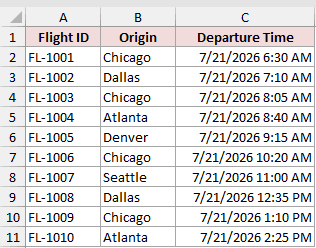
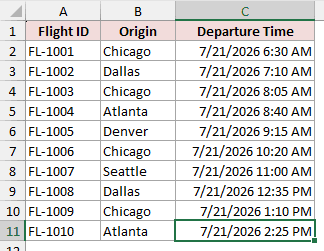
To find the last cell that contains data or formatting, press Ctrl + End. Excel jumps to the intersection of the last used row and the last used column. Formatting in otherwise empty cells can push that location past your actual data.
To see the sheet’s absolute limit, click any cell in an empty column and press Ctrl + Down Arrow. Excel shoots straight down to row 1,048,576, the last row on the sheet.
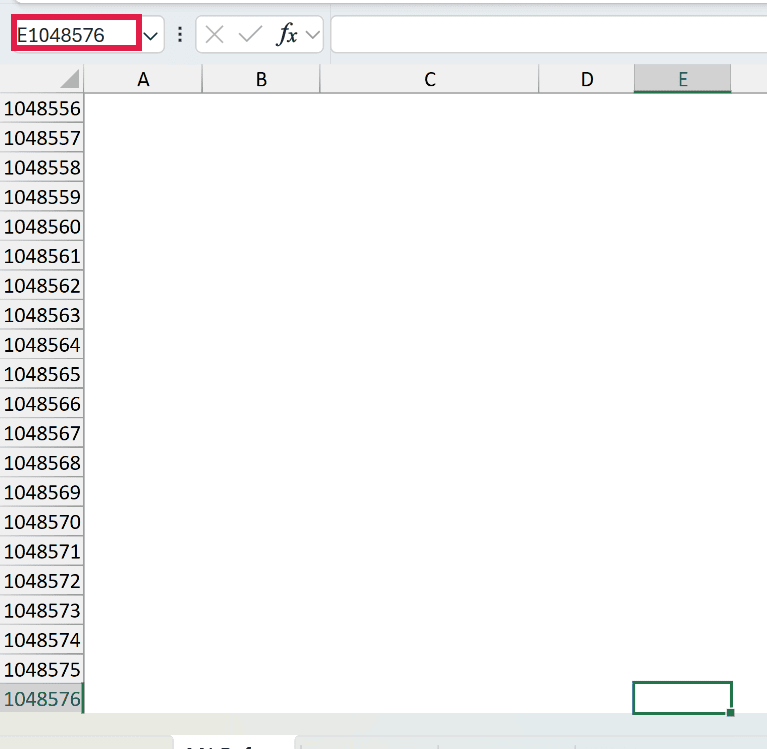
You can also use the Name Box, the small box to the left of the formula bar. Type A1048576, press Enter, and you’ll land on the very last row of column A.

Why Is the Limit Exactly 1,048,576 Rows?
1,048,576 looks random. It isn’t.
It’s 2 to the power of 20, and the 16,384-column limit is 2 to the power of 14.
The older .xls limits, 65,536 rows and 256 columns, are powers of two as well.
For datasets beyond the grid, Excel for Windows provides Power Query and the Data Model. Microsoft 365 for Mac includes Power Query, but Excel for Mac does not support Data Models.
Which Option Should You Pick?
You have four realistic options once your data is bigger than a sheet.
The right one depends on what you need to do with the rows, not on how many there are. Click the answer that sounds like you:
What do you need to do with the rows that don’t fit?
And here’s how the four compare:
| Option | Pick It When | Rows It Can Handle | Effort |
|---|---|---|---|
| Power Query | A filtered or summarized slice is all you need on the sheet | More than a worksheet; sheet output must fit the grid | Low |
| Power Pivot Data Model | You need to analyze every row | Up to 1,999,999,997 rows per table; practical limit depends on resources | Medium |
| Split across sheets or files | Every raw row must stay visible in Excel | 1,048,576 per sheet | Low |
| Database or Power BI | The data keeps growing or is shared by a team | Far above the worksheet limit; depends on the platform and capacity | Higher |
Option #1: Power Query (Shrink the Data Before It Lands)
Power Query is Excel’s built-in import engine. It lives on the Data tab, in the Get & Transform Data group. The Get Data button is the door in.
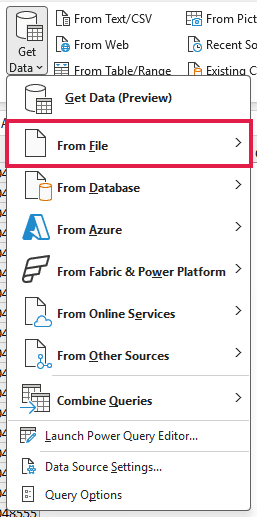
Instead of opening a big file directly, you connect to it.
Power Query shows a preview in its editor, where you can filter rows or group them into a summary. Only the smaller result needs to land on a worksheet.
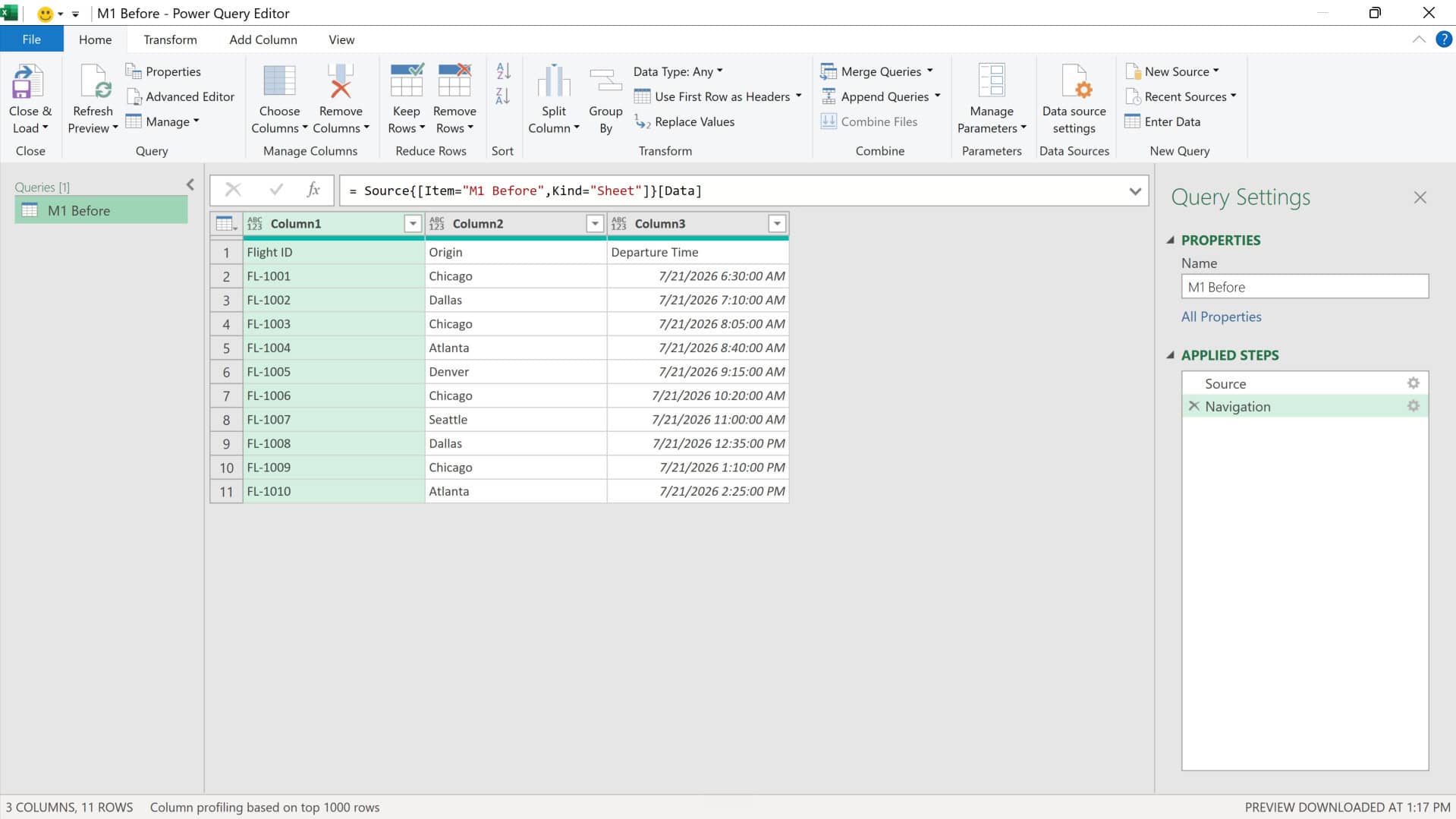
For example, if a source contains ten million rows and you load only the 40,000 that matter, the worksheet limit never comes up.
It reads CSV and text files, other workbooks, entire folders of files, databases, and web pages. If you haven’t used it before, my Getting Started with Power Query guide covers the basics.
Note: A query doesn’t refresh on its own. When the source data changes, go to the Data tab and click Refresh All to pull the latest rows through.
Pick Power Query when a filtered or summarized version of the data is all you really need on the sheet. For most people who hit the row limit, that’s the honest answer.
Option #2: The Power Pivot Data Model (Analyze Every Row)
The Data Model is an in-memory engine in Excel for Windows. Rows loaded into it do not sit on a worksheet, so the worksheet ceiling does not apply.
Microsoft lists a maximum of 1,999,999,997 rows per table, but available memory and system resources set the practical limit.
You load the data into the model instead of onto a sheet (choose Only Create Connection and tick Add this data to the Data Model during the import), then build a PivotTable on top of the model. The full dataset stays in memory and only your summary appears on the sheet.
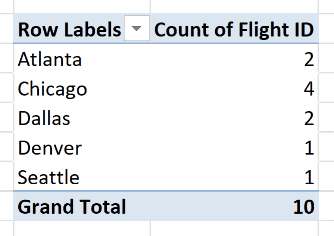
Note: Data Models are not supported in Excel for Mac. On Windows, Microsoft says 64-bit workbook size is limited by available memory and system resources, while 32-bit Excel is constrained by its address space. Microsoft 365 for Mac still supports Power Query import and refresh features.
Pick the Data Model when you need to analyze every row rather than a slice. Sales history across 5 million transactions, summarized by month and region, is a Data Model job.
Option #3: Splitting the Data Across Sheets or Files
The row limit applies to a worksheet, not a workbook. So the low-tech fix is to split: a million rows on this sheet, the next million on that one, or across separate files.
You don’t have to do the splitting by hand. In Power Query, the Keep Rows > Keep Range of Rows command loads any slice of the source, so each chunk can have its own query and its own sheet.
The catch is that your data is now fragmented. Formulas across sheets get clumsy, and a standard PivotTable based on one table cannot analyze all the chunks together.
Append them with Power Query or use a supported multi-table or Data Model route before building the PivotTable.
Pick splitting when someone has to scroll and edit every raw row in Excel, like an archive that gets checked by hand.
Option #4: Moving the Data Out of Excel
Sometimes the data has simply outgrown Excel. If it keeps growing, gets updated by several people, or sits in the tens of millions of rows, move it into a proper database (Access, SQL Server, or a cloud database) or a reporting tool like Power BI.
Excel doesn’t drop out of the picture. Get Data connects to all of these, so the database does the storing and Excel stays your front end for the analysis.
There’s also a .csv trap worth knowing about. A .csv file can contain more than 1,048,576 rows because it is plain text. If you open it directly in Excel, the grid loads only what fits and warns that some data was not loaded.
Use Get Data with Power Query to analyze the complete file without overwriting the original.
Frequently Asked Questions
How many rows can Excel handle in a worksheet?
A single worksheet holds up to 1,048,576 rows and 16,384 columns in the modern .xlsx format. The older .xls format is far smaller, capping out at 65,536 rows and 256 columns.
Can I increase the number of rows in an Excel worksheet?
No, the row count is a fixed structural limit you can’t change in settings. To work with more data, you bring it in through Power Query, load it into the Data Model, or split it across multiple worksheets.
Does the row limit differ between .xlsx and .csv files?
When Excel opens either format on a worksheet, the grid limit is 1,048,576 rows. A .csv can contain more rows as plain text, but Excel loads only what fits and warns that some data was not loaded.
Will Excel crash if I try to exceed the row limit?
Usually not. When you open a text or CSV file that is too large for the grid, Excel loads only what fits and warns that some data was not loaded. Slowdowns and crashes depend more broadly on workbook complexity, memory, and system resources.
Conclusion
I’ve shown you where Excel’s worksheet limit ends and the main ways to work with larger datasets. For most cases, I recommend starting with Power Query. I hope you found this article helpful.
Other Excel articles you may also like:
